
Recuperação de fotos excluídas: como recuperar fotos excluídas no Windows

Recuperação de fotos excluídas Muitas vezes, é possível recuperar fotos quando elas são excluídas acidentalmente de um PC com Windows, cartão SD, pen drive ou disco rígido externo. Na maioria dos casos, ao excluir uma foto, o que ocorre é a remoção de sua referência no sistema de arquivos, e não o apagamento imediato dos dados subjacentes. A recuperação continua sendo possível até que novos dados sobrescrevam o mesmo espaço de armazenamento.
Pare de usar o dispositivo afetado assim que perceber a perda. Não tire novas fotos no cartão SD, não copie arquivos para o dispositivo nem instale softwares de recuperação no mesmo local. Este guia explica como recuperar fotos excluídas usando a Lixeira, serviços em nuvem, backups do Windows, Versões Anteriores e Magic Data Recovery.
Para conhecer outros cenários de perda de fotos, acesse nosso Recuperação de fotos guia.
Compatível com Windows 7/8/10/11 e Windows Server
Índice
É possível recuperar fotos excluídas?
Sim, muitas vezes é possível recuperar fotos excluídas, desde que seus dados não tenham sido sobrescritos. Comece verificando a Lixeira, a lixeira na nuvem e os backups existentes. Se as fotos foram excluídas permanentemente, removidas de um cartão SD ou perdidas após a formatação, faça uma varredura no dispositivo de armazenamento original com um software de recuperação de fotos.
As chances de recuperação costumam ser maiores em discos rígidos (HDDs), cartões SD e pen drives que não tenham sido reutilizados. A recuperação a partir de um SSD pode ser mais difícil, pois o TRIM pode limpar automaticamente os blocos de armazenamento excluídos.
| Situação de perda de fotos | Primeira ação recomendada | Chance de recuperação |
|---|---|---|
| Excluídos recentemente no Windows | Verificar a Lixeira | Alta |
| Excluído do OneDrive | Verificar a Lixeira do OneDrive | Alto dentro do período de retenção |
| Shift + Delete | Faça uma verificação na unidade original | Depende da substituição |
| Excluído de um cartão SD | Pare de usar o cartão e digitalize-o | Geralmente é bom, a menos que seja reutilizado |
| Cartão ou unidade formatada rapidamente | Executar uma varredura profunda | Possível |
| Excluído de um SSD | Pare de usá-lo imediatamente | Pode ser reduzido pelo TRIM |
| Dispositivo com danos físicos | Entre em contato com um serviço de recuperação | O software pode não ser adequado |
Por que as fotos são excluídas ou ficam inacessíveis?
As fotos podem desaparecer por diversos motivos, e a causa determina qual método de recuperação é o mais adequado:
- Exclusão acidental: As fotos são excluídas usando o comando “Excluir”, a combinação de teclas Shift + Delete ou esvaziando a Lixeira.
- Formatação do cartão SD ou da unidade: Uma formatação rápida remove os registros do sistema de arquivos, mas alguns dados das fotos podem permanecer até que sejam sobrescritos.
- Corrupção do sistema de arquivos: A ejeção incorreta, a perda de energia ou erros de gravação podem fazer com que um cartão ou uma unidade apareça como RAW ou ilegível.
- Partições ausentes: Danos na tabela de partições podem fazer com que uma pasta inteira de fotos ou um volume inteiro desapareça.
- Malware: Alguns malwares apagam arquivos, enquanto o ransomware os criptografa. Os softwares de recuperação não conseguem descriptografar fotos criptografadas por ransomware.
- Falha de hardware: Um disco rígido que emite ruídos, um dispositivo de armazenamento desconectado ou um cartão de memória danificado podem exigir uma recuperação profissional.
Não formate, inicialize nem execute o CHKDSK em um dispositivo que contenha fotos perdidas antes de tentar a recuperação.
Como recuperar fotos excluídas no Windows
Método 1: Recuperar fotos excluídas da Lixeira
As fotos excluídas de uma unidade interna do Windows geralmente vão para a Lixeira, a menos que você tenha usado Shift + Delete ou esvaziado a Lixeira.
- Abra a Lixeira.
- Procure a foto excluída pelo nome, data ou tipo de arquivo.
- Clique com o botão direito do mouse na foto.
- Selecione Restaurar.
O Windows retorna a foto à pasta original. Se a foto não estiver na Lixeira, continue com o próximo método.
Método 2: Verifique a Lixeira do OneDrive ou de outro serviço de nuvem
Se a sua pasta “Imagens” ou “Área de Trabalho” estiver sincronizada com o OneDrive, o Google Drive ou o Dropbox, a foto excluída ainda pode estar disponível na lixeira online do serviço. Faça login pelo site oficial, abra a seção “Lixeira” ou “Arquivos excluídos”, selecione a foto e restaure-a.
A lixeira na nuvem tem um prazo de retenção limitado; portanto, verifique-a o mais rápido possível.
Método 3: Recuperar fotos do Histórico de Arquivos ou de versões anteriores
O Histórico de Arquivos do Windows pode restaurar uma cópia anterior de uma pasta, caso a proteção por backup estivesse ativada antes da exclusão das fotos.
- Abra a pasta que antes continha as fotos.
- Clique com o botão direito do mouse na pasta e selecione Propriedades.
- Abra o Versões anteriores guia.
- Selecione uma versão disponível.
- Clique em Aberto para verificar o conteúdo e, em seguida, selecionar Restaurar.
Esse método só funciona quando o Histórico de Arquivos, os pontos de restauração ou outro sistema de backup já tiverem sido configurados anteriormente.
Método 4: Recuperar fotos excluídas permanentemente com o Magic Data Recovery
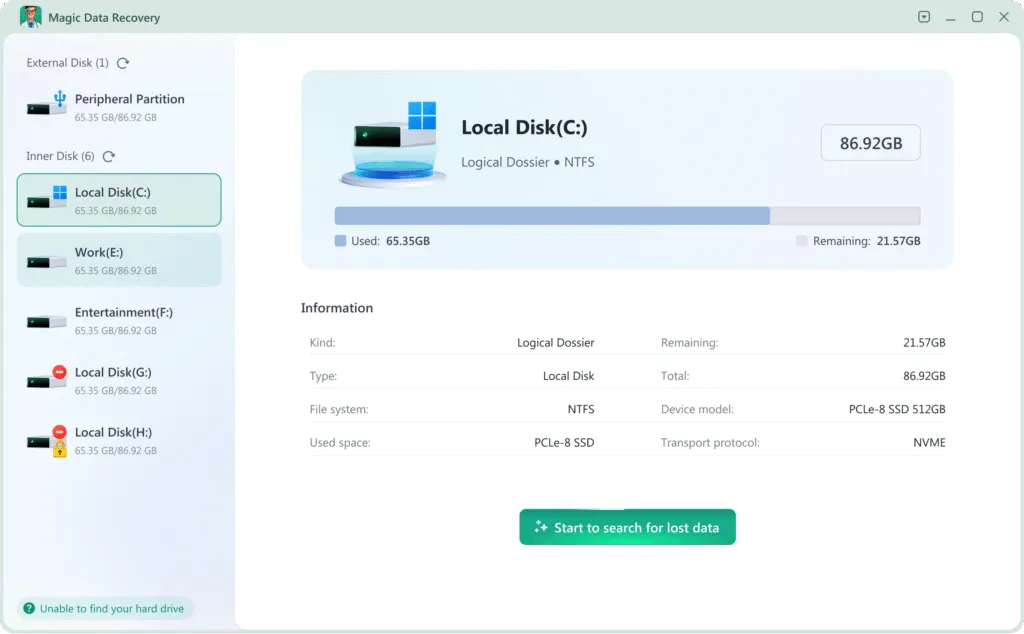
Se as fotos não estiverem mais na Lixeira nem nos backups, faça uma varredura no dispositivo de armazenamento original com o Magic Data Recovery. O software permite recuperar fotos excluídas de unidades do Windows, discos rígidos externos, pen drives, cartões SD e outros dispositivos de armazenamento detectáveis.
Instale o programa em uma unidade diferente daquela que contém as fotos excluídas. Instalar o programa na unidade afetada pode sobrescrever dados recuperáveis.
Seguir essas etapas lhe dará a melhor chance de fazer a recuperação de fotos excluídas usando Magic Data Recovery:
1. Faça o download e instale com segurança: Faça o download e instale Magic Data Recovery em um unidade diferente do que aquele do qual você está se recuperando. Isso evita a substituição de arquivos perdidos.
Compatível com Windows 7/8/10/11 e Windows Server


Método 5: Entre em contato com um serviço de recuperação profissional
Pare de usar o software e entre em contato com um serviço profissional de recuperação se o dispositivo de armazenamento emitir ruídos de clique ou rangido, se desconectar repetidamente, não for detectado na BIOS ou no Gerenciamento de Discos, ou tiver sofrido danos causados por água, fogo ou impacto. Ligar repetidamente um dispositivo fisicamente danificado pode reduzir as chances de uma recuperação bem-sucedida.
Considerações finais
Muitas vezes, é possível recuperar fotos excluídas, mas o método correto depende de onde as fotos estavam armazenadas e de como foram perdidas. Comece verificando a Lixeira, a lixeira na nuvem, o Histórico de Arquivos e os backups existentes. Se essas opções não derem certo, faça uma varredura no dispositivo original antes que novos dados sobrescrevam as fotos excluídas.
Magic Data Recovery pode fazer a varredura em unidades do Windows, cartões SD, dispositivos USB e armazenamentos externos em busca de imagens excluídas e perdidas. Visualize primeiro as fotos recuperáveis e salve os arquivos selecionados em uma unidade diferente.
Para conhecer mais cenários de perda de fotos e obter orientações sobre como recuperá-las, acesse nosso Recuperação de fotos página.
Compatível com Windows 7/8/10/11 e Windows Server
Perguntas frequentes
As fotos excluídas permanentemente podem ser recuperadas?
Posso recuperar fotos excluídas há meses?
Como posso recuperar fotos excluídas sem usar nenhum software?
É possível recuperar fotos excluídas de um cartão SD?
É possível recuperar fotos após formatar um cartão SD?
Por que algumas fotos recuperadas estão corrompidas?
É possível recuperar fotos excluídas de um SSD?
Onde devo salvar as fotos recuperadas?

Erin Smith é reconhecida como uma das redatoras mais profissionais do Amagicsoft. Ela aprimorou continuamente suas habilidades de redação nos últimos 10 anos e ajudou milhões de leitores a resolver seus problemas de tecnologia.