
Setores defeituosos no disco rígido: Correções e recuperação de dados
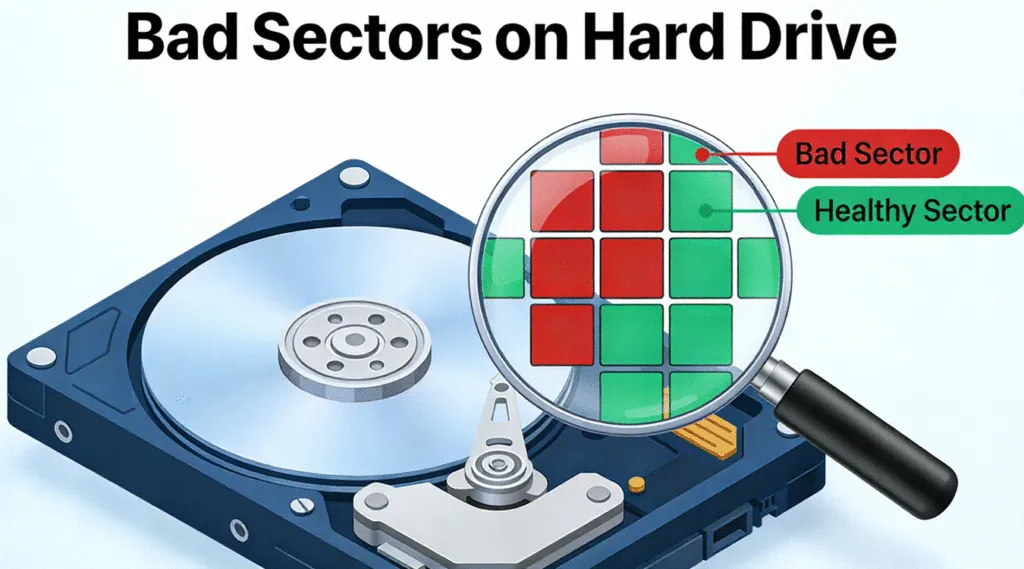
A slow computer, corrupted files, repeated read errors, or an HDD that freezes during file transfers may point to setores defeituosos no disco rígido. Although one damaged sector does not always mean that a drive will fail immediately, growing numbers of setores defeituosos can lead to file corruption, unstable performance, and permanent perda de dados.
The key is choosing the right response. Some setores lógicos defeituosos may result from file-system problems and can sometimes be corrected. In contrast, setores físicos defeituosos indicate media or hardware damage that software cannot truly repair. Therefore, if the drive contains important files, protecting or recovering your data should come before aggressive repair attempts.
Este guia explica as causas setores defeituosos no disco rígido, how to check them with SMART and CHKDSK, which fixes are appropriate, and when replacement becomes the safer solution.
Índice
O que são Setores defeituosos no disco rígido?
A hard drive stores data in small addressable units called sectors. Depending on the drive design, Windows may work with 512-byte logical sectors, 4K physical sectors, or native 4K sectors.
Normally, the HDD can read and write these locations without difficulty. However, when a sector becomes unreliable or unreadable, the system may treat it as a setor ruim.
Na prática, setores defeituosos no disco rígido can cause several problems:
- Files may become corrupted or unreadable.
- File transfers may stop unexpectedly.
- Windows may report CRC or disk errors.
- Applications may freeze while accessing the drive.
- The HDD may become unusually slow.
- SMART health information may show growing errors.
However, not all bad sectors have the same cause. Understanding the difference between logical and physical damage helps you decide whether repair is worth attempting.
Tipos de Setores defeituosos no disco rígido
Logical or Soft Bad Sectors
Setores lógicos defeituosos, sometimes called soft bad sectors, occur when the storage area remains physically usable but Windows cannot reliably access its contents.
As causas comuns incluem:
- Desligamentos inadequados
- Perda repentina de energia
- Corrupção do sistema de arquivos
- Operações de gravação interrompidas
- Software crashes during disk activity
- Incorrect file-system metadata
Because the disk surface itself may still be healthy, software can sometimes correct the underlying logical error.
Physical or Hard Bad Sectors
Setores físicos defeituosos involve actual problems with the storage media or drive hardware.
Possible causes include:
- HDD surface degradation
- Mechanical aging
- Defeitos de fabricação
- Physical shocks
- Calor excessivo
- Head or platter damage
- Long-term wear
Software cannot restore physically damaged magnetic media. Instead, the drive’s firmware may sometimes remap an unreliable sector to a spare location.
Therefore, a drive that continues developing physical bad sectors should not be trusted for important data.
Bad Sector Type | Typical Cause | Can It Be Fixed? | Ação recomendada |
Logical bad sector | File-system or write error | Às vezes | Recover or back up, then repair |
Physical bad sector | Media or hardware damage | No true repair | Recover data and replace HDD |
Reallocated sector | Drive firmware detected a problem | Remapped internally | Monitor SMART and back up |
Aumento dos setores defeituosos | Progressive drive failure | Usually not safely | Replace the drive |
Quais são as causas Setores defeituosos no disco rígido?
Several factors can cause setores defeituosos no disco rígido, and sometimes more than one problem develops at the same time.
Aging and Normal Wear
Mechanical hard drives contain moving components. Over many years of operation, their platters, heads, bearings, and other components can deteriorate.
Therefore, an older HDD that suddenly begins reporting bad sectors deserves close monitoring.
Perda repentina de energia
If power disappears while the drive is writing data, file-system information may become inconsistent. As a result, Windows may report logical disk errors or unreadable areas.
Using a reliable power supply or UPS can reduce this risk.
Physical Shock
Dropping an external HDD while it is operating can cause much more serious damage. For example, the read/write head may contact the platter surface.
If a drive begins clicking or grinding after a fall, stop using it instead of repeatedly scanning it.
Corrupção do sistema de arquivos
NTFS, FAT32, ou exFAT metadata can become damaged even when the HDD itself remains physically healthy. In these cases, Windows may behave as though certain areas cannot be accessed.
Logical repair tools may help, but important files should be secured first.
Excessive Heat
Heat can shorten the life of electronic and mechanical components. Therefore, good airflow and reasonable operating temperatures help reduce long-term storage problems.
Common Signs of Setores defeituosos no disco rígido
You normally cannot identify a bad sector by looking at the drive itself. Instead, watch for repeated symptoms.
Os sinais de alerta comuns incluem:
- Files suddenly refuse to open.
- Copying large files stops or freezes.
- Windows displays a Cyclic Redundancy Check (CRC) erro.
- Folders disappear or become inaccessible.
- The HDD makes unusual clicking noises.
- Windows takes much longer to boot.
- Applications freeze while loading files.
- SMART utilities report pending or reallocated sectors.
- The drive repeatedly disconnects.
- Windows requests formatting unexpectedly.
One isolated error does not prove that you have setores defeituosos no disco rígido. However, several symptoms appearing together justify an immediate backup and disk-health check.
Como verificar Setores defeituosos no disco rígido
Before attempting a fix, determine whether the problem looks logical or physical.
Method 1: Check SMART Information
SMART, or Self-Monitoring, Analysis and Reporting Technology, records health information reported by the drive.
Useful attributes may include:
- Reallocated Sector Count
- Current Pending Sector Count
- Offline Uncorrectable Sector Count
- Reported Uncorrectable Errors
A reallocated sector means the HDD has replaced a problematic physical location with one from its reserved spare area.
Meanwhile, a pending sector remains unstable because the drive has not yet confirmed whether it can reliably read or rewrite it.
Do not judge an HDD from one raw SMART number alone because manufacturers may interpret attributes differently. Instead, watch for warnings and values that continue increasing.
Method 2: Use Windows Error Checking
Windows provides a simple graphical disk-checking option.
- Aberto Explorador de arquivos.
- Selecione Este PC.
- Right-click the affected drive.
- Escolha Propriedades.
- Abra o Ferramentas guia.
- Localizar Verificação de erros.
- Clique em Verificar.
Windows will determine whether the file system requires additional checking.
This method works well for routine logical errors. However, if the HDD is disconnecting, making unusual noises, or contains irreplaceable files, recover the data before running intensive scans.
Method 3: Check the Drive with CHKDSK
You can also inspect a local drive through an elevated Command Prompt.
Start with:
chkdsk X:
Substituir X: com a letra de unidade correta.
Without repair parameters, CHKDSK mainly checks the volume and reports its status.
After protecting important files, you can use:
chkdsk X: /f /r
O /f parameter repairs file-system errors. In addition, Microsoft explains that /r locates bad sectors and attempts to recover readable information from them.
No entanto, isso não não mean CHKDSK physically repairs damaged platter surfaces.
Como corrigir Setores defeituosos no disco rígido Com segurança
The safest fix depends on what caused the problem.
Fix 1: Recover or Back Up Important Data First
Before changing the file system, ask one question:
Do I need anything from this drive?
If the answer is yes, protect those files first.
This recovery-first approach matters because repair operations modify the file system. In addition, a mechanically failing drive may deteriorate during repeated scans.
A useful rule is:
Recover first → verify the recovered files → repair second.
Fix 2: Repair Logical File-System Errors
If the HDD appears mechanically healthy and the problem is logical, Windows Error Checking or CHKDSK can correct file-system inconsistencies.
Por exemplo:
chkdsk X: /f
can repair supported file-system errors.
If you specifically need Windows to search for unreadable sectors after securing the data, use:
chkdsk X: /f /r
However, do not repeatedly run CHKDSK on an unstable physical drive.
Fix 3: Let the Drive Handle Sector Remapping
Modern HDD firmware can identify certain unreliable sectors and redirect future access to spare sectors.
This process is known as sector remapping or reallocation.
Importantly, third-party disk utilities can help detect damaged areas and read SMART information, but the HDD’s firmware normally performs the physical remapping itself.
Therefore, remapping should not be confused with repairing damaged magnetic media.
Fix 4: Replace a Drive with Growing Physical Damage
If SMART values continue to worsen or additional bad sectors appear, replacement provides the safest long-term solution.
You should also stop DIY repairs when the drive:
- Clicks or grinds
- Desconecta-se repetidamente
- Stops spinning normally
- Desaparece do Gerenciamento de Discos
- Becomes extremely slow during every read operation
At that point, professional data recovery may be safer when the files are highly valuable.
Recover Data Before Fixing Setores defeituosos no disco rígido
Sometimes the biggest problem is not the damaged sector itself. Instead, users discover that documents, photos, videos, or entire folders are no longer accessible.
If Windows still detects the HDD and no clear signs of serious mechanical failure exist, Magic Data Recovery provides a practical recovery option before formatting or repairing the drive.
The software addresses several common recovery pain points:
- Lost or deleted files
- Partições formatadas
- Partições perdidas
- RAW or inaccessible storage
- Files missing from HDDs and other supported storage devices
- Multiple document, photo, video, audio, and archive formats
Another advantage is usability. Instead of asking ordinary users to work with complex sector editors or command-line recovery tools, Magic Data Recovery provides a graphical workflow for scanning storage, previewing recoverable files, and saving selected data.

Should You Repair or Replace the Hard Drive?
Use the drive’s condition rather than convenience to make the decision.
Situação | O melhor próximo passo |
Minor logical errors | Back up, then repair |
A few stable SMART warnings | Back up and monitor closely |
Missing files but drive is detected | Recupere os dados primeiro |
Sistema de arquivos RAW | Recover first, repair or format later |
Pending sectors keep increasing | Replace the HDD |
Reallocated sectors keep increasing | Replace the HDD |
Clicking or grinding noises | Pare de usar a unidade |
Drive repeatedly disconnects | Recover or seek professional help |
Even if a damaged HDD becomes usable again after CHKDSK, do not automatically trust it with your only copy of important files.
Como prevenir Setores defeituosos no disco rígido
You cannot prevent every hardware failure. Nevertheless, good storage practices reduce unnecessary risk.
- Shut Windows down correctly.
- Avoid unplugging HDDs during file transfers.
- Protect external drives from drops and impacts.
- Use a UPS where sudden power loss is common.
- Maintain adequate cooling.
- Check SMART health periodically.
- Keep at least one separate backup of important files.
- Replace aging drives when health indicators deteriorate.
Most importantly, never treat one physical hard drive as a complete backup strategy.
Conclusão
When you discover setores defeituosos no disco rígido, protecting your data should come before trying to make the HDD usable again. Logical errors may respond to Windows Error Checking or CHKDSK, while physical bad sectors cannot be truly repaired and may indicate a failing drive.
Therefore, start by checking symptoms and SMART status. If important files are missing but Windows can still detect the drive, recover them before formatting, running aggressive repair operations, or replacing the disk.
For these logical data-loss situations, Magic Data Recovery is recommended because it combines HDD scanning, file preview, broad file-type support, and a straightforward recovery workflow for ordinary Windows users. More importantly, it fits the safer primeiro, recuperar; depois, reparar strategy rather than encouraging users to repair a problematic disk before protecting their files.
Finally, replace any HDD that develops increasing physical bad sectors. No software fix is more valuable than keeping your data on reliable storage.
Compatível com Windows 7/8/10/11 e Windows Server
PERGUNTAS FREQUENTES
Can bad sectors on a hard drive be fixed?
Can CHKDSK fix bad sectors permanently?
How many bad sectors are acceptable on a hard drive?
Can bad sectors spread over time?
Can bad sectors cause permanent data loss?
Should I replace a hard drive that has bad sectors?
É possível recuperar dados de um disco rígido com setores defeituosos?

Vasilii é um especialista em recuperação de dados com cerca de 10 anos de experiência prática na área. Ao longo de sua carreira, ele resolveu com sucesso milhares de casos complexos envolvendo arquivos excluídos, unidades formatadas, partições perdidas e sistemas de arquivos RAW. Sua experiência abrange métodos de recuperação manual usando ferramentas profissionais, como editores hexadecimais, e soluções automatizadas avançadas com software de recuperação. A missão do Vasilii é tornar o conhecimento confiável sobre recuperação de dados acessível tanto para profissionais de TI quanto para usuários comuns, ajudando-os a proteger seus valiosos ativos digitais.