
Recuperação de arquivos de um disco rígido externo: 7 maneiras
Quando você precisar recuperação de arquivos de um disco rígido externo soluções, sua prioridade número um é proteger os dados que ainda possam estar na unidade. Exclusão acidental, formatação, uma partição RAW, ou a corrupção do sistema de arquivos nem sempre significa que seus arquivos se perderam para sempre. Em muitos casos de perda lógica de dados, a recuperação continua sendo possível, desde que novos dados não tenham sobrescrito o espaço de armazenamento original.
Este guia explica como recuperar arquivos do disco rígido externo com segurança, como escolher o certo método de recuperação de disco externo, e quando faz sentido usar um software de recuperação de dados. Além disso, você aprenderá como Magic Data Recovery pode simplificar o processo para usuários do Windows que preferem um fluxo de trabalho visual em vez de ferramentas de linha de comando.
Compatível com Windows 7/8/10/11 e Windows Server
Índice
Recuperação de arquivos de um disco rígido externo: o que fazer primeiro
Antes de tentar qualquer recuperação de arquivos de um disco rígido externo método, pare de usar a unidade afetada. Novas gravações podem sobrescrever dados recuperáveis.
Portanto:
- Pare de copiar, mover ou criar arquivos na unidade.
- Não formate uma unidade RAW ou inacessível.
- Evitar CHKDSK antes de salvar arquivos importantes.
- Instale o software de recuperação em outra unidade em bom estado.
- Salve os arquivos recuperados em um dispositivo de armazenamento diferente.
- Desconecte a unidade se ela emitir cliques, ruídos de atrito ou perder energia repetidamente.
Portanto, evite novas gravações antes da recuperação.
Ainda é possível recuperar seu disco rígido externo?
A resposta depende se o problema é lógico ou físico. A perda lógica inclui exclusão, formatação, partições perdidas, arquivos ocultos e problemas com unidades no formato RAW. A falha física envolve danos ao hardware.
Sintoma | Possível problema | O melhor primeiro passo |
Arquivos excluídos | Perda lógica | Pare de usar a unidade e verifique os backups |
Unidade formatada | Perda lógica | Pare de usá-lo e faça uma verificação |
A partição se torna RAW | Danos no sistema de arquivos | Recupere os dados antes de formatar |
Os arquivos desaparecem, mas a unidade abre | Arquivos ocultos ou erro lógico | Verifique os atributos e, em seguida, faça a varredura |
A unidade aparece apenas no Gerenciamento de Discos | Problema com a partição ou com o sistema de arquivos | Não formate isso |
Estalidos ou rangidos | Falha física | Desconecte a unidade |
Cheiro de queimado, danos causados por líquido ou ausência de centrifugação | Falha física | Entre em contato com um serviço de recuperação |
Se o Windows ainda detectar a unidade, faça você mesmo recuperação de dados de disco rígido externo pode funcionar. Uma falha de hardware exige a ajuda de um profissional.
7 métodos para recuperar arquivos de um disco rígido externo
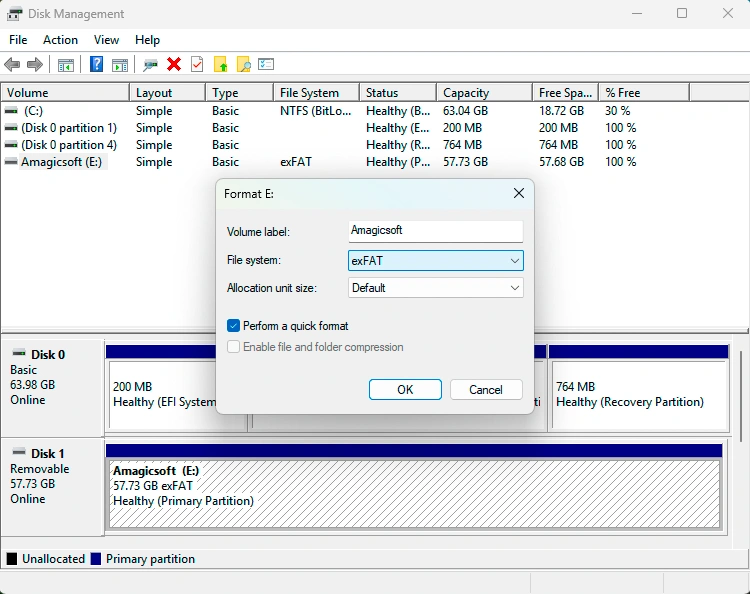
Método 1: Verificar o disco rígido externo no Gerenciamento de Discos
Antes de iniciar um recuperação de arquivos de um disco rígido externo processo, verifique se o Windows ainda consegue detectar o dispositivo.
Imprensa Windows + X, selecione Gerenciamento de disco, e localize a unidade. Verifique sua capacidade, o status das partições e a letra da unidade.
Se o Gerenciamento de Discos reconhecer a unidade, mas o Explorador de Arquivos não, pode ser que haja um problema com a letra da unidade, a partição ou o sistema de arquivos. Não formate o disco, mesmo que o Windows solicite isso. Se a unidade emitir cliques, se desconectar repetidamente ou não girar, interrompa a tentativa de recuperação por conta própria.
Método 2: Restaurar arquivos a partir de um backup
Em seguida, verifique o Histórico de Arquivos, o OneDrive, o Google Drive, o Dropbox, o armazenamento NAS, outro disco externo ou seu sistema de backup habitual.
Um backup costuma ser a solução mais segura. Se não houver nenhuma cópia utilizável, passe para software de recuperação de disco rígido externo.
Método 3: Recuperação de arquivos de um disco rígido externo com o Magic Data Recovery
Quando não há nenhum backup utilizável, o Magic Data Recovery oferece uma solução prática recuperação de arquivos de um disco rígido externo opção para usuários do Windows.
Ele é compatível com dispositivos de armazenamento comuns e diversos tipos de arquivos. Além disso, sua interface gráfica é adequada para casos de exclusão, formatação, partições RAW e outros casos de perda lógica de dados em unidades legíveis. Seu fluxo de trabalho de varredura, visualização e recuperação permite que recuperação de arquivos de um disco rígido externo mais fácil.
Etapa 1: Faça o download e instale o Magic Data Recovery
Baixe o Magic Data Recovery e instale-o em uma unidade em bom estado. Não instale o programa no disco externo afetado, pois os novos dados de instalação podem sobrescrever os arquivos perdidos.
Compatível com Windows 7/8/10/11 e Windows Server
Etapa 2: Selecione o disco rígido externo
Em seguida, conecte a unidade, abra o Magic Data Recovery e selecione o disco ou a partição de onde os arquivos desapareceram.

Etapa 3: Verificação de arquivos perdidos
Inicie a verificação. Enquanto isso, evite usar a unidade afetada para outras tarefas.

Etapa 4: Visualizar os resultados da recuperação
Após a digitalização, visualize os arquivos compatíveis e verifique quais você precisa.

Etapa 5: Recuperar arquivos em outra unidade
Por fim, salve os arquivos necessários em outro dispositivo de armazenamento. Nunca os restaure no disco de origem.
Para se ter uma ideia recuperação de arquivos de um disco rígido externo Em termos de fluxo de trabalho, o Magic Data Recovery é mais simples do que a recuperação por linha de comando. No entanto, o software não consegue restaurar dados totalmente sobrescritos nem reparar danos físicos graves.

Método 4: Usar a Recuperação de Arquivos do Windows
O Windows File Recovery é o utilitário de recuperação de arquivos da Microsoft executado na linha de comando:
winfr E: D: /regular /n *.docx
Aqui, E: é a fonte e D: é o destino; elas devem ser unidades diferentes. A ferramenta é gratuita, mas exige a sintaxe correta e a seleção do modo adequado. Portanto, os iniciantes podem preferir o Magic Data Recovery por ser uma interface gráfica recuperação de arquivos de um disco rígido externo processo.

Método 5: Restaurar uma versão anterior
Se o Histórico de Arquivos ou outro recurso de backup tiver criado uma cópia anterior, clique com o botão direito do mouse na pasta original e selecione Propriedades, e abrir Versões anteriores. Restaure uma versão adequada, caso o Windows indique alguma.
No entanto, esse método depende da existência de um backup e não verifica a unidade em busca de dados excluídos.
Método 6: Recuperar arquivos ocultos com o CMD
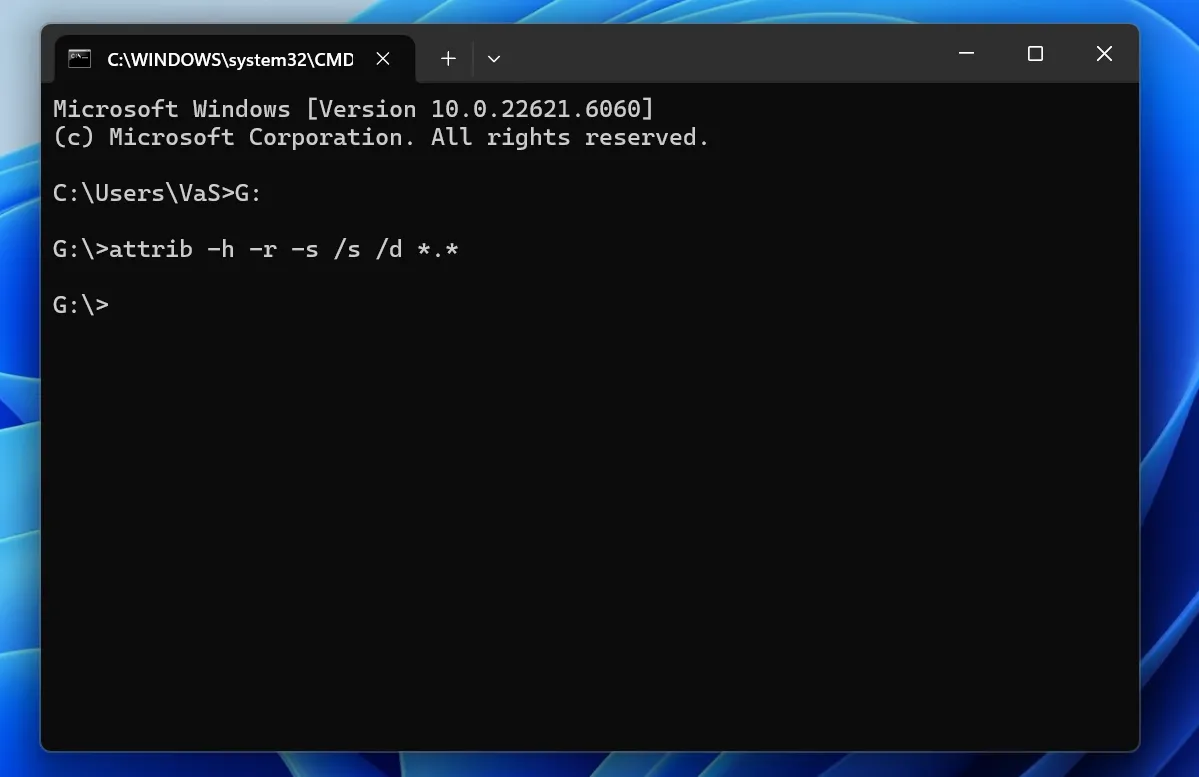
Às vezes, o malware ou os atributos dos arquivos ocultam arquivos existentes do Explorador de Arquivos.
Experimente:
attrib -h -r -s /s /d G:\*.*
Substituir G: com a letra de unidade correta.
Esse comando pode revelar arquivos ocultos, mas não consegue restaurar dados excluídos permanentemente ou sobrescritos. Portanto, se os arquivos continuarem desaparecidos, use um recuperação de arquivos de um disco rígido externo digitalizar.
Método 7: Recorra a um serviço profissional de recuperação de dados
Interrompa a recuperação por conta própria se o disco rígido emitir cliques, ruídos de atrito, se desconectar repetidamente, exalar cheiro de queimado, não girar mais ou tiver sofrido danos causados por líquidos ou impactos. Esses sintomas podem indicar uma falha física; portanto, recorra a um laboratório de recuperação profissional.
Recuperação de arquivos de um disco rígido externo: qual é o melhor método?
O melhor método depende da causa e das condições da unidade.
Solução | Melhor para | Dificuldade |
Gerenciamento de disco | Verificando se o Windows reconhece a unidade | Fácil |
Backup / Histórico de arquivos | Cópias de backup existentes | Fácil |
Magic Data Recovery | Dados excluídos, formatados, no formato RAW ou inacessíveis | Fácil |
Recuperação de arquivos do Windows | Casos excluídos e alguns com formatação incorreta ou corrompidos | Avançado |
Versões anteriores | Cópias de backup anteriores | Fácil |
CMD | Arquivos ocultos | Médio |
Serviço profissional | Falha física | Sem trabalhos “faça você mesmo” |
Primeiro, verifique se o Windows reconhece a unidade. Em seguida, use um backup existente, se houver. Se nenhum backup contiver os arquivos e a unidade continuar acessível, um software de recuperação passa a ser a próxima opção lógica.
Portanto, este recuperação de arquivos de um disco rígido externo Essa sequência mantém o caminho de recuperação desobstruído.
É recomendável executar o CHKDSK antes de recuperar arquivos de um disco rígido externo?
Normalmente, não, principalmente quando os arquivos importantes não têm backup.
O CHKDSK verifica e corrige problemas no sistema de arquivos, mas as operações de correção podem alterar os metadados do sistema de arquivos. Portanto, recupere primeiro os arquivos essenciais. Em seguida, execute o CHKDSK ou reformate a unidade, se necessário.
Se a sua prioridade for um recuperação de arquivos de um disco rígido externo Antes de realizar a operação, salve os dados antes de reparar o disco.
Erros comuns a evitar na recuperação de discos rígidos externos
Evite esses erros comuns:
- Copiar novos arquivos para a unidade afetada
- Formate o disco quando o Windows solicitar
- Executar ferramentas de reparo antes de recuperar arquivos importantes
- Instalação do software de recuperação no disco afetado
- Salvar os arquivos recuperados de volta na mesma unidade
- Reconexão repetida de um disco rígido com falha mecânica
Por exemplo, copiar novos dados após a exclusão pode sobrescrever setores que ainda contenham arquivos perdidos. Consequentemente, mesmo um processo confiável software de recuperação de disco rígido externo pode falhar.
Como evitar futuras perdas de dados do disco rígido externo
Após a recuperação, mantenha outra cópia dos dados importantes, retire com segurança as unidades portáteis e proteja os discos rígidos mecânicos contra quedas. Além disso, siga a regra 3-2-1 backup princípio: manter três cópias, utilizar dois tipos de armazenamento e manter uma cópia em outro local.
Conclusão: Como recuperar arquivos de um disco rígido externo com segurança
O mais seguro recuperação de arquivos de um disco rígido externo O método depende da causa da perda. Primeiro, verifique se o Windows consegue detectar a unidade externa. Em seguida, verifique se algum backup existente contém os arquivos perdidos. Se não houver nenhum backup e a unidade continuar fisicamente legível, o uso de um software de recuperação se torna a próxima etapa mais prática. Em caso de falha física, pare de usar a unidade e procure ajuda profissional.
Magic Data Recovery vale a pena considerar para usuários do Windows que preferem um fluxo de trabalho gráfico. Ele permite que os usuários selecionem a unidade afetada, façam uma varredura em busca de dados perdidos, visualizem os arquivos compatíveis e salvem os arquivos recuperados em outro local. Além disso, evita a dificuldade inicial de aprendizado da linha de comando do Windows File Recovery.
Nenhuma ferramenta é capaz de recuperar dados totalmente sobrescritos ou reparar danos graves no hardware. No entanto, para casos comuns de perda lógica de dados, o Magic Data Recovery oferece uma solução clara solução de recuperação de disco rígido externo.
Compatível com Windows 7/8/10/11 e Windows Server
Perguntas frequentes - Recuperação de arquivos de um disco rígido externo
Posso recuperar arquivos de um disco rígido externo?
Sim, muitos casos de perda lógica de dados ainda podem ser recuperados. É possível restaurar arquivos excluídos, formatados ou inacessíveis, desde que novos dados não tenham sobrescrito o espaço de armazenamento original e a unidade ainda esteja funcionando fisicamente. Para aumentar as chances de recuperação de arquivos de um disco rígido externo, pare de usar o disco primeiro, verifique se o Windows o reconhece e, em seguida, verifique se há backups ou utilize um software de recuperação.
Como faço para recuperar arquivos excluídos permanentemente de um disco rígido externo?
Primeiro, pare de gravar novos dados na unidade. Em seguida, verifique o Histórico de Arquivos, o armazenamento em nuvem, outra unidade de backup ou um armazenamento NAS para ver se há outra cópia. Se não houver nenhum backup, faça uma varredura no disco com um software de recuperação de disco rígido externo, como o Magic Data Recovery. Por fim, salve os arquivos recuperados em outra unidade para evitar sobrescrever outros dados recuperáveis.
Posso recuperar arquivos de um disco rígido externo formatado?
Muitas vezes, sim. A formatação pode remover referências do sistema de arquivos antes que novos dados sobrescrevam todos os setores subjacentes. Portanto, uma verificação de recuperação de arquivos em um disco rígido externo ainda pode encontrar dados se você parar de usar a unidade rapidamente. Não formate o disco novamente, não adicione novos arquivos nem execute ferramentas de reparo desnecessárias antes de tentar a recuperação.
Como posso recuperar arquivos de um disco rígido externo sem usar nenhum software?
Verifique o Histórico de Arquivos, as Versões Anteriores, o armazenamento em nuvem, outra unidade de backup ou um backup em NAS. Esses métodos permitem restaurar arquivos sem a necessidade de software de terceiros, desde que já exista outra cópia válida. No entanto, arquivos excluídos permanentemente, partições formatadas e alguns casos de corrupção geralmente exigem um software específico para recuperação de dados de discos rígidos externos ou um serviço profissional de recuperação.
É possível recuperar arquivos se o disco rígido externo não for reconhecido?
Isso depende de onde o Windows consegue detectar a unidade. Se o Gerenciamento de Discos a reconhecer, mas o Explorador de Arquivos não, um problema lógico ainda pode permitir a recuperação. No entanto, se o computador não conseguir detectar a unidade em lugar algum, ou se o disco rígido emitir cliques, desligar ou se desconectar repetidamente, interrompa as tentativas por conta própria e entre em contato com um serviço profissional de recuperação.
Devo executar o CHKDSK antes de recuperar meus arquivos?
Normalmente, não quando há arquivos importantes sem backup. O CHKDSK corrige problemas no sistema de arquivos e pode alterar as estruturas do disco durante esse processo. Portanto, sempre que possível, recupere primeiro os dados críticos. Depois de proteger os arquivos, você pode executar o CHKDSK ou reformatar a unidade para corrigir os erros restantes sem colocar em risco desnecessário a única cópia recuperável.
É possível recuperar um disco rígido externo com danos físicos?
Às vezes, sim, mas o software geralmente não é a primeira solução adequada. Ruídos de clique ou rangido, danos causados por líquidos, impactos violentos ou um disco que não gira mais podem indicar uma falha de hardware. Nessa situação, desconecte o dispositivo e entre em contato com um laboratório especializado em recuperação de dados, em vez de ligá-lo repetidamente ou testar vários aplicativos de recuperação.

Vasilii é um especialista em recuperação de dados com cerca de 10 anos de experiência prática na área. Ao longo de sua carreira, ele resolveu com sucesso milhares de casos complexos envolvendo arquivos excluídos, unidades formatadas, partições perdidas e sistemas de arquivos RAW. Sua experiência abrange métodos de recuperação manual usando ferramentas profissionais, como editores hexadecimais, e soluções automatizadas avançadas com software de recuperação. A missão do Vasilii é tornar o conhecimento confiável sobre recuperação de dados acessível tanto para profissionais de TI quanto para usuários comuns, ajudando-os a proteger seus valiosos ativos digitais.