
Corrupt Master File Table: Causes & Repair
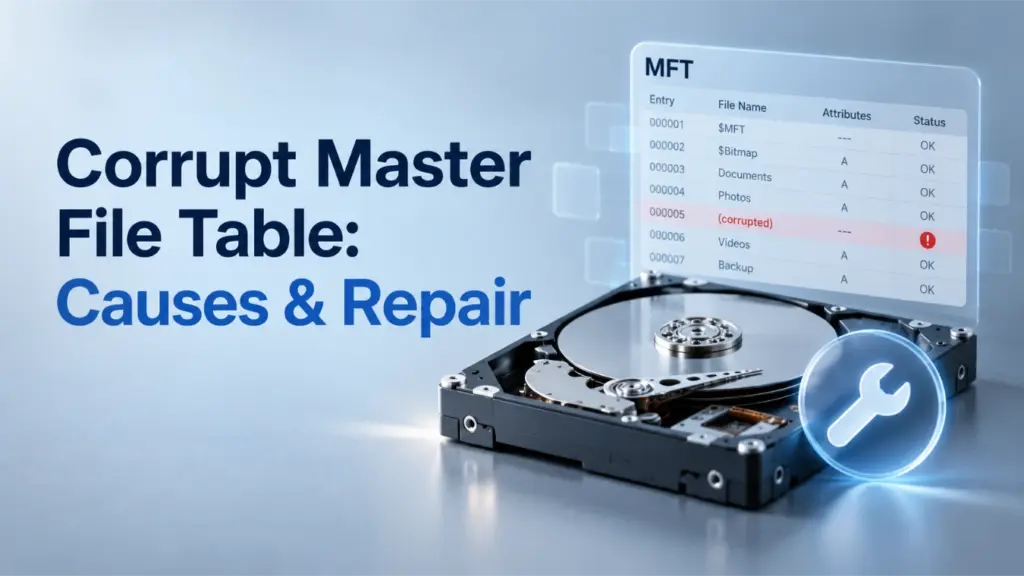
A tabela de arquivo mestre corrompida means that the NTFS file system’s central file-record database contains damaged, inconsistent, or unreadable information. Because Windows relies on this database to locate files and directories, corruption can make a drive inaccessible even when some of its data remains intact.
On Windows 10 and 11, the problem may appear as an unreadable drive, a RAW partition, or a CHKDSK error stating that Windows cannot recover the Master File Table. Understanding how the MFT works helps you distinguish file system damage from hardware failure and choose a safer repair method. For related storage concepts and troubleshooting, visit our Hard Drive Solutions Hub.
Resposta rápida: A damaged MFT does not always mean permanent data loss. First, check whether the storage device is healthy and protect important files. Then use CHKDSK for suitable logical NTFS errors or TestDisk when a valid MFT mirror can assist with repair. Avoid formatting until you have secured the data you need.
Índice
Quick Facts About the Master File Table
Property | Explicação |
Nome completo | Tabela de arquivo mestre (MFT) |
Sistema de arquivos | NTFS (Sistema de arquivos de nova tecnologia) |
Internal file name |
|
Objetivo principal | Stores file records and information needed to locate files |
Related structure |
|
Operating systems | Windows 10, Windows 11, and other NTFS-compatible systems |
Common failure symptoms | RAW volumes, unreadable files, CHKDSK errors |
Main repair tools | CHKDSK and TestDisk |
Risco de perda de dados | Depends on the affected records, storage condition, and repair operations |
Recommended priority | Protect files before modifying damaged metadata |
Principais conclusões: The MFT describes files and their locations. If those records become damaged, Windows may lose access to files without necessarily losing all their underlying content.
What Is the Master File Table in Simple Terms?
The Master File Table is a fundamental part of the Sistema de arquivos NTFS.
Think of an NTFS volume as a library. The storage space holds the books, while a catalog identifies each book’s name, location, and other information.
The MFT performs a similar function for Windows files.
When you open a document, Windows uses file system metadata to identify the file and determine where its contents are stored.
If the MFT becomes damaged, the system may struggle to find the correct information.
However, this analogy has one limitation: the MFT is more than a simple index. It can store small file contents directly within a file record, while larger files typically have their content stored elsewhere on the volume.
Portanto, master file table corruption can affect both file metadata and, in some cases, actual file data.
De acordo com Microsoft’s Master File Table documentation, every file on an NTFS volume has at least one corresponding MFT entry.
This includes directories and NTFS metadata files.
How Does the Master File Table Work?
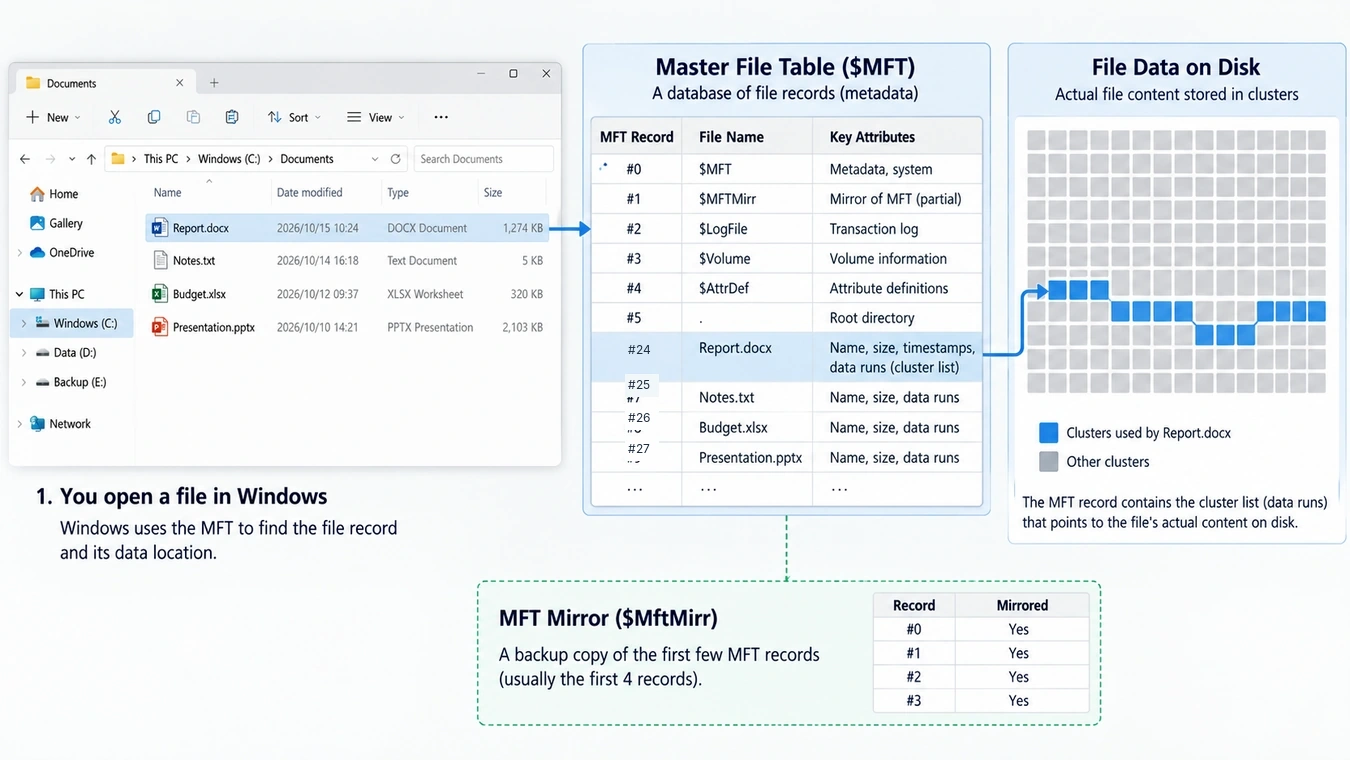
NTFS uses the MFT throughout a file’s lifecycle, from creation to deletion.
The underlying process involves four main stages.
Creating a File Record
When an application creates a new file, NTFS allocates an MFT record to represent it.
The record contains attributes that describe the file, including its name, timestamps, and other metadata.
A file may also require additional records when its metadata becomes too extensive for one entry.
Recording File Locations
For small files, NTFS may store content directly inside an MFT record. This is known as resident data.
Larger files usually store their contents in separate disk clusters.
In that case, the MFT record contains information that identifies the relevant storage locations.
Consequently, the MFT helps Windows connect a filename to its underlying file content.
Updating File Metadata
Whenever a file changes, NTFS may update its associated metadata.
For example, renaming a document changes its name-related information, while expanding a file may require additional storage allocation information.
NTFS also uses a metadata transaction log called $LogFile to support file system consistency.
This journaling mechanism helps Windows recover from interrupted metadata operations, although it cannot prevent every form of corruption.
Deleting a File
Deleting a file normally makes its MFT record available for reuse after the relevant file system operations complete.
The underlying file content may also become eligible for reuse.
This explains why certain deleted files can remain recoverable until their records or data are overwritten or otherwise discarded.
However, recovery becomes less predictable when MFT records are damaged, reused, or missing.
MFT and MFT Mirror: What Is the Difference?
NTFS maintains two related structures:
- $MFT: The main database containing records for files and directories.
- $MftMirr: A limited backup of critical MFT records.
The MFT Mirror normally contains copies of the first four MFT records. It does not hold a complete duplicate of the entire file table.
This distinction is particularly important when attempting reparo da tabela do arquivo mestre corrompido.
If critical records in the main MFT become unreadable but their mirror copies remain valid, certain repair utilities may restore access to essential NTFS structures.
However, if corruption affects thousands of ordinary file records, the mirror cannot reconstruct them all.
Similarly, if both the main records and their mirror copies are damaged, automated mirror-based repair may not be possible.
The mirror provides limited redundancy, not a substitute for a complete backup.
Why Does a Corrupt Master File Table Matter?
The MFT affects much more than how Windows displays filenames.
Its condition can influence file accessibility, directory structure, storage consistency, and the ability to recover lost data.
File and Folder Accessibility
When Windows cannot interpret necessary MFT records, it may fail to open files or directories.
For example, an external HDD may still appear in Disk Management while File Explorer cannot display its contents.
This does not prove that every file is permanently lost.
File System Consistency
NTFS depends on relationships between MFT records, directory indexes, and storage allocation information.
When these structures disagree, Windows may report file system errors.
CHKDSK can resolve certain inconsistencies, but severe damage may require other approaches.
Recup. dados
The MFT contains information that helps recovery utilities reconstruct original filenames, directory paths, and file locations.
If those records remain readable, recovery may preserve more of the original directory structure.
If they are missing, software may need to identify file content through other methods, sometimes without recovering the original names or folders.
Therefore, the condition of the MFT can significantly affect recuperação da tabela do arquivo mestre resultados.
What Causes a Corrupt Master File Table?
Several problems can damage MFT metadata. However, not every inaccessible NTFS drive has a damaged MFT.
Unexpected Shutdowns and Power Failures
A sudden shutdown can interrupt storage writes while Windows updates NTFS metadata.
Although journaling reduces the likelihood of inconsistency, it cannot guarantee successful recovery from every interrupted or incomplete write.
Bad Sectors and Hardware Failure
Unreadable disk sectors can prevent Windows from accessing important file records.
Common warning signs include prolonged read delays, repeated I/O errors, and unexpected drive disconnections.
If you suspect physical damage, review our guide on como verificar se há setores defeituosos em um disco rígido.
Importantly, file system repair commands cannot fix physically damaged HDD components or failing SSD controllers.
Interrupted Partition Operations
Partition resizing, cloning, or unsuccessful disk-management operations may leave important structures inconsistent.
Sometimes, the actual problem involves an NTFS boot sector or partition table rather than the MFT itself.
Malware and Software Problems
Malware, defective drivers, and unsuccessful low-level disk operations can damage file system metadata.
However, ransomware encryption differs from ordinary MFT corruption. Repairing NTFS records does not decrypt encrypted files.
Corrupt MFT vs. NTFS Boot Sector vs. MBR
Three different storage structures often become confused during troubleshooting.
Estrutura | Objetivo principal | What damage may cause |
Tabela de arquivo mestre (MFT) | Maintains NTFS file records | Missing or inaccessible files and folders |
NTFS boot sector | Describes essential NTFS volume parameters | Volume may appear RAW or fail to mount |
Registro mestre de inicialização (MBR) | Stores partition information and boot code on MBR disks | Partition detection or boot problems |
The Master Boot Record operates at a different level from the NTFS Master File Table.
Therefore, repairing an MBR does not directly repair damaged MFT records.
Likewise, fixing an NTFS boot sector does not automatically reconstruct missing file metadata.
Understanding these differences helps prevent unnecessary disk modifications.
Where Do You Encounter Master File Table Errors in Windows?
Windows normally manages the MFT automatically. Most users encounter it only when checking storage information or investigating an error.
File Explorer and Disk Management
File Explorer may display errors such as:
- “The file or directory is corrupted and unreadable.”
- “The parameter is incorrect.”
- “É preciso formatar o disco antes de poder usá-lo.”
Meanwhile, Disk Management may show the affected volume as RAW instead of NTFS.
However, these messages are not specific proof of MFT damage.
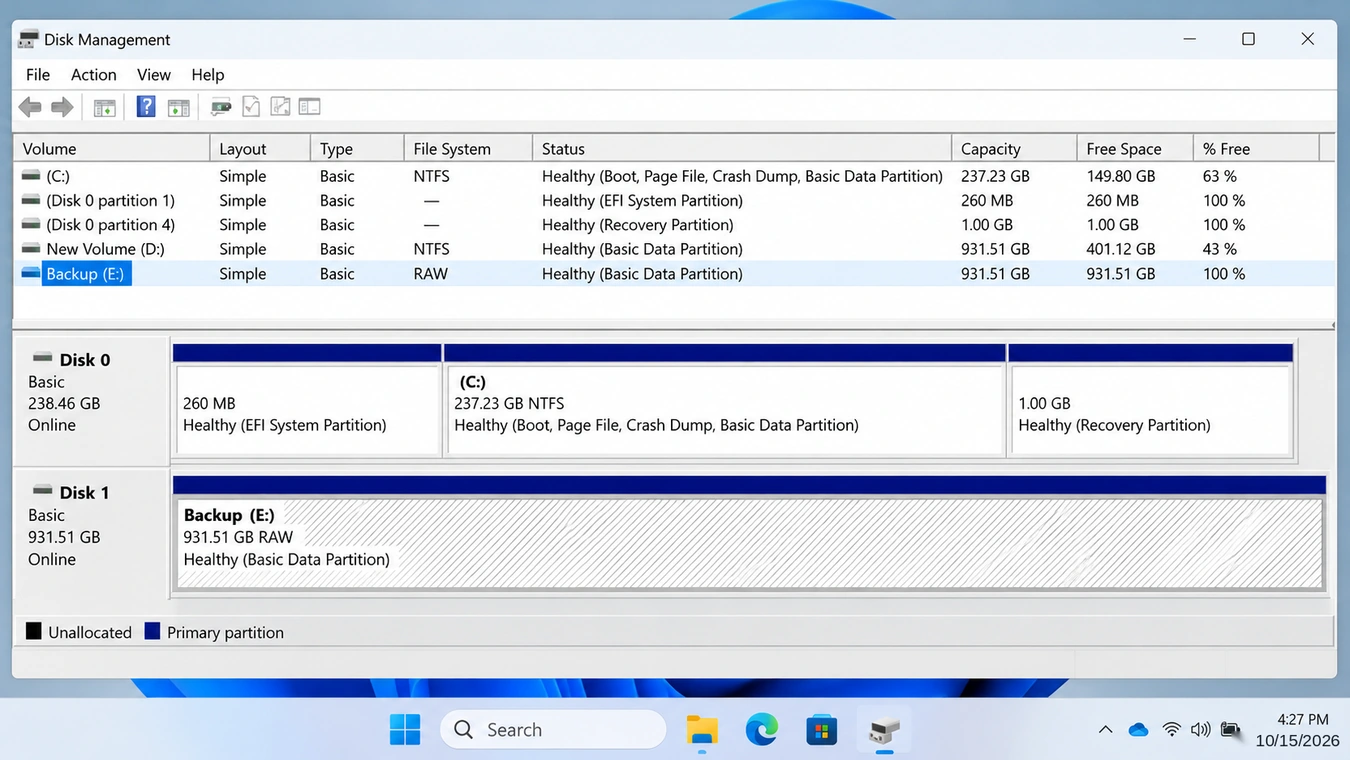
Command Prompt and CHKDSK
CHKDSK can report problems involving unreadable file records or damaged MFT structures.
One possible message is:
“Corrupt master file table. Windows will attempt to recover master file table from disk.”
If repair fails, you may see:
“Windows cannot recover master file table. CHKDSK aborted.”
This indicates that CHKDSK could not complete the required repair. It does not establish that all underlying file contents are permanently lost.
Viewing NTFS Information with FSUTIL
On an accessible NTFS volume, Windows can display file system information through an elevated Command Prompt.
Por exemplo:
fsutil fsinfo ntfsinfo X:
Substituir X: with the appropriate volume letter.
The output may include cluster information, MFT-related locations, and other NTFS parameters.
This command queries volume information; it does not repair the MFT.
Furthermore, it may fail when Windows cannot mount the damaged volume.
For command details, see Microsoft’s FSUTIL documentation.
Common Misconceptions About MFT Corruption
Several popular troubleshooting recommendations misunderstand what MFT damage actually involves.
Does a RAW Drive Always Mean the MFT Is Corrupted?
Não.
RAW status means Windows cannot currently recognize a usable file system on the volume.
Possible explanations include:
- NTFS boot-sector damage
- Corrupção MFT
- Partition information problems
- Storage read errors
Therefore, RAW status should prompt further diagnosis rather than an immediate assumption about the MFT.
Can SFC or DISM Repair a Damaged MFT?
Not directly.
System File Checker (SFC) repairs protected Windows system files, while DISM services Windows images.
These tools may help with certain operating system problems, but neither directly reconstructs the NTFS Master File Table.
Running them as the main response to confirmed MFT damage can waste time without addressing the underlying issue.
Does MFT Corruption Mean All Files Are Lost?
Not necessarily.
Some metadata records may remain readable, and portions of file content can survive even when Windows cannot mount the volume.
However, successful recovery depends on the affected records, available storage data, and hardware condition.
Is It Safe to Delete or Rebuild the Master File Table?
No. You should never manually delete $MFT or overwrite its storage area to free disk space or attempt an improvised repair.
NTFS depends on the MFT to manage files and directories.
Removing or incorrectly rebuilding its records can make an accessible file system unusable and may destroy metadata needed for recovery.
A damaged MFT may sometimes be repaired through supported file system utilities. However, complete reconstruction is not guaranteed.
Before modifying critical NTFS structures:
- Stop unnecessary writes to the affected volume.
- Check whether the storage hardware is stable.
- Back up accessible files or create a disk image when practical.
- Avoid formatting or initializing the partition.
- Consider professional recovery if the disk repeatedly disconnects or reports serious read errors.
If the drive clicks, disappears intermittently, or cannot read large portions of its data, ordinary software repair may worsen the situation.
How to Repair a Corrupt Master File Table on Windows 10/11
The correct repair method depends on whether the problem involves logical file system inconsistencies, damaged critical MFT records, or physical storage failure.
Before continuing: Verify that important data is backed up or recovered. Repair utilities can modify file system metadata and may reduce later recovery options.
Method 1: Repair Logical MFT Errors with CHKDSK
CHKDSK is the standard Windows utility for checking and repairing NTFS inconsistencies.
Start with a diagnostic check when the volume is accessible.
- Aberto Prompt de comando como administrador.
- Identify the correct NTFS volume letter.
- Executar
chkdsk X:to inspect the volume. - Review any reported errors.
- Once important files are safe, run
chkdsk X: /fif logical repairs are appropriate.
Substituir X: com a letra da unidade afetada.
O /f parameter instructs CHKDSK to correct detected file system errors.
If Windows cannot lock the volume, it may offer to schedule a repair during the next restart.
Should You Use CHKDSK /r?
O comando chkdsk X: /r searches for problematic disk sectors and attempts to recover readable information.
De acordo com Microsoft’s CHKDSK documentation, /r also includes the repair functionality of /f.
However, it performs additional reading and can take considerable time.
For a physically failing drive, a full surface scan may create unnecessary stress. In that situation, prioritize data preservation or controlled imaging.
Method 2: Repair Critical MFT Records with TestDisk
If CHKDSK cannot repair the Master File Table, TestDisk may help when one of the critical MFT structures remains valid.
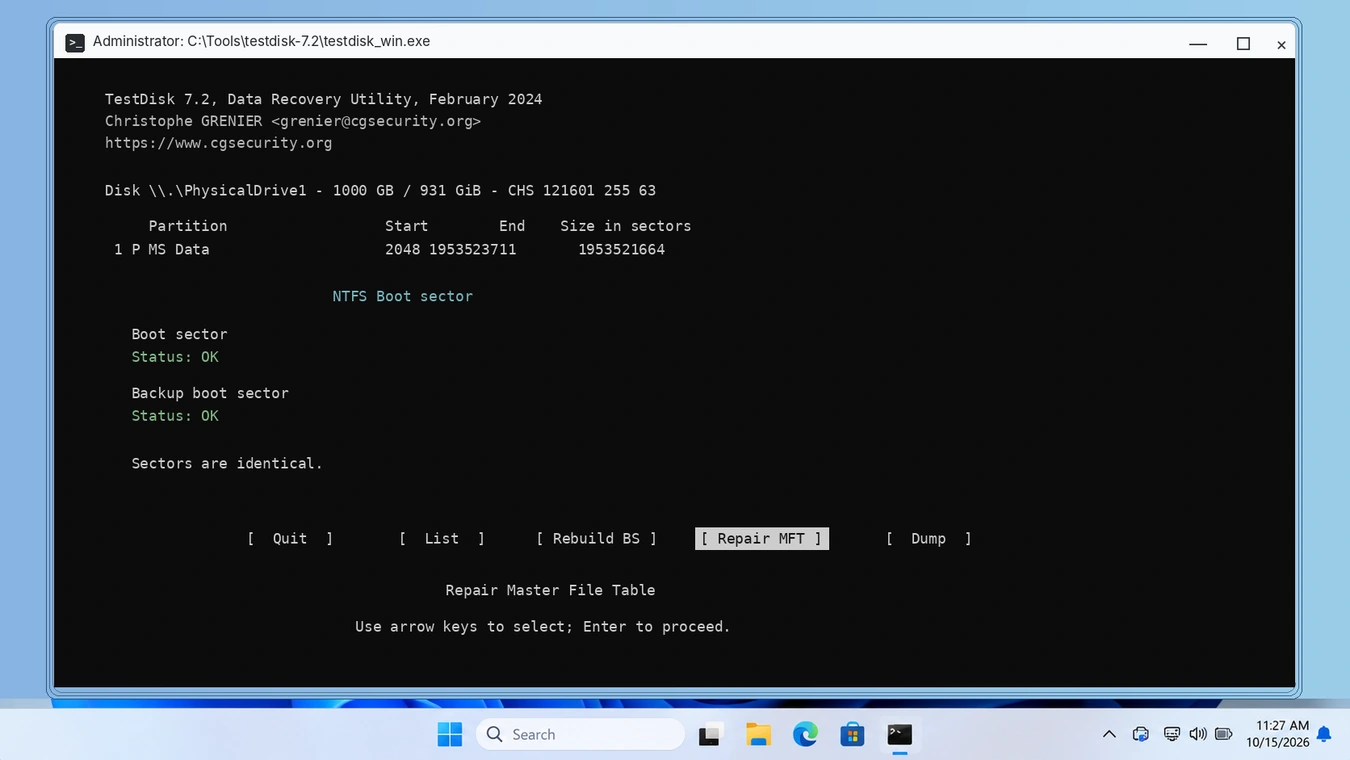
TestDisk is an open-source disk recovery utility that includes an Reparo MFT function.
De acordo com o official CGSecurity documentation, this function compares the primary MFT with its mirror and may use a valid counterpart to repair damaged critical records.
O fluxo de trabalho básico é o seguinte:
- Download and launch TestDisk from the official website.
- Select the correct physical disk.
- Confirm the partition table type.
- Aberto Avançado and select the affected NTFS partition.
- Escolha Bota, seguido por Reparo MFT.
- Review the results before approving changes.
If both the main MFT and its mirror are damaged, TestDisk may be unable to complete the repair.
This operation modifies important metadata. For valuable data, work from a suitable disk image or clone whenever possible.
Method 3: Investigate RAW Partition and Boot-Sector Errors
If Windows reports “CHKDSK is not available for RAW drives,” the volume cannot be checked through the normal NTFS repair path.
The cause may involve a damaged boot sector, missing partition information, or MFT corruption.
Start by checking Disk Management and the drive’s hardware condition.
You can then consult our CHKDSK RAW drive troubleshooting guide.
TestDisk provides separate NTFS boot-sector and MFT repair functions. These operations address different structures, so avoid using them interchangeably.
Method 4: Reformat Only After Securing Your Files
If repair fails and the drive is physically healthy, formatting can create a fresh NTFS file system.
However, formatting is not a method of restoring the original MFT.
Before formatting, confirm that you have recovered or backed up every important file and verified that the copies open correctly.
Then use Windows Disk Management to format the appropriate volume.
Never format a drive that still contains important unrecovered data.
If the disk shows signs of physical failure, replacement is usually more appropriate than formatting.
When Is Master File Table Recovery Necessary?
Not every MFT error requires dedicated recovery software.
If the drive remains accessible and a verified backup exists, restore the files from that backup before modifying NTFS.
If the volume is stable but important files are inaccessible, file recovery may be necessary before repair.
For example, imagine an external HDD appearing as RAW after an unexpected shutdown. Windows can detect the hardware, but File Explorer cannot open its contents.
In that case, the immediate priority is retrieving important files, not making the volume appear normal again. Our external hard drive recovery guide provides additional guidance for this situation.
For logically damaged but physically healthy drives, Magic Data Recovery can scan for recoverable files and let you preview supported formats before saving them to another device. We recommend considering it when Windows cannot access the original files and no usable backup exists.
It is a file recovery tool, not an MFT repair utility. Results depend on the remaining readable metadata and file contents.
If physical damage is suspected, avoid repeated scans and consider professional recovery instead.

How to Prevent Master File Table Corruption
Although no storage device is immune to failure, several habits can reduce the risk of NTFS corruption and data loss.
Maintain reliable backups. Keep important files on another device or in versioned cloud storage, and periodically verify that you can restore them.
Avoid interrupted writes. Use safe removal for external storage and allow file transfers to finish before disconnecting a drive.
Maintain stable power. A UPS can help protect desktop systems and connected storage from sudden shutdowns.
Monitor storage health. Investigate persistent read errors, unexpected disconnections, and deteriorating SMART indicators.
Replace failing devices. File system repair utilities cannot fix mechanical damage, defective controllers, or worn-out storage hardware.
Most importantly, respond to recurring disk errors before they become serious accessibility problems.
Conclusão
A tabela de arquivo mestre corrompida affects the NTFS metadata that Windows uses to identify files, manage directories, and locate stored content. When those records become unreadable, the operating system may lose access to files even though some of their underlying data survives.
Understanding the relationship between $MFT, $MftMirr, the NTFS boot sector, and the physical storage device helps you identify the correct repair approach.
For stable drives, CHKDSK can address certain logical inconsistencies, while TestDisk may repair specific MFT mirror-related problems. However, protecting important data must come before modifying damaged metadata.
When files remain inaccessible and backups are unavailable, Magic Data Recovery is worth considering because it focuses on extracting recoverable data rather than altering the damaged NTFS structure. For more technical explanations and storage troubleshooting, visit our Hard Drive Solutions Hub.
Compatível com Windows 7/8/10/11 e Windows Server
Perguntas frequentes
Can CHKDSK fix a corrupt Master File Table?
What does "Windows cannot recover master file table" mean?
Can the MFT Mirror restore every missing file record?
Can a RAW partition be caused by MFT corruption?
Is MFT corruption different from MBR corruption?
Does formatting repair a corrupted Master File Table?
Can files be recovered from a corrupt MFT on an SSD?

Jason é especialista em recuperação de dados e suporte técnico, com mais de 15 anos de experiência prática. Ele tem trabalhado extensivamente com usuários finais, resolvendo casos complexos de perda de dados e oferecendo soluções práticas de recuperação para exclusões acidentais, unidades formatadas, sistemas de arquivos danificados, partições perdidas, falhas de sistema e outras emergências de recuperação. Sua especialização também abrange backup e restauração, reparo de arquivos e recuperação de desastres, com forte ênfase em orientações seguras, confiáveis e tecnicamente precisas.