
Formato completo: Cómo funciona, posibilidades de recuperación de datos y buenas prácticas

Índice
Introducción
Formatear un dispositivo de almacenamiento parece sencillo, pero la elección que hagas puede afectar permanentemente a tus datos. Muchos usuarios eligen Formato completo cuando se reparan errores de disco, se reinstala un sistema operativo o se prepara una unidad para su reventa. Sin embargo, pocos saben lo que ocurre durante el proceso o si los archivos pueden recuperarse después.
Esta guía explica Formato completo en lenguaje sencillo. Aprenderá cómo funciona internamente, cómo utilizarlo correctamente, cómo se compara con Formato rápido, y qué opciones realistas de recuperación existen tras el formateo. Si la pérdida de datos ya se ha producido, este artículo también explica cuándo un software de recuperación de datos como Magic Data Recovery y cuándo las expectativas deben seguir siendo conservadoras.
Qué es Formato completo?
Es un método de formateo de discos que prepara completamente un dispositivo de almacenamiento para su reutilización mediante la reconstrucción del sistema de archivos y el escaneado de toda la superficie del disco en busca de errores.
A diferencia de Formato rápido, hace algo más que restablecer los metadatos del sistema de archivos. Comprueba cada sector de la unidad y marca los sectores dañados como inutilizables. En los sistemas Windows modernos, también escribe ceros en los sectores accesibles, lo que reduce significativamente las posibilidades de recuperación de datos.
Los usuarios suelen aplicar Formato completo cuando:
- Corrección de errores de disco persistentes
- Limpieza de una unidad antes de su reventa o eliminación
- Preparación de una unidad para una nueva instalación del sistema operativo
- Comprobación del estado del disco en unidades antiguas o poco fiables
Debido a su profundidad, el formato completo lleva mucho más tiempo y tiene un impacto mucho mayor en los datos existentes.
Cómo la Formato Obras (Principio de formato explicado)
Para entender por qué recuperación de datos se hace difícil después de Formato completo, es útil analizar el proceso paso a paso.
1. Reinicialización del sistema de archivos
El proceso de formateo reconstruye la estructura del sistema de archivos, como NTFS o FAT32. Las tablas de archivos, los índices y las asignaciones de directorios se vuelven a crear desde cero.
2. Exploración sector por sector
El sistema escanea cada sector del disco para detectar errores físicos. Los sectores problemáticos se marcan para impedir su uso en el futuro.
3. Sobrescritura de datos (escritura cero)
En las versiones modernas de Windows, el formateo escribe ceros en todos los sectores legibles. Esta acción de sobrescritura destruye el contenido original de los datos en lugar de limitarse a ocultarlo.
4. Validación de discos
El sistema operativo se asegura de que el disco es utilizable, estable y no tiene errores antes de completar el proceso.
Debido a estos pasos, Formato completo es a la vez una operación de formateo y de verificación.
Cómo realizar una Formato completo Con seguridad
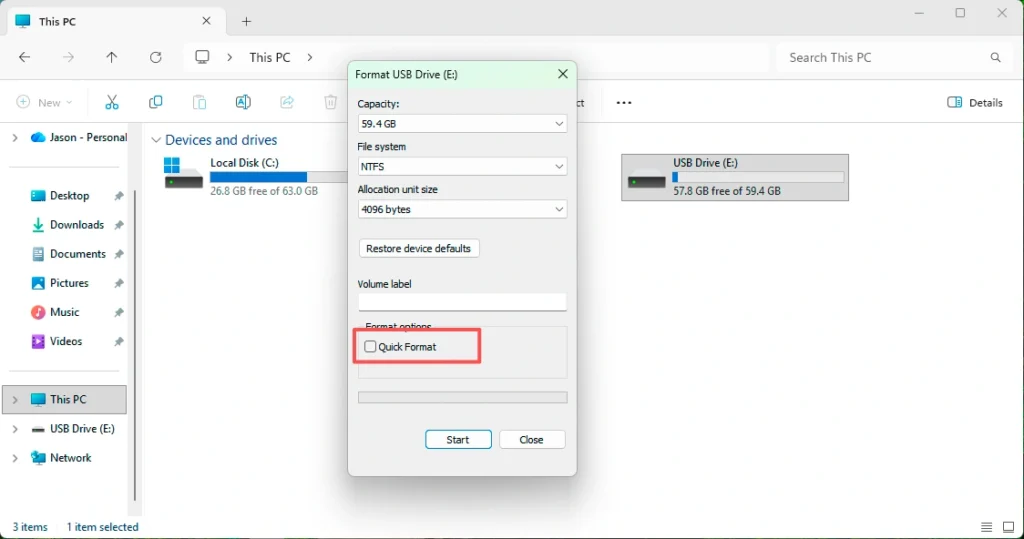
Formatear en Administración de discos de Windows
- Abrir Gestión de discos
- Haga clic con el botón derecho en la partición de destino
- Seleccione “Formato”.”
- Desmarcar “Formato rápido”
- Elige un sistema de archivos y empieza a formatear
Formato mediante símbolo del sistema
- Utilice la
formatosin el comando/qparámetro - Esto fuerza un formato completo en lugar de uno rápido
Buenas prácticas antes de formatear
- Desconectar otros dispositivos de almacenamiento
- Vuelva a comprobar la letra de unidad seleccionada
- Evite formatear si sospecha de problemas ocultos de pérdida de datos
Formato completo vs Formato Rápido (Tabla comparativa)
Característica | Formato completo | Formato rápido |
Escanea los sectores del disco | Sí | No |
Escribe ceros | Sí (SO moderno) | No |
Detecta sectores defectuosos | Sí | No |
Tiempo necesario | Largo | Muy corto |
Posibilidad de recuperar datos | Muy bajo | Alta |
Uso recomendado | Limpieza de discos, reventa | Reutilización rápida |
Esta comparación muestra por qué Formato completo ofrece una mayor eliminación de datos pero menores posibilidades de recuperación.
Recuperación de datos Formato completo
¿Se pueden recuperar los datos Formato completo?
En la mayoría de los casos, la recuperación de datos tras un formateo es extremadamente difícil. El proceso de escritura cero destruye el contenido de los archivos, no sólo sus referencias.
Sin embargo, aún es posible una recuperación limitada en determinadas condiciones:
- El formateo se detiene prematuramente
- Algunos sectores no sobrescrito
- Los datos existían en otra partición o unidad externa
¿Qué se puede seguir intentando?
Aunque las tasas de éxito siguen siendo bajas, escanear la unidad con software profesional de recuperación de datos puede detectar:
- Fragmentos no escritos
- Archivos almacenados en particiones no afectadas
- Datos almacenados en caché en discos externos o secundarios
Este enfoque no garantiza resultados, pero ofrece una última oportunidad antes de rendirse.
Cuándo utilizar Magic Data Recovery En Formato
Problema central que resuelve
Los usuarios a menudo se sienten desamparados después de formatear, especialmente cuando los archivos críticos desaparecen al instante. Magic Data Recovery ayuda escaneando los dispositivos de almacenamiento a un nivel profundo para localizar restos de datos recuperables.
Compatible con Windows 7/8/10/11 y Windows Server
Principales ventajas
- Exploración avanzada por sectores
- Compatibilidad con unidades formateadas
- Vista previa antes de la recuperación
- Operación de sólo lectura para evitar daños mayores
Casos prácticos
- Accidental Formato completo en la partición equivocada
- Pérdida de datos durante la reinstalación del sistema operativo
- Formateo inesperado causado por errores de disco
Por qué es más fiable
A diferencia de las herramientas básicas de recuperación, Magic Data Recovery se centra en la exploración segura y la detección de la integridad de los archivos. No afirma tasas de recuperación poco realistas y funciona mejor cuando se utiliza inmediatamente después del formateo.
Si está buscando una solución práctica después de formatear, merece la pena probar Magic Data Recovery antes de concluir que los datos se han perdido definitivamente.
Errores comunes que hay que evitar
- Formatear la unidad equivocada
- Reutilización del disco antes de los intentos de recuperación
- Instalación del software de recuperación en la unidad formateada
- Se espera una recuperación total tras la sobreescritura cero
Evitar estos errores mejora las probabilidades de recuperación, incluso después del formateo.
Conclusión
Formato completo es una operación potente pero irreversible diseñada para limpiar y verificar completamente un dispositivo de almacenamiento. Se diferencia significativamente de Formato rápido escaneando sectores y sobrescribiendo datos, lo que explica la baja tasa de éxito de la recuperación.
Aunque la recuperación de datos tras un formateo sigue siendo un reto, herramientas como Magic Data Recovery pueden ayudar a identificar fragmentos no escritos o datos almacenados en otro lugar. Para los usuarios que se enfrentan a un formateo accidental, actuar con rapidez y elegir la herramienta adecuada marca una diferencia apreciable.
Si necesitas un intento de recuperación cuidadoso y profesional después de formatear, Magic Data Recovery ofrece una opción fiable y transparente.
Compatible con Windows 7/8/10/11 y Windows Server
Preguntas frecuentes
¿Cuál es el formato completo?
¿Cuándo hacer el formato completo?
¿Merece la pena un formato completo?
¿El formato completo escribe ceros?
¿Cuánto dura un formato completo?
¿Cuál es el significado completo de formato?

Erin Smith es reconocida como una de las redactoras más profesionales de Amagicsoft. Ha perfeccionado continuamente sus habilidades de escritura durante los últimos 10 años y ha ayudado a millones de lectores a resolver sus problemas tecnológicos.