
Recuperar archivos eliminados de la Papelera de reciclaje en Windows 10
Accidentalmente Vaciar la papelera de reciclaje puedes borrar un documento, una foto, un vídeo o un archivo de trabajo importante en cuestión de segundos. Afortunadamente, Windows no siempre borra los datos subyacentes de forma inmediata. Por lo tanto, aún puedes Recuperar archivos eliminados de la Papelera de reciclaje en Windows 10 si los nuevos datos no han sobrescrito el espacio de almacenamiento original.
Sin embargo, el momento en que lo hagas es importante cuando Recuperar archivos eliminados de la Papelera de reciclaje en Windows 10. Deja de guardar archivos o instalar programas en la unidad afectada. A continuación, elige la opción adecuada opción de recuperación de archivos eliminados desde las copias de seguridad de Windows, el almacenamiento en la nube, la recuperación de archivos de Windows o Magic Data Recovery.
Compatible con Windows 7/8/10/11 y Windows Server
Índice
¿Se pueden recuperar los archivos eliminados de la Papelera de reciclaje en Windows 10?
Sí, aún puedes recuperarlos. Windows suele eliminar la referencia al archivo y marcar su espacio como disponible, en lugar de borrar cada byte de inmediato. Sin embargo, las descargas, las instalaciones de software, las modificaciones y las actualizaciones pueden sobrescribir ese espacio.
El tipo de almacenamiento también es importante. Un disco duro (HDD) puede conservar los datos eliminados hasta que otra operación de escritura los sustituya. Por el contrario, un disco SSD puede utilizar la función TRIM para borrar los bloques no utilizados. Por lo tanto, ninguna guía seria debería prometer una recuperación garantizada.
Qué hay que hacer antes de recuperar archivos eliminados de la Papelera de reciclaje en Windows 10
Antes de empezar Recuperación de la Papelera de reciclaje de Windows 10, sigue estas precauciones:
- Deje de utilizar la unidad afectada. Evita las descargas, las actualizaciones, la edición y las transferencias de archivos.
- Instala el software de recuperación en otro lugar. Utiliza otra unidad física siempre que sea posible.
- Guarda los archivos recuperados en otra ubicación. De lo contrario, podrías sobrescribir más datos borrados.
- No desfragmente la unidad. Puede trasladar datos a un espacio reutilizable.
- Evita ejecutar CHKDSK en primer lugar. Repara las estructuras del sistema de archivos, pero no los archivos eliminados.
- No pruebes demasiadas herramientas. Cada instalación genera actividad en el disco de origen.
Estos pasos te garantizan la mejor oportunidad de Recuperar archivos eliminados de la Papelera de reciclaje en Windows 10.
Las mejores formas de recuperar archivos eliminados de la Papelera de reciclaje en Windows 10
Utiliza la tabla siguiente para elegir la solución más adecuada.
Situación | El mejor método inicial |
El archivo sigue apareciendo en la Papelera de reciclaje | Utilizar «Restaurar» |
El «Historial de archivos» contiene una copia anterior | Restaurar una versión anterior |
OneDrive ha sincronizado el archivo | Comprueba la papelera de reciclaje de OneDrive |
Has vaciado la Papelera de reciclaje y no tienes ninguna copia de seguridad | Escanear con Magic Data Recovery |
Prefieres una herramienta de línea de comandos de Microsoft | Utilizar la recuperación de archivos de Windows |
La unidad hace clic, se desconecta o deja de funcionar | Detente y ponte en contacto con un especialista en asistencia en carretera |
En primer lugar, comprueba las opciones más seguras. A continuación, analiza el disco solo cuando Windows o una copia de seguridad no puedan restaurar el archivo. Este orden te ayuda a Recuperar archivos eliminados de la Papelera de reciclaje en Windows 10 con menos actividad innecesaria del disco duro.
Antes de utilizar un programa para Recuperar archivos eliminados de la Papelera de reciclaje en Windows 10, comprueba que los artículos ya no aparecen en la papelera.
Método 1: Recuperar archivos que aún se encuentran en la Papelera de reciclaje
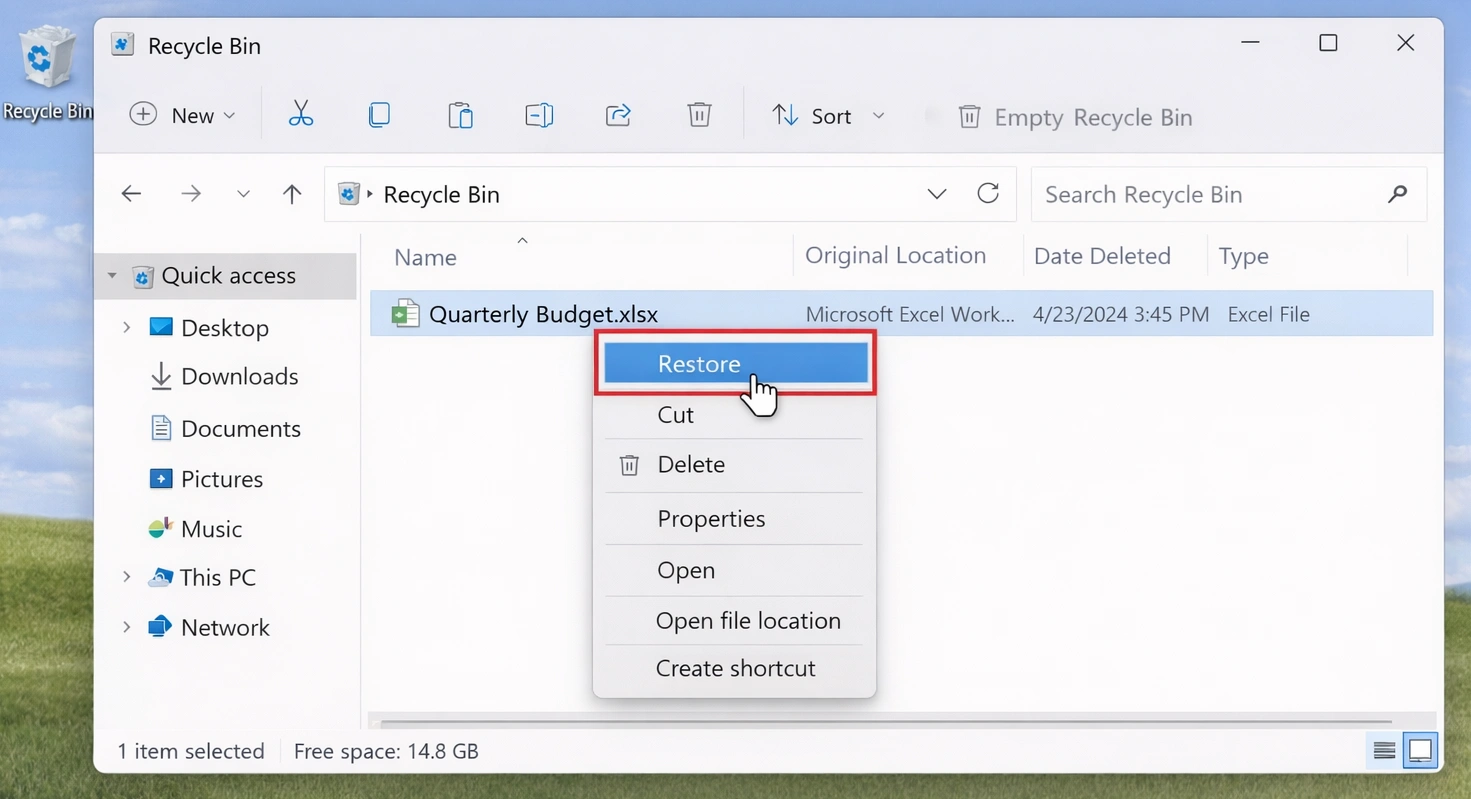
Si el archivo sigue apareciendo en la Papelera de reciclaje, recupéralo antes de probar cualquier solución avanzada:
- Abrir Papelera de reciclaje desde el escritorio.
- Busca el archivo u ordena los elementos por nombre, ubicación, fecha de eliminación o tamaño.
- Haz clic con el botón derecho del ratón sobre el elemento deseado.
- Seleccione Restaurar.
- Abre la carpeta original y comprueba el archivo.
Windows devuelve el elemento a su ubicación anterior. Sin embargo, este método no puede Recuperar archivos eliminados de la Papelera de reciclaje en Windows 10 una vez que hayas vaciado la papelera.
Un archivo también puede saltarse la Papelera de reciclaje al pulsar Mayús+Supr, eliminarlo de determinadas ubicaciones de red o eliminar un elemento que supere la capacidad configurada de la Papelera de reciclaje.
Método 2: Recuperar archivos eliminados de la Papelera de reciclaje en Windows 10 con Magic Data Recovery
Cuando el La papelera de reciclaje está vacía y, si no existe ninguna copia de seguridad, lo más práctico es realizar un análisis del disco. Magic Data Recovery permite a los usuarios normales escanear la unidad original a través de una interfaz gráfica.
Una vez vaciada la Papelera de reciclaje, Windows ya no muestra el botón «Restaurar». Sin embargo, es posible que queden rastros recuperables. Por ello, este software puede ayudarte a recuperar archivos eliminados mediante el análisis, la organización, el filtrado y la vista previa de los elementos encontrados.
¿Por qué utilizar Magic Data Recovery?
Si necesita Recuperar archivos eliminados de la Papelera de reciclaje en Windows 10 Sin necesidad de utilizar la línea de comandos, Magic Data Recovery ofrece varias ventajas prácticas:
- Un proceso sencillo de selección de unidad y escaneo.
- Filtros de archivos que te ayudan a reducir las listas de resultados extensas.
- Compatibilidad con la vista previa para comprobar el contenido recuperable.
- Compatibilidad con documentos, fotos, vídeos, archivos de audio y archivos comprimidos habituales.
- Un flujo de trabajo visual que reduce los errores en la línea de comandos.
- Una versión de prueba que permite a los usuarios probar una recuperación limitada antes de realizar la compra.
Por ejemplo, imagina que borras fotos en formato JPG y archivos DOCX, vacías la Papelera de reciclaje y descubres que el Historial de archivos nunca se activó. Windows no puede restaurar una copia de seguridad que no existe. Por lo tanto, el siguiente paso que debes dar es realizar un análisis de recuperación.
Magic Data Recovery no garantiza todos los archivos. En cambio, ofrece un proceso más claro para los usuarios que deseen Recuperar archivos eliminados de forma definitiva en Windows 10 sin comandos manuales.
Cómo utilizar Magic Data Recovery para recuperar archivos eliminados de la Papelera de reciclaje
Paso 1: Descargar e instalar Magic Data Recovery
Descarga Magic Data Recovery e instálalo en una unidad distinta a aquella en la que se almacenaban originalmente los archivos eliminados. Este método reduce las nuevas operaciones de escritura en la ubicación afectada y ayuda a proteger los datos recuperables.
Compatible con Windows 7/8/10/11 y Windows Server
Segundo paso: Seleccione la unidad a escanear
Inicia Magic Data Recovery. A continuación, selecciona en la interfaz principal la unidad que contenía anteriormente los archivos eliminados. Después, inicia el análisis.

Paso 3: Buscar Archivos Eliminado de la papelera de reciclaje
Magic Data Recovery inicia automáticamente un análisis avanzado de la unidad seleccionada para Recuperar archivos eliminados de la Papelera de reciclaje en Windows 10. Mientras tanto, el programa muestra una lista de los archivos recuperables a medida que avanza el análisis. Puedes empezar a revisar los resultados antes de que finalice el análisis. Sin embargo, al completar el análisis es posible que aparezcan más archivos y carpetas.

Paso 4: Vista previa Suprimido Archivos antes de la recuperación
A continuación, utiliza la función de vista previa para comprobar el contenido del archivo. También puedes filtrar los resultados por tipo de archivo, nombre, tamaño o ubicación. De este modo, podrás encontrar documentos, fotos, vídeos y archivos específicos de forma más eficaz.
La vista previa de los archivos te permite seleccionar solo los elementos que necesitas antes de recuperarlos.

Paso 5: Recuperar Archivos a un lugar seguro
Por último, selecciona los archivos que deseas recuperar e inicia el proceso de recuperación. Guárdalos en una unidad o ubicación de almacenamiento diferente a la unidad de origen original. Si guardas los datos en la misma unidad, podrías sobrescribir otros archivos recuperables. Como consecuencia, podrías reducir las posibilidades de recuperar datos adicionales más adelante.

Método 3: Otras formas de recuperar archivos eliminados de la Papelera de reciclaje en Windows 10
Magic Data Recovery es ideal para los usuarios que prefieren una interfaz visual en lugar de Recuperar archivos eliminados de la Papelera de reciclaje en Windows 10. No obstante, Windows y los servicios en la nube pueden ofrecer alternativas adecuadas.
Utilizar el historial de archivos o versiones anteriores
El historial de archivos puede ayudarte Recuperar archivos borrados sin software, pero solo si lo has activado antes de borrarlo.
- Abra el Explorador de archivos.
- Ve a la carpeta en la que estaba el archivo.
- Haz clic con el botón derecho en la carpeta.
- Seleccione Restaurar versiones anteriores.
- Elija una versión anterior a la eliminación.
- Ábrelo para comprobar el contenido.
- Seleccione Restaurar a y elige un lugar seguro.
Dado que este método restaura una copia anterior, no analiza el espacio borrado. Por lo tanto, suele ofrecer un resultado más limpio que la recuperación de archivos. Sin embargo, no sirve de nada cuando no existe ninguna versión anterior.
Utilizar la recuperación de archivos de Windows
Microsoft ofrece «Windows File Recovery» como una utilidad gratuita de línea de comandos. Es útil para los usuarios con conocimientos técnicos Recuperar archivos eliminados de la Papelera de reciclaje en Windows 10, pero requiere que las letras de unidad, los modos, las rutas y los filtros sean correctos.
Utiliza esta estructura de comandos:
winfr source-drive: destination-drive: [/modo] [/interruptores]
Para los archivos NTFS eliminados recientemente, prueba el modo «Normal»:
winfr C: E: /regular /n \Usuarios\\Documentos\
Si quieres ampliar la búsqueda, prueba el modo «Extenso»:
winfr C: E: /extensive /n *.jpg /n *.png /n *.docx
La unidad de origen y la de destino deben ser diferentes. Por lo tanto, no escanees la unidad C: ni guardes los resultados en la unidad C:.
Windows File Recovery es ideal para usuarios con conocimientos técnicos. Por otro lado, Magic Data Recovery ofrece una forma más accesible de Recuperar archivos eliminados de la Papelera de reciclaje en Windows 10 porque ofrece herramientas de exploración visual, filtrado y vista previa.
Comprueba OneDrive u otra copia de seguridad en la nube
Si OneDrive ha sincronizado la carpeta original, inicia sesión en línea y comprueba su Papelera de reciclaje. El hecho de eliminar un archivo local no siempre implica que la copia en la nube se elimine de inmediato.
Además, comprueba lo siguiente:
- Historial de versiones de OneDrive.
- Papelera de Google Drive.
- Archivos eliminados de Dropbox.
- Instantáneas NAS.
- Sistemas de copia de seguridad de la empresa.
- Copia manualmente en otro disco.
La restauración desde la nube suele ofrecer una copia de la mejor calidad, ya que evita el escaneo de sectores borrados.
Por qué algunos archivos pueden saltarse la Papelera de reciclaje
Algunos archivos nunca llegan a la Papelera de reciclaje. Por ejemplo, la combinación de teclas Mayús+Supr los elimina directamente. Windows también puede omitir la Papelera de reciclaje cuando un archivo supera su capacidad, cuando se desactiva la Papelera de reciclaje para una unidad o cuando el archivo procede de determinadas ubicaciones de red.
Además, es posible que las herramientas de limpieza eliminen archivos directamente. Por lo tanto, comprueba la aplicación original, la cuenta en la nube y las copias de seguridad antes de iniciar el análisis.
A Recuperar archivos eliminados con la combinación de teclas Mayús + Supr, deja de utilizar la unidad de origen y actúa con rapidez.
Recuperación de la Papelera de reciclaje en discos duros (HDD) frente a discos SSD
Cuando Recuperar archivos eliminados de la Papelera de reciclaje en Windows 10 En un disco duro, los datos borrados pueden permanecer hasta que otra operación de escritura los sustituya. Por lo tanto, actuar con rapidez puede mejorar el resultado.
Un SSD funciona de forma diferente. La función TRIM indica al SSD qué bloques ya no necesita Windows, por lo que Recuperar archivos borrados de un SSD los casos pueden volverse más difíciles.
No modifiques los ajustes de TRIM a la ligera. En su lugar, reduce la actividad y realiza un análisis lo antes posible.
Si una unidad hace clic, se desconecta o desaparece de Gestión de discos, o si contiene datos importantes, no intentes arreglarlo tú mismo y ponte en contacto con un especialista.
Errores habituales durante la recuperación de datos en Windows 10
A Recuperar archivos eliminados de la Papelera de reciclaje en Windows 10 Para hacerlo de forma segura, evita estos errores habituales:
- Instalación de varios programas en la unidad afectada.
- Restaurar los datos recuperados en la misma fuente.
- Se puede seguir utilizando el ordenador con normalidad durante la exploración.
- Dar por hecho que una vista previa garantiza que el archivo esté completo.
- Ejecutar herramientas de reparación antes de proteger los datos importantes.
- Se está realizando un escaneo repetido de una unidad físicamente inestable.
- Confiar en un programa que promete una recuperación garantizada.
Una vez recuperados, abre cada archivo y comprueba su contenido. Además, compara los documentos importantes, las fotos, los archivos y los vídeos con cualquier copia de seguridad disponible.
Conclusión
Empieza por la opción «Restaurar desde la Papelera de reciclaje» si el archivo sigue apareciendo allí. A continuación, comprueba el «Historial de archivos», las «Versiones anteriores», OneDrive y otras copias de seguridad. Los usuarios con conocimientos técnicos también pueden probar la «Recuperación de archivos de Windows» utilizando una unidad de destino independiente.
Sin embargo, cuando hayas vaciado la Papelera de reciclaje, no exista ninguna copia de seguridad y prefieras un proceso visual, Magic Data Recovery ofrece una guía práctica solución de recuperación de archivos eliminados. Te ayuda a seleccionar la unidad afectada, buscar datos perdidos, filtrar los resultados, previsualizar los archivos disponibles y recuperar los elementos seleccionados en una ubicación más segura.
Lo más importante es que la herramienta aborda el problema sin prometer un éxito garantizado. Ese equilibrio la convierte en una opción práctica cuando necesitas Recuperar archivos eliminados de la Papelera de reciclaje en Windows 10.
La recuperación sigue dependiendo de la sobrescritura, la función TRIM, el estado de la unidad y el tiempo. Por lo tanto, empieza cuanto antes y guarda siempre los archivos recuperados en otro lugar.
Compatible con Windows 7/8/10/11 y Windows Server
PREGUNTAS FRECUENTES
¿Puedo recuperar archivos borrados de la Papelera de reciclaje de Windows 10 después de vaciarla?
Sí, es posible que aún se puedan recuperar los datos, ya que Windows suele marcar el espacio del archivo como disponible en lugar de borrar inmediatamente cada byte. Sin embargo, los nuevos datos pueden sobrescribir ese espacio. Por lo tanto, deja de utilizar la unidad afectada, comprueba primero si hay copias de seguridad y, si no hay ninguna, ejecuta un análisis de recuperación de confianza.
¿Puedo recuperar archivos eliminados de forma permanente sin necesidad de software?
Puedes recuperar archivos eliminados sin necesidad de software cuando «Historial de archivos», «Versiones anteriores», OneDrive, otro servicio en la nube o una copia de seguridad manual contengan una copia. Estas opciones pueden recuperar archivos eliminados de la Papelera de reciclaje de Windows 10 sin necesidad de analizar el espacio libre en disco. Sin embargo, Windows no puede restaurar una copia de seguridad que nunca hayas creado. En ese caso, la función de recuperación de archivos de Windows o un software de recuperación de datos de confianza pueden ser la siguiente opción práctica.
¿Adónde van los archivos después de vaciar la papelera de reciclaje?
Una vez vaciada la Papelera de reciclaje, Windows suele eliminar la referencia al archivo y marca su espacio de almacenamiento como reutilizable. Los datos pueden permanecer allí hasta que otra operación de escritura los sustituya. Por lo tanto, el archivo no se traslada a una carpeta oculta que se pueda abrir fácilmente. En su lugar, es necesario realizar una copia de seguridad o un análisis de recuperación.
¿Se pueden recuperar los archivos eliminados con Shift+Supr?
A veces. La combinación Shift+Suprimir omite la Papelera de reciclaje, pero no siempre sobrescribe los datos subyacentes de forma inmediata. En primer lugar, comprueba el Historial de archivos, el almacenamiento en la nube y otras copias de seguridad. Si no existe ninguna copia, deja de utilizar la unidad de origen y escanéala con la herramienta de recuperación de archivos de Windows o con una herramienta gráfica de recuperación fiable.
¿Puedo recuperar archivos borrados de un SSD?
Es posible, aunque la recuperación de datos en un SSD puede resultar complicada, ya que la función TRIM puede borrar los bloques eliminados. El resultado depende del SSD, de la configuración de Windows, de la actividad de la unidad y del tiempo transcurrido desde la eliminación. Por lo tanto, reduce el uso de inmediato y realiza un análisis lo antes posible. Ninguna herramienta de recuperación puede restaurar los datos una vez que el SSD los haya eliminado o sobrescrito.
¿Es gratuita la recuperación de archivos de Windows?
Sí. Microsoft ofrece «Windows File Recovery» como una utilidad gratuita de línea de comandos. Sin embargo, debes seleccionar correctamente el origen, el destino, el modo, la ruta y los filtros. Además, el origen y el destino deben ser unidades diferentes. A los usuarios que prefieran controles visuales, es posible que les resulte más fácil manejar y revisar Magic Data Recovery.
¿Por qué una herramienta de recuperación encuentra un archivo que no se abre?
Un análisis puede detectar un nombre de archivo o un fragmento de archivo incluso cuando se haya sobrescrito parte del contenido con datos nuevos. Además, algunos resultados pueden perder su estructura de carpetas original o sus metadatos. Si es posible, previsualiza el archivo, recupéralo en otra unidad y pruébalo con la aplicación adecuada antes de darlo por bueno.

Vasilii es un especialista en recuperación de datos con unos 10 años de experiencia práctica en este campo. A lo largo de su carrera, ha resuelto con éxito miles de casos complejos relacionados con archivos borrados, unidades formateadas, particiones perdidas y sistemas de archivos RAW. Su experiencia abarca tanto métodos de recuperación manual con herramientas profesionales como editores hexadecimales como soluciones automatizadas avanzadas con software de recuperación. La misión de Vasilii es poner los conocimientos sobre recuperación de datos al alcance tanto de los profesionales informáticos como de los usuarios de a pie, ayudándoles a salvaguardar sus valiosos activos digitales.