
Revisión de DMDE Data Recovery: La Mejor Alternativa Fácil
Búsqueda de Recuperación de datos DMDE para restaurar sus archivos? La pérdida de datos se produce sin previo aviso. Tanto si se trata de un disco duro dañado, una tarjeta SD formateada o una partición borrada accidentalmente, El pánico es real. En su búsqueda de una solución, es probable que se haya encontrado con DM Disk Editor y software de recuperación de datos. Es un nombre que se menciona a menudo en los foros técnicos.
Sin embargo, muchos usuarios se quedan bloqueados después de descargarlo. ¿Por qué? Porque DM Disk Editor y software de recuperación de datos fue creado para expertos en recuperación de datos, no para el usuario medio de ordenador. Su interfaz es compleja, y un movimiento en falso podría dañar aún más tus datos.
Si busca potentes funciones de recuperación pero quiere una experiencia más segura y moderna, necesita un Alternativa DMDE. En este artículo, analizaremos los pros y los contras de DM Disk Editor y software de recuperación de datos y presentarle a Magic Data Recovery-una herramienta que combina profundidades de recuperación de nivel profesional con pasos sencillos.
Compatible con Windows 7/8/10/11 y Windows Server
¿Te preguntas si es posible recuperar tus archivos? Averígualo en segundos con nuestra comprobación rápida.
Evaluación de la recuperación de datos
Responde a 3 preguntas rápidas para calcular tus posibilidades de recuperación
Índice
¿Qué es el DM Disk Editor y software de recuperación de datos? (Y por qué asusta a los principiantes)
DMDE es una potente herramienta que funciona como editor de discos y software de recuperación de datos. Es capaz de profundizar en el sistema de archivos para reconstruir tablas de particiones rotas y recuperar archivos perdidos.
Sin embargo, DM Disk Editor y software de recuperación de datos tiene un inconveniente importante: Usabilidad.
Al abrir DM Disk Editor y software de recuperación de datos, se encuentra con una ventana llena de códigos hexadecimales, clusters y jerga técnica. Carece del modo “Asistente” que esperan la mayoría de los usuarios modernos.
- Alto riesgo: Como es un “Editor de disco”, te permite volver a escribir datos en el disco. Si no sabes exactamente lo que estás haciendo, corres el riesgo de sobrescribir los mismos archivos que estás intentando guardar.
- No hay previsualización: A diferencia de las herramientas modernas, DM Disk Editor y software de recuperación de datos dificulta la previsualización de fotos o documentos antes de recuperarlos. A menudo hay que recuperar primero el archivo para ver si funciona.
Si usted no es un profesional de TI, la curva de aprendizaje para DM Disk Editor y software de recuperación de datos es demasiado elevado. Por eso muchos usuarios buscan inmediatamente un Alternativa DMDE que ofrece la misma potencia sin quebraderos de cabeza.
La mejor alternativa a DMDE: Magic Data Recovery
Si quieres recuperar tus datos de forma segura sin necesidad de ser licenciado en informática, Magic Data Recovery es la mejor opción. Está diseñada para resolver exactamente los puntos débiles que DM Disk Editor y software de recuperación de datos a los usuarios.
Magic Data Recovery utiliza algoritmos de escaneado avanzados similares a los de las herramientas forenses profesionales, pero oculta esa complejidad tras una interfaz bonita y limpia. Es compatible con recuperación de discos duros, Las unidades SSD, las unidades USB y las tarjetas de memoria se encargan de todo, desde el borrado accidental hasta la corrupción grave.

DMDE vs. Magic Data Recovery: de un vistazo
Para ayudarle a decidir, comparemos DM Disk Editor y software de recuperación de datos directamente con Magic Data Recovery.
Característica | DM Disk Editor y software de recuperación de datos | Magic Data Recovery |
Público destinatario | Peritos informáticos e ingenieros forenses | Usuarios generales y profesionales |
Interfaz (UI) | Complejo, con mucho texto, anticuado | Moderno, gráfico e intuitivo |
Facilidad de uso | Bajo (Curva de aprendizaje pronunciada) | Alta (Proceso guiado por el Mago) |
Seguridad de los datos | Riesgo de sobrescritura accidental (modo Editor) | 100% Seguro (Operaciones de sólo lectura) |
Vista previa del archivo | Limitado | Vista previa completa (Fotos, documentos, audio) |
Como muestra el cuadro, mientras que DM Disk Editor y software de recuperación de datos es una herramienta robusta para editar discos, Magic Data Recovery es la solución dedicada y segura para recuperar tus archivos rápidamente.
Paso a Paso: Recuperar datos con esta alternativa a DMDE
Una de las mayores ventajas de este Alternativa DMDE es lo rápido que puede empezar. Si usted está realizando la recuperación de disco duro en una partición se estrelló, o necesita la recuperación de la tarjeta SD para un dispositivo que se volvió ilegible o formateados, Magic Data Recovery maneja estos complejos escenarios sin esfuerzo. No necesitas leer un manual ni entender de sistemas de archivos para arreglar errores de disco o deshacer un formateo accidental.
A continuación te explicamos cómo recuperar tus archivos perdidos en sencillos pasos:
Paso 1: Descargar e instalar
Descargue el software desde el sitio web oficial.
Compatible con Windows 7/8/10/11 y Windows Server
Paso 2: Seleccionar la unidad y escanear
Inicie el software. Verá una lista clara de todas las unidades conectadas.
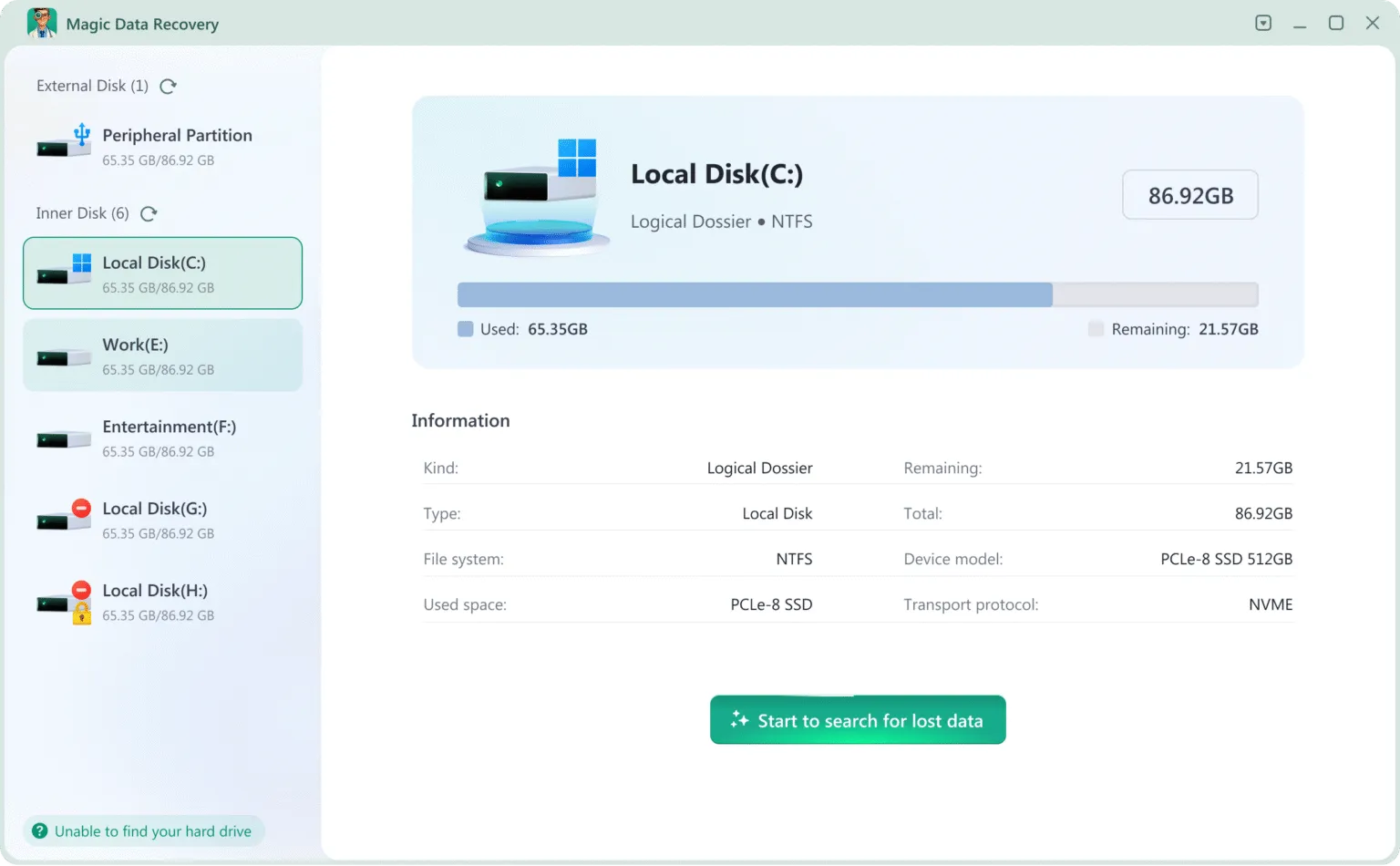
Paso 3: Espere a que finalice el escaneado
Tras el escaneo, mostrará una lista de todos los archivos de la unidad.
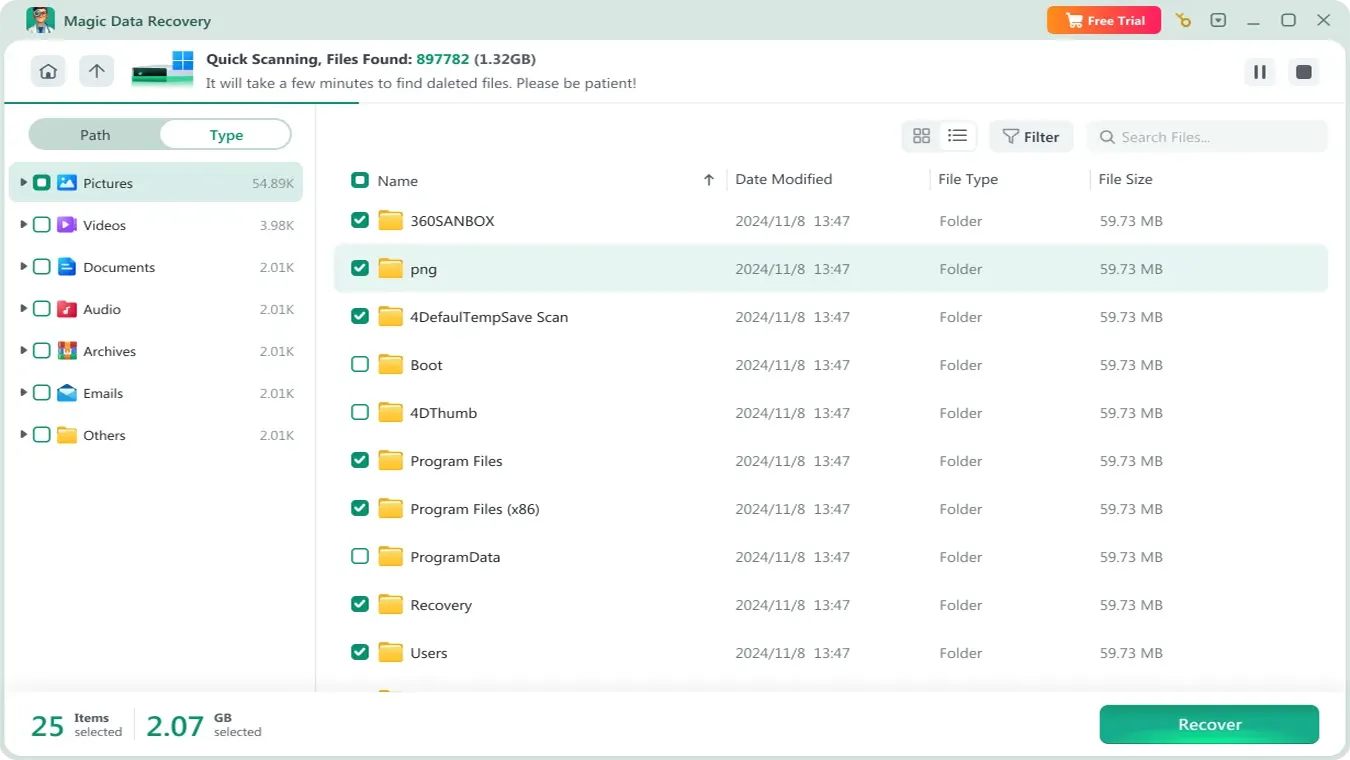
Paso 4: Vista previa de los archivos
Puedes previsualizar los archivos y confirmar si son los que necesitas.

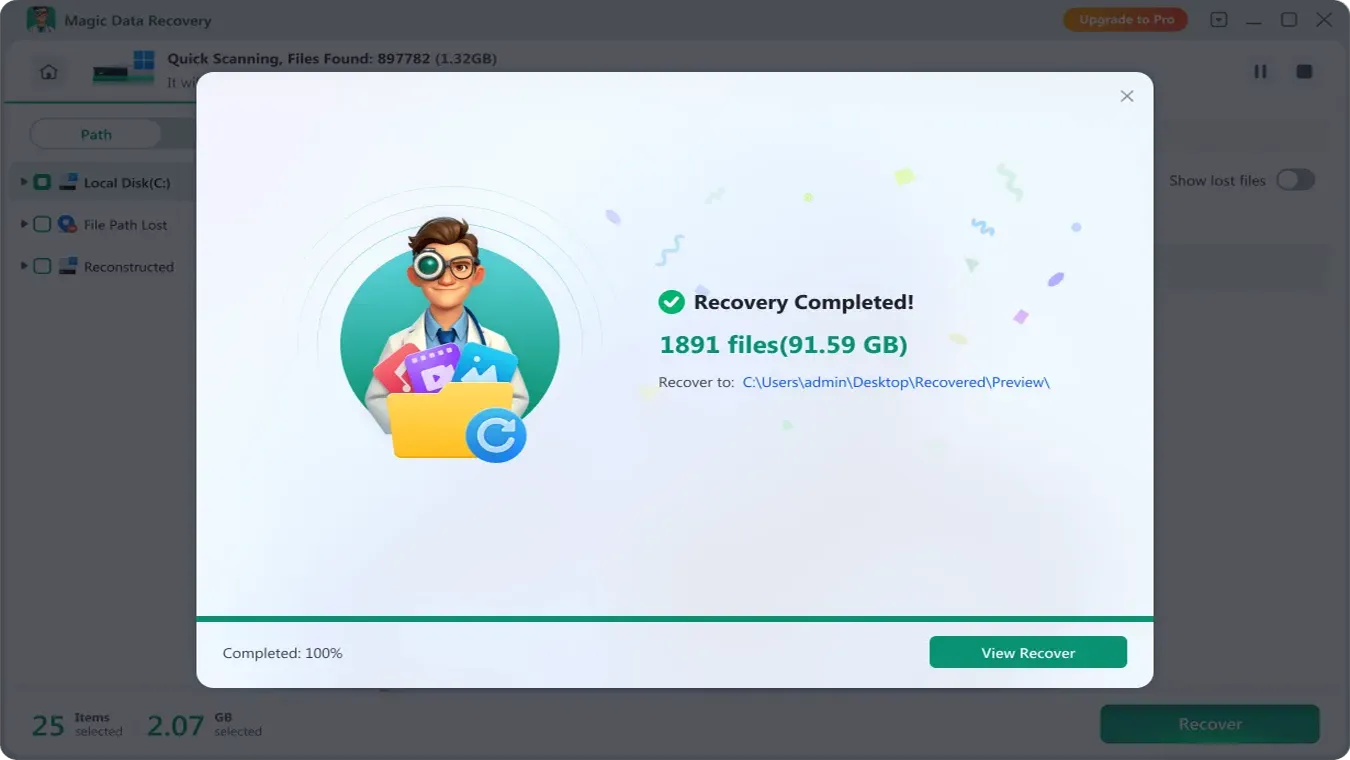
Paso 5: Recuperar datos
Selecciona los archivos que necesites y recupéralos en otra unidad.
Consejos: NO guardar los archivos de nuevo a la unidad original en caso de que los archivos perdidos se dañan.
Conclusión
DMDE es innegablemente una leyenda en la comunidad técnica, eficaz para quienes entienden los entresijos de los sectores de disco y la edición hexadecimal. Sin embargo, para el 99% de los usuarios, es excesivo y demasiado complicado. El riesgo de utilizar mal DM Disk Editor y software de recuperación de datos y corromper permanentemente tu disco es un peligro real para los principiantes.
No juegue con sus valiosos datos. Si necesita una solución potente, segura e increíblemente fácil de usar, Magic Data Recovery es lo último Alternativa DMDE. Proporciona la tranquilidad que necesita durante una crisis de pérdida de datos. Descargar Magic Data Recovery Gratis y escanee su disco ahora para ver exactamente qué se puede recuperar antes de pagar un céntimo.
Compatible con Windows 7/8/10/11 y Windows Server
Preguntas frecuentes sobre la recuperación de datos de DMDE
¿Es seguro utilizar DM Disk Editor and Data Recovery Software?
¿El programa es totalmente gratuito?
¿Cuál es la mejor alternativa a DMDE?
¿Por qué es tan complicada la interfaz DMDE?
¿Puedo previsualizar los archivos antes de recuperarlos?
¿Admite Magic Data Recovery unidades formateadas?
¿Cuánto dura una exploración?

Vasilii es un especialista en recuperación de datos con unos 10 años de experiencia práctica en este campo. A lo largo de su carrera, ha resuelto con éxito miles de casos complejos relacionados con archivos borrados, unidades formateadas, particiones perdidas y sistemas de archivos RAW. Su experiencia abarca tanto métodos de recuperación manual con herramientas profesionales como editores hexadecimales como soluciones automatizadas avanzadas con software de recuperación. La misión de Vasilii es poner los conocimientos sobre recuperación de datos al alcance tanto de los profesionales informáticos como de los usuarios de a pie, ayudándoles a salvaguardar sus valiosos activos digitales.