
Cómo encontrar la clave de producto de Windows 10 Pro: 7 métodos fiables
¿Necesitas encontrar tu clave de producto de Windows 10 Pro antes de reinstalar Windows, cambiar un disco duro o transferir tu licencia? En primer lugar, comprueba «Configuración» > «Actualización y seguridad» > «Activación». Si Windows indica que está activado con una licencia digital, es posible que no tengas que introducir una clave de producto al reinstalar la misma edición de Windows en el mismo ordenador.
Para recuperar una clave de producto de Windows 10 Pro de 25 caracteres que tengas guardada, puedes utilizar PowerShell, el Símbolo del sistema, el Registro de Windows, tus registros de compra originales o Magic Recovery Key. Magic Recovery Key resulta especialmente útil cuando los comandos manuales no devuelven ningún resultado o cuando necesitas recuperar la información de la licencia desde una unidad de Windows antigua o que no arranca.
Compatible con Windows 7/8/10/11 y Windows Server
Respuesta rápida:
El mejor método depende del tipo de licencia que tengas. Utiliza PowerShell o CMD para comprobar si hay una clave OEM integrada en el firmware del ordenador. Comprueba el correo electrónico de compra o el embalaje para encontrar una clave de venta al por menor. Si Windows utiliza una licencia digital, es posible que no exista una clave de producto visible. En el caso de una unidad antigua o inaccesible, escanéala con Magic Recovery Key antes de formatearla o reinstalar Windows.
Actualización de 2026:
Microsoft puso fin al soporte estándar de Windows 10 el 14 de octubre de 2025. Los ordenadores con Windows 10 siguen funcionando, pero ya no reciben parches de seguridad periódicos, a menos que cumplan los requisitos para un programa de actualizaciones ampliado. Recuperar la información de tu licencia sigue siendo útil a la hora de reinstalar Windows, actualizar el hardware o cambiar a una versión de Windows compatible.
Índice
Por qué necesitas tu clave de producto de Windows 10 Pro
Antes de intentar recuperar una clave, comprueba si tu ordenador utiliza una clave de producto o una licencia digital.
Una clave de producto de Windows 10 Pro es un código de 25 caracteres con el siguiente formato:
XXXXX-XXXXX-XXXXX-XXXXX-XXXXX
Una licencia digital activa Windows a través de los servidores de activación de Microsoft sin necesidad de introducir ni ver una clave tradicional. Para comprobar tu tipo de activación, abre Inicio > Configuración > Actualización y seguridad > Activación.
Es posible que aparezca uno de estos mensajes:
- Windows está activado con una licencia digital.
- Windows se activa mediante una licencia digital vinculada a tu cuenta de Microsoft.
- Windows se activa mediante el servicio de activación de tu organización.
- Windows no está activado.
Si tu instalación de Windows 10 Pro está activada con una licencia digital, al reinstalar la misma edición en el mismo equipo, normalmente se reactivará una vez que el ordenador se conecte a Internet. Disponer de una clave de producto recuperable es más importante cuando has adquirido una licencia minorista, tienes previsto sustituir componentes importantes del equipo o necesitas conservar un registro de la licencia antes de la migración.
¿Por qué no aparece mi clave de producto de Windows 10 Pro?
Un comando puede devolver un resultado vacío por varias razones legítimas:
- Windows está activado con una licencia digital.
- El ordenador no tiene ninguna clave OEM integrada en su firmware.
- La licencia se gestiona mediante KMS o la activación por volumen.
- La edición instalada no coincide con la clave de firmware original.
- El Registro solo contiene una clave de instalación genérica.
- La información de activación original se ha eliminado o sustituido.
- La clave se guarda en los registros de compra, en lugar de en el ordenador.
Consulta la página de activación antes de dar por hecho que has perdido la clave.
Método 1: Recuperar al instante su clave de producto con Magic Recovery Key
En más rápido y fiable manera de Encuentre su clave de producto de Windows 10 Pro es utilizando Magic Recovery Key - un buscador automático de claves de producto diseñado para recuperar información de licencia perdida u oculta de su sistema o unidades externas.
Cómo funciona:
1. Descargue e instale Magic Recovery Key de Amagicsoft.com.
Compatible con Windows 7/8/10/11 y Windows Server
2. Haga clic en la pestaña “Claves del Registro” en “Local”.

3. En el panel derecho, visualice las Claves del Registro de Aplicaciones. Magic Recovery Key mostrará todas las claves del software instalado. Seleccione y copie los números de serie correspondientes. Además, tiene la opción de hacer clic en “Copia” o “Guardar”para su comodidad.
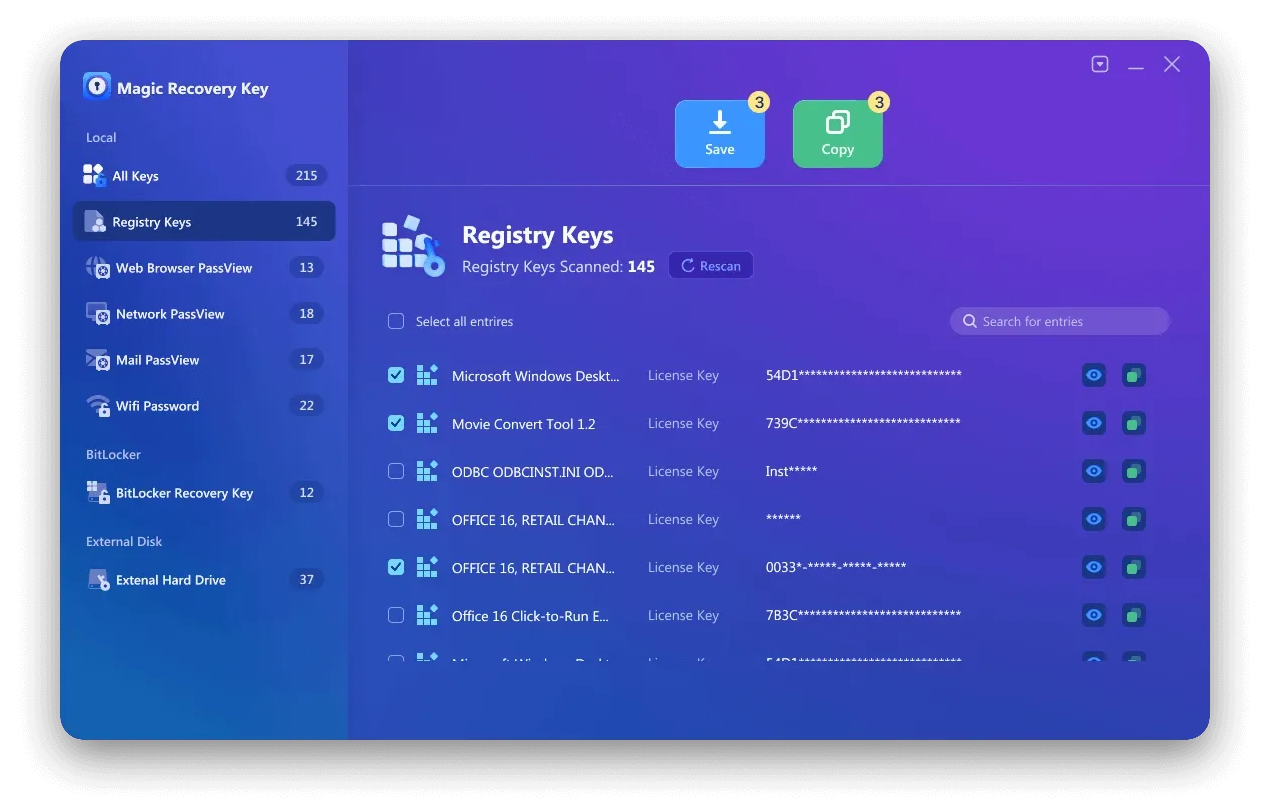
Este método es adecuado para aquellos usuarios que deseen realizar una copia de seguridad de las claves de Windows, Office, Adobe, SQL Server y otros programas compatibles sin tener que buscar manualmente en múltiples ubicaciones del sistema.
Método 2: Buscar la clave de producto de Windows 10 Pro con PowerShell
PowerShell es el método integrado más recomendado para comprobar si tu ordenador tiene una clave de producto OEM integrada en su BIOS o en el firmware UEFI.
- Haz clic con el botón derecho del ratón en el botón «Inicio».
- Selecciona «Windows PowerShell (administrador)» o «Terminal (administrador)».
- Introduce el siguiente comando: (Get-CimInstance -Query ‘Select * from SoftwareLicensingService’).OA3xOriginalProductKey
- Pulsa Intro.
Si existe una clave integrada en el firmware, PowerShell mostrará la clave de 25 caracteres. Si el resultado está en blanco, es posible que tu ordenador utilice una licencia digital, una licencia minorista, una licencia por volumen u otro método de activación. Un resultado en blanco no significa necesariamente que Windows no tenga licencia.
Método 3: Buscar la clave de producto de Windows 10 Pro mediante el CMD
La línea de comandos también puede recuperar una clave OEM integrada en el firmware del dispositivo.
- Escribe «cmd» en el cuadro de búsqueda de Windows.
- Haz clic con el botón derecho del ratón en «Símbolo del sistema» y selecciona «Ejecutar como administrador».
- Escribe: wmic path SoftwareLicensingService get OA3xOriginalProductKey
- Pulsa Intro.
Este comando no muestra todos los tipos de licencia de Windows 10 Pro. Principalmente, comprueba si hay una clave OEM original almacenada en el firmware del dispositivo. Si no aparece ninguna clave, sigue con los otros métodos que se indican a continuación.
Nota: Microsoft ha dejado de recomendar el uso de WMIC. Aunque sigue estando disponible en muchas instalaciones de Windows 10, se debe recomendar PowerShell como método principal de línea de comandos.
Método 4: Comprobar el Registro de Windows
Puedes buscar en el Registro de Windows una clave de copia de seguridad almacenada:
- Pulsa Windows + R.
- Escribe «regedit» y pulsa Intro.
- Accede a: HKEY_LOCAL_MACHINE\SOFTWARE\Microsoft\Windows NT\CurrentVersion\SoftwareProtectionPlatform
- Busca «BackupProductKeyDefault».
Importante: Es posible que el valor que se muestra aquí sea una clave de copia de seguridad, predeterminada o de instalación genérica, en lugar de la clave única con la que activaste tu licencia de Windows 10 Pro. No des por hecho que pueda activar otro ordenador.
Método 5: Consulta tus registros de compra
La ubicación correcta depende de cómo se haya adquirido Windows 10 Pro:
- Ordenador nuevo: comprueba el embalaje del ordenador, la documentación, el firmware o el certificado de autenticidad.
- Copia física comprada en tienda: busca la tarjeta o la etiqueta que hay dentro de la caja de Windows.
- Copia digital de venta al por menor: busca en el correo electrónico de confirmación de la compra o en el almacenamiento digital de la tienda.
- Compra en Microsoft: revisa el correo electrónico de confirmación y el historial de pedidos de tu cuenta de Microsoft.
- Licencia de la organización: Ponte en contacto con tu administrador de TI o consulta los registros de licencias por volumen de la organización.
Método 6: Comprueba tu cuenta de Microsoft y tu licencia digital
Es posible que una cuenta de Microsoft muestre que un dispositivo está asociado a tu cuenta, pero no siempre muestra la clave de producto completa de 25 caracteres.
Abre «Configuración» > «Actualización y seguridad» > «Activación». Si en la página se indica que Windows está activado con una licencia digital vinculada a tu cuenta de Microsoft, mantén esa cuenta vinculada antes de reinstalar Windows o de realizar un cambio importante en el hardware.
Tras sustituir la placa base o realizar cualquier otro cambio importante en el hardware, utiliza el Solucionador de problemas de activación y selecciona “He cambiado recientemente el hardware de este dispositivo”.”
Método 7: Recuperar una clave de Windows desde una unidad antigua o que no arranca
Si la instalación original de Windows ya no se inicia, evita formatear el disco antiguo antes de comprobarlo.
Conecta la antigua unidad del sistema a un ordenador con Windows que funcione correctamente utilizando una carcasa o un adaptador compatible. Abre Magic Recovery Key, selecciona la unidad conectada y realiza un análisis de la antigua instalación de Windows para buscar la información de licencia almacenada.
La posibilidad de recuperación depende del tipo de licencia y de si quedan datos de activación válidos en la unidad. Es posible que una licencia digital vinculada a los servidores de Microsoft no aparezca como una clave tradicional de 25 caracteres.
Haga una copia de seguridad y proteja su clave de producto
Una vez que hayas encontrado tu clave de producto de Windows 10 Pro, asegúrate de hacer una copia de seguridad segura:
Guárdela en un gestor de contraseñas cifradas
Anótelo y guárdelo en un lugar seguro
Guarda una copia utilizando la función “Exportar” de Magic Recovery Key
Esto garantiza que, incluso después de reinstalar Windows o sustituir el hardware, puedas reactivar fácilmente el sistema.
Conclusión
No existe un método único que permita recuperar todas las claves de producto de Windows 10 Pro. PowerShell y CMD identifican principalmente las claves OEM integradas en el firmware, mientras que el Registro puede que solo muestre un valor genérico o de copia de seguridad. Claves de venta al por menor es más probable que aparezcan en los correos electrónicos de compra, en el embalaje o en los registros de pedidos, y las licencias digitales pueden reactivar Windows sin mostrar una clave tradicional.
Cuando los métodos manuales fallan —o cuando la instalación original de Windows se encuentra en una unidad antigua o que no arranca—Magic Recovery Key ofrece una forma práctica de analizar, revisar y realizar copias de seguridad de la información almacenada sobre Windows y las licencias de software antes de reinstalar o sustituir el sistema.
Compatible con Windows 7/8/10/11 y Windows Server
Preguntas más frecuentes (FAQ)
¿Dónde puedo encontrar mi clave de producto de Windows 10 Pro?
¿Cómo puedo encontrar mi clave de producto de Windows 10 Pro utilizando PowerShell?
¿Por qué el CMD muestra una clave de producto de Windows 10 en blanco?
¿Puedo encontrar mi clave de producto de Windows 10 Pro en mi cuenta de Microsoft?
¿Necesito una clave de producto para reinstalar Windows 10 Pro?
¿Es «BackupProductKeyDefault» mi clave de activación real de Windows?
¿Puedo transferir mi clave de producto de Windows 10 Pro a otro ordenador?
¿Puede Magic Recovery Key recuperar una clave de un ordenador que no arranca?

Erin Smith es reconocida como una de las redactoras más profesionales de Amagicsoft. Ha perfeccionado continuamente sus habilidades de escritura durante los últimos 10 años y ha ayudado a millones de lectores a resolver sus problemas tecnológicos.