
How to Find Your Windows 10 Pro Product Key: 7 Reliable Methods
Need to find your Windows 10 Pro product key before reinstalling Windows, replacing a hard drive, or moving your license? First, check Settings > Update & Security > Activation. If Windows says it is activated with a digital license, you may not need to enter a product key when reinstalling the same Windows edition on the same computer.
To retrieve a stored 25-character Windows 10 Pro product key, you can use PowerShell, Command Prompt, the Windows Registry, your original purchase records, or Magic Recovery Key. Magic Recovery Key is particularly useful when manual commands return a blank result or when you need to recover license information from an old or non-bootable Windows drive.
Supports Windows 7/8/10/11 and Windows Server
Quick Answer:
The best method depends on your license type. Use PowerShell or CMD to check for an OEM key embedded in the PC firmware. Check your purchase email or packaging for a retail key. If Windows uses a digital license, a visible product key may not exist. For an old or inaccessible drive, scan it with Magic Recovery Key before formatting or reinstalling Windows.
2026 Update:
Microsoft ended standard support for Windows 10 on October 14, 2025. Windows 10 computers still work, but they no longer receive regular security fixes unless they qualify for an extended update program. Recovering your license information remains useful when reinstalling Windows, upgrading hardware, or moving to a supported Windows version.
Table of Contents
Why You Need Your Windows 10 Pro Product Key
Before trying to recover a key, check whether your computer uses a product key or a digital license.
A Windows 10 Pro product key is a 25-character code in the following format:
XXXXX-XXXXX-XXXXX-XXXXX-XXXXX
A digital license activates Windows through Microsoft’s activation servers without requiring you to enter or view a traditional key. To check your activation type, open Start > Settings > Update & Security > Activation.
You may see one of these messages:
- Windows is activated with a digital license.
- Windows is activated with a digital license linked to your Microsoft account.
- Windows is activated using your organization’s activation service.
- Windows is not activated.
If your Windows 10 Pro installation is activated with a digital license, reinstalling the same edition on the same hardware will normally reactivate after the computer connects to the internet. A recoverable product key is more important when you purchased a retail license, plan to replace major hardware, or need to keep a license record before migration.
Why Is My Windows 10 Pro Product Key Not Showing?
A command may return a blank result for several legitimate reasons:
- Windows is activated with a digital license.
- The computer does not have an OEM key embedded in its firmware.
- The license is managed through KMS or volume activation.
- The installed edition does not match the original firmware key.
- The Registry contains only a generic installation key.
- The original activation information was removed or replaced.
- The key is stored in purchase records rather than on the computer.
Check the Activation page before assuming that the key has been lost.
Method 1: Instantly Recover Your Product Key with Magic Recovery Key
The fastest and most reliable way to find your Windows 10 Pro product key is by using Magic Recovery Key — an automatic product key finder designed to recover lost or hidden license information from your system or external drives.
How it works:
1. Download and install Magic Recovery Key from Amagicsoft.com.
Supports Windows 7/8/10/11 and Windows Server
2. Click “Registry Keys” tab under “Local”.

3. On the right panel, view the Applications Registry Keys. Magic Recovery Key will display all keys for installed software. Select and copy the targeted serial numbers. Additionally, you have the option to click either “Copy” or “Save” for your convenience.
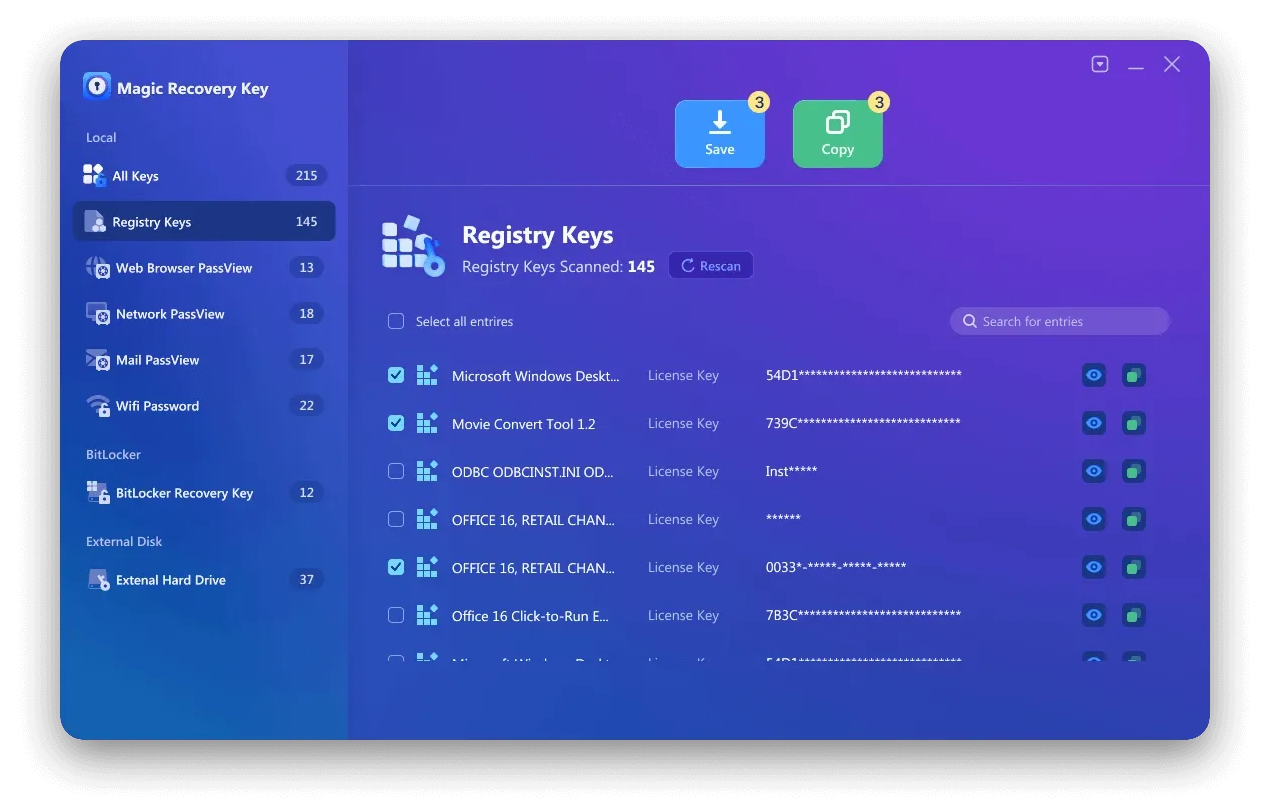
This method is suitable for users who want to back up Windows, Office, Adobe, SQL Server, and other supported software keys without manually searching multiple system locations.
Method 2: Find the Windows 10 Pro Product Key with PowerShell
PowerShell is the preferred built-in method for checking whether your computer has an OEM product key embedded in its BIOS or UEFI firmware.
- Right-click the Start button.
- Select Windows PowerShell (Admin) or Terminal (Admin).
- Enter the following command: (Get-CimInstance -Query ‘Select * from SoftwareLicensingService’).OA3xOriginalProductKey
- Press Enter.
If a firmware-embedded key exists, PowerShell will display the 25-character key. If the result is blank, your computer may use a digital license, retail license, volume license, or another activation method. A blank result does not necessarily mean that Windows is unlicensed.
Method 3: Find the Windows 10 Pro Product Key Using CMD
Command Prompt can also retrieve an OEM key embedded in the device firmware.
- Type cmd in the Windows search box.
- Right-click Command Prompt and select Run as administrator.
- Enter: wmic path SoftwareLicensingService get OA3xOriginalProductKey
- Press Enter.
This command does not reveal every type of Windows 10 Pro license. It mainly checks for the original OEM key stored in the device firmware. If no key appears, continue with the other methods below.
Note: WMIC has been deprecated by Microsoft. It remains available on many Windows 10 installations, but PowerShell should be presented as the primary command-line method.
Method 4: Check the Windows Registry
You can inspect the Windows Registry for a stored backup key:
- Press Windows + R.
- Type regedit and press Enter.
- Navigate to: HKEY_LOCAL_MACHINE\SOFTWARE\Microsoft\Windows NT\CurrentVersion\SoftwareProtectionPlatform
- Find BackupProductKeyDefault.
Important: The value displayed here may be a backup, default, or generic installation key rather than the unique key that activated your Windows 10 Pro license. Do not assume that it can activate another computer.
Method 5: Check Your Purchase Records
The correct location depends on how Windows 10 Pro was purchased:
- New computer: Check the PC packaging, documentation, firmware, or Certificate of Authenticity.
- Physical retail copy: Look for the card or label inside the Windows box.
- Digital retail copy: Search the purchase confirmation email or the retailer’s digital locker.
- Microsoft purchase: Review the confirmation email and Microsoft account order history.
- Organization license: Contact your IT administrator or check the organization’s volume licensing records.
Method 6: Check Your Microsoft Account and Digital License
A Microsoft account may show that a device is associated with your account, but it does not always display the full 25-character product key.
Open Settings > Update & Security > Activation. If the page says that Windows is activated with a digital license linked to your Microsoft account, keep that account linked before reinstalling Windows or making a major hardware change.
After a motherboard replacement or another significant hardware change, use the Activation Troubleshooter and select “I changed hardware on this device recently.”
Method 7: Recover a Windows Key from an Old or Non-Bootable Drive
If the original Windows installation no longer starts, avoid formatting the old drive before checking it.
Connect the old system drive to a working Windows computer using a compatible enclosure or adapter. Open Magic Recovery Key, select the connected drive, and scan the old Windows installation for stored license information.
Recovery availability depends on the license type and whether usable activation data remains on the drive. A digital license tied to Microsoft’s servers may not appear as a traditional 25-character key.
Back Up and Protect Your Product Key
Once you’ve found your Windows 10 Pro product key, make sure you back it up securely:
Save it in an encrypted password manager
Write it down and store it safely
Keep a copy using Magic Recovery Key’s “Export” function
This ensures that even after reinstalling Windows or replacing hardware, you can easily reactivate your system.
Conclusion
There is no single method that retrieves every Windows 10 Pro product key. PowerShell and CMD mainly identify firmware-embedded OEM keys, while the Registry may show only a generic or backup value. Retail keys are more likely to be found in purchase emails, packaging, or order records, and digital licenses may reactivate Windows without displaying a traditional key.
When manual methods fail—or when the original Windows installation is on an old or non-bootable drive—Magic Recovery Key provides a practical way to scan, review, and back up stored Windows and software license information before reinstalling or replacing the system.
Supports Windows 7/8/10/11 and Windows Server
Frequently Asked Questions (FAQ)
Where can I find my Windows 10 Pro product key?
How do I find my Windows 10 Pro product key using PowerShell?
Why does CMD show a blank Windows 10 product key?
Can I find my Windows 10 Pro product key in my Microsoft account?
Do I need a product key to reinstall Windows 10 Pro?
Is BackupProductKeyDefault my real Windows activation key?
Can I transfer my Windows 10 Pro product key to another computer?
Can Magic Recovery Key recover a key from a non-bootable computer?

Erin Smith is recognized as one of the most professional writers at Amagicsoft. She has continually honed her writing skills over the past 10 years and helped millions of readers solve their tech problems.