
Lecteur SD non reconnu : 6 méthodes de réparation éprouvées
Lorsque votre Le lecteur SD n'est pas reconnu Sous Windows 11 ou Windows 10, le problème peut être dû à un lecteur de carte défectueux, à un pilote obsolète, à l'absence d'une lettre de lecteur, à une corruption du système de fichiers ou à un dommage physique de la carte. La solution consiste à Solution carte SD cela dépend si la carte apparaît dans l'Explorateur de fichiers, le Gestionnaire de périphériques ou Gestion des disques.
Avant de formater la carte ou d'exécuter une commande de réparation, vérifiez si elle contient des photos, des vidéos ou des documents importants. Le formatage, l'initialisation ou la réparation d'un système de fichiers endommagé peuvent écraser ou modifier des données récupérables. Si la carte SD est détectée mais apparaît comme « RAW », non allouée, inaccessible ou si un formatage est demandé, vous pouvez utiliser Magic Data Recovery pour analyser la carte et récupérer les fichiers importants avant de tenter d'autres réparations.
Ce guide explique comment déterminer pourquoi une carte SD n'apparaît pas et propose 10 conseils pratiques Solutions pour réparer en toute sécurité une carte SD non reconnue.
Prise en charge de Windows 7/8/10/11 et Windows Server
Table des matières
Réponse rapide : Comment résoudre le problème d'une carte SD non reconnue
Pour résoudre le problème d'une carte SD qui n'est pas reconnue sous Windows 11 ou Windows 10 :
- Retirez la carte SD, puis réinsérez-la.
- Essayez un autre port USB, un autre lecteur de carte ou un autre ordinateur.
- Vérifiez que le lecteur prend en charge votre carte SD, SDHC ou SDXC.
- Vérifiez la carte dans le Gestionnaire de périphériques et dans la Gestion des disques.
- Activez, mettez à jour, réinstallez ou rétablissez la version précédente du pilote du lecteur de carte.
- Attribuez une nouvelle lettre de lecteur à la carte SD.
- Vérifiez la configuration du lecteur de carte interne dans le BIOS ou l'UEFI.
- Récupérez vos fichiers importants si la carte est au format RAW, non allouée ou inaccessible.
- N'exécutez CHKDSK qu'après avoir sauvegardé vos données.
- En dernier recours, formatez la carte SD.
L'outil « Gestion des disques » de Windows permet de vérifier si un périphérique de stockage comporte une partition, un système de fichiers ou une lettre de lecteur. Il permet également de créer et de formater des volumes, ou encore de modifier les lettres de lecteur. La carte SD apparaît en premier
Avant d'essayer des solutions au hasard, vérifiez si Windows parvient à détecter la carte au niveau du matériel, du disque ou du système de fichiers.
Presse Windows + X et ouvrir Gestion des disques. Vous pouvez également appuyer sur Windows + R, tapez diskmgmt.msc, et sélectionnez OK. ce que vous pouvez voir dans le tableau ci-dessous.
État de la carte SD | Problème probable | Mesure recommandée |
Il apparaît dans l'Explorateur de fichiers mais ne peut pas être ouvert | Erreur du système de fichiers, fichiers endommagés ou problème d'autorisation | Récupérez les fichiers importants, puis vérifiez le système de fichiers |
Apparaît dans « Gestion des disques » sans lettre de lecteur | Lettre de lecteur manquante ou en conflit | Attribuer une nouvelle lettre de lecteur |
Apparaît au format RAW | Système de fichiers endommagé ou non pris en charge | Récupérer des données avant d'exécuter CHKDSK ou de formater le disque |
Apparaît comme « Non attribué » | Partition perdue ou endommagée | Récupérer les fichiers avant de créer un nouveau volume |
Apparaît dans le Gestionnaire de périphériques, mais pas dans la Gestion des disques | Problème de pilote, de lecteur, de contrôleur USB ou de connexion | Mettre à jour ou réinstaller le pilote |
Affiche la capacité correcte, mais l'accès est impossible | Corruption logique ou informations de partition endommagées | Analysez la carte à l'aide d'un logiciel de récupération |
Affiche “ Aucun support ” ou 0 octet | Possible défaillance du lecteur, de l'adaptateur, du contrôleur ou du matériel | Essayez un autre lecteur ; évitez de modifier la mise en page ou de multiplier les tentatives de réparation |
N'apparaît nulle part | Lecteur défectueux, matériel incompatible, lecteur désactivé ou panne physique de la carte | Testez un autre lecteur, un autre port et un autre ordinateur |
Ce diagnostic est important car l'attribution d'une lettre de lecteur ne permettra pas de réparer une carte endommagée physiquement, tandis que le formatage d'une carte présentant un simple conflit de lettre de lecteur entraînerait l'effacement inutile de son contenu.
Pourquoi mon lecteur SD n'est-il pas reconnu ?
Une carte SD peut cesser d'apparaître pour plusieurs raisons.
Connexion mal fixée ou encrassée
La poussière, l'oxydation, l'usure des contacts ou une carte mal insérée peuvent perturber la communication entre la carte SD et le lecteur.
Lecteur de carte ou port USB défectueux
Il se peut que la carte SD fonctionne correctement, mais que le lecteur intégré, le lecteur de carte USB, l'adaptateur, le câble, le concentrateur USB ou le port soit défectueux.
Carte ou lecteur incompatible
Les appareils plus anciens peuvent prendre en charge les cartes SD ou SDHC standard, mais pas les cartes SDXC plus récentes. L'association SD précise que les appareils SD et SDHC plus anciens ne sont pas nécessairement compatibles avec les cartes SDXC. Vérifiez toujours la capacité et les normes de carte prises en charge par le lecteur ou l'appareil hôte. r Lettre de lecteur en conflit
Il se peut que Windows détecte la carte SD, mais ne l'affiche pas dans l'Explorateur de fichiers, soit parce qu'aucune lettre de lecteur ne lui a été attribuée, soit parce que la lettre qui lui est actuellement attribuée est en conflit avec celle d'un autre périphérique de stockage ou d'un périphérique réseau.
Pilote du lecteur de carte désactivé ou corrompu
Un pilote manquant, obsolète, désactivé ou endommagé peut empêcher Windows de communiquer avec un lecteur de carte interne ou USB.
Corruption du système de fichiers
Un retrait incorrect, une coupure de courant pendant un transfert de fichiers, des plantages du système, une défaillance de la mémoire flash ou une interruption de l'enregistrement vidéo peuvent endommager le système de fichiers. La carte peut alors s'afficher au format RAW, leur mise en forme peut être altérée ou ils peuvent devenir inaccessibles.
Partition perdue ou endommagée
Si les informations relatives aux partitions de la carte sont endommagées, l'outil « Gestion des disques » peut afficher son espace comme « Non alloué », même si des fichiers récupérables se trouvent encore sur la zone de stockage.
Paramètres BIOS ou UEFI
Sur certains ordinateurs portables, il est possible d'activer ou de désactiver le lecteur de carte interne dans le BIOS ou le micrologiciel UEFI. Une réinitialisation ou une mise à jour du micrologiciel peut modifier ce paramètre.
Panne matérielle de la carte SD
Une carte tordue, fissurée, ayant subi une surchauffe, endommagée par un liquide ou présentant des dommages électriques peut ne pas être réparable via Windows. Des déconnexions répétées, une capacité incorrecte, un état indiquant 0 octet ou un dysfonctionnement sur plusieurs périphériques peuvent indiquer un problème au niveau matériel.
Comment réparer un lecteur SD qui n'est pas reconnu ?
Si votre La carte SD ne s'affiche pas, suivez les étapes de dépannage suivantes :
Vérifiez la carte SD sur un autre appareil
Avant de supposer que votre carte SD est défectueuse, testez-la dans un autre appareil. Si elle fonctionne avec un autre appareil photo, un smartphone ou un ordinateur, le problème peut provenir de votre ordinateur ou de votre lecteur de carte.
Redémarrer l'ordinateur
Un simple redémarrage peut parfois résoudre des problèmes de détection causés par des pépins logiciels ou des dysfonctionnements matériels temporaires.
Essayez un autre lecteur de carte ou un autre port USB
Parfois, le problème vient du lecteur de cartes ou du port USB que vous utilisez. Essayez d'utiliser un autre lecteur de cartes ou un autre port. Si vous utilisez un concentrateur USB, connectez le lecteur de cartes directement à l'ordinateur.
Mettre à jour ou réinstaller les pilotes pour la carte SD non reconnue
Des pilotes obsolètes ou corrompus peuvent empêcher la reconnaissance de votre carte SD. Suivez ces étapes pour mettre à jour ou réinstaller vos pilotes :
- Ouvrir Gestionnaire de périphériques (vous pouvez le rechercher dans le menu Démarrer).
- Trouver le Lecteur de carte SD sous Disques durs.
- Cliquez avec le bouton droit de la souris et sélectionnez Mise à jour du pilote ou Désinstaller l'appareil.
- Redémarrez votre ordinateur et Windows devrait réinstaller les pilotes automatiquement.
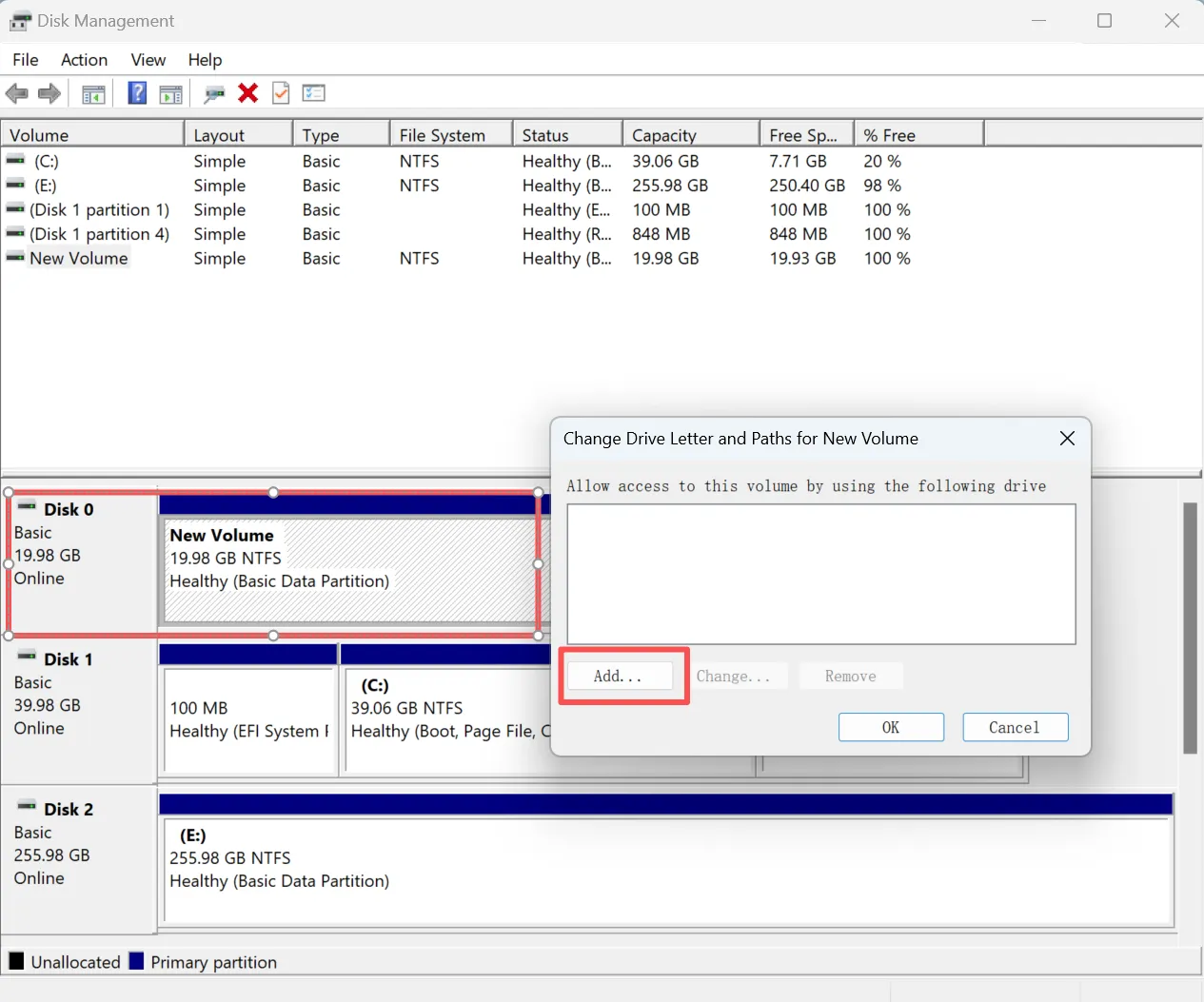
Utiliser la Gestion des disques pour attribuer une lettre de lecteur pour le lecteur SD non reconnu
Si la carte SD fonctionne physiquement mais n'apparaît pas dans l'explorateur de fichiers, vous pouvez essayer de lui attribuer une lettre de lecteur.
- Cliquez avec le bouton droit de la souris sur l'icône Démarrage et sélectionnez Gestion des disques.
- Localisez la carte SD dans la liste des lecteurs.
- Cliquez avec le bouton droit de la souris et sélectionnez Modifier la lettre du lecteur et les chemins d'accès.
- Attribuer une nouvelle lettre de lecteur.
Exécutez CHKDSK avec prudence
CHKDSK vérifie le système de fichiers et les métadonnées d'un volume à la recherche d'erreurs. Lorsqu'il est utilisé avec des paramètres de réparation tels que /f, il tente de corriger les problèmes logiques du système de fichiers. SK n'est pas un outil de récupération de données. Microsoft précise que les réparations effectuées sur les systèmes de fichiers FAT peuvent modifier la table d'allocation des fichiers et entraîner parfois une perte de données. Récupérez ou sauvegardez vos fichiers importants avant d'utiliser un paramètre de réparation.
Commencez par vérifier que le fichier est en lecture seule
- Rechercher Invite de commande.
- Sélectionner Exécuter en tant qu'administrateur.
- Saisissez la commande suivante, en remplaçant
E :avec la lettre attribuée à la carte SD :chkdsk E:
En l'absence de paramètre de réparation, CHKDSK affiche l'état du volume mais ne corrige pas les erreurs. Erreurs logiques du système de fichiers
Une fois vos données protégées, exécutez la commande suivante : chkdsk E : /f

Les /f Ce paramètre demande à CHKDSK de corriger les erreurs détectées. Il peut être nécessaire de verrouiller ou de démonter le volume pendant l'exécution de la réparation. CHKDSK lorsque la carte :
- Apparaît sous le format RAW et contient des fichiers importants
- Se déconnecte sans cesse
- Affiche une capacité erronée
- Provoque le blocage de Windows
- Présence de dommages matériels présumés
Si Windows indique que CHKDSK n'est pas disponible pour les supports au format RAW, récupérez d'abord les fichiers, puis formatez la carte.
Formater la carte SD (si nécessaire)
Si le système ne peut toujours pas reconnaître votre carte SD, vous pouvez il faut le formater. Le formatage efface toutes les données, assurez-vous donc de disposer d'une sauvegarde des données de la carte SD.
Pour formater la carte SD :
- Ouvrir Explorateur de fichiers et cliquez avec le bouton droit de la souris sur la carte SD.
- Sélectionner Format.
- Choisissez un système de fichiers (exFAT est généralement utilisé pour les cartes plus grandes).
- Cliquez sur Démarrage pour formater la carte.
Si vous ne voulez pas risquer de perdre des données en les formatant, la récupération des données à partir de la base de données du lecteur SD non reconnu serait le premier choix.
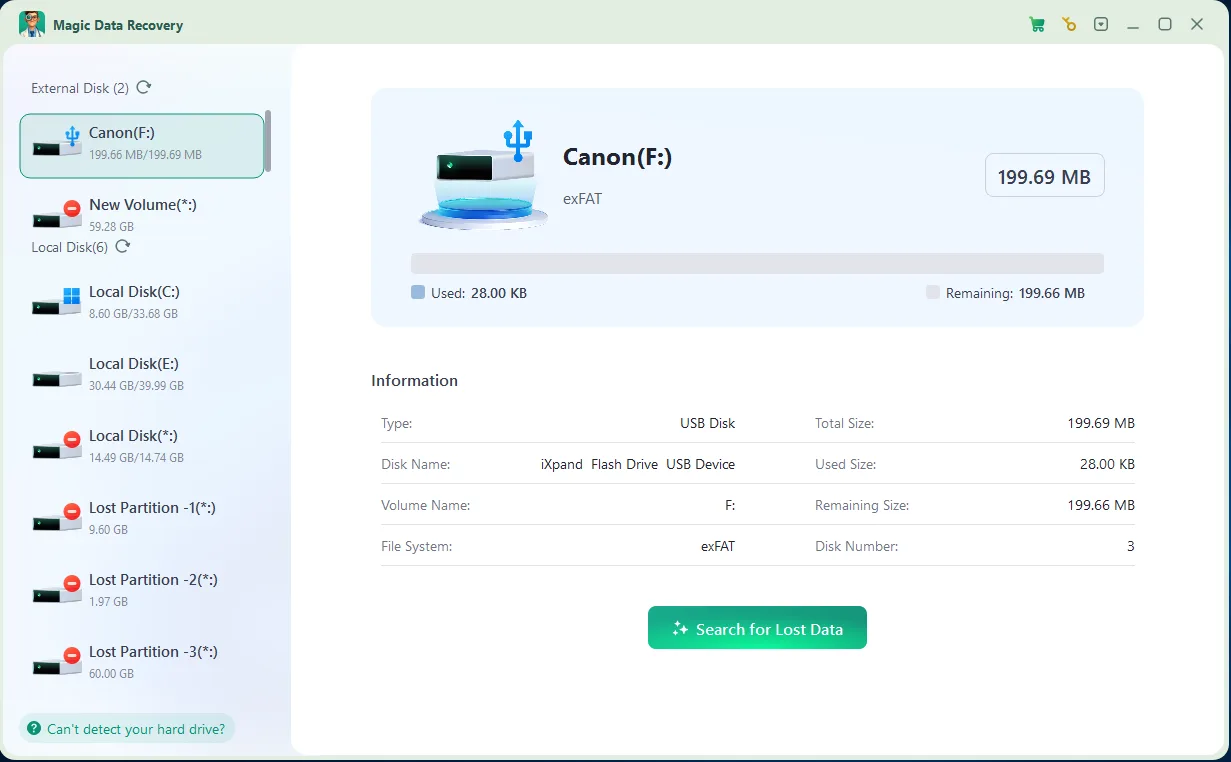
Comment récupérer les fichiers d'un lecteur SD non reconnu ?
Si vous avez perdu des données à cause d'une carte SD corrompue ou illisible, vous pouvez encore les récupérer avec les bons outils. Magic Data Recovery est une solution avancée pour récupérer les fichiers perdus sur une carte SD non détectée. Cet outil offre un mode lecture seule, garantissant qu'aucune donnée n'est écrasée au cours du processus de récupération.
Comment éviter qu'une carte SD ne soit à nouveau non reconnue
Une fois le problème résolu, suivez ces recommandations afin de réduire le risque d'une nouvelle panne :
- Éjectez la carte en toute sécurité avant de la retirer de l'ordinateur.
- Éteignez l'appareil photo ou tout autre appareil avant de retirer sa carte mémoire.
- Ne retirez pas la carte pendant l'enregistrement ou le transfert de fichiers.
- Évitez de remplir entièrement la carte.
- Utilisez un lecteur compatible avec la norme et la capacité de la carte.
- Remplacez les adaptateurs microSD mal fixés ou endommagés.
- Veillez à ce que les contacts restent secs et propres.
- Évitez d'utiliser la même carte de manière répétée sur des appareils incompatibles.
- Sauvegardez régulièrement vos photos et vidéos importantes.
- Remplacez les cartes qui se déconnectent fréquemment, passent en mode lecture seule ou génèrent des erreurs de fichier.
Il ne faut pas se fier à une carte SD qui recommence à fonctionner après plusieurs pannes pour en faire la seule copie de données importantes.
Conclusion
Lorsqu'un Le lecteur SD n'est pas reconnu, commencez par vérifier si la carte apparaît dans le Gestionnaire de périphériques, la Gestion des disques ou l'Explorateur de fichiers. Cela vous permettra de déterminer si le problème est lié à la connexion physique, au lecteur de carte, au pilote, à la lettre de lecteur, à la partition ou au système de fichiers.
Commencez par des méthodes non destructives Solutions pour cartes SD telles que reconnecter la carte, changer de lecteur, vérifier la compatibilité, mettre à jour le pilote et attribuer une nouvelle lettre de lecteur.
Si la carte SD apparaît comme « RAW », « Non allouée », « Inaccessible » ou si un formatage est requis, sauvegardez les données avant de tenter toute réparation. Magic Data Recovery Il peut analyser les cartes SD détectées et aider à récupérer des photos, des vidéos, des documents et d'autres fichiers avant que CHKDSK ou un formatage ne modifie la carte.
Prise en charge de Windows 7/8/10/11 et Windows Server
Le lecteur SD n'est pas reconnu - FAQ
Comment réparer un lecteur SD non reconnu ?
Pourquoi ma carte SD est-elle soudainement illisible ?
Pourquoi ma carte SD n'apparaît-elle pas dans les fichiers ?
Comment faire pour que mon ordinateur lise ma carte micro SD ?
Comment réparer une carte micro SD morte ?
Quelle est la durée de vie d'une carte SD ?
Comment récupérer une carte SD non détectée ?
Comment savoir si une carte SD est défectueuse ?

Vasilii est un spécialiste de la récupération de données qui possède une dizaine d'années d'expérience pratique dans ce domaine. Tout au long de sa carrière, il a résolu avec succès des milliers de cas complexes impliquant des fichiers supprimés, des disques formatés, des partitions perdues et des systèmes de fichiers RAW. Son expertise couvre à la fois les méthodes de récupération manuelle à l'aide d'outils professionnels tels que les éditeurs hexagonaux et les solutions automatisées avancées à l'aide de logiciels de récupération. La mission de Vasilii est de rendre accessible aux professionnels de l'informatique et aux utilisateurs quotidiens des connaissances fiables en matière de récupération de données, afin de les aider à sauvegarder leurs précieuses ressources numériques.