
Guide de récupération des fichiers sur un disque dur endommagé
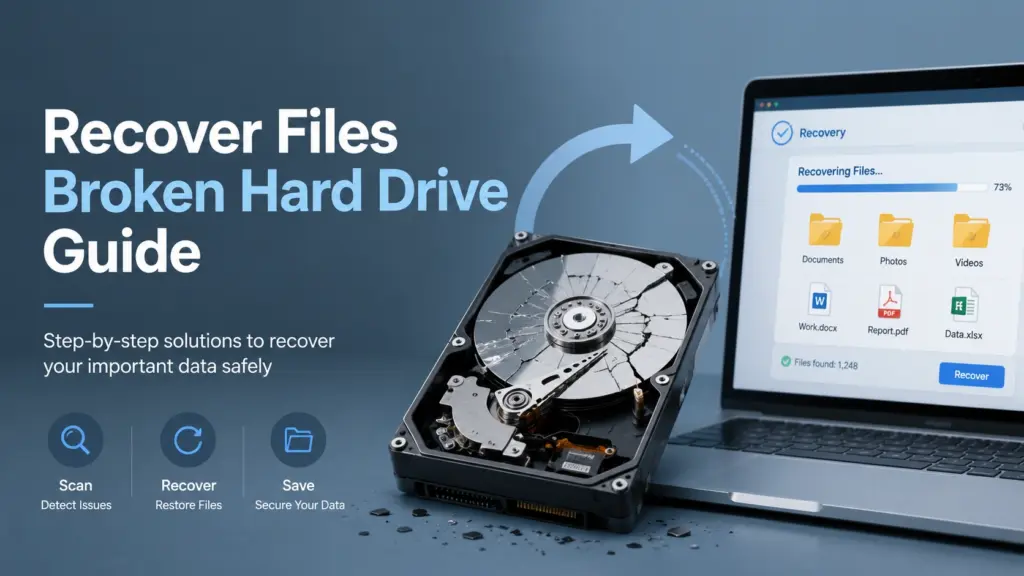
Lorsque votre disque dur cesse de fonctionner, chaque clic compte. Vous voudrez peut-être récupérer des fichiers sur un disque dur endommagé immédiatement, mais une mauvaise intervention peut compliquer la récupération des fichiers perdus. Ce guide explique comment évaluer l'état du disque dur, quelles mesures prendre en premier lieu, quand il vaut mieux éviter de réparer soi-même, et comment procéder en toute sécurité guide de récupération des fichiers effacés peut vous aider à choisir la bonne stratégie de reprise.
Si le disque dur apparaît toujours sous Windows, il se peut que vous soyez confronté à un problème logique, tel que la suppression de fichiers, un formatage, des erreurs du système de fichiers, un disque en mode RAW ou une partition endommagée. Dans ce cas, Magic Data Recovery Vous pouvez analyser le disque concerné, prévisualiser les fichiers récupérables et les enregistrer dans un autre emplacement sûr. Toutefois, si le disque émet des cliquetis, dégage une odeur de brûlé, surchauffe ou ne tourne plus, cessez de l'utiliser et contactez un service professionnel de récupération de données.
Prise en charge de Windows 7/8/10/11 et Windows Server
Table des matières
Que signifie réellement “ disque dur en panne ” ?
Avant d'essayer de récupérer des fichiers sur un disque dur endommagé, il faut comprendre ce que signifie “ ne fonctionne pas ”. Les utilisateurs emploient souvent cette expression pour désigner plusieurs problèmes différents.
Un disque dur peut sembler défectueux dans les cas suivants :
- Windows vous demande de formater le lecteur.
- Le disque passe en mode RAW.
- Les fichiers disparaissent après une suppression accidentelle.
- Une partition n'apparaît plus.
- Le disque présente des erreurs de système de fichiers.
- Le disque dur externe se déconnecte sans cesse.
- Le disque tourne, mais s'ouvre très lentement.
- Le disque dur émet des cliquetis, des grincements, des bips, ou n'apparaît tout simplement pas.
Ces symptômes se répartissent en deux grandes catégories : les dommages logiques et les dommages physiques.
Dommages logiques
On parle de « dommage logique » lorsque le périphérique de stockage fonctionne toujours au niveau matériel, mais que Windows ne parvient pas à lire le système de fichiers ni à localiser correctement les fichiers. Vous pouvez tout de même récupérer des fichiers sur un disque dur endommagé à l'aide d'un logiciel de récupération si le disque apparaît dans la Gestion des disques et que la connexion reste stable.
Parmi les cas courants, on peut citer les fichiers supprimés, le formatage rapide, les partitions RAW, les systèmes de fichiers endommagés, les dommages causés par des virus et les dossiers perdus. Ce sont les cas où Magic Data Recovery Cela semble être une première étape judicieuse sur le plan pratique.
Dommages physiques
Un dommage physique signifie que le disque dur présente un défaut mécanique ou électronique. Il peut s'agir d'une tête endommagée, d'un moteur défectueux, d'un circuit imprimé grillé, de secteurs défectueux importants ou d'un plateau endommagé. Dans ce cas, aucun logiciel ne peut réparer le matériel.
Ne continuez pas à mettre le disque sous tension s'il émet des cliquetis, des grincements, s'il surchauffe ou s'il ne tourne pas. Des tentatives répétées risquent d'endommager la surface du plateau. Un laboratoire spécialisé pourra inspecter le disque dans un environnement contrôlé et réduire ainsi le risque de pertes supplémentaires.
Peut-on récupérer des fichiers à partir d'un disque dur défectueux ?
Oui, vous pouvez souvent récupérer des fichiers sur un disque dur endommagé si le disque est toujours détecté et que le problème est dû à une perte logique de données. Le meilleur résultat de récupération dépend généralement de trois facteurs :
- Si le disque est toujours détecté.
- Si de nouvelles données ont écrasé les fichiers perdus.
- Le disque dur présente-t-il des dommages physiques ?.
Par exemple, si vous avez supprimé par erreur des fichiers de projet puis vidé la Corbeille, un outil de récupération pourrait retrouver les traces de ces fichiers. Si vous formaté rapidement Sur un disque dur, l'index du système de fichiers peut disparaître alors qu'une grande partie des données d'origine reste récupérable. Si Windows affiche le disque comme « RAW », une analyse approfondie peut tout de même permettre de retrouver des fichiers en lisant directement les secteurs de données.
Cependant, aucun logiciel ne peut garantir une récupération dans tous les cas. Si la surface présente des dommages importants ou si la tête de lecture ne parvient pas à lire le disque en toute sécurité, il est plus prudent de faire appel à un service de laboratoire.
Premières étapes à suivre avant la récupération de fichiers sur un disque dur
En prenant les bonnes mesures dès le départ, vous pouvez protéger les données qui vous restent. Avant d'essayer de récupérer des fichiers sur un disque dur endommagé, respectez ces consignes de sécurité.
1. Cessez d'utiliser le disque dur
Ne copiez pas de nouveaux fichiers sur le disque concerné. N'y installez pas de logiciels. N'y téléchargez rien. De nouvelles écritures pourraient écraser des données récupérables.
Si le disque défectueux est votre disque système, éteignez l'ordinateur et, dans la mesure du possible, connectez-le à un autre PC sous Windows en tant que disque secondaire.
2. Vérifiez si Windows détecte le disque
Ouvrir Gestion des disques et vérifiez si le disque apparaît avec la capacité correcte. S'il apparaît comme « RAW », « non alloué » ou sans lettre de lecteur, il est possible que le disque puisse tout de même être analysé.
Si le disque n'apparaît pas dans la Gestion des disques, essayez un autre câble, un autre port USB ou un autre boîtier. S'il s'agit d'un disque dur interne, vérifiez les câbles SATA et d'alimentation. S'il n'apparaît toujours pas, évitez de multiplier les tentatives.
3. Soyez attentif aux signaux sonores d'alerte
Un disque dur en bon état tourne généralement sans à-coups. Des cliquetis, des grincements, des échecs répétés de mise en rotation ou des bips sonores peuvent indiquer un dommage physique. Dans ce cas, n'essayez pas CHKDSK, le formatage, la réparation des partitions ou les analyses répétées.
4. Préparer un autre périphérique de stockage
Vous devez disposer d'un disque dur sain et distinct pour enregistrer les fichiers récupérés. Ne restaurez jamais les fichiers sur le même disque dur endommagé. Cette règle est importante, car les fichiers récupérés risquent d'écraser des données que le logiciel n'a pas encore récupérées.
Comment récupérer des fichiers sur un disque dur endommagé avec Magic Data Recovery
Si votre disque dur apparaît toujours dans Windows et ne présente aucun signe évident de défaillance physique, vous pouvez essayer Magic Data Recovery. Il aide les utilisateurs à récupérer des fichiers sur un disque dur endommagé après une suppression, une mise en forme, des erreurs du système de fichiers, des problèmes de disque RAW, une perte due à un virus et d'autres cas courants de perte logique de données.
Pour en savoir plus sur les disques durs, vous pouvez également consulter cet article Guide de récupération des données sur disque dur.
Étape 1 : Installez Magic Data Recovery sur un disque dur en bon état
Télécharger et installer Magic Data Recovery sur un autre disque. Par exemple, si vous devez récupérer des fichiers sur le disque D:, installez le logiciel sur le disque C: ou sur un autre disque externe.
Cela permet de protéger la zone des données perdues et de réduire le risque d'écrasement des fichiers.
Prise en charge de Windows 7/8/10/11 et Windows Server
Étape 2 : Sélectionnez le disque dur défectueux
Lancez le programme et sélectionnez le disque dur, le disque dur externe ou la partition concerné(e). Si le périphérique apparaît comme « RAW » ou inaccessible, sélectionnez-le et continuez.

Si votre problème concerne un disque RAW, ceci Guide de récupération des données d'un disque dur au format RAW Cela vous aidera peut-être à comprendre pourquoi Windows ne parvient pas à l'ouvrir.
Étape 3 : Recherche des fichiers perdus
Lancez l'analyse. Une analyse rapide peut permettre de retrouver des fichiers récemment supprimés. Une analyse plus approfondie peut s'avérer utile dans le cas de disques formatés, de systèmes de fichiers corrompus, de partitions RAW et de dossiers manquants.

Pendant l'analyse, évitez de déconnecter le disque dur. Si le disque dur se déconnecte à plusieurs reprises, interrompez l'opération et envisagez de faire appel à un professionnel.
Étape 4 : Aperçu des fichiers récupérables
Prévisualisez les documents, photos, vidéos et autres fichiers importants avant leur récupération. La prévisualisation vous permet de vérifier si les fichiers semblent utilisables avant de les enregistrer.

Cette étape rend la méthode Magic Data Recovery plus fiable que les méthodes de récupération « à l'aveugle », car elle permet de sélectionner uniquement ce dont on a réellement besoin.
Étape 5 : Récupération des fichiers sur un autre disque
Sélectionnez les fichiers souhaités et enregistrez-les sur un disque dur en bon état. Ne les enregistrez pas à nouveau sur le disque dur défectueux.

Une fois la restauration terminée, ouvrez plusieurs fichiers importants pour vérifier s'ils fonctionnent correctement. Sauvegardez-les ensuite sur au moins un autre emplacement.
Magic Data Recovery par rapport aux autres solutions de récupération de données sur disque dur endommagé
Chaque méthode permet de résoudre un problème différent. Le tableau ci-dessous vous aide à choisir la meilleure façon de récupérer des fichiers sur un disque dur endommagé en toute sécurité.
Option | Meilleur pour | Limitation |
Corbeille | Fichiers récemment supprimés | Inutile après une suppression définitive |
Historique des fichiers ou sauvegarde | Fichiers sauvegardés avant la perte | La sauvegarde doit déjà être activée |
CHKDSK | Erreurs mineures du système de fichiers | Risque avant la récupération sur des disques instables |
Formatage | Rendre un disque dur endommagé à nouveau utilisable | Supprime les données du système de fichiers et peut réduire les chances de récupération |
Outils en ligne de commande gratuits | Utilisateurs avancés confrontés à des cas simples | Cela peut prêter à confusion et donner lieu à des erreurs |
Magic Data Recovery | Fichiers supprimés, formatés, au format RAW, endommagés ou inaccessibles (cas logiques) | Impossible de réparer les dommages matériels |
Laboratoire professionnel | Disques durs émettant des cliquetis, grillés, hors service ou non détectés | Généralement plus lent et plus cher |
La meilleure marche à suivre est simple : récupérez d'abord les fichiers importants, puis réparez ou formatez le disque dur par la suite. Cet ordre des opérations vous évite de transformer un cas récupérable en perte définitive.
Quand les méthodes gratuites sous Windows peuvent s'avérer utiles
Il n'est pas toujours nécessaire de recourir à un logiciel de récupération payant. Si le disque dur fonctionne normalement et que vous soupçonnez un problème simple, essayez d'abord ces méthodes.
Restauration à partir de la corbeille
Si vous avez récemment supprimé des fichiers, ouvrez la Corbeille et restaurez-les. Cela ne fonctionne que si les fichiers s'y trouvent encore.
Restaurer les versions précédentes
Si l'historique des fichiers ou un autre outil de sauvegarde était activé avant la perte, cliquez avec le bouton droit sur le dossier d'origine et consultez les versions précédentes. Cela permet de restaurer des copies antérieures sans avoir à analyser le disque.
Attribuer une lettre de lecteur
Il arrive parfois qu'un lecteur semble manquer parce que Windows ne lui a pas attribué de lettre. Ouvrez « Gestion des disques », cliquez avec le bouton droit sur la partition, puis attribuez-lui une nouvelle lettre. Cela ne permet pas de récupérer les fichiers supprimés, mais peut faire réapparaître une partition accessible.
Utiliser CHKDSK avec précaution
CHKDSK peut corriger certaines erreurs du système de fichiers. Cependant, ne l'exécutez pas en premier lieu si vous avez encore besoin de récupérer des fichiers perdus sur un disque instable, en mode RAW ou présentant une défaillance physique. Une commande de réparation modifie les structures du disque, et ces modifications peuvent affecter les résultats de la récupération. Commencez toujours par récupérer les fichiers lorsque les données sont importantes.
Quand faut-il renoncer à la récupération par soi-même ?
Tu devrais arrêter d'essayer de récupérer des fichiers sur un disque dur endommagé si vous remarquez l'un de ces signes :
- Le disque dur émet des cliquetis, des grincements ou des bips.
- Le disque sent le brûlé.
- L'appareil surchauffe rapidement.
- Windows ne peut pas détecter le lecteur.
- Le disque dur apparaît et disparaît sans cesse.
- La capacité affichée pour le disque est erronée.
- Il s'agit de dossiers commerciaux ou juridiques importants.
- Les tentatives de récupération précédentes ont aggravé l'état du disque dur.
Dans ces cas-là, il se peut que le logiciel ne puisse pas accéder aux données en toute sécurité. Pour en savoir plus sur le choix d'un service, consultez cet article Guide des services de récupération de données sur disque dur.
Pourquoi Magic Data Recovery constitue une première étape fiable
Magic Data Recovery Ce logiciel mérite d'être recommandé car il se concentre sur les cas les plus courants de perte de données dans la pratique. De nombreux utilisateurs ne sont pas confrontés à un disque dur complètement hors service. Ils sont plutôt confrontés à des suppressions accidentelles, à un formatage rapide, à une corruption du système de fichiers, à un statut « RAW » ou à des partitions perdues. Ces problèmes nécessitent une analyse minutieuse, et non une réparation agressive.
Magic Data Recovery permet de résoudre ces principaux problèmes :
- Il analyse les disques durs, les disques externes, les clés USB et d'autres périphériques de stockage courants.
- Il prend en charge les fichiers supprimés, formatés, endommagés, au format RAW, ainsi que les cas d'erreurs de système de fichiers.
- Il vous permet de prévisualiser les fichiers récupérables avant de les enregistrer.
- Il propose un processus simple destiné aux utilisateurs non initiés à la technologie.
- Cela vous permet d'enregistrer les fichiers récupérés dans un autre emplacement sécurisé.
- Cela évite d'obliger les utilisateurs à recourir à des opérations en ligne de commande.
Par rapport aux méthodes Windows classiques, la méthode Magic Data Recovery couvre des cas de perte logique plus complexes. Par rapport à la récupération en laboratoire, elle permet aux utilisateurs d’agir plus rapidement dès la première étape, tant que le disque dur fonctionne encore. Par rapport aux méthodes privilégiant la réparation en premier lieu, elle privilégie la récupération des fichiers plutôt que les réparations risquées du disque.
Si vous avez besoin d'un guide détaillé sur la récupération de fichiers supprimés sur un disque dur, consultez cette page pour savoir comment récupérer les fichiers effacés du disque dur.
Les erreurs courantes à éviter
Pour augmenter vos chances de récupérer des fichiers sur un disque dur endommagé, Pour ce faire, il faut éviter les erreurs les plus courantes.
Erreur n° 1 : installer un logiciel de récupération sur le disque dur endommagé
Cela peut écraser les fichiers perdus. Installez toujours un logiciel de récupération sur un autre disque.
Erreur n° 2 : formater avant la récupération
Windows peut vous proposer de formater un disque au format RAW ou inaccessible. Ne le formatez pas avant d'avoir récupéré vos fichiers. Le formatage modifie la structure du système de fichiers et peut compliquer la récupération.
Erreur n° 3 : enregistrer les fichiers récupérés sur le même disque
C'est l'une des erreurs les plus courantes. Enregistrez les données récupérées sur un autre disque en bon état.
Erreur n° 4 : effectuer des réparations trop tôt
Les outils de réparation peuvent s'avérer utiles après la récupération. Cependant, ils risquent d'altérer le disque avant que vous n'ayez pu récupérer vos fichiers importants. Commencez par récupérer vos fichiers, puis procédez à la réparation.
Erreur n° 5 : ignorer les signes de défaillance physique
Les cliquetis ou les grincements constituent des signes avant-coureurs graves. Aucun logiciel ne peut réparer une tête de lecture défaillante ou un plateau endommagé.
Bonnes pratiques : récupérer d'abord, réparer ensuite
La règle la plus sûre consiste à distinguer la récupération des données de la réparation du disque. Commencez par protéger vos fichiers. Décidez ensuite si vous souhaitez réutiliser, formater, remplacer ou recycler le disque.
Voici à quoi ressemble un processus de travail concret :
- Cessez d'utiliser ce disque dur défectueux.
- Vérifiez s'il apparaît dans Windows.
- Évitez de formater le disque ou d'exécuter CHKDSK avant la récupération.
- Effectuez un scan avec Magic Data Recovery si le disque est stable.
- Prévisualiser et récupérer les fichiers sur un autre disque.
- Sauvegardez les fichiers récupérés.
- Réparez ou remplacez l'ancien disque dur.
Ce processus vous permet d'atteindre un meilleur équilibre entre rapidité, sécurité et coût.
Conclusion
Apprendre à récupérer des fichiers sur un disque dur endommagé Tout commence par une décision cruciale : déterminer si le problème est d'ordre logique ou physique. Si le disque dur émet des cliquetis, surchauffe, dégage une odeur de brûlé ou n'apparaît pas, faites appel à un laboratoire spécialisé. Si Windows détecte toujours le disque dur et que le problème concerne des fichiers supprimés, un formatage, un statut RAW ou des erreurs du système de fichiers, Magic Data Recovery C'est un premier pas sûr.
Il ne prétend pas réparer le matériel endommagé. Il offre en revanche aux utilisateurs un moyen simple de scanner, de prévisualiser et de récupérer des fichiers dans les cas courants de perte logique de données. Si vous souhaitez disposer d'un point de départ plus large pour les cas de fichiers perdus, revenez à cette page guide de récupération des fichiers effacés et choisissez la procédure de récupération adaptée à votre situation.
Si vous êtes à la recherche d'une solution plus efficace, essayez Magic Data Recovery et récupérer les fichiers importants avant de tenter des réparations risquées.
Prise en charge de Windows 7/8/10/11 et Windows Server
Foire aux questions sur la récupération de fichiers à partir d'un disque dur endommagé
Puis-je récupérer des fichiers sur un disque dur endommagé si Windows me demande de le formater ?
Oui, vous pouvez encore récupérer des fichiers sur un disque dur endommagé lorsque Windows vous demande de le formater. Ce message signifie souvent que Windows ne parvient pas à lire le système de fichiers, et non que tous les fichiers ont disparu. Ne formatez pas le disque dans un premier temps. Utilisez plutôt un logiciel de récupération pour analyser le disque et sauvegarder les fichiers récupérables sur un autre périphérique en bon état.
Quel est le moyen le plus sûr de récupérer des fichiers à partir d'un disque dur défectueux ?
Le moyen le plus sûr de récupérer des fichiers à partir d'un disque dur défectueux Il faut cesser d'utiliser le disque, éviter d'y enregistrer de nouvelles données et ne le scanner que s'il reste stable. Installez un logiciel de récupération sur un autre disque, prévisualisez les fichiers récupérables, puis restaurez-les sur un emplacement distinct. Si le disque émet des cliquetis ou n'apparaît pas, contactez un laboratoire de récupération.
Le logiciel Magic Data Recovery permet-il de récupérer des données à partir d'un disque dur défectueux ?
Magic Data Recovery peut vous aider récupérer des données à partir d'un disque dur défectueux lorsque le problème est d'ordre logique, comme une suppression, un formatage, un disque en mode RAW, la perte d'une partition, des erreurs du système de fichiers ou des dommages causés par un virus. Il ne peut pas réparer les dommages physiques. Si le disque présente des signes de défaillance mécanique, arrêtez l'analyse et faites plutôt appel à un service professionnel.
Dois-je lancer CHKDSK avant de procéder à la récupération des données d'un disque dur endommagé ?
En règle générale, il est recommandé de sauvegarder vos fichiers importants avant d'exécuter CHKDSK sur un disque instable. CHKDSK peut corriger des erreurs du système de fichiers, mais il modifie également les structures du disque. Si votre objectif est récupération des données d'un disque dur défectueux, commencez par analyser et sauvegarder les fichiers importants. Ensuite, vous pourrez décider de réparer, de formater ou de remplacer le disque dur.
Pourquoi ne devrais-je pas enregistrer les fichiers récupérés sur le même disque dur ?
Enregistrer les fichiers récupérés sur le même disque dur endommagé peut écraser des données qui doivent encore être récupérées. Cette erreur risque de réduire vos chances de récupérer des fichiers sur un disque dur endommagé Absolument. Préparez toujours un autre support de stockage sain, comme un disque dur externe ou une autre partition interne, et enregistrez-y tous les fichiers récupérés.
Puis-je récupérer des fichiers à partir d'un disque dur qui émet des cliquetis ?
Un disque dur qui émet des cliquetis indique généralement une panne matérielle, telle qu'un problème au niveau des têtes de lecture ou du moteur. Dans ce cas, n'essayez pas de récupérer des fichiers sur un disque dur endommagé avec un logiciel. Des mises hors tension et remises sous tension répétées risquent d'aggraver les dommages. Éteignez le disque dur et contactez un laboratoire spécialisé dans la récupération de données si les fichiers sont importants.
Le formatage d'un disque dur défectueux est-il une bonne solution ?
Le formatage peut permettre de rendre à nouveau utilisable un disque endommagé, mais ce n'est pas la meilleure solution à adopter dans un premier temps si vous avez encore besoin des fichiers. Si vous formatez le disque avant de tenter de récupérer les données, vous risquez de récupération de fichiers sur disque dur plus difficile. Récupérez d'abord vos fichiers à l'aide d'un outil d'analyse sécurisé, puis formatez le disque dur uniquement une fois que vos données importantes sont en sécurité.
Comment savoir s'il vaut mieux opter pour un logiciel ou un laboratoire ?
Utilisez un logiciel si le disque apparaît sous Windows, reste connecté et ne présente aucun signe physique d'anomalie. Cette solution est particulièrement adaptée aux cas de fichiers supprimés, de disques formatés, de disques au format RAW ou de disques logiques endommagés. Optez pour un laboratoire si le disque émet des cliquetis, surchauffe, dégage une odeur de brûlé, affiche une capacité erronée ou ne peut pas être détecté. Faire le bon choix permet de protéger à la fois votre disque et vos données.

Jason est un spécialiste de la récupération de données et de l'assistance technique, fort de plus de 15 ans d'expérience sur le terrain. Il a beaucoup travaillé auprès des utilisateurs finaux, résolvant des cas complexes de perte de données et proposant des solutions de récupération concrètes en cas de suppression accidentelle, de disques formatés, de systèmes de fichiers endommagés, de partitions perdues, de pannes système et d’autres situations d’urgence nécessitant une récupération. Son expertise couvre également la sauvegarde et la restauration, la réparation de fichiers et la reprise après sinistre, en mettant particulièrement l’accent sur des conseils sûrs, fiables et techniquement rigoureux.