
Anleitung zur Wiederherstellung von Dateien von einer defekten Festplatte
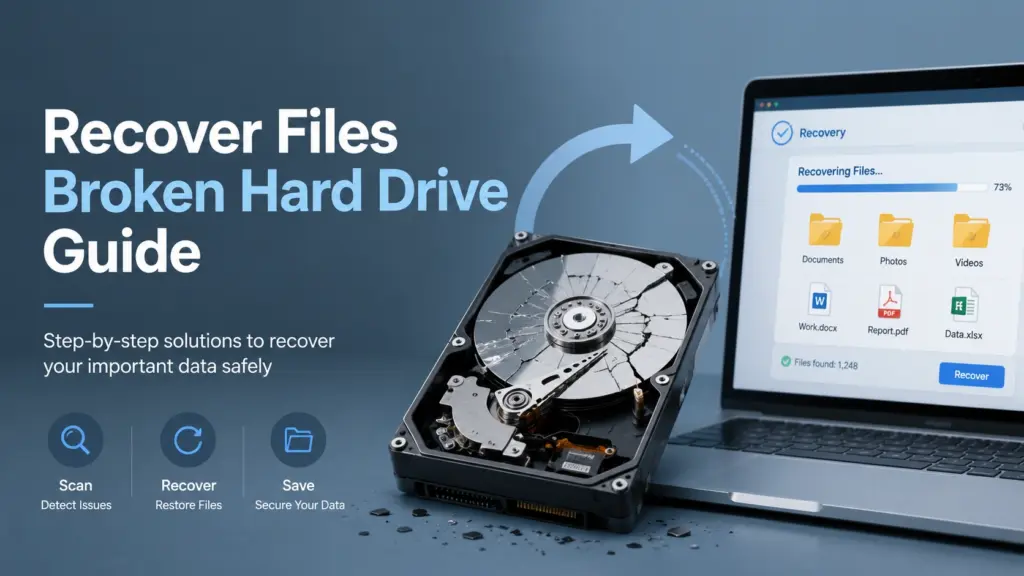
Wenn Ihre Festplatte ausfällt, zählt jede Sekunde. Vielleicht möchten Sie Dateien von einer defekten Festplatte wiederherstellen sofort, doch falsche Maßnahmen können die Wiederherstellung verlorener Dateien erschweren. In dieser Anleitung erfahren Sie, wie Sie den Zustand des Laufwerks einschätzen können, was Sie zuerst versuchen sollten, wann Sie auf Eigenreparaturen verzichten sollten und wie eine sichere Anleitung zur Wiederherstellung gelöschter Dateien kann Ihnen dabei helfen, den richtigen Wiederherstellungspfad zu wählen.
Wenn die Festplatte in Windows weiterhin angezeigt wird, liegt möglicherweise ein logisches Problem vor, wie beispielsweise gelöschte Dateien, eine Formatierung, Dateisystemfehler, der Status „RAW“ oder eine beschädigte Partition. In diesem Fall, Magic Data Recovery Sie können das betroffene Laufwerk scannen, eine Vorschau der wiederherstellbaren Dateien anzeigen und diese an einem anderen sicheren Ort speichern. Sollte das Laufwerk jedoch klackernde Geräusche von sich geben, nach Verbranntem riechen, überhitzen oder sich nicht mehr drehen, sollten Sie es nicht weiter verwenden und sich an einen professionellen Datenrettungsdienst wenden.
Unterstützt Windows 7/8/10/11 und Windows Server
Inhaltsübersicht
Was bedeutet “defekte Festplatte” eigentlich?
Bevor Sie versuchen Dateien von einer defekten Festplatte wiederherstellen, müssen Sie verstehen, was “defekt” bedeutet. Nutzer verwenden diesen Ausdruck oft für verschiedene Probleme.
Eine Festplatte scheint möglicherweise defekt zu sein, wenn:
- Windows fordert Sie auf, das Laufwerk zu formatieren.
- Das Laufwerk wird als RAW-Laufwerk erkannt.
- Dateien verschwinden nach versehentlichem Löschen.
- Eine Partition wird nicht mehr angezeigt.
- Das Laufwerk weist Dateisystemfehler auf.
- Die externe Festplatte trennt sich immer wieder von der Verbindung.
- Die Festplatte dreht sich, öffnet sich aber nur sehr langsam.
- Das Laufwerk macht Klickgeräusche, knirscht, piept oder wird gar nicht erst angezeigt.
Diese Symptome lassen sich in zwei große Kategorien einteilen: logische Schäden und physische Schäden.
Logischer Schaden
Unter „logischem Schaden“ versteht man, dass das Speichermedium auf Hardwareebene zwar noch funktioniert, Windows jedoch das Dateisystem nicht lesen oder Dateien nicht korrekt finden kann. Möglicherweise können Sie dennoch Dateien von einer defekten Festplatte wiederherstellen mit einer Wiederherstellungssoftware, sofern die Festplatte in der Datenträgerverwaltung angezeigt wird und eine stabile Verbindung besteht.
Zu den häufigsten logischen Fällen zählen gelöschte Dateien, Schnellformatierungen, RAW-Partitionen, beschädigte Dateisysteme, Virenschäden und verlorene Ordner. Dies sind die Fälle, in denen Magic Data Recovery ist als praktischer erster Schritt sinnvoll.
Physische Beschädigung
Unter „physischem Schaden“ versteht man einen mechanischen oder elektronischen Defekt des Laufwerks. Dabei kann es sich um einen beschädigten Lesekopf, einen ausgefallenen Motor, eine durchgebrannte Leiterplatte, schwerwiegende fehlerhafte Sektoren oder eine Beschädigung der Platten handeln. In diesem Fall kann die Hardware nicht durch Software repariert werden.
Schalten Sie das Laufwerk nicht weiter ein, wenn es klackt, knirscht, überhitzt oder sich nicht mehr dreht. Wiederholte Versuche können die Oberfläche der Platten beschädigen. Ein professionelles Labor kann das Laufwerk unter kontrollierten Bedingungen untersuchen und so das Risiko weiterer Datenverluste verringern.
Kann man Dateien von einer defekten Festplatte wiederherstellen?
Ja, Sie können oft Dateien von einer defekten Festplatte wiederherstellen falls das Laufwerk weiterhin angezeigt wird und das Problem auf einen logischen Datenverlust zurückzuführen ist. Das beste Wiederherstellungsergebnis hängt in der Regel von drei Faktoren ab:
- Ob das Laufwerk noch erkannt wird.
- Ob die verlorenen Dateien durch neue Daten überschrieben wurden.
- Ob das Laufwerk physische Schäden aufweist.
Wenn Sie beispielsweise versehentlich Projektdateien gelöscht und anschließend den Papierkorb geleert haben, kann ein Wiederherstellungstool möglicherweise die Dateieinträge ausfindig machen. Wenn Sie schnell formatiert Bei einer Festplatte kann der Dateisystemindex verloren gehen, während ein Großteil der ursprünglichen Daten weiterhin wiederherstellbar ist. Wenn Windows das Laufwerk als „RAW“ anzeigt, können durch einen Tiefenscan möglicherweise dennoch Dateien gefunden werden, indem die Datensektoren direkt ausgelesen werden.
Allerdings kann keine Software eine Wiederherstellung in jedem Fall garantieren. Wenn die Oberfläche stark beschädigt ist oder der Lesekopf die Platte nicht sicher auslesen kann, ist ein Laborservice die sicherere Option.
Erste Schritte vor der Wiederherstellung von Dateien auf der Festplatte
Die richtigen ersten Schritte können Ihre verbleibenden Daten schützen. Bevor Sie versuchen, Dateien von einer defekten Festplatte wiederherstellen, befolgen Sie diese Sicherheitsvorschriften.
1. Verwenden Sie die Festplatte nicht mehr
Kopieren Sie keine neuen Dateien auf das betroffene Laufwerk. Installieren Sie keine Software darauf. Laden Sie nichts darauf herunter. Neue Schreibvorgänge können wiederherstellbare Daten überschreiben.
Falls es sich bei dem defekten Laufwerk um Ihr Systemlaufwerk handelt, fahren Sie den Computer herunter und schließen Sie die Festplatte nach Möglichkeit als sekundäres Laufwerk an einen anderen Windows-PC an.
2. Überprüfen Sie, ob Windows das Laufwerk erkennt
Öffnen Sie Festplattenverwaltung und prüfen Sie, ob das Laufwerk mit der richtigen Kapazität angezeigt wird. Wenn es als „RAW“, „nicht zugewiesen“ oder ohne Laufwerksbuchstaben angezeigt wird, lässt sich das Laufwerk möglicherweise dennoch scannen.
Falls das Laufwerk nicht in der Datenträgerverwaltung angezeigt wird, probieren Sie ein anderes Kabel, einen anderen USB-Anschluss oder ein anderes Gehäuse aus. Bei einer internen Festplatte überprüfen Sie die SATA- und Stromkabel. Sollte das Laufwerk weiterhin nicht angezeigt werden, unterlassen Sie weitere Versuche.
3. Achten Sie auf Warntöne
Eine intakte Festplatte läuft normalerweise ruhig. Klickgeräusche, Schleifgeräusche, wiederholte Fehler beim Hochfahren oder Pieptöne deuten auf einen physischen Schaden hin. Versuchen Sie in diesem Fall nicht, CHKDSK, Formatierung, Partitionsreparatur oder wiederholte Scans.
4. Ein weiteres Speichermedium vorbereiten
Sie benötigen ein separates, intaktes Laufwerk, um die wiederhergestellten Dateien zu speichern. Speichern Sie Dateien niemals wieder auf derselben beschädigten Festplatte. Diese Regel ist wichtig, da die Wiederherstellungsdaten Daten überschreiben können, die die Software noch nicht wiederhergestellt hat.
So stellen Sie Dateien von einer defekten Festplatte mit Magic Data Recovery wieder her
Wenn Ihr Laufwerk in Windows weiterhin angezeigt wird und keine eindeutigen Anzeichen für einen physischen Defekt aufweist, können Sie Folgendes versuchen: Magic Data Recovery. Es hilft den Nutzern Dateien von einer defekten Festplatte wiederherstellen nach dem Löschen, durch Formatierung, Dateisystemfehler, Probleme mit RAW-Laufwerken, virenbedingten Datenverlust und anderen häufigen Fällen logischen Datenverlusts.
Weitere Hintergrundinformationen speziell zum Thema Festplatten finden Sie auch hier Anleitung zur Festplattenwiederherstellung.
Schritt 1: Installieren Sie Magic Data Recovery auf einem einwandfrei funktionierenden Laufwerk
Herunterladen und installieren Magic Data Recovery auf einem anderen Laufwerk. Wenn Sie beispielsweise Dateien vom Laufwerk D: wiederherstellen müssen, installieren Sie die Software auf Laufwerk C: oder einer anderen externen Festplatte.
Dadurch wird der Bereich mit den verlorenen Daten geschützt und das Risiko eines Überschreibens der Dateien verringert.
Unterstützt Windows 7/8/10/11 und Windows Server
Schritt 2: Wählen Sie die defekte Festplatte aus
Starten Sie das Programm und wählen Sie die betroffene Festplatte, die externe Festplatte oder die Partition aus. Falls das Laufwerk als „RAW“ angezeigt wird oder nicht zugänglich ist, wählen Sie dieses Gerät aus und fahren Sie fort.

Wenn Ihr Problem eine RAW-Festplatte betrifft, dann Anleitung zur Wiederherstellung von RAW-Festplatten Das könnte Ihnen helfen zu verstehen, warum Windows die Datei nicht öffnen kann.
Schritt 3: Nach verlorenen Dateien suchen
Starten Sie den Scanvorgang. Ein Schnellscan kann kürzlich gelöschte Dateien finden. Ein gründlicherer Scan kann bei formatierten Laufwerken, beschädigten Dateisystemen, RAW-Partitionen und fehlenden Ordnern helfen.

Vermeiden Sie es, das Laufwerk während des Scans vom Computer zu trennen. Sollte das Laufwerk wiederholt getrennt werden, brechen Sie den Vorgang ab und ziehen Sie professionelle Hilfe in Betracht.
Schritt 4: Vorschau wiederherstellbarer Dateien
Zeigen Sie vor der Wiederherstellung eine Vorschau von Dokumenten, Fotos, Videos und anderen wichtigen Dateien an. Anhand der Vorschau können Sie überprüfen, ob die Dateien brauchbar aussehen, bevor Sie sie speichern.

Durch diesen Schritt ist Magic Data Recovery zuverlässiger als blinde Wiederherstellungsmethoden, da man auswählen kann, was man tatsächlich benötigt.
Schritt 5: Dateien auf einem anderen Laufwerk wiederherstellen
Wählen Sie die gewünschten Dateien aus und speichern Sie sie auf einem intakten Laufwerk. Speichern Sie sie nicht wieder auf der defekten Festplatte.

Öffnen Sie nach der Wiederherstellung einige wichtige Dateien, um zu überprüfen, ob sie funktionieren. Sichern Sie diese anschließend an mindestens einem weiteren Speicherort.
Magic Data Recovery im Vergleich zu anderen Möglichkeiten zur Datenwiederherstellung bei Festplattenausfällen
Verschiedene Methoden lösen verschiedene Probleme. Die folgende Tabelle hilft Ihnen bei der Entscheidung, wie Sie Dateien von einer defekten Festplatte wiederherstellen sicher.
Option | Am besten für | Begrenzung |
Papierkorb | Kürzlich gelöschte Dateien | Nach der endgültigen Löschung nicht mehr nutzbar |
Dateiversionsverlauf oder Sicherung | Dateien, die vor dem Verlust gesichert wurden | Sicherung muss bereits aktiviert sein |
CHKDSK | Kleinere Dateisystemfehler | Risiko vor der Wiederherstellung auf instabilen Laufwerken |
Formatierung | Ein beschädigtes Laufwerk wieder funktionsfähig machen | Löscht Dateisystemdaten und kann die Chancen auf eine Wiederherstellung verringern |
Kostenlose Befehlszeilen-Tools | Fortgeschrittene Nutzer mit einfachen Fällen | Das kann verwirrend sein und zu Fehlern führen |
Magic Data Recovery | Gelöschte, formatierte, RAW-, beschädigte und unzugängliche logische Fälle | Physische Schäden können nicht repariert werden |
Professionelles Labor | Laufwerke, die klappern, durchgebrannt, defekt oder nicht erkannt sind | In der Regel langsamer und teurer |
Der beste Arbeitsablauf ist ganz einfach: Stellen Sie zuerst wichtige Dateien wieder her und reparieren oder formatieren Sie das Laufwerk erst später. Durch diese Reihenfolge vermeiden Sie, dass aus einem Fall, in dem eine Wiederherstellung möglich ist, ein endgültiger Verlust wird.
Wann kostenlose Windows-Methoden helfen können
Nicht in jedem Fall ist kostenpflichtige Wiederherstellungssoftware erforderlich. Probieren Sie zunächst diese Methoden aus, wenn das Laufwerk normal funktioniert und Sie ein einfaches Problem vermuten.
Wiederherstellen aus dem Papierkorb
Falls Sie kürzlich Dateien gelöscht haben, öffnen Sie den Papierkorb und stellen Sie diese wieder her. Dies funktioniert nur, wenn sich die Dateien noch dort befinden.
Frühere Versionen wiederherstellen
Falls vor dem Datenverlust die Dateiversionsgeschichte oder ein anderes Sicherungsprogramm aktiviert war, klicken Sie mit der rechten Maustaste auf den ursprünglichen Ordner und suchen Sie nach früheren Versionen. Auf diese Weise können Sie ältere Kopien wiederherstellen, ohne die Festplatte zu scannen.
Zuweisen eines Laufwerksbuchstabens
Manchmal scheint ein Laufwerk zu fehlen, weil Windows ihm keinen Laufwerksbuchstaben zugewiesen hat. Öffnen Sie die Datenträgerverwaltung, klicken Sie mit der rechten Maustaste auf die Partition und weisen Sie ihr einen neuen Buchstaben zu. Dadurch werden gelöschte Dateien zwar nicht wiederhergestellt, aber eine zugängliche Partition wird möglicherweise wieder angezeigt.
Verwenden Sie CHKDSK mit Bedacht
CHKDSK kann einige Dateisystemfehler beheben. Führen Sie diesen Befehl jedoch nicht als Erstes aus, wenn Sie noch verlorene Dateien von einem instabilen, als „RAW“ erkannten oder physisch defekten Laufwerk benötigen. Ein Reparaturbefehl verändert die Festplattenstrukturen, und diese Änderungen können die Ergebnisse der Wiederherstellung beeinträchtigen. Stellen Sie Dateien immer zuerst wieder her, wenn die Daten wichtig sind.
Wann Sie die Selbsthilfe beenden sollten
Du solltest aufhören, zu versuchen, Dateien von einer defekten Festplatte wiederherstellen Wenn Sie eines dieser Anzeichen bemerken, sollten Sie:
- Die Festplatte macht Klickgeräusche, knirscht oder piept.
- Das Laufwerk riecht verbrannt.
- Das Gerät überhitzt sich schnell.
- Windows kann das Laufwerk überhaupt nicht erkennen.
- Das Laufwerk wird immer wieder angezeigt und verschwindet dann wieder.
- Die Festplatte zeigt eine falsche Kapazität an.
- Es geht um wichtige geschäftliche oder rechtliche Unterlagen.
- Frühere Wiederherstellungsversuche haben den Zustand der Festplatte verschlechtert.
In diesen Fällen kann es vorkommen, dass die Software nicht sicher auf die Daten zugreifen kann. Weitere Informationen zur Auswahl eines Dienstes finden Sie hier Leitfaden zum Festplatten-Wiederherstellungsdienst.
Warum Magic Data Recovery ein verlässlicher erster Schritt ist
Magic Data Recovery ist empfehlenswert, da es sich auf die häufigsten Fälle von Datenverlust in der Praxis konzentriert. Bei vielen Nutzern ist die Festplatte nicht vollständig ausgefallen. Stattdessen sind sie mit versehentlich gelöschten Dateien, einer Schnellformatierung, einer Beschädigung des Dateisystems, dem RAW-Status oder verlorenen Partitionen konfrontiert. Diese Probleme erfordern einen sorgfältigen Scan und keine aggressive Reparatur.
Magic Data Recovery hilft dabei, diese zentralen Probleme zu lösen:
- Es scannt Festplatten, externe Laufwerke, USB-Sticks und andere gängige Speichergeräte.
- Es unterstützt Szenarien mit gelöschten, formatierten, beschädigten, RAW-Dateien sowie Dateisystemfehlern.
- Damit können Sie eine Vorschau der wiederherstellbaren Dateien anzeigen, bevor Sie diese speichern.
- Es nutzt einen einfachen Arbeitsablauf für nicht-technisch versierte Nutzer.
- Damit können Sie die wiederhergestellten Dateien an einem anderen sicheren Ort speichern.
- Dadurch wird vermieden, dass Benutzer gezwungen sind, Befehle über die Befehlszeile einzugeben.
Im Vergleich zu den grundlegenden Windows-Methoden deckt Magic Data Recovery komplexere Fälle von logischen Datenverlusten ab. Im Vergleich zur Wiederherstellung im Labor bietet es den Benutzern einen schnelleren ersten Schritt, solange das Laufwerk noch funktioniert. Im Vergleich zu Methoden, bei denen zunächst eine Reparatur versucht wird, wird bei Magic Data Recovery die Dateiwiederherstellung vor riskanten Festplattenreparaturen durchgeführt.
Wenn Sie eine gezielte Anleitung zum Wiederherstellen gelöschter Festplattendateien benötigen, lesen Sie auf dieser Seite, wie Sie dabei vorgehen können. Gelöschte Dateien auf der Festplatte wiederherstellen.
Häufig zu vermeidende Fehler
Um Ihre Chancen zu verbessern, Dateien von einer defekten Festplatte wiederherstellen, vermeiden Sie diese häufigen Fehler.
Fehler 1: Installation von Wiederherstellungssoftware auf dem defekten Laufwerk
Dadurch können verlorene Dateien überschrieben werden. Installieren Sie Wiederherstellungssoftware immer auf einer anderen Festplatte.
Fehler 2: Formatierung vor der Wiederherstellung
Windows schlägt möglicherweise vor, ein RAW-Laufwerk oder ein nicht zugängliches Laufwerk zu formatieren. Formatieren Sie es nicht, bevor Sie die Dateien wiederhergestellt haben. Durch das Formatieren werden die Dateisystemstrukturen verändert, was die Wiederherstellung erschweren kann.
Fehler 3: Wiederhergestellte Dateien auf demselben Laufwerk speichern
Dies ist einer der häufigsten Fehler. Speichern Sie die wiederhergestellten Daten auf einem anderen einwandfreien Laufwerk.
Fehler 4: Zu früh Reparaturen durchführen
Reparaturtools können nach der Wiederherstellung hilfreich sein. Allerdings können sie die Festplatte verändern, bevor Sie wichtige Dateien retten. Erst wiederherstellen, dann reparieren.
Fehler 5: Anzeichen für einen physischen Ausfall ignorieren
Klick- oder Knirschgeräusche sind ernstzunehmende Warnsignale. Ein defekter Lesekopf oder eine beschädigte Platte lassen sich nicht per Software beheben.
Bewährte Vorgehensweise: Erst wiederherstellen, dann reparieren
Am sichersten ist es, die Datenwiederherstellung von der Reparatur zu trennen. Sichern Sie zunächst Ihre Dateien. Entscheiden Sie dann, ob Sie das Laufwerk weiterverwenden, formatieren, austauschen oder entsorgen möchten.
Ein praktischer Arbeitsablauf sieht folgendermaßen aus:
- Verwenden Sie die defekte Festplatte nicht mehr.
- Überprüfen Sie, ob es unter Windows angezeigt wird.
- Vermeiden Sie vor der Wiederherstellung Formatierungen oder den Befehl „CHKDSK“.
- Führen Sie einen Scan mit Magic Data Recovery durch, wenn das Laufwerk stabil läuft.
- Dateien in der Vorschau anzeigen und auf einem anderen Datenträger wiederherstellen.
- Erstellen Sie eine Sicherungskopie der wiederhergestellten Dateien.
- Reparieren oder ersetzen Sie die alte Festplatte.
Dieser Arbeitsablauf bietet Ihnen ein besseres Gleichgewicht zwischen Geschwindigkeit, Sicherheit und Kosten.
Schlussfolgerung
Lernen, wie man Dateien von einer defekten Festplatte wiederherstellen beginnt mit einer entscheidenden Entscheidung: Stellen Sie fest, ob es sich um ein logisches oder ein physisches Problem handelt. Wenn das Laufwerk klackert, überhitzt, nach Verbranntem riecht oder nicht mehr angezeigt wird, wenden Sie sich an ein professionelles Labor. Wenn Windows das Laufwerk weiterhin erkennt und das Problem gelöschte Dateien, eine Formatierung, den RAW-Status oder Dateisystemfehler betrifft, Magic Data Recovery ist ein verlässlicher erster Schritt.
Das Programm erhebt keinen Anspruch darauf, beschädigte Hardware zu reparieren. Stattdessen bietet es Nutzern eine übersichtliche Möglichkeit, Dateien aus gängigen Szenarien mit logischem Datenverlust zu scannen, in der Vorschau anzuzeigen und wiederherzustellen. Wenn Sie einen umfassenderen Ausgangspunkt für Fälle mit verlorenen Dateien suchen, kehren Sie zu diesem zurück Anleitung zur Wiederherstellung gelöschter Dateien und wählen Sie den Wiederherstellungsweg, der Ihrer Situation entspricht.
Wenn Sie nach einer effizienteren Lösung suchen, versuchen Sie Magic Data Recovery und wichtige Dateien wiederherstellen, bevor Sie riskante Reparaturversuche unternehmen.
Unterstützt Windows 7/8/10/11 und Windows Server
Häufig gestellte Fragen zur Wiederherstellung von Dateien von einer defekten Festplatte
Kann ich Dateien von einer defekten Festplatte wiederherstellen, wenn Windows mich auffordert, sie zu formatieren?
Ja, Sie können noch Dateien von einer defekten Festplatte wiederherstellen wenn Windows Sie auffordert, das Laufwerk zu formatieren. Diese Meldung bedeutet oft, dass Windows das Dateisystem nicht lesen kann, nicht aber, dass alle Dateien verschwunden sind. Formatieren Sie das Laufwerk nicht sofort. Verwenden Sie stattdessen eine Wiederherstellungssoftware, um die Festplatte zu scannen und wiederherstellbare Dateien auf einem anderen intakten Gerät zu speichern.
Was ist die sicherste Methode, um Dateien von einer defekten Festplatte wiederherzustellen?
Der sicherste Weg zu Dateien von einer defekten Festplatte wiederherstellen Sie sollten die Festplatte nicht mehr verwenden, das Schreiben neuer Daten vermeiden und sie nur dann scannen, wenn sie stabil bleibt. Installieren Sie eine Wiederherstellungssoftware auf einem anderen Laufwerk, zeigen Sie eine Vorschau der wiederherstellbaren Dateien an und speichern Sie diese an einem separaten Speicherort. Wenn das Laufwerk Geräusche macht oder nicht mehr angezeigt wird, wenden Sie sich an ein Datenrettungslabor.
Kann Magic Data Recovery Daten von einer defekten Festplatte wiederherstellen?
Magic Data Recovery kann helfen Daten von einer defekten Festplatte wiederherstellen wenn es sich um ein logisches Problem handelt, wie z. B. Löschung, Formatierung, RAW-Status des Laufwerks, Partitionsverlust, Dateisystemfehler oder virenbedingte Schäden. Physische Schäden können damit nicht behoben werden. Wenn das Laufwerk Anzeichen eines mechanischen Defekts aufweist, brechen Sie den Scanvorgang ab und wenden Sie sich stattdessen an einen professionellen Dienstleister.
Sollte ich vor der Wiederherstellung einer defekten Festplatte CHKDSK ausführen?
In der Regel sollten Sie wichtige Dateien sichern, bevor Sie CHKDSK auf einem instabilen Laufwerk ausführen. CHKDSK behebt zwar möglicherweise Dateisystemfehler, verändert aber auch die Festplattenstrukturen. Wenn Ihr Ziel darin besteht, Wiederherstellung nach Festplattenausfall, scannen und speichern Sie zunächst wichtige Dateien. Danach können Sie entscheiden, ob Sie die Festplatte reparieren, formatieren oder austauschen möchten.
Warum sollte ich wiederhergestellte Dateien nicht auf derselben Festplatte speichern?
Das Speichern wiederhergestellter Dateien auf derselben defekten Festplatte kann Daten überschreiben, die noch wiederhergestellt werden müssen. Dieser Fehler kann Ihre Chancen verringern, Dateien von einer defekten Festplatte wiederherstellen Auf jeden Fall. Bereiten Sie immer ein weiteres intaktes Laufwerk vor, beispielsweise eine externe Festplatte oder eine andere interne Partition, und speichern Sie alle wiederhergestellten Dateien dort.
Kann ich Dateien von einer klickenden Festplatte wiederherstellen?
Ein klickendes Geräusch der Festplatte deutet in der Regel auf einen physischen Defekt hin, beispielsweise Probleme mit den Leseköpfen oder dem Motor. Versuchen Sie in diesem Fall nicht weiter, Dateien von einer defekten Festplatte wiederherstellen mit Software. Wiederholtes Ein- und Ausschalten kann den Schaden verschlimmern. Schalten Sie das Laufwerk aus und wenden Sie sich an ein professionelles Datenrettungslabor, wenn die Dateien wichtig sind.
Ist das Formatieren einer defekten Festplatte eine gute Lösung?
Durch das Formatieren lässt sich ein beschädigtes Laufwerk zwar möglicherweise wieder nutzbar machen, doch ist dies kein guter erster Schritt, wenn Sie die Dateien noch benötigen. Wenn Sie das Laufwerk vor der Wiederherstellung formatieren, kann dies dazu führen, dass Wiederherstellung von Dateien von der Festplatte Vorsichtiger vorgehen. Stellen Sie Ihre Dateien zunächst mit einem sicheren Scan-Tool wieder her und formatieren Sie das Laufwerk erst, nachdem Ihre wichtigen Daten in Sicherheit sind.
Woran erkenne ich, ob Software oder ein Labor die bessere Wahl ist?
Verwenden Sie eine Software, wenn das Laufwerk unter Windows angezeigt wird, weiterhin angeschlossen ist und keine äußeren Anzeichen für einen physischen Defekt aufweist. Dies eignet sich gut für Fälle, in denen Daten gelöscht, das Laufwerk formatiert, als RAW-Laufwerk erkannt oder logisch beschädigt wurde. Wenden Sie sich an ein Fachlabor, wenn das Laufwerk klackt, überhitzt, nach Verbranntem riecht, eine falsche Kapazität anzeigt oder nicht erkannt wird. Die richtige Wahl schützt sowohl Ihr Laufwerk als auch Ihre Daten.

Jason ist ein Spezialist für Datenwiederherstellung und technischen Support mit über 15 Jahren praktischer Erfahrung. Er hat intensiv mit Endnutzern zusammengearbeitet, schwierige Fälle von Datenverlust behoben und praktische Lösungen für versehentlich gelöschte Daten, formatierte Laufwerke, beschädigte Dateisysteme, verlorene Partitionen, Systemausfälle und andere Notfälle im Bereich der Datenwiederherstellung bereitgestellt. Zu seinen Fachgebieten gehören außerdem Datensicherung und -wiederherstellung, Dateireparatur sowie Notfallwiederherstellung, wobei er besonderen Wert auf eine sichere, zuverlässige und technisch korrekte Beratung legt.