
Cryptage du disque dur de Windows et récupération des données
Protection des données est devenu une priorité absolue pour les utilisateurs individuels et les entreprises. Pour empêcher tout accès non autorisé, Windows intègre des technologies de cryptage qui verrouillent les disques durs au niveau du système. C'est pourquoi Cryptage du disque dur de Windows est désormais activé par défaut sur de nombreux appareils.
Cependant, la sécurité s'accompagne toujours de compromis.
De nombreux utilisateurs ne se rendent compte que des risques liés à Cryptage du disque dur sous Windows après avoir rencontré des problèmes tels que clés de recouvrement oubliées, Il peut s'agir d'une panne d'ordinateur, d'une panne de système ou d'un disque crypté corrompu. L'accès à des données importantes peut alors disparaître soudainement. Magic Data Recovery peut aider à récupérer les données des disques cryptés par BitLocker lorsque les méthodes standard échouent.
Prise en charge de Windows 7/8/10/11 et Windows Server
Table des matières
Qu'est-ce que le cryptage des disques durs sous Windows ?
Cryptage du disque dur de Windows est une technologie qui protège les données en les convertissant dans un format illisible à l'aide d'algorithmes de cryptage puissants. Seuls les utilisateurs disposant des informations d'identification correctes (mot de passe, code PIN ou code de sécurité) sont autorisés à accéder aux données. clé de recouvrement-peut décrypter les données et y accéder.
Même si quelqu'un retire le disque dur et le connecte à un autre ordinateur, les données cryptées restent inaccessibles.
Ce qui fait que Cryptage du disque dur sous Windows très efficace contre :
- Vol d'appareils
- Accès hors ligne non autorisé
- Exposition des données après une perte de matériel
Explication des options de cryptage du disque dur sous Windows
BitLocker Drive Encryption
BitLocker est la principale solution de chiffrement intégrée à Windows. Elle est disponible sur :
- Windows 10/11 Pro
- Entreprise
- Éditions éducatives
Les principales caractéristiques sont les suivantes :
- Cryptage intégral des disques durs et des disques SSD
- Prise en charge des lecteurs externes (BitLocker To Go)
- Intégration avec TPM pour une sécurité basée sur le matériel
Pour les utilisateurs les plus expérimentés, BitLocker représente l'implémentation standard de la technologie Cryptage du disque dur de Windows.
Cryptage des appareils (Windows Home)
Certains appareils Windows Home intègrent le cryptage des appareils :
- Cryptage automatique dès que l'utilisateur se connecte avec un compte Microsoft
- Options de configuration limitées
- Forte dépendance à l'égard Récupération du compte Microsoft
Bien que pratique, il offre moins de flexibilité que BitLocker.
Pourquoi le chiffrement du disque dur de Windows est-il important ?
Utilisation Cryptage du disque dur sous Windows offre plusieurs avantages concrets :
- Prévient les fuites de données en cas de perte ou de vol d'un ordinateur portable
- Protection de la vie privée des entreprises et des personnes
- Aide à respecter les politiques de protection des données
- Fonctionne silencieusement avec un impact minimal sur les performances
Malgré ces avantages, le cryptage présente un risque important : les données deviennent inaccessibles en cas de problème.
Comment activer le chiffrement du disque dur de Windows en toute sécurité ?
Avant d'allumer chiffrement, La préparation est essentielle.
Étape 1 : Vérifier la compatibilité
Veiller à ce que :
- Vous utilisez une édition de Windows prise en charge
- TPM est activé (recommandé mais pas obligatoire)
- Vous avez des privilèges d'administrateur
Étape 2 : Activer BitLocker
- Ouvrir BitLocker Drive Encryption à partir du panneau de contrôle
- Sélectionner le lecteur cible
- Choisir une méthode de déverrouillage
- Sauvegarder immédiatement la clé de récupération BitLocker
- Démarrer le cryptage
Erreur courante : Les utilisateurs activent le cryptage sans sécuriser la clé de récupération, ce qui entraîne les problèmes suivants perte permanente de données plus tard.
Risques courants liés au cryptage des disques durs sous Windows
L'expérience du monde réel montre que la perte de données liée au chiffrement se produit souvent dans ces scénarios :
- Clé de récupération BitLocker est perdue
- Le système se bloque pendant la mise à jour de Windows
- Le lecteur crypté devient RAW
- La structure de la partition est endommagée
- Des fichiers sont supprimés d'un disque dur crypté non verrouillé.
Dans de tels cas, les outils normaux de récupération de données échouent généralement car ils ne peuvent pas interpréter les données cryptées.
Peut-on récupérer les données d'un disque dur BitLocker crypté ?
Oui, mais seulement sous certaines conditions.
Les disques cryptés nécessitent un logiciel de récupération qui comprend :
- Métadonnées BitLocker
- Systèmes de fichiers à l'intérieur de volumes cryptés
- Méthodes de balayage sûres et non destructives
C'est ici que Magic Data Recovery devient essentielle.
Comment récupérer les données d'un disque BitLocker à l'aide de Magic Data Recovery
Magic Data Recovery est conçu pour analyser les données cryptées, partiellement endommagées ou Lecteurs RAW et récupérer des fichiers lorsque les outils BitLocker intégrés ne fonctionnent plus.
Vous trouverez ci-dessous un processus de récupération sûr et pratique.
Étape 1 - Installer Magic Data Recovery sur un système sain
Veuillez télécharger et installer Magic Data Recovery à votre ordinateur.
Prise en charge de Windows 7/8/10/11 et Windows Server
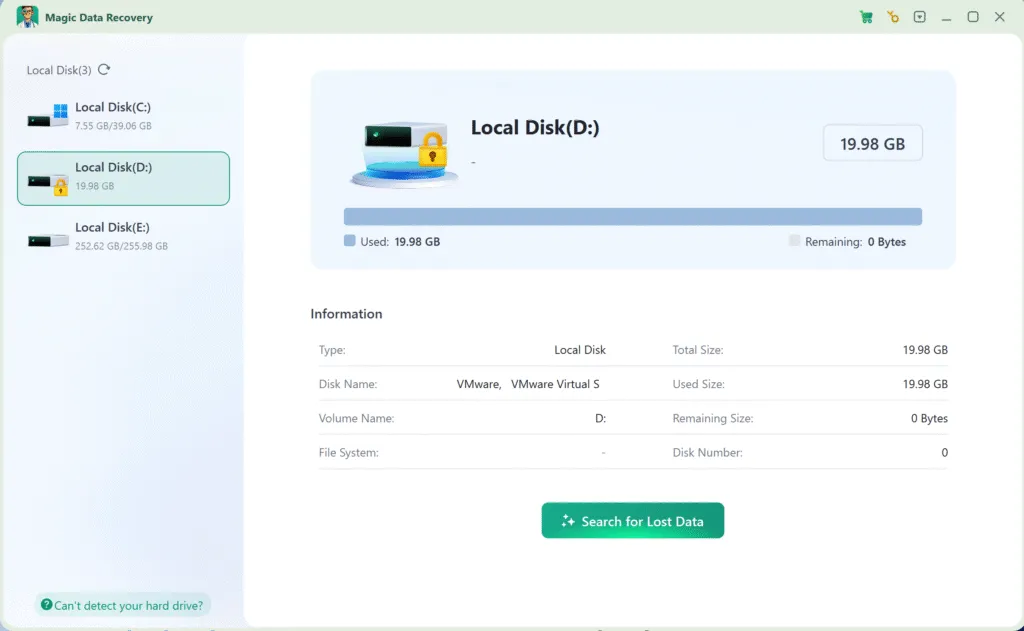
Étape 2 - Sélectionner le lecteur chiffré par BitLocker
Lancer Magic Data Recovery.
Tous les lecteurs connectés sont clairement répertoriés.
- Les disques protégés par BitLocker sont marqués d'une icône icône de verrouillage
- Sélectionner le disque dur ou le disque SSD crypté
- Si vous y êtes invité, entrez le mot de passe BitLocker ou la clé de récupération.
Cela permet au logiciel d'interpréter correctement les secteurs cryptés.
Étape 3 - Laisser l'analyse se dérouler jusqu'à son terme
Une fois la numérisation commencée :
- Magic Data Recovery analyse les structures de fichiers cryptés
- Il recherche les fichiers supprimés, perdus ou inaccessibles.
- Même les secteurs endommagés peuvent être traités en toute sécurité
La durée de la numérisation dépend de la taille et de l'état du lecteur. Évitez d'interrompre le processus.

Étape 4 - Prévisualisation des fichiers récupérables
Après la numérisation :
- Tous les fichiers récupérables sont répertoriés par type et par dossier.
- Vous pouvez prévisualiser des documents, des images et des vidéos
- La prévisualisation permet de vérifier l'intégrité des fichiers avant leur récupération
Même si Windows ne peut pas monter le disque crypté, Magic Data Recovery peut encore afficher le contenu du fichier.

Étape 5 - Récupération des fichiers vers un emplacement sécurisé
Sélectionnez les fichiers dont vous avez besoin et restaurez-les :
- Un disque externe
- Un autre lecteur interne
- Un dispositif de stockage sûr
Ne jamais réenregistrer les fichiers récupérés sur le disque crypté d'origine, car cela peut entraîner l'écrasement des données.

Pourquoi Magic Data Recovery est une solution de confiance
Par rapport aux outils de récupération génériques, Magic Data Recovery offres :
- Connaissance des structures de cryptage BitLocker
- Technologie de balayage non destructif
- Meilleurs résultats sur les disques durs et les disques SSD cryptés
- Prévisualisation claire des fichiers et contrôle de la récupération
Au lieu d'imposer des corrections dangereuses, il se concentre sur la préservation de l'intégrité des données.
Si vous êtes à la recherche d'un une solution de récupération pratique et prudente, Magic Data Recovery est une option fiable.
Meilleures pratiques pour un cryptage sécurisé des disques durs sous Windows
Pour minimiser les risques lors de l'utilisation Cryptage du disque dur de Windows:
- Stocker les clés de récupération BitLocker à plusieurs endroits
- Effectuer des sauvegardes régulières
- Interrompre le chiffrement avant les mises à jour du firmware ou du BIOS
- Éviter de repartitionner les disques cryptés
- Préparer un plan de reprise avant perte de données se produit
Le chiffrement est plus efficace lorsqu'il est associé à une sensibilisation adéquate à la récupération.
Conclusion
Cryptage du disque dur de Windows est un excellent outil pour protéger les informations sensibles. Lorsqu'il est configuré correctement, Cryptage du disque dur sous Windows avec BitLocker offre une protection efficace contre les accès non autorisés.
Toutefois, le cryptage ne peut à lui seul empêcher suppression accidentelle, les défaillances du système, ou corruption du disque.
C'est pourquoi une stratégie de récupération est importante.
Magic Data Recovery offre une solution responsable et efficace pour récupérer des données sur des disques cryptés par BitLocker-sans procédures risquées ni suppositions.
Prise en charge de Windows 7/8/10/11 et Windows Server
FAQ sur le cryptage des disques durs
Comment crypter un disque dur sous Windows ?
BitLocker 100% est-il sûr ?
Windows 11 est-il entièrement crypté ?
Pourrez-vous encore utiliser Windows 10 après le 14 octobre 2025 ?
Peut-on crypter un disque dur entier ?
Windows 10 dispose-t-il d'un logiciel de chiffrement intégré ?
Cela vaut-il la peine de crypter un disque dur ?
Comment vérifier si mon disque Windows est crypté ?
Windows 11 crypte-t-il automatiquement les disques durs ?
L'AES-256 est-il le plus sûr ?

Erin Smith est reconnue comme l'une des rédactrices les plus professionnelles d'Amagicsoft. Elle a continuellement perfectionné ses compétences rédactionnelles au cours des 10 dernières années et a aidé des millions de lecteurs à résoudre leurs problèmes techniques.