
Crittografia e recupero dati del disco rigido di Windows
Protezione dei dati è diventata una priorità assoluta sia per i singoli utenti che per le aziende. Per evitare accessi non autorizzati, Windows offre tecnologie di crittografia integrate che bloccano i dischi rigidi a livello di sistema. Per questo motivo Crittografia del disco rigido di Windows è ormai ampiamente abilitato per impostazione predefinita su molti dispositivi.
Tuttavia, la sicurezza comporta sempre dei compromessi.
Molti utenti si rendono conto solo dei rischi di Crittografia HDD di Windows dopo aver riscontrato problemi come chiavi di recupero dimenticate, arresti anomali del sistema o unità crittografate danneggiate. A quel punto, l'accesso ai dati importanti può improvvisamente scomparire. Magic Data Recovery può aiutare a recuperare i dati dalle unità crittografate con BitLocker quando i metodi standard falliscono.
Supporta Windows 7/8/10/11 e Windows Server
Indice dei contenuti
Cos'è la crittografia del disco rigido di Windows?
Crittografia del disco rigido di Windows è una tecnologia che protegge i dati convertendoli in un formato illeggibile grazie a forti algoritmi di crittografia. Solo gli utenti con le credenziali corrette - password, PIN o chiave di recupero-può decifrare e accedere ai dati.
Anche se qualcuno rimuove il disco rigido e lo collega a un altro computer, i dati crittografati rimangono inaccessibili.
Questo rende Crittografia HDD di Windows altamente efficace contro:
- Furto di dispositivi
- Accesso offline non autorizzato
- Esposizione dei dati dopo la perdita dell'hardware
Spiegazione delle opzioni di crittografia dell'HDD di Windows
Crittografia unità BitLocker
BitLocker è la principale soluzione di crittografia integrata in Windows. È disponibile su:
- Windows 10/11 Pro
- Impresa
- Edizioni didattiche
Le caratteristiche principali includono:
- Crittografia dell'intero disco per HDD e SSD
- Supporto per unità esterne (BitLocker To Go)
- Integrazione con TPM per la sicurezza basata sull'hardware
Per gli utenti più avanzati, BitLocker rappresenta l'implementazione standard di Crittografia del disco rigido di Windows.
Crittografia dei dispositivi (Windows Home)
Alcuni dispositivi Windows Home includono la Crittografia dispositivo:
- Crittografa automaticamente quando l'utente accede con un account Microsoft.
- Opzioni di configurazione limitate
- Forte dipendenza da Recupero dell'account Microsoft
Pur essendo conveniente, offre una minore flessibilità rispetto a BitLocker.
Perché la crittografia del disco rigido di Windows è importante
Utilizzo Crittografia HDD di Windows offre diversi vantaggi reali:
- Previene le fughe di dati in caso di smarrimento o furto del laptop
- Protegge la privacy aziendale o personale
- Contribuisce a soddisfare le politiche di protezione dei dati
- Funziona in modo silenzioso con un impatto minimo sulle prestazioni
Nonostante questi vantaggi, la crittografia introduce un rischio critico: i dati diventano inaccessibili se qualcosa va storto.
Come attivare la crittografia dell'HDD di Windows in modo sicuro
Prima di accendere crittografia, La preparazione è essenziale.
Passo 1: verificare la compatibilità
Assicurarsi che:
- Si sta utilizzando un'edizione di Windows supportata
- TPM è abilitato (consigliato ma non obbligatorio)
- Si dispone dei privilegi di amministratore
Passo 2: Abilitare BitLocker
- Aperto Crittografia unità BitLocker dal Pannello di controllo
- Selezionare l'unità di destinazione
- Scegliere un metodo di sblocco
- Eseguire immediatamente il backup della chiave di ripristino BitLocker
- Avvio della crittografia
Errore comune: Gli utenti attivano la crittografia senza proteggere la chiave di recupero, il che porta a perdita permanente dei dati in seguito.
Rischi comuni della crittografia degli HDD di Windows
L'esperienza del mondo reale dimostra che in questi scenari si verificano spesso perdite di dati legate alla crittografia:
- Chiave di recupero BitLocker è perso
- Il sistema si blocca durante l'aggiornamento di Windows
- L'unità crittografata diventa RAW
- La struttura della partizione è danneggiata
- I file vengono eliminati da un'unità crittografata e non bloccata.
In questi casi, i normali strumenti di recupero dei dati falliscono perché non sono in grado di interpretare i dati crittografati.
È possibile recuperare i dati da un'unità BitLocker crittografata?
Sì, ma solo a determinate condizioni.
Le unità crittografate richiedono un software di recupero che capisce:
- Metadati BitLocker
- File system all'interno di volumi criptati
- Metodi di scansione sicuri e non distruttivi
Qui è dove Magic Data Recovery diventa essenziale.
Come recuperare i dati da un'unità BitLocker utilizzando Magic Data Recovery
Magic Data Recovery è stato creato per scansionare i dati criptati, parzialmente danneggiati o Unità RAW e recuperare i file quando gli strumenti BitLocker integrati non funzionano più.
Di seguito viene illustrato un processo di recupero sicuro e pratico.
Fase 1 - Installare l'Magic Data Recovery su un sistema sano
Scaricare e installare Magic Data Recovery al computer.
Supporta Windows 7/8/10/11 e Windows Server
Fase 2 - Selezionare l'unità crittografata con BitLocker
Avvio Magic Data Recovery.
Tutte le unità collegate sono elencate in modo chiaro.
- Le unità protette da BitLocker sono contrassegnate da un simbolo di icona del lucchetto
- Selezionare l'HDD o l'SSD crittografato.
- Se richiesto, inserire la password o la chiave di recupero di BitLocker.
Ciò consente al software di interpretare correttamente i settori crittografati.
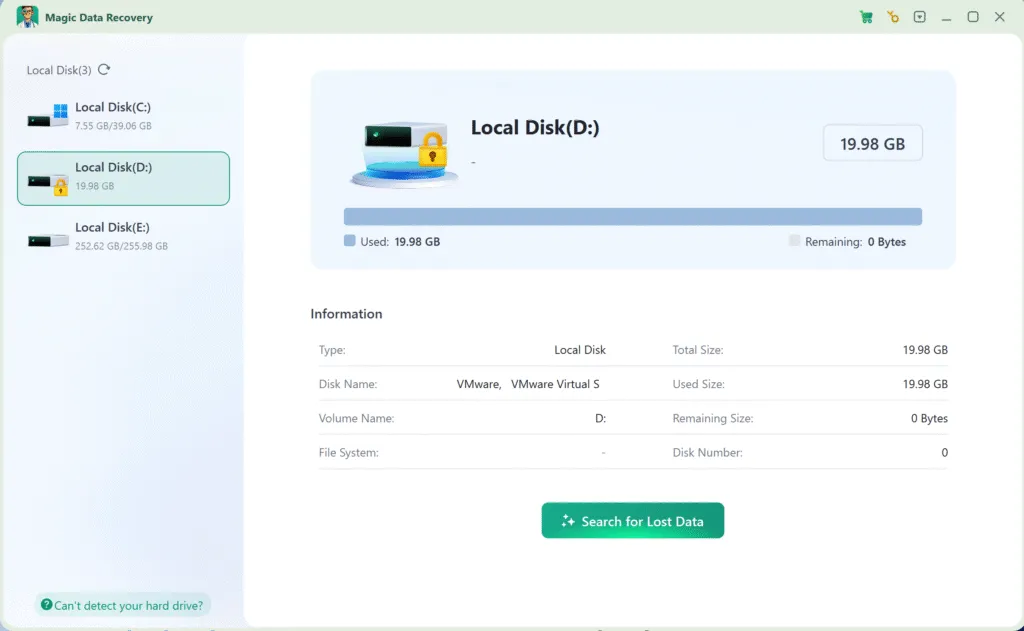
Fase 3 - Lasciare che la scansione venga eseguita fino al suo completamento
Una volta avviata la scansione:
- Magic Data Recovery analizza le strutture dei file criptati
- Cerca i file cancellati, persi o inaccessibili.
- Anche i settori danneggiati possono essere elaborati in modo sicuro
Il tempo di scansione dipende dalle dimensioni e dalle condizioni dell'unità. Evitare di interrompere il processo.

Passo 4 - Anteprima dei file recuperabili
Dopo la scansione:
- Tutti i file recuperabili sono elencati per tipo e cartella.
- È possibile visualizzare in anteprima documenti, immagini e video
- L'anteprima aiuta a verificare l'integrità dei file prima del recupero
Anche se Windows non può montare l'unità crittografata, Magic Data Recovery può continuare a visualizzare il contenuto del file.

Passo 5 - Recuperare i file in una posizione sicura
Selezionare i file necessari e ripristinarli:
- Un'unità esterna
- Un'altra unità interna
- Un dispositivo di archiviazione sicuro
Non salvare mai i file recuperati sull'unità crittografata originale., in quanto ciò potrebbe causare la sovrascrittura dei dati.

Perché Magic Data Recovery è una soluzione affidabile
Rispetto agli strumenti di recupero generici, Magic Data Recovery offerte:
- Conoscenza delle strutture di crittografia BitLocker
- Tecnologia di scansione non distruttiva
- Risultati migliori su HDD e SSD crittografati
- Anteprime chiare dei file e controllo del recupero
Invece di forzare correzioni non sicure, si concentra sulla conservazione dell'integrità dei dati.
Se siete alla ricerca di un soluzione di recupero pratica e prudente, Magic Data Recovery è un'opzione affidabile.
Migliori pratiche per la crittografia sicura degli HDD di Windows
Per ridurre al minimo i rischi durante l'utilizzo Crittografia del disco rigido di Windows:
- Memorizzare le chiavi di ripristino BitLocker in più posizioni
- Eseguire backup regolari
- Sospendere la crittografia prima degli aggiornamenti del firmware o del BIOS
- Evitare di ripartizionare le unità crittografate
- Preparate un piano di ripristino prima perdita di dati accade
La crittografia è più efficace se combinata con una corretta consapevolezza del recupero.
Conclusione
Crittografia del disco rigido di Windows è uno strumento eccellente per salvaguardare le informazioni sensibili. Se configurato correttamente, Crittografia HDD di Windows con BitLocker offre una forte protezione contro gli accessi non autorizzati.
Tuttavia, la crittografia da sola non può impedire cancellazione accidentale, guasti del sistema, o corruzione del disco.
Ecco perché una strategia di recupero è importante.
Magic Data Recovery offre una soluzione responsabile ed efficace per Recupero dei dati da unità crittografate con BitLocker-Senza procedure rischiose o congetture.
Supporta Windows 7/8/10/11 e Windows Server
Domande frequenti sulla crittografia del disco rigido
Come criptare un disco rigido in Windows?
BitLocker 100% è sicuro?
Windows 11 è completamente crittografato?
È ancora possibile utilizzare Windows 10 dopo il 14 ottobre 2025?
È possibile crittografare un intero disco rigido?
Windows 10 ha un software di crittografia integrato?
Vale la pena criptare un disco rigido?
Come posso verificare se l'unità di Windows è crittografata?
Windows 11 cripta automaticamente i dischi rigidi?
AES-256 è il più sicuro?

Erin Smith è riconosciuta come una delle scrittrici più professionali di Amagicsoft. Negli ultimi 10 anni ha continuamente affinato le sue capacità di scrittura e ha aiutato milioni di lettori a risolvere i loro problemi tecnologici.