
Windows Festplattenverschlüsselung und Datenwiederherstellung
Datenschutz ist sowohl für Privatanwender als auch für Unternehmen zu einer der wichtigsten Prioritäten geworden. Um unbefugten Zugriff zu verhindern, bietet Windows integrierte Verschlüsselungstechnologien, die Festplatten auf Systemebene sperren. Aus diesem Grund Windows Festplattenverschlüsselung ist inzwischen auf vielen Geräten standardmäßig aktiviert.
Sicherheit ist jedoch immer mit Abstrichen verbunden.
Viele Nutzer sind sich nur der Risiken bewusst, die mit Windows HDD-Verschlüsselung nachdem sie auf Probleme gestoßen sind wie vergessene Wiederherstellungsschlüssel, Systemabstürze oder beschädigte verschlüsselte Laufwerke. An diesem Punkt kann der Zugriff auf wichtige Daten plötzlich verschwinden. Magic Data Recovery kann helfen, Daten von BitLocker-verschlüsselten Laufwerken wiederherzustellen, wenn Standardmethoden versagen.
Unterstützt Windows 7/8/10/11 und Windows Server
Inhaltsübersicht
Was ist Windows Festplattenverschlüsselung?
Windows Festplattenverschlüsselung ist eine Technologie, die Daten schützt, indem sie sie mithilfe starker Verschlüsselungsalgorithmen in ein unlesbares Format umwandelt. Nur Benutzer mit den richtigen Anmeldeinformationen - Passwort, PIN oder Wiederherstellungsschlüssel-entschlüsseln und auf die Daten zugreifen können.
Selbst wenn jemand die Festplatte ausbaut und an einen anderen Computer anschließt, bleiben die verschlüsselten Daten unzugänglich.
Dies macht Windows HDD-Verschlüsselung hochwirksam gegen:
- Gerätediebstahl
- Unbefugter Offline-Zugriff
- Datenexposition nach Hardwareverlust
Windows HDD-Verschlüsselungsoptionen erklärt
BitLocker-Laufwerkverschlüsselung
BitLocker ist die primäre, in Windows integrierte Verschlüsselungslösung. Sie ist verfügbar auf:
- Windows 10/11 Pro
- Unternehmen
- Ausgaben zum Thema Bildung
Die wichtigsten Merkmale sind:
- Vollständige Festplattenverschlüsselung für HDDs und SSDs
- Unterstützung für externe Laufwerke (BitLocker zum Mitnehmen)
- Integration mit TPM für hardwarebasierte Sicherheit
Für die meisten fortgeschrittenen Benutzer ist BitLocker die Standardimplementierung von Windows Festplattenverschlüsselung.
Geräteverschlüsselung (Windows Home)
Einige Windows Home-Geräte enthalten Geräteverschlüsselung:
- Verschlüsselt automatisch, sobald sich der Benutzer mit einem Microsoft-Konto anmeldet
- Begrenzte Konfigurationsmöglichkeiten
- Starke Abhängigkeit von Wiederherstellung von Microsoft-Konten
Dies ist zwar praktisch, bietet aber weniger Flexibilität als BitLocker.
Warum Windows Festplattenverschlüsselung wichtig ist
Verwendung von Windows HDD-Verschlüsselung bietet mehrere Vorteile in der Praxis:
- Verhindert Datenverluste bei Verlust oder Diebstahl eines Laptops
- Schützt die Privatsphäre von Unternehmen und Personen
- Hilft bei der Einhaltung von Datenschutzrichtlinien
- Läuft geräuschlos mit minimalen Auswirkungen auf die Leistung
Trotz dieser Vorteile birgt die Verschlüsselung ein entscheidendes Risiko: Daten werden unzugänglich, wenn etwas schief geht.
So aktivieren Sie die Windows-Festplattenverschlüsselung auf sichere Weise
Vor dem Einschalten Verschlüsselung, ist Vorbereitung unerlässlich.
Schritt 1: Kompatibilität prüfen
Stellen Sie das sicher:
- Sie verwenden eine unterstützte Windows-Edition
- TPM ist aktiviert (empfohlen, aber nicht zwingend erforderlich)
- Sie haben Administratorrechte
Schritt 2: Aktivieren von BitLocker
- Öffnen Sie BitLocker-Laufwerkverschlüsselung vom Bedienfeld aus
- Wählen Sie das Ziellaufwerk
- Wählen Sie eine Entsperrmethode
- Sichern Sie den BitLocker-Wiederherstellungsschlüssel sofort
- Verschlüsselung starten
Ein häufiger Fehler: Benutzer aktivieren die Verschlüsselung, ohne den Wiederherstellungsschlüssel zu sichern, was dazu führt, dass dauerhafter Datenverlust später.
Häufige Risiken der Windows Festplattenverschlüsselung
Die Praxis zeigt, dass verschlüsselungsbedingte Datenverluste in diesen Szenarien häufig auftreten:
- BitLocker-Wiederherstellungsschlüssel ist verloren
- Systemabstürze beim Windows-Update
- Verschlüsseltes Laufwerk wird RAW
- Partitionsstruktur ist beschädigt
- Dateien werden von einem nicht gesperrten verschlüsselten Laufwerk gelöscht
In solchen Fällen versagen normale Datenrettungstools in der Regel, da sie verschlüsselte Daten nicht interpretieren können.
Können Daten von einem verschlüsselten BitLocker-Laufwerk wiederhergestellt werden?
Ja, aber nur unter bestimmten Bedingungen.
Verschlüsselte Laufwerke erfordern Wiederherstellungssoftware die es versteht:
- BitLocker-Metadaten
- Dateisysteme innerhalb verschlüsselter Datenträger
- Sichere, zerstörungsfreie Scanverfahren
Dies ist der Ort, an dem Magic Data Recovery wesentlich wird.
Wie man Daten von einem BitLocker-Laufwerk mit Magic Data Recovery wiederherstellt
Magic Data Recovery ist darauf ausgelegt, verschlüsselte, teilweise beschädigte oder RAW-Laufwerke und Dateien abzurufen, wenn die integrierten BitLocker-Tools nicht mehr funktionieren.
Im Folgenden finden Sie ein sicheres und praktisches Verfahren zur Wiederherstellung.
Schritt 1 - Magic Data Recovery auf einem gesunden System installieren
Bitte herunterladen und installieren Magic Data Recovery zuerst auf Ihren Computer übertragen.
Unterstützt Windows 7/8/10/11 und Windows Server
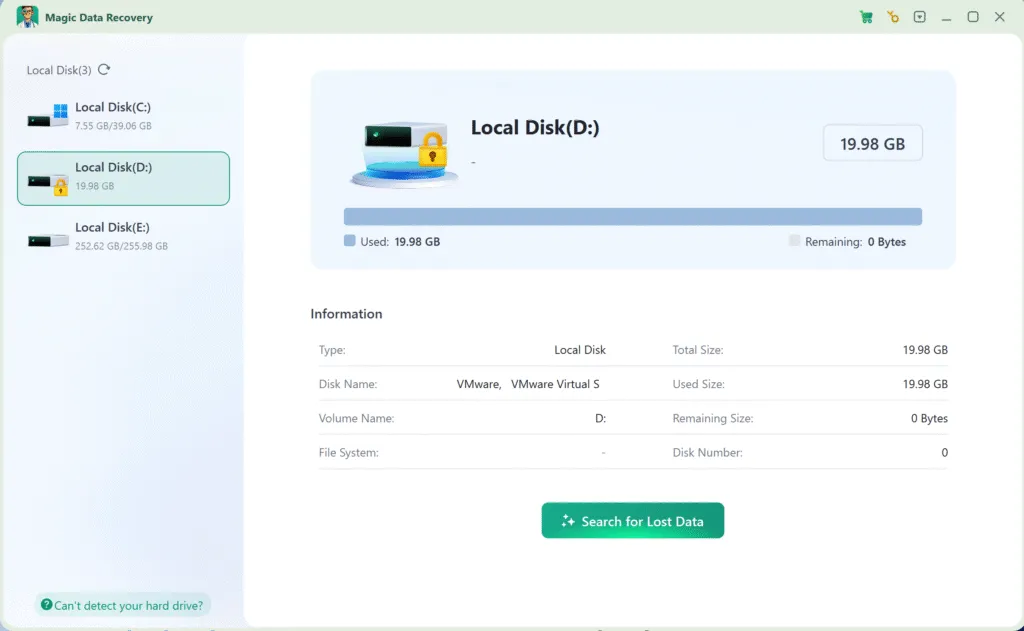
Schritt 2 - Auswählen des BitLocker-verschlüsselten Laufwerks
Starten Sie Magic Data Recovery.
Sie sehen alle angeschlossenen Laufwerke übersichtlich aufgelistet.
- BitLocker-geschützte Laufwerke sind mit einem Schloss-Symbol
- Wählen Sie die verschlüsselte HDD oder SSD
- Wenn Sie dazu aufgefordert werden, geben Sie das BitLocker-Kennwort oder den Wiederherstellungsschlüssel ein
Dadurch kann die Software verschlüsselte Sektoren korrekt interpretieren.
Schritt 3 - Lassen Sie den Scan zu Ende laufen
Sobald der Scanvorgang beginnt:
- Magic Data Recovery analysiert verschlüsselte Dateistrukturen
- Es sucht nach gelöschten, verlorenen oder unzugänglichen Dateien
- Auch beschädigte Sektoren können sicher verarbeitet werden
Die Scanzeit hängt von der Größe und dem Zustand des Laufwerks ab. Vermeiden Sie es, den Vorgang zu unterbrechen.

Schritt 4 - Vorschau wiederherstellbarer Dateien
Nach dem Scannen:
- Alle wiederherstellbaren Dateien werden nach Typ und Ordner aufgelistet
- Sie können eine Vorschau von Dokumenten, Bildern und Videos anzeigen.
- Die Vorschau hilft bei der Überprüfung der Dateiintegrität vor der Wiederherstellung
Auch wenn Windows das verschlüsselte Laufwerk nicht einbinden kann, Magic Data Recovery kann den Inhalt der Datei weiterhin anzeigen.

Schritt 5 - Dateien an einem sicheren Ort wiederherstellen
Wählen Sie die gewünschten Dateien aus und stellen Sie sie wieder her:
- Ein externes Laufwerk
- Ein weiteres internes Laufwerk
- Eine sichere Aufbewahrungsmöglichkeit
Speichern Sie wiederhergestellte Dateien niemals auf dem ursprünglichen verschlüsselten Laufwerk, da dies zum Überschreiben von Daten führen kann.

Warum Magic Data Recovery eine vertrauenswürdige Lösung ist
Im Vergleich zu generischen Wiederherstellungswerkzeugen, Magic Data Recovery Angebote:
- Kenntnis der BitLocker-Verschlüsselungsstrukturen
- Zerstörungsfreie Scantechnologie
- Bessere Ergebnisse auf verschlüsselten HDDs und SSDs
- Übersichtliche Dateivorschau und Wiederherstellungskontrolle
Anstatt unsichere Korrekturen zu erzwingen, konzentriert es sich auf die Wahrung der Datenintegrität.
Wenn Sie auf der Suche nach einem praktische und vorsichtige Lösung zur Wiederherstellung, Magic Data Recovery ist eine zuverlässige Option.
Best Practices für die sichere Windows-Festplattenverschlüsselung
Zur Risikominimierung bei der Verwendung Windows Festplattenverschlüsselung:
- Speichern von BitLocker-Wiederherstellungsschlüsseln an mehreren Orten
- Regelmäßige Backups durchführen
- Unterbrechung der Verschlüsselung vor Firmware- oder BIOS-Updates
- Vermeiden Sie die Neupartitionierung verschlüsselter Laufwerke
- Bereiten Sie einen Wiederherstellungsplan vor Datenverlust geschieht
Die Verschlüsselung ist am effektivsten, wenn sie mit einem angemessenen Wiederherstellungsbewusstsein kombiniert wird.
Schlussfolgerung
Windows Festplattenverschlüsselung ist ein hervorragendes Instrument zum Schutz sensibler Informationen. Wenn es richtig konfiguriert ist, Windows HDD-Verschlüsselung mit BitLocker bietet starken Schutz vor unbefugtem Zugriff.
Die Verschlüsselung allein kann jedoch nicht verhindern, dass versehentliches Löschen, Systemausfälle, oder Festplattenkorruption.
Deshalb ist eine Wiederherstellungsstrategie so wichtig.
Magic Data Recovery bietet eine verantwortungsvolle und effektive Lösung für Wiederherstellung von Daten von BitLocker-verschlüsselten Laufwerken-ohne risikoreiche Verfahren und ohne Rätselraten.
Unterstützt Windows 7/8/10/11 und Windows Server
FAQs zur Festplattenverschlüsselung
Wie verschlüsselt man eine Festplatte unter Windows?
Ist BitLocker 100% sicher?
Ist Windows 11 vollständig verschlüsselt?
Kann man Windows 10 auch nach dem 14. Oktober 2025 noch verwenden?
Kann man eine ganze Festplatte verschlüsseln?
Verfügt Windows 10 über eine integrierte Verschlüsselungssoftware?
Lohnt es sich, eine Festplatte zu verschlüsseln?
Wie kann ich überprüfen, ob mein Windows-Laufwerk verschlüsselt ist?
Verschlüsselt Windows 11 Festplatten automatisch?
Ist AES-256 das sicherste Verfahren?

Erin Smith gilt als eine der professionellsten Autorinnen bei Amagicsoft. In den letzten 10 Jahren hat sie ihre schriftstellerischen Fähigkeiten kontinuierlich verfeinert und Millionen von Lesern bei der Lösung ihrer technischen Probleme geholfen.