
Windows Hard Disk Encryption and Data Recovery

Data protection has become a top priority for both individual users and businesses. To prevent unauthorized access, Windows provides built-in encryption technologies that lock down hard drives at the system level. This is why Windows hard disk encryption is now widely enabled by default on many devices.
However, security always comes with trade-offs.
Many users only realize the risks of Windows HDD encryption after encountering problems such as forgotten recovery keys, system crashes, or corrupted encrypted drives. At that point, access to important data may suddenly disappear. Magic Data Recovery can help recover data from BitLocker-encrypted drives when standard methods fail.
Supports Windows 7/8/10/11 and Windows Server
Table of Contents
What Is Windows Hard Disk Encryption?
Windows hard disk encryption is a technology that protects data by converting it into an unreadable format using strong encryption algorithms. Only users with the correct credentials—password, PIN, or recovery key—can decrypt and access the data.
Even if someone removes the hard drive and connects it to another computer, encrypted data remains inaccessible.
This makes Windows HDD encryption highly effective against:
- Device theft
- Unauthorized offline access
- Data exposure after hardware loss
Windows HDD Encryption Options Explained
BitLocker Drive Encryption
BitLocker is the primary encryption solution built into Windows. It is available on:
- Windows 10/11 Pro
- Enterprise
- Education editions
Key features include:
- Full-disk encryption for HDDs and SSDs
- Support for external drives (BitLocker To Go)
- Integration with TPM for hardware-based security
For most advanced users, BitLocker represents the standard implementation of Windows hard disk encryption.
Device Encryption (Windows Home)
Some Windows Home devices include Device Encryption:
- Encrypts automatically once the user signs in with a Microsoft account
- Limited configuration options
- Strong dependence on Microsoft account recovery
While convenient, it offers less flexibility than BitLocker.
Why Windows Hard Disk Encryption Is Important
Using Windows HDD encryption provides several real-world benefits:
- Prevents data leaks if a laptop is lost or stolen
- Protects corporate or personal privacy
- Helps meet data protection policies
- Runs silently with minimal performance impact
Despite these advantages, encryption introduces one critical risk: data becomes inaccessible if something goes wrong.
How to Enable Windows HDD Encryption Safely
Before turning on encryption, preparation is essential.
Step 1: Check Compatibility
Ensure that:
- You are using a supported Windows edition
- TPM is enabled (recommended but not mandatory)
- You have administrator privileges
Step 2: Enable BitLocker
- Open BitLocker Drive Encryption from Control Panel
- Select the target drive
- Choose an unlock method
- Back up the BitLocker recovery key immediately
- Start encryption
Common mistake: Users enable encryption without securing the recovery key, which leads to permanent data loss later.
Common Risks of Windows HDD Encryption
Real-world experience shows that encryption-related data loss often happens in these scenarios:
- BitLocker recovery key is lost
- System crashes during Windows update
- Encrypted drive becomes RAW
- Partition structure is damaged
- Files are deleted from an unlocked encrypted drive
In such cases, normal data recovery tools typically fail because they cannot interpret encrypted data.
Can Data Be Recovered from an Encrypted BitLocker Drive?
Yes—but only under certain conditions.
Encrypted drives require recovery software that understands:
- BitLocker metadata
- File systems inside encrypted volumes
- Safe, non-destructive scanning methods
This is where Magic Data Recovery becomes essential.
How to Recover Data from a BitLocker Drive Using Magic Data Recovery
Magic Data Recovery is built to scan encrypted, partially damaged, or RAW drives and retrieve files when built-in BitLocker tools no longer work.
Below is a safe and practical recovery process.
Step 1 — Install Magic Data Recovery on a Healthy System
Please download and install Magic Data Recovery to your computer first.
Supports Windows 7/8/10/11 and Windows Server
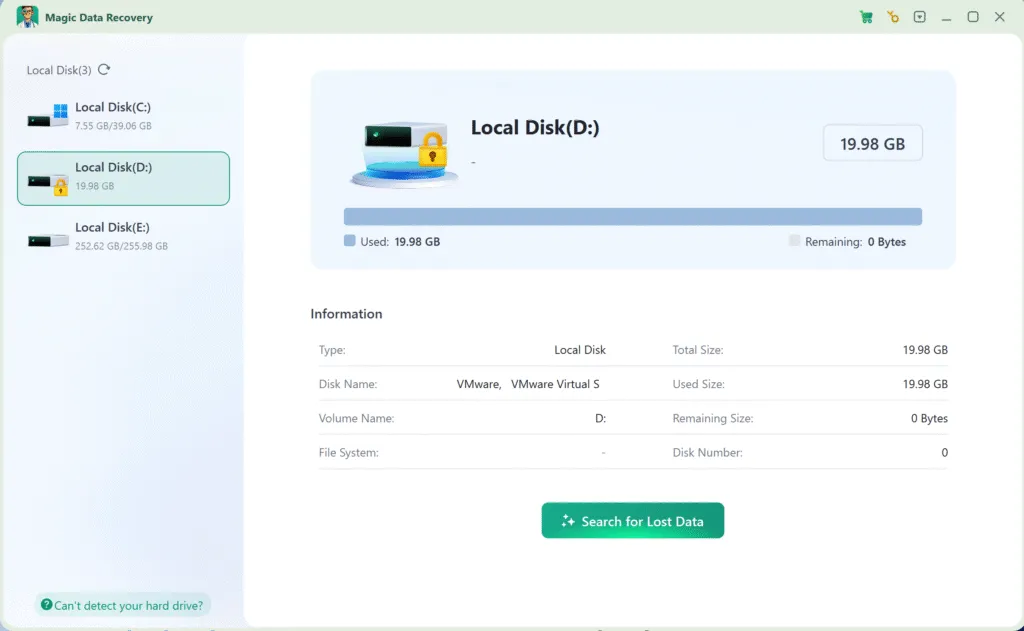
Step 2 — Select the BitLocker-Encrypted Drive
Launch Magic Data Recovery.
You will see all connected drives listed clearly.
- BitLocker-protected drives are marked with a lock icon
- Select the encrypted HDD or SSD
- If prompted, enter the BitLocker password or recovery key
This allows the software to interpret encrypted sectors correctly.
Step 3 — Let the Scan Run to Completion
Once scanning starts:
- Magic Data Recovery analyzes encrypted file structures
- It searches for deleted, lost, or inaccessible files
- Even damaged sectors can be processed safely
Scanning time depends on drive size and condition. Avoid interrupting the process.

Step 4 — Preview Recoverable Files
After scanning:
- All recoverable files are listed by type and folder
- You can preview documents, images, and videos
- Previewing helps verify file integrity before recovery
Even if Windows cannot mount the encrypted drive, Magic Data Recovery may still display file contents.

Step 5 — Recover Files to a Secure Location
Select the files you need and restore them to:
- An external drive
- Another internal drive
- A safe storage device
Never save recovered files back to the original encrypted drive, as this may cause data overwriting.

Why Magic Data Recovery Is a Trusted Solution
Compared to generic recovery tools, Magic Data Recovery offers:
- Awareness of BitLocker encryption structures
- Non-destructive scanning technology
- Better results on encrypted HDDs and SSDs
- Clear file previews and recovery control
Instead of forcing unsafe fixes, it focuses on preserving data integrity.
If you are looking for a practical and cautious recovery solution, Magic Data Recovery is a reliable option.
Best Practices for Secure Windows HDD Encryption
To minimize risk while using Windows hard disk encryption:
- Store BitLocker recovery keys in multiple locations
- Perform regular backups
- Pause encryption before firmware or BIOS updates
- Avoid repartitioning encrypted drives
- Prepare a recovery plan before data loss happens
Encryption is most effective when combined with proper recovery awareness.
Conclusion
Windows hard disk encryption is an excellent tool for safeguarding sensitive information. When configured correctly, Windows HDD encryption with BitLocker provides strong protection against unauthorized access.
However, encryption alone cannot prevent accidental deletion, system failures, or disk corruption.
That is why a recovery strategy matters.
Magic Data Recovery offers a responsible and effective solution for recovering data from BitLocker-encrypted drives—without risky procedures or guesswork.
Supports Windows 7/8/10/11 and Windows Server
Hard Disk Encryption FAQs
How to encrypt a hard disk in Windows?
Is BitLocker 100% safe?
Is Windows 11 fully encrypted?
Can you still use Windows 10 after October 14, 2025?
Can you encrypt an entire hard drive?
Does Windows 10 have built-in encryption software?
Is it worth encrypting a hard drive?
How do I check if my Windows drive is encrypted?
Does Windows 11 automatically encrypt hard drives?
Is AES-256 the most secure?

Erin Smith is recognized as one of the most professional writers at Amagicsoft. She has continually honed her writing skills over the past 10 years and helped millions of readers solve their tech problems.