
Recuperare i file di Illustrator: 7 metodi collaudati
.ai file, e un problema di archiviazione può far sparire un progetto. Fortunatamente, spesso è possibile ripristinare i file di Illustrator se scegli un recupero del disco rigido un metodo adeguato alla causa. Questa guida illustra sette soluzioni pratiche, da Adobe Auto-Recovery e Creative Cloud a Magic Data Recovery per i file che un tempo erano presenti sul sistema di archiviazione.Supporta Windows 7/8/10/11 e Windows Server
Indice dei contenuti
È possibile recuperare i file di Illustrator? Verifica prima la situazione
Prima di iniziare, cerca di capire cosa è successo al progetto. Un file non salvato richiede una soluzione diversa rispetto a un cancellato definitivamente o un file danneggiato. Pertanto, utilizza la tabella sottostante per scegliere il punto di partenza più sicuro.
Situazione | Il metodo migliore per iniziare |
Illustrator si è bloccato | Ripristino automatico |
Il file non salvato non si è riaperto | Cartella DataRecovery |
Soppresso | Cestino o Cestino |
File eliminato definitivamente | Software di recupero dati |
Documento su cloud eliminato | Creative Cloud eliminato |
Progetto sovrascritto | Cronologia delle versioni o backup |
Corrotto | Modalità di recupero dei contenuti |
Dispositivo di archiviazione formattato | Software di recupero dati |
Soprattutto, chiediti se hai mai salvato il progetto. Se Illustrator non ha mai salvato il file sul disco e non esistono dati di recupero, il software di recupero dati non avrà nulla da ripristinare. In tal caso, inizia con le funzioni di recupero integrate in Illustrator.
Cosa fare prima di recuperare i file di Illustrator
Alcune precauzioni possono proteggere i dati recuperabili. Innanzitutto, smettete di salvare nuovi file sull'unità che conteneva il progetto smarrito. I nuovi dati potrebbero sovrascrivere il contenuto dei file cancellati. Inoltre, evitate di formattare, riparare o utilizzare intensamente quell'unità fino al termine del recupero.
Inoltre, installa un software di recupero su un’altra unità e salva i file recuperati in un’altra posizione. Infine, verifica se il progetto fosse salvato su un dispositivo di archiviazione locale, su Creative Cloud o su entrambi. Questi semplici controlli possono prevenire una perdita di dati evitabile e aiutarti a scegliere il percorso di recupero più adatto.
Metodo 1: Ripristinare automaticamente i file di Illustrator dopo un arresto anomalo
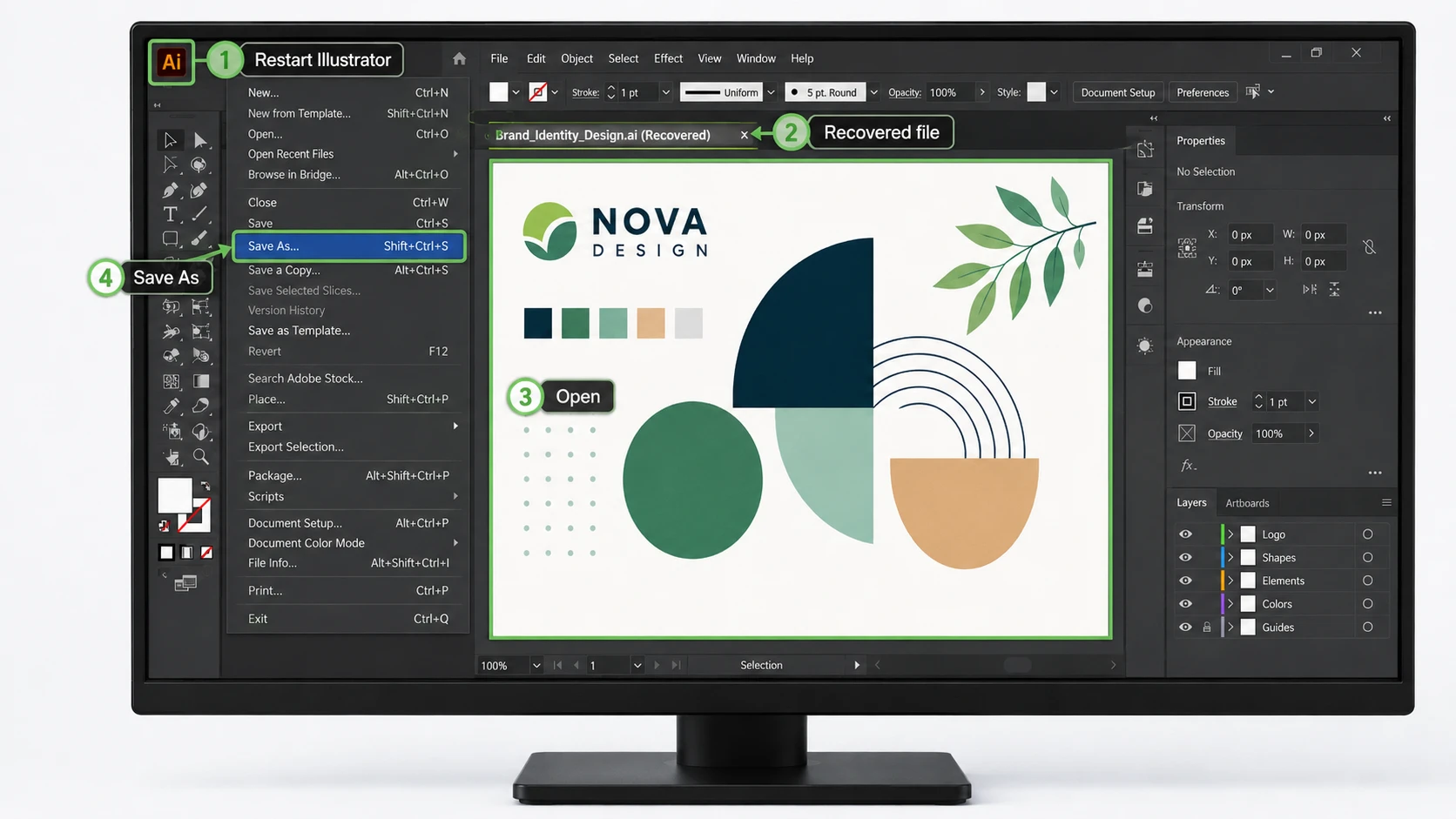
Se Illustrator si blocca, riavvialo prima di provare soluzioni avanzate. Illustrator potrebbe rilevare i dati di ripristino e riaprire il progetto aggiungendo la dicitura “Recovered” al nome del file.
- Chiudi eventuali processi di Illustrator bloccati.
- Riavvia Illustrator.
- Attendere il completamento del processo di ripristino.
- Apri il documento contrassegnato con Recuperato.
- Scegliere File > Salva con nome e creare una nuova copia.
Questo è solitamente il modo più sicuro per ripristinare i file di Illustrator dopo un arresto anomalo, poiché Illustrator utilizza i propri dati di ripristino. Tuttavia, le modifiche apportate di recente potrebbero comunque non essere presenti se l'arresto anomalo si è verificato prima dell'ultimo punto di backup.
Se non si riapre nulla, non dare per scontato che il progetto sia andato perso. Verifica invece la cartella DataRecovery seguendo la procedura descritta di seguito.
Metodo 2: Recuperare i file di Illustrator dalla cartella DataRecovery
Se il ripristino automatico non viene avviato, la cartella “DataRecovery” di Illustrator potrebbe comunque contenere dati utili per il ripristino.
Percorso del file di ripristino di Illustrator su Windows
Stampa Vincere + R, inserisci %AppData%, quindi aprire:
Adobe\Adobe Illustrator Impostazioni\\x64\DataRecovery
Cercare .ai o .aid file. Se trovi un progetto che fa al caso tuo, aprilo in Illustrator e salva subito una nuova copia.
Posizione dei file di ripristino di Illustrator su Mac
Nel Finder, seleziona Vai > Vai alla cartella, inserisci ~/Libreria/, quindi andare su:
Preferenze/Adobe Illustrator Impostazioni//DataRecovery
Anche in questo caso, apri qualsiasi file di ripristino disponibile e salvalo con un nuovo nome.
Verifica la versione di Illustrator prima di procedere al ripristino
Le diverse versioni di Illustrator non gestiscono tutte i dati di ripristino allo stesso modo. Ad esempio, le versioni da 29.2 a 29.8 di Illustrator utilizzano .aishm dati di ripristino, pertanto le vecchie istruzioni per il ripristino manuale potrebbero non funzionare come previsto. In Illustrator 30.0, Salva in background svolge inoltre un ruolo più importante nel comportamento di backup.
Pertanto, verifica sempre la versione esatta di Illustrator prima di concludere che i dati di recupero non siano disponibili.
Metodo 3: Recuperare i file di Illustrator da Creative Cloud
Se hai salvato il progetto come documento Creative Cloud, controlla gli strumenti cloud di Adobe prima di effettuare la scansione nella memoria locale.
Per un documento cloud eliminato, apri Creative Cloud e vai su File > Eliminati. Ripristina il progetto se è ancora presente. Nel frattempo, se hai bisogno di una versione precedente anziché di un file eliminato, apri il documento dal cloud in Illustrator e controlla File > Cronologia delle versioni.
Questo metodo può aiutarti ripristinare i file di Illustrator in seguito a modifiche accidentali, cambiamenti indesiderati o cancellazioni dal cloud. Inoltre, la cronologia delle versioni può rivelarsi più utile del recupero dal disco quando è necessaria una copia precedente nota anziché i dati cancellati allo stato grezzo.
Metodo 4: Recuperare i file di Illustrator eliminati dal Cestino
Se di recente hai eliminato un file salvato .ai file, controlla prima il sistema operativo.
Su Windows, apri Cestino, individuare il file, fare clic con il tasto destro del mouse su di esso e selezionare Ripristino. Su macOS, apri Rifiuti, fare clic con il tasto destro del mouse sul file di Illustrator e selezionare Rimetti a posto.
Questo approccio rappresenta il modo più veloce per ripristinare i file di Illustrator dopo una normale eliminazione. Tuttavia, questa procedura non sarà di alcun aiuto se hai svuotato il Cestino o il Cestino di sistema, hai utilizzato la funzione di eliminazione definitiva o hai formattato l'unità. In tali casi, ricorri ai backup o al ripristino a livello di archiviazione.
Metodo 5: Ripristinare i file di Illustrator da un backup
I backup consentono di ripristinare progetti cancellati o sovrascritti senza dover eseguire la scansione dello spazio di archiviazione grezzo. Su Windows, verificare Storia del file o Versioni precedenti se li avevi attivati prima della perdita. Su macOS, usa Macchina del tempo e tornare alla cartella che originariamente conteneva il progetto di Illustrator.
I backup sono particolarmente efficaci nel caso di file sovrascritti, poiché conservano copie precedenti già note. Pertanto, è consigliabile controllare la cronologia dei backup prima di ricorrere a strumenti di livello inferiore.
Se conservi i file di progetto su un servizio di archiviazione cloud, controlla anche la cronologia delle versioni di quel servizio. In molti casi concreti, un backup rappresenta il modo più veloce e pulito per ripristinare i file di Illustrator senza rischiare ulteriori modifiche all'unità originale.
Metodo 6: Recuperare i file di Illustrator con Magic Data Recovery
Se un file salvato .ai Se il file scompare a seguito di una cancellazione definitiva, di una formattazione, della perdita di una partizione o di un altro problema logico di archiviazione, potrebbe essere necessario un recupero a livello di archiviazione.
Magic Data Recovery offre una soluzione pratica per Windows in questa situazione. Supporta i file grafici AI, i dispositivi di archiviazione più comuni e migliaia di altri formati di file. Ma soprattutto, esegue la scansione direttamente sul dispositivo di archiviazione, invece di affidarsi alla cartella di recupero di Illustrator.
Questa differenza è importante. Adobe Auto-Recovery si concentra sui lavori non salvati a seguito di un arresto anomalo, mentre Magic Data Recovery si occupa dei file che un tempo erano presenti sul dispositivo di archiviazione e che in seguito sono scomparsi. Pertanto, è adatto ai casi in cui il Cestino, i backup e le funzionalità di recupero di Adobe non sono più d’aiuto.
Passo 1: Scaricare e installare Magic Data Recovery
Scarica Magic Data Recovery e installalo su un'unità diversa da quella che conteneva il file di Illustrator andato perso. In questo modo si riduce la probabilità che i dati di installazione sovrascrivano quelli recuperabili .ai contenuto.
Supporta Windows 7/8/10/11 e Windows Server
Passaggio 2: Selezionare l'unità su cui è stato salvato il file di Illustrator
Avvia il programma. Quindi, dall'interfaccia principale, seleziona la partizione o il dispositivo di archiviazione che originariamente conteneva il progetto Illustrator smarrito e avvia la scansione.

Passaggio 3: esegui una scansione dell'unità alla ricerca di file di Illustrator smarriti
Magic Data Recovery avvia automaticamente una scansione avanzata e cerca i dati recuperabili nell'unità selezionata. Nel frattempo, i file recuperabili vengono visualizzati man mano che la scansione procede.
Per ottenere risultati più completi, attendi che la scansione sia terminata, soprattutto dopo una formattazione o una cancellazione risalente a tempo fa.

Passaggio 4: Anteprima e individuazione del file Illustrator
Successivamente, utilizza la ricerca per nome file, percorsi, tipi di file o i filtri disponibili per individuare il progetto .ai mancante. Se è disponibile l'anteprima, controlla il contenuto prima del recupero in modo da poter confermare di aver trovato la versione corretta.
Questo passaggio ti aiuta anche a evitare di ripristinare file non necessari quando una scansione restituisce molti risultati.

Passaggio 5: Salvare il file di Illustrator in una posizione sicura
Infine, seleziona il file Illustrator che desideri ripristinare e salvalo su un'altra unità o su un altro dispositivo di archiviazione. Non salvarlo nuovamente nella stessa posizione in cui era scomparso, poiché i nuovi dati potrebbero sovrascrivere altri contenuti recuperabili.
Una volta completato il ripristino, aprire il file ripristinato .ai Aprire il file in Illustrator e salvare una nuova copia di lavoro.

Magic Data Recovery offre inoltre fino a 500 MB di spazio di recupero gratuito, in modo da poter testare il flusso di lavoro di ripristino prima di decidere se è necessaria una maggiore capacità.
Per gli utenti che cercano di ripristinare i file di Illustrator Dopo una cancellazione definitiva o una formattazione, questo approccio è più efficace rispetto al recupero automatico, poiché opera a livello di archiviazione. Tuttavia, non è in grado di ricreare un progetto che Illustrator non abbia mai salvato né di cui non sia stato effettuato un backup.
In altre parole, usa gli strumenti integrati di Adobe per i lavori non salvati e ricorri al recupero dei dati in caso di necessità ripristinare i file di Illustrator che in precedenza era presente su un'unità.
Metodo 7: Riparare un file di Illustrator danneggiato
A volte il .ai Il file esiste ancora, ma Illustrator non riesce ad aprirlo. In tal caso, si tratta di un file danneggiato piuttosto che di un file cancellato.
Adobe’s Modalità di recupero dei contenuti può aiutare a riparare alcuni documenti danneggiati. Per prima cosa, crea una copia del file danneggiato. Quindi attiva l’opzione “Recupero contenuto” nelle preferenze di Illustrator, riapri il documento utilizzando la scorciatoia di recupero richiesta e controlla nella stessa cartella se è presente una copia riparata il cui nome file inizia con un trattino basso.
Utilizza questo metodo quando il file esiste ma non si apre. Al contrario, ricorri al recupero dei file cancellati quando il file è effettivamente scomparso.
Perché potresti non riuscire a recuperare i file di Illustrator
Anche i migliori metodi di recupero hanno i loro limiti. È possibile che Illustrator non abbia mai creato dati di recupero prima di un crash. Allo stesso modo, i nuovi dati potrebbero sovrascrivere un file eliminato .ai file.
Gli SSD possono rendere più difficile il ripristino perché TRIM potrebbe liberare i blocchi dopo che il sistema operativo li ha contrassegnati come liberi. Inoltre, un file danneggiato richiede una riparazione piuttosto che una scansione dei file eliminati. Anche le differenze tra le versioni possono influire sulla posizione e sul formato dei dati di recupero.
Pertanto, nessuno strumento può garantire il recupero di tutti i dati. Prima si smette di utilizzare l'unità danneggiata e si sceglie il metodo corretto, maggiori saranno le possibilità di recuperare dati utilizzabili.
Come evitare di perdere nuovamente i file di Illustrator
Dopo aver ripristinare i file di Illustrator, migliora la tua procedura di backup in modo che il prossimo incidente causi meno disagi.
Per prima cosa, controlla le impostazioni di gestione dei file di Illustrator e verifica che le funzioni di recupero o di salvataggio in background siano attive. Nelle versioni più recenti, Salva in background svolge un ruolo importante nel comportamento del backup.
Inoltre, conserva i progetti importanti in almeno due posizioni diverse. Creative Cloud, Cronologia file, Time Machine o un altro sistema di backup ti consentono di avere una seconda copia. Evita inoltre di modificare progetti critici direttamente da supporti rimovibili instabili.
Infine, usa nomi di versione chiari, come ad esempio Logo_v01.ai, Logo_v02.ai, e Logo_Final.ai. Questa abitudine rende molto più facile tornare a una versione precedente del progetto senza dover ricorrere a procedure di ripristino d’emergenza.
Conclusione: il modo più sicuro per recuperare i file di Illustrator
Il modo migliore per ripristinare i file di Illustrator Dipende da come è andato perso il progetto. In caso di crash, inizia con il recupero automatico e la cartella “DataRecovery”. Per i progetti salvati su cloud o sovrascritti, controlla la cronologia delle versioni e i backup. Se il file esiste ancora ma non si apre, prova la modalità di recupero dei contenuti.
In caso di file cancellati definitivamente, formattati o persi .ai file che un tempo erano presenti sul dispositivo di archiviazione, Magic Data Recovery è un passo successivo pratico. Esegue la scansione dell'unità sottostante, supporta i file AI, funziona con i comuni dispositivi di archiviazione di Windows e offre fino a 500 MB di recupero gratuito.
Soprattutto, ricorri innanzitutto all’opzione meno invasiva. Questo approccio contribuisce a proteggere i dati rimanenti e ti offre il miglior recupero del disco rigido occasione per ripristinare i file di Illustrator senza creare ulteriori problemi.
Supporta Windows 7/8/10/11 e Windows Server
Domande frequenti su come recuperare i file di Illustrator
Illustrator è in grado di recuperare un file non salvato dopo un arresto anomalo?
Sì, se Illustrator ha creato dei dati di recupero prima del crash. Riavvia prima Illustrator e cerca un documento contrassegnato come “Recuperato”. Se non compare nulla, controlla la cartella DataRecovery. Tuttavia, la versione recuperata potrebbe non contenere le tue ultime modifiche, poiché Illustrator può ripristinare solo le informazioni salvate durante il suo ciclo di recupero più recente.
Dove vengono salvati i file di ripristino di Illustrator su Windows?
Illustrator di solito salva i dati di recupero nella cartella %AppData%\Adobe\Adobe Illustrator Settings\\x64\DataRecovery. Cerca i file con estensione .ai o .aid. Tuttavia, le versioni di Illustrator dalla 29.2 alla 29.8 utilizzano dati di recupero con estensione .aishm, pertanto il comportamento del recupero differisce rispetto alle versioni precedenti. Pertanto, verifica la versione in uso prima di seguire tutorial di recupero relativi a versioni precedenti.
È possibile recuperare i file di Illustrator cancellati dopo aver svuotato il Cestino?
È possibile. Innanzitutto, smetti di utilizzare l'unità interessata, poiché i nuovi dati potrebbero sovrascrivere il contenuto dei file cancellati. Quindi controlla i backup o esegui una scansione dell'unità con uno strumento come Magic Data Recovery. Il recupero dipende dalla presenza o meno di dati .ai ancora utilizzabili, pertanto nessun software di recupero può garantire un risultato positivo in ogni caso.
È possibile recuperare un file di Illustrator sovrascritto?
Inizia con la Cronologia delle versioni di Creative Cloud, la Cronologia dei file di Windows, le Versioni precedenti, Time Machine o un altro backup. Queste opzioni possono fornire una copia precedente nota. I software di recupero sono meno affidabili per i file sovrascritti, poiché i dati più recenti potrebbero già occupare i blocchi di memoria che contenevano il progetto originale di Illustrator.
Perché la mia cartella "DataRecovery" di Illustrator è vuota?
È possibile che Illustrator non abbia creato i dati di ripristino, che le impostazioni di ripristino fossero disattivate oppure che l'arresto anomalo si sia verificato prima del successivo punto di backup. Anche la versione di Illustrator è importante. Ad esempio, le versioni dalla 29.2 alla 29.8 utilizzano dati di ripristino in formato .aishm, quindi verifica la versione esatta prima di dare per scontato che il progetto sia andato perso.
Magic Data Recovery è in grado di recuperare file di Illustrator da un disco formattato?
È in grado di eseguire la scansione di dispositivi di archiviazione formattati alla ricerca di file AI recuperabili, qualora siano ancora presenti dati utilizzabili. Smetti di utilizzare il dispositivo, esegui la scansione il prima possibile e salva i file recuperati in un'altra posizione. Tuttavia, una sovrascrittura massiccia o la funzione TRIM degli SSD possono ridurre la recuperabilità, poiché tali processi potrebbero rimuovere i dati sottostanti necessari al software di recupero.
Un software di recupero dati può ripristinare un progetto di Illustrator che non è mai stato salvato?
Di solito no. I software di recupero funzionano meglio quando un file era già presente sul supporto di archiviazione. Se non hai mai salvato il progetto e Illustrator non ha mai creato dati di recupero, uno scanner del disco potrebbe non trovare nulla da ripristinare. In tal caso, controlla prima la funzione di recupero automatico di Illustrator e la cartella DataRecovery, invece di iniziare direttamente con il recupero a livello di supporto di archiviazione.

Vasilii è uno specialista del recupero dati con circa 10 anni di esperienza pratica nel settore. Nel corso della sua carriera, ha risolto con successo migliaia di casi complessi riguardanti file cancellati, unità formattate, partizioni perse e file system RAW. La sua esperienza copre sia i metodi di recupero manuale utilizzando strumenti professionali come gli editor esadecimali, sia le soluzioni automatiche avanzate con i software di recupero. La missione di Vasilii è quella di rendere accessibile la conoscenza del recupero dati affidabile sia ai professionisti IT che agli utenti di tutti i giorni, aiutandoli a salvaguardare i loro preziosi beni digitali.