
Come risolvere il problema dell'unità USB non riconosciuta in Windows 10
Quando un Chiavetta USB non riconosciuta da Windows 10 Quando si verifica il problema, la prima preoccupazione riguarda solitamente i propri file. Windows potrebbe non visualizzare un'unità USB in Esplora file anche se Gestione del disco oppure Gestione dispositivi riesce comunque a rilevarlo. Tuttavia, la soluzione corretta dipende da ciò che Windows è in grado di rilevare. Una lettera di unità mancante richiede una soluzione diversa rispetto a una partizione RAW, una chiavetta USB non allocata o un dispositivo che mostra il messaggio “Nessun supporto”.”
Questa guida spiega come risolvere un Chiavetta USB non riconosciuta da Windows 10 risolvere il problema senza aggravare la perdita di dati. Imparerai quando è opportuno verificare prima l'hardware, i driver, le impostazioni di alimentazione, eseguire CHKDSK o recuperare i file. Se Windows continua a rilevare la chiavetta USB ma i tuoi file risultano inaccessibili, Magic Data Recovery può fornire un pratico Recupero dati USB opzione.
Indice dei contenuti
Chiavetta USB non riconosciuta su Windows 10: individuare innanzitutto il problema
Prima di provare soluzioni a caso, controlla dove compare la porta USB.
Quello che vedi | Probabile causa | Il passo successivo migliore |
Non compare in Esplora file ma è visibile in Gestione disco | Lettera di unità mancante | Assegnare una lettera di unità |
Mostra RAW | Corruzione del file system | Recuperare prima i file |
Spettacoli non assegnati | Partizione persa o danneggiata | Recuperare i dati prima di creare un volume |
Appare solo in Gestione dispositivi | Problema relativo al driver/controllore | Reinstallare il dispositivo |
Visualizza “Nessun file multimediale” o 0 byte | Guasto a livello hardware | Basta con le riparazioni fai da te |
Scomparso ovunque | Guasto alla porta, alla connessione o di natura fisica | Prova con un’altra porta e un altro PC |
A Chiavetta USB non riconosciuta da Windows 10 Un errore è un sintomo, non un guasto vero e proprio. Pertanto, occorre adattare la soluzione alle condizioni del dispositivo.
Perché la mia chiavetta USB non viene riconosciuta in Windows 10?
Tra le cause più comuni figurano una porta difettosa, l'assenza della lettera di unità, un driver danneggiato, le impostazioni di risparmio energetico USB, il danneggiamento del file system, la perdita di una partizione o un malfunzionamento dell'hardware della memoria flash.
Ad esempio, una chiavetta USB potrebbe scomparire da Esplora file dopo una rimozione non sicura, mentre Gestione disco continua a visualizzarla come RAW. I file potrebbero essere ancora presenti, ma Windows non è più in grado di leggere il file system. Pertanto, è consigliabile proteggere i dati importanti prima di procedere con interventi correttivi che potrebbero causare danni.
Prima di risolvere il problema della chiavetta USB non riconosciuta da Windows 10
Adotta un flusso di lavoro che dia priorità al recupero: interrompi la scrittura di nuovi dati, controlla “Gestione disco” e recupera i file importanti prima di formattare il disco in formato RAW o non allocato spazio. Salvare i file recuperati su un'altra unità fisica.
Inoltre, evita di ripetere CHKDSK Tentativi su una chiavetta USB instabile. Non creare un nuovo volume sullo spazio non allocato se hai bisogno dei vecchi file. Se il dispositivo mostra 0 byte, “Nessun supporto” o si disconnette continuamente, interrompi il tentativo di riparazione fai-da-te.
In breve, quando si tratta di file importanti, segui una sola regola: prima il recupero, poi la riparazione.
Soluzione 1: controllare la porta USB e provare con un altro computer
Per prima cosa, partiamo dall'ipotesi più semplice.
- Scollegare la chiavetta USB.
- Collegalo a un'altra porta USB.
- Durante i test, evitare l'uso di hub USB.
- Se possibile, prova con un altro PC con Windows.
Se la chiavetta USB funziona su altri dispositivi, è probabile che il PC originale presenti un problema legato alla porta, al driver o all'alimentazione. Tuttavia, se non funziona su diversi computer, procedi con "Gestione disco".
Soluzione 2: controllare la porta USB in “Gestione disco”
A questo punto, apri "Gestione disco". È uno dei migliori strumenti per diagnosticare un Chiavetta USB non riconosciuta da Windows 10 problema, poiché può visualizzare dispositivi che Esplora file nasconde.
- Stampa Windows + X.
- Selezionare Gestione del disco.
- Trova la chiavetta USB in base alla capacità.
- Verifica se viene visualizzato come “In buono stato”, “RAW”, “Non allocato” o “Nessun supporto”.
Se la partizione è integra ma non ha una lettera di unità, passare alla Soluzione 3. Se risulta come RAW o Non allocata, recuperare prima i file. Se invece risulta come Nessun supporto, passare alla sezione dedicata all'hardware.
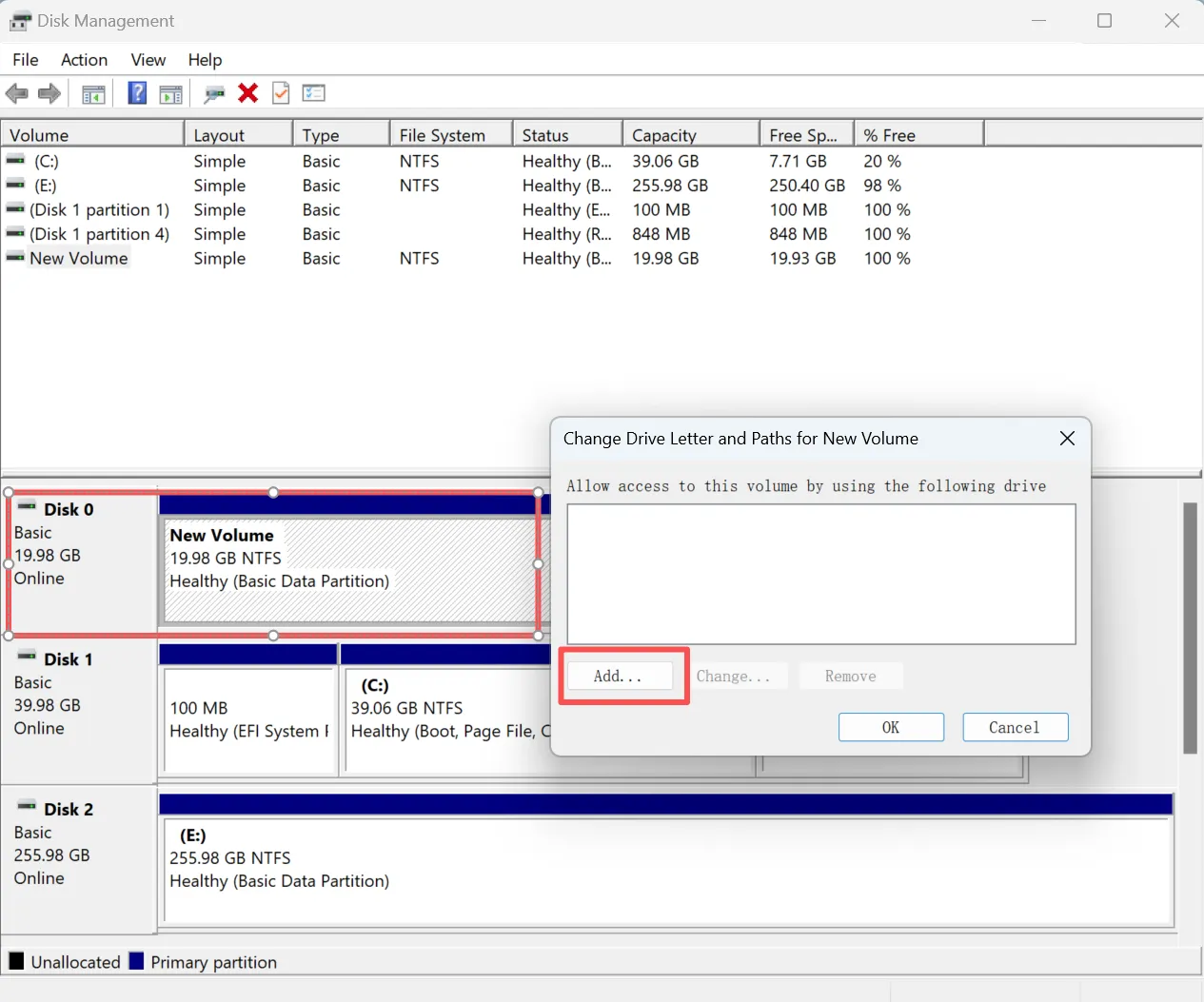
Soluzione 3: assegnare una nuova lettera di unità
La mancanza o la presenza di una lettera di unità in conflitto può far sparire una chiavetta USB perfettamente funzionante da Esplora file.
- Aperto Gestione del disco.
- Fai clic con il tasto destro del mouse sulla partizione USB.
- Scegliere Modifica della lettera dell'unità e dei percorsi.
- Cliccare Aggiungi o Cambiamento.
- Seleziona una lettera non utilizzata e clicca OK.
A questo punto, riapri Esplora file. Se l'unità viene visualizzata, hai risolto il Chiavetta USB non riconosciuta da Windows 10 risolvere il problema senza modificare il suo file system.
Questo metodo è particolarmente utile quando "Gestione disco" mostra una normale partizione NTFS, FAT32 o exFAT, ma Esplora file non visualizza il dispositivo.
Soluzione 4: aggiornare o reinstallare il driver USB
A volte Windows rileva l'hardware in modo errato perché il driver USB o la configurazione del dispositivo memorizzata sono stati danneggiati.
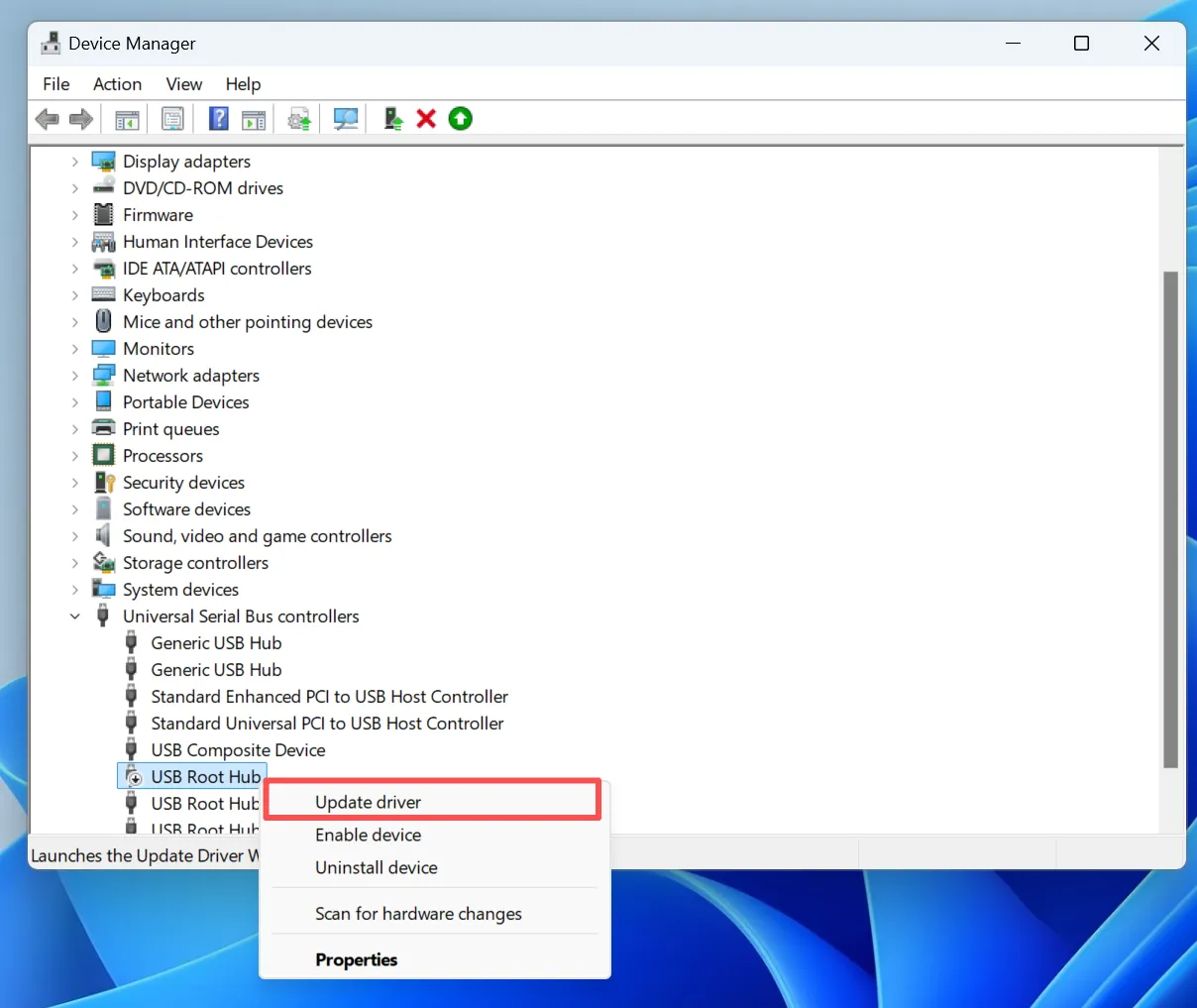
Per prima cosa, apri Gestione dispositivi, espandi Unità disco o Controllori Universal Serial Bus, fare clic con il tasto destro del mouse sul dispositivo interessato e selezionare Aggiornamento del driver.
Se questo non funziona, scegli Disinstallare il dispositivo, scollegare il cavo USB, riavviare Windows e ricollegarlo. Windows dovrebbe rilevare nuovamente il dispositivo con una nuova configurazione.
È importante, Aggiornamento del driver e Disinstallare il dispositivo funzionano in modo diverso. Pertanto, reinstallare il dispositivo può essere d’aiuto anche quando Windows segnala che il driver ottimale è già installato.
Soluzione 5: Disattivare la modalità di risparmio energetico USB
La gestione dell'alimentazione può causare la disconnessione di una porta USB o impedire il risveglio del dispositivo.
In Gestione dispositivi > Controller USB, apri Hub di radice USB o Hub USB generico proprietà e cancella Consenti al computer di spegnere questo dispositivo per risparmiare energia.
Successivamente, disattivare Sospensione selettiva USB sotto:
Pannello di controllo > Opzioni di risparmio energetico > Modifica impostazioni avanzate di risparmio energetico > Impostazioni USB
Successivamente, ricollegare l'unità e verificare se il Chiavetta USB non riconosciuta da Windows 10 Il problema è stato risolto.
Questa soluzione è particolarmente utile quando una periferica USB funziona dopo l'avvio, ma non viene più rilevata quando il PC esce dalla modalità di sospensione.

Soluzione 6: Ricerca delle modifiche all'hardware
Un errore temporaneo del driver potrebbe richiedere semplicemente che Windows aggiorni l'hardware collegato.
- Aperto Gestione dispositivi.
- Cliccare Azione.
- Selezionare Verifica la presenza di modifiche all'hardware.
- Attendere l'aggiornamento dell'elenco dei dispositivi.
Al termine della scansione, controlla nuovamente Esplora file e Gestione disco.
Se l'USB torna a funzionare, è probabile che Windows abbia perso temporaneamente la connessione con il dispositivo, piuttosto che si tratti di un danno al file system.
Soluzione 7: Recuperare i dati prima di riparare una chiavetta USB in formato RAW o non allocata
Se "Gestione disco" rileva la chiavetta USB ma la visualizza come "RAW", "Non allocata", con una partizione mancante o richiede la formattazione, recuperare i file prima di procedere alla riparazione.
Qui è dove Magic Data Recovery si rivela utile. Anziché modificare prima il file system danneggiato, esegue una scansione di un dispositivo di archiviazione rilevabile alla ricerca di file recuperabili e consente di salvarli altrove.
Pertanto, Magic Data Recovery è indicato per quelle situazioni in cui il problema principale è l'inaccessibilità dei dati piuttosto che un semplice problema legato ai driver di Windows.
Gli scenari tipici includono:
- L'unità USB viene visualizzata come RAW.
- Windows ti chiede di formattare la chiavetta USB.
- La partizione originale diventa "Non allocata".
- I file scompaiono in seguito alla cancellazione o a un danneggiamento del file system.
- Windows rileva l'unità, ma le cartelle non si aprono più normalmente.

Soluzione 8: Eseguire CHKDSK dopo aver messo al sicuro i file importanti
CHKDSK è in grado di correggere alcuni errori del file system, ma è consigliabile utilizzarlo solo se Windows assegna ancora una lettera di unità al dispositivo, se l'USB funziona correttamente e se i file importanti sono già stati sottoposti a backup o ripristinati.
Aprire il Prompt dei comandi come amministratore ed eseguirlo:
chkdsk X: /f
Sostituire X: con la lettera di unità corretta.
Il /f Questa opzione indica a CHKDSK di riparare gli errori rilevati nel file system. Tuttavia, durante la riparazione del volume, CHKDSK potrebbe modificare i metadati del file system.
Pertanto, evita di eseguirlo su una chiavetta USB non formattata, gravemente danneggiata o instabile. Se mancano ancora dei file importanti, recuperali prima di utilizzare CHKDSK.
Cosa fare se l'unità USB non compare in "Gestione disco"?
Se un Chiavetta USB non riconosciuta da Windows 10 Se il dispositivo non compare in “Gestione disco”, controlla in “Gestione dispositivi”.
Se Gestione dispositivi lo rileva, reinstallare il dispositivo, eseguire una ricerca delle modifiche hardware e provare con un'altra porta USB.
Tuttavia, se né "Gestione disco" né "Gestione dispositivi" riescono a rilevare la chiavetta USB su diversi computer, il guasto potrebbe essere di natura fisica. In tal caso, i software di recupero dati non sono in grado di eseguire la scansione di supporti a cui Windows non può accedere.
Pertanto, è improbabile che l'uso ripetuto di strumenti di formattazione, comandi CHKDSK o modifiche ai driver possa essere d'aiuto.
Consigli per evitare problemi di riconoscimento delle periferiche USB
Utilizzo Rimozione sicura dell'hardware prima di scollegare un'unità. Inoltre, evitate di scollegare la porta USB durante il trasferimento dei file e conservate un'altra copia di backup dei file importanti.
È inoltre consigliabile sostituire le chiavette USB che si scollegano spesso o segnalano errori. Sebbene queste precauzioni non possano impedire ogni Chiavetta USB non riconosciuta da Windows 10 errore, possono ridurre i danni evitabili al file system.
Conclusione
A Chiavetta USB non riconosciuta da Windows 10 Prima di procedere alla riparazione, è necessario diagnosticare il problema. Innanzitutto, provare con un’altra porta e un altro computer. Successivamente, utilizzare Gestione disco per verificare se l’unità USB è integra, in formato RAW, non allocata o se viene visualizzata la messaggio “Nessun supporto”. Le correzioni relative alla lettera di unità, al driver e all’alimentazione possono risolvere molti problemi logici.
Tuttavia, se l'unità USB risulta come "RAW", "Non allocata" o viene visualizzata una richiesta di formattazione, è necessario recuperare i dati importanti prima di eseguire CHKDSK, la formattazione o la creazione di partizioni.
In questa situazione si consiglia di utilizzare Magic Data Recovery perché risponde alla vera priorità: recuperare i file prima che la riparazione modifichi la struttura di archiviazione. Non è una soluzione per memorie flash fisicamente danneggiate. Si tratta invece di una soluzione pratica Recupero di unità USB opzione da utilizzare quando Windows rileva ancora il dispositivo, ma i file non sono più accessibili.
Se stai cercando una soluzione di recupero più efficiente prima di riparare la chiavetta USB, prova Magic Data Recovery.
Supporta Windows 7/8/10/11 e Windows Server
Unità USB non riconosciuta Windows 10 - Domande frequenti
Perché la mia chiavetta USB non viene riconosciuta in Windows 10?
Come posso risolvere l'errore di mancato riconoscimento di un dispositivo USB in Windows 10?
Perché la mia USB appare in Gestione disco ma non in Esplora file?
Cosa devo fare se la mia chiavetta USB viene visualizzata come "RAW" in Windows 10?
Perché la mia chiavetta USB mostra il messaggio “Nessun supporto” o “0 byte”?
CHKDSK può riparare un’unità USB non riconosciuta?
È possibile recuperare i file da una chiavetta USB che Windows 10 non riconosce?
Come riparare un'unità flash non rilevata?

Vasilii è uno specialista del recupero dati con circa 10 anni di esperienza pratica nel settore. Nel corso della sua carriera, ha risolto con successo migliaia di casi complessi riguardanti file cancellati, unità formattate, partizioni perse e file system RAW. La sua esperienza copre sia i metodi di recupero manuale utilizzando strumenti professionali come gli editor esadecimali, sia le soluzioni automatiche avanzate con i software di recupero. La missione di Vasilii è quella di rendere accessibile la conoscenza del recupero dati affidabile sia ai professionisti IT che agli utenti di tutti i giorni, aiutandoli a salvaguardare i loro preziosi beni digitali.