
How to Fix USB Drive Not Recognized on Windows 10
When a USB drive not recognized Windows 10 problem appears, the first concern is usually your files. Windows may fail to show a USB drive in File Explorer even though Disk Management or Device Manager can still detect it. However, the correct fix depends on what Windows can see. A missing drive letter needs a different solution from a RAW partition, an unallocated USB, or a device that shows “No Media.”
This guide explains how to fix a USB drive not recognized Windows 10 issue without making data loss worse. You will learn when to check hardware, drivers, power settings, CHKDSK, or recover files first. If Windows still detects the USB but your files are inaccessible, Magic Data Recovery can provide a practical USB data recovery option.
Table of Contents
USB Drive Not Recognized Windows 10: Identify the Problem First
Before trying random fixes, check where the USB appears.
What You See | Likely Cause | Best Next Step |
Missing from File Explorer but visible in Disk Management | Missing drive letter | Assign a drive letter |
Shows RAW | File system corruption | Recover files first |
Shows Unallocated | Lost or damaged partition | Recover data before creating a volume |
Appears only in Device Manager | Driver/controller issue | Reinstall the device |
Shows “No Media” or 0 bytes | Hardware-level failure | Stop DIY repair |
Missing everywhere | Port, connection, or physical failure | Test another port and PC |
A USB drive not recognized Windows 10 error is a symptom, not one failure. Therefore, match the fix to the device condition.
Why Is My USB Drive Not Recognized in Windows 10?
Common causes include a faulty port, missing drive letter, corrupted driver, USB power-saving settings, file system corruption, a lost partition, or failing flash hardware.
For example, a USB may disappear from File Explorer after unsafe removal while Disk Management still shows it as RAW. The files may still exist, but Windows can no longer read the file system. Therefore, protect important data before destructive fixes.
Before You Fix a USB Drive Not Recognized Windows 10 Issue
Use a recovery-first workflow: stop writing new data, check Disk Management, and recover important files before formatting RAW or unallocated space. Save recovered files to another physical drive.
Also, avoid repeated CHKDSK attempts on an unstable USB. Do not create a new volume over unallocated space if you need the old files. If the device shows 0 bytes, “No Media,” or constant disconnects, stop DIY repair.
In short, follow one rule whenever important files are involved: recover first, repair second.
Fix 1: Check the USB Port and Another Computer
First, start with the simplest possibility.
- Disconnect the USB drive.
- Connect it to another USB port.
- Avoid USB hubs during testing.
- If possible, try another Windows PC.
If the USB works elsewhere, the original PC likely has a port, driver, or power issue. However, if it fails on several computers, continue with Disk Management.
Fix 2: Check the USB in Disk Management
Next, open Disk Management. It is one of the best tools for diagnosing a USB drive not recognized Windows 10 issue because it can show devices that File Explorer hides.
- Press Windows + X.
- Select Disk Management.
- Find the USB by capacity.
- Check whether it appears as Healthy, RAW, Unallocated, or No Media.
If the partition is healthy but lacks a drive letter, continue to Fix 3. If it shows RAW or Unallocated, recover files first. Meanwhile, if it shows No Media, skip to the hardware section.
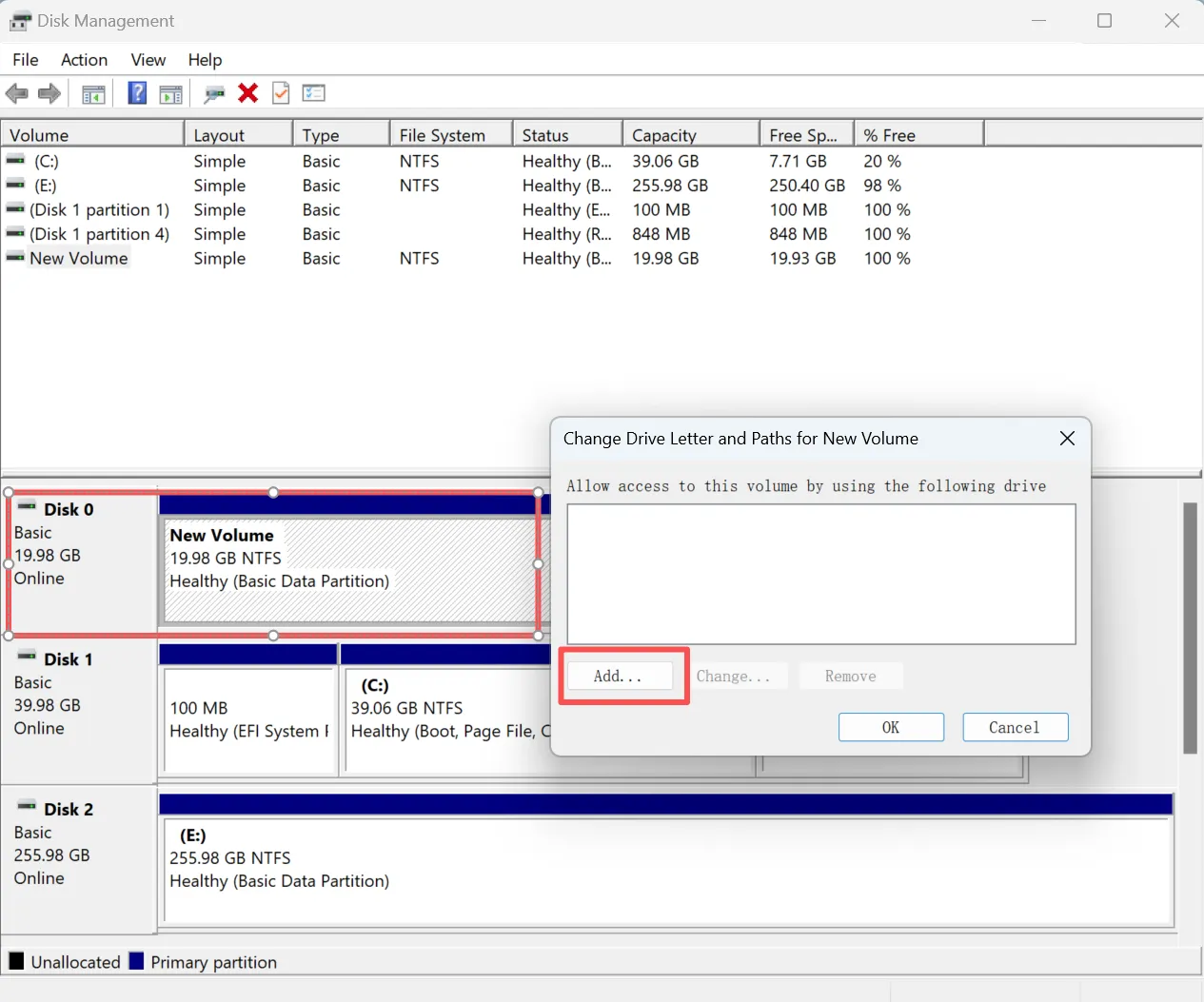
Fix 3: Assign a New Drive Letter
A missing or conflicting drive letter can make a healthy USB disappear from File Explorer.
- Open Disk Management.
- Right-click the USB partition.
- Choose Change Drive Letter and Paths.
- Click Add or Change.
- Select an unused letter and click OK.
Then reopen File Explorer. If the drive appears, you solved the USB drive not recognized Windows 10 problem without changing its file system.
This method is especially useful when Disk Management shows a normal NTFS, FAT32, or exFAT partition but File Explorer does not list the device.
Fix 4: Update or Reinstall the USB Driver
Sometimes Windows detects the hardware incorrectly because the USB driver or stored device configuration has become corrupted.
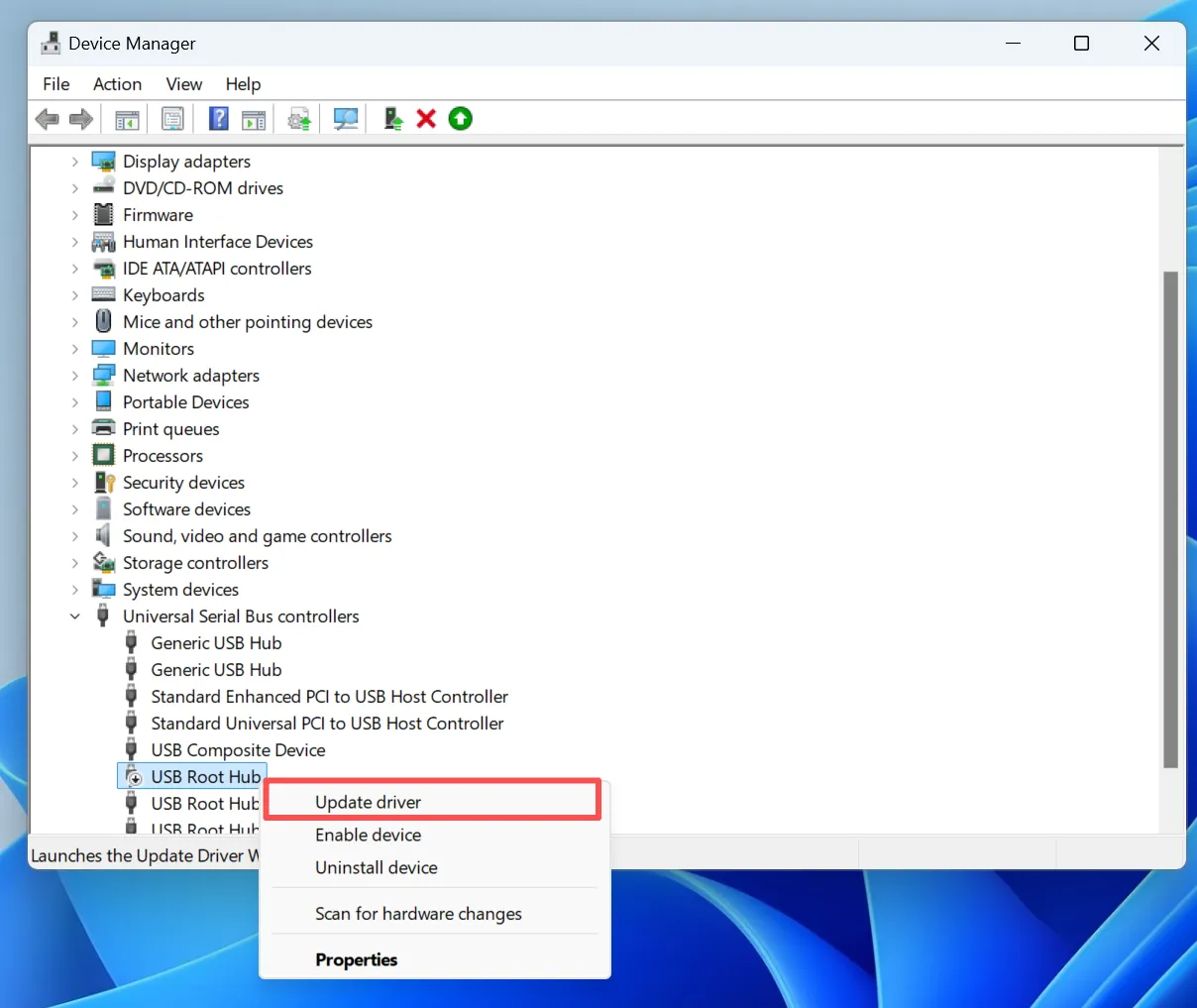
First, open Device Manager, expand Disk drives or Universal Serial Bus controllers, right-click the affected device, and choose Update driver.
If that fails, choose Uninstall device, disconnect the USB, restart Windows, and reconnect it. Windows should detect the device again with a fresh configuration.
Importantly, Update driver and Uninstall device do different things. Therefore, reinstalling the device can help even when Windows reports that the best driver is already installed.
Fix 5: Disable USB Power Saving
Power management can cause a USB to disconnect or fail to wake.
In Device Manager > Universal Serial Bus controllers, open USB Root Hub or Generic USB Hub properties and clear Allow the computer to turn off this device to save power.
Next, disable USB selective suspend under:
Control Panel > Power Options > Change advanced power settings > USB settings
Afterward, reconnect the drive and check whether the USB drive not recognized Windows 10 issue is resolved.
This solution is particularly useful when a USB works after startup but disappears after the PC wakes from sleep.

Fix 6: Scan for Hardware Changes
A temporary driver error may only require Windows to refresh connected hardware.
- Open Device Manager.
- Click Action.
- Select Scan for hardware changes.
- Wait for the device list to refresh.
After the scan, check File Explorer and Disk Management again.
If the USB returns, Windows likely lost the device connection temporarily rather than suffering from file system damage.
Fix 7: Recover Data Before Repairing a RAW or Unallocated USB
If Disk Management detects the USB but shows RAW, Unallocated, a missing partition, or a format prompt, recover files before repair.
This is where Magic Data Recovery becomes useful. Instead of changing the damaged file system first, it scans a detectable storage device for recoverable files and lets you save them elsewhere.
Therefore, Magic Data Recovery fits situations where the main problem is inaccessible data rather than a simple Windows driver issue.
Typical scenarios include:
- The USB appears as RAW.
- Windows asks you to format the USB.
- The original partition becomes Unallocated.
- Files disappear after deletion or file system corruption.
- Windows detects the drive, but folders no longer open normally.

Fix 8: Run CHKDSK After Important Files Are Safe
CHKDSK can repair some file system errors, but use it only when Windows still assigns a drive letter, the USB remains stable, and important files are already backed up or recovered.
Open Command Prompt as administrator and run:
chkdsk X: /f
Replace X: with the correct drive letter.
The /f option tells CHKDSK to repair detected file system errors. However, CHKDSK may change file system metadata while repairing the volume.
Therefore, avoid running it first on a RAW, severely corrupted, or unstable USB. If important files are still missing, recover them before using CHKDSK.
What If the USB Is Not Showing in Disk Management?
If a USB drive not recognized Windows 10 device does not appear in Disk Management, check Device Manager next.
If Device Manager detects it, reinstall the device, scan for hardware changes, and test another USB port.
However, if neither Disk Management nor Device Manager can see the USB on several computers, the failure may be physical. At that point, recovery software cannot scan storage that Windows cannot access.
Therefore, repeated formatting tools, CHKDSK commands, or driver changes are unlikely to help.
Tips to Prevent USB Recognition Problems
Use Safely Remove Hardware before disconnecting a drive. In addition, avoid unplugging the USB during file transfers and keep another backup of important files.
You should also replace USB drives that frequently disconnect or report errors. Although these habits cannot prevent every USB drive not recognized Windows 10 error, they can reduce avoidable file system damage.
Conclusion
A USB drive not recognized Windows 10 problem should be diagnosed before repair. First, check another port and computer. Next, use Disk Management to identify whether the USB is healthy, RAW, unallocated, or showing No Media. Drive-letter, driver, and power fixes can solve many logical problems.
However, if the USB shows RAW, Unallocated, or a format prompt, recover important data before CHKDSK, formatting, or partition creation.
Magic Data Recovery is recommended in this situation because it addresses the real priority: retrieving files before repair changes the storage structure. It is not a solution for physically dead flash memory. Instead, it is a practical USB drive recovery option when Windows still detects the device but the files have become inaccessible.
If you are looking for a more efficient recovery solution before repairing the USB, try Magic Data Recovery.
Supports Windows 7/8/10/11 and Windows Server
USB Drive Not Recognized Windows 10 – FAQs
Why is my USB drive not recognized in Windows 10?
How do I fix a USB device not recognized error in Windows 10?
Why does my USB appear in Disk Management but not File Explorer?
What should I do if my USB shows RAW in Windows 10?
Why is my USB showing No Media or 0 bytes?
Can CHKDSK fix an unrecognized USB drive?
Can I recover files from a USB drive that Windows 10 does not recognize?
How to repair an undetected flash drive?

Vasilii is a data recovery specialist with around 10 years of hands-on experience in the field. Throughout his career, he has successfully solved thousands of complex cases involving deleted files, formatted drives, lost partitions, and RAW file systems. His expertise covers both manual recovery methods using professional tools like hex editors and advanced automated solutions with recovery software. Vasilii's mission is to make reliable data recovery knowledge accessible to both IT professionals and everyday users, helping them safeguard their valuable digital assets.