
Il disco rigido non viene riconosciuto? Ecco come risolverlo
Quando un Il disco rigido non viene riconosciuto dal computer, può scatenare immediatamente la preoccupazione di una potenziale perdita di dati. Che il problema riguardi un disco rigido interno o un'unità disco esterna, la situazione è spesso recuperabile. In molti casi, l'unità stessa è ancora funzionante ma problemi logici impedire che venga visualizzato in Esplora file o Gestione del disco.
La buona notizia è che un disco rigido non rilevato non significa necessariamente che i dati siano andati perduti. Con una chiara comprensione delle cause sottostanti e un approccio strutturato alla risoluzione dei problemi, è possibile risolvere la maggior parte dei problemi di rilevamento in modo sicuro.
Questa guida spiega perché un Il disco rigido potrebbe non essere riconosciuto e fornisce soluzioni pratiche, seguite da un'attività professionale Recupero dati su disco rigido opzioni quando l'unità rimane illeggibile.
Indice dei contenuti
Perché un disco rigido non viene riconosciuto
A disco rigido può non apparire per diversi motivi tecnici. Le cause più comuni includono:
- Problemi di connessione: Cavi difettosi, connettori SATA allentati o alimentazione insufficiente.
- Problemi di driver: Driver del disco mancanti, obsoleti o danneggiati in Windows.
- Errori del file system: Corruzione che fa apparire l'unità come RAW o non allocati.
- Problemi di partizione: Lettere di unità mancanti o tabelle di partizione danneggiate (MBR/GPT).
- Impostazioni BIOS/UEFI: Il drive è disabilitato o non inizializzato a livello di firmware.
- Interferenza del malware: I virus possono nascondere le partizioni o bloccare l'accesso al disco.
La comprensione della causa è essenziale, poiché ogni scenario richiede una soluzione diversa.
Come riparare un disco rigido che non viene riconosciuto
Seguire questi passaggi in ordine. Evitare di formattare l'unità se non espressamente indicato, poiché la formattazione potrebbe sovrascrivere i dati recuperabili.
Fase 1: controllo dei collegamenti fisici
Per le unità esterne, provare una porta o un cavo USB diverso. Per le unità disco interne, risistemare i cavi SATA e di alimentazione. Se possibile, testare l'unità su un altro computer.
Passo 2: Controllare Gestione disco
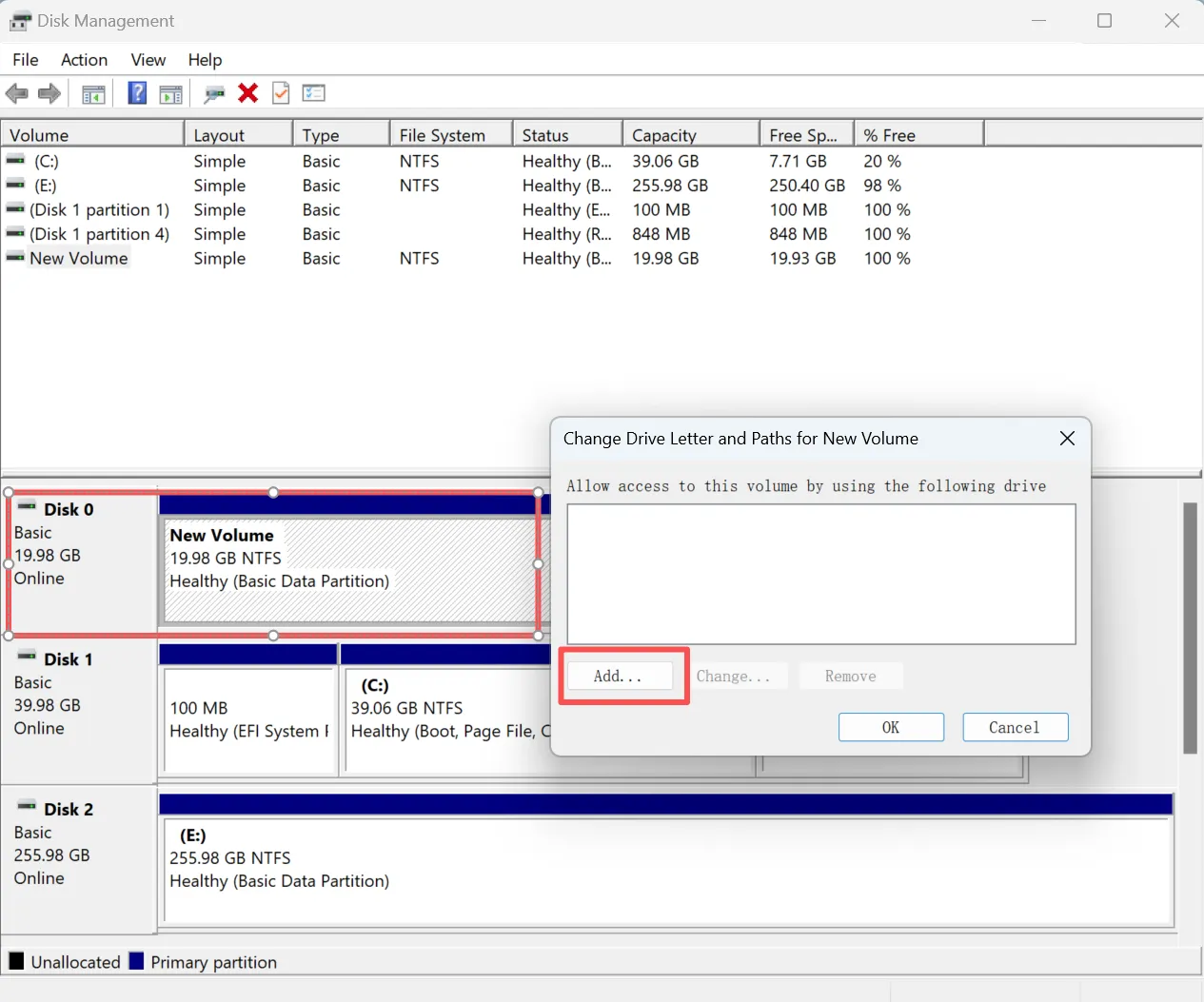
1. Premere Win + X e selezionare Gestione del disco.
2. Cercare lo stato dell'unità:
- Non allocato: La tabella delle partizioni potrebbe essere danneggiata.
- RAW: Il file system è danneggiato.
- Non in linea: Fare clic con il pulsante destro del mouse e impostare il disco in linea.
3. Assegnare una lettera di unità se la partizione esiste ma non è visibile.
Passo 3: Aggiornare o reinstallare i driver del disco
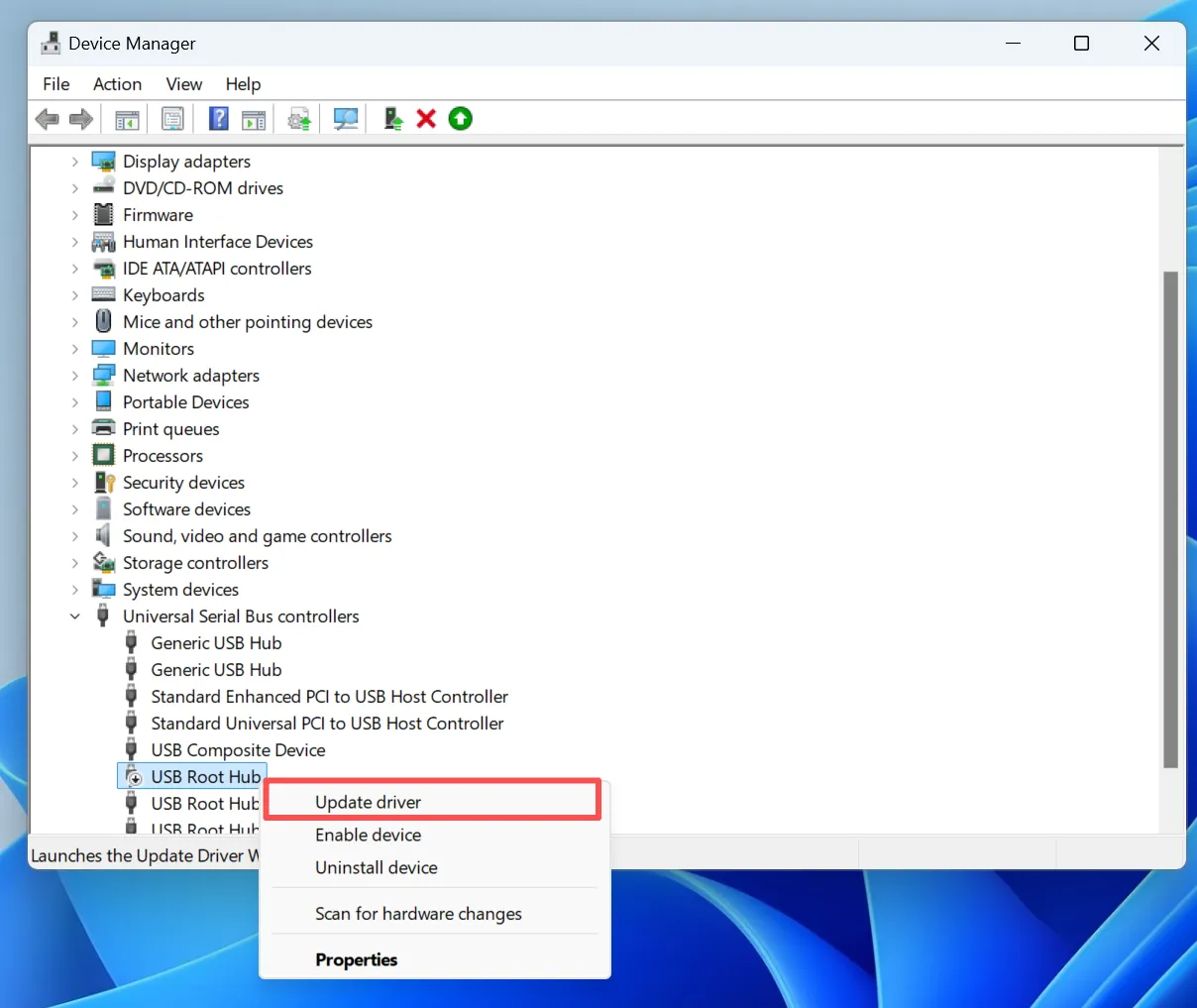
1. Aprire Gestione dispositivi.
2. Espandere Unità disco.
3. Fare clic con il tasto destro del mouse sull'HDD e selezionare Aggiornamento del driver o Disinstallare il dispositivo, quindi riavviare Windows.
La documentazione Microsoft conferma che la reinizializzazione dei driver dopo gli aggiornamenti del sistema spesso risolve i problemi di mancato riconoscimento del disco rigido.
Passo 4: controllare il BIOS o l'UEFI
Riavviare il computer e accedere alle impostazioni del BIOS/UEFI. Verificare se è possibile rilevare il disco rigido a livello di firmware. Se non appare, il problema potrebbe essere legato all'hardware.
Passo 5: scansione degli errori del file system
Se l'unità appare ma è illeggibile, è probabile che il file system sia danneggiato. In questa fase, è necessario eseguire il recupero dei dati prima di qualsiasi tentativo di riparazione, come ad esempio CHKDSK.
Come recuperare i dati dal disco rigido non riconosciuto
Se il disco rigido è visibile in Gestione disco ma inaccessibile, il software di recupero professionale offre una soluzione sicura e di sola lettura.
Magic Data Recovery da Amagicsoft può eseguire la scansione di dischi rigidi non rilevati o non leggibili senza modificare i dati esistenti. Supporta NTFS, FAT32, exFAT, e i file system RAW, rendendolo adatto alla maggior parte degli scenari di ripristino delle unità disco. Questo approccio garantisce l'integrità dei dati mentre si affrontano i guasti dei dischi logici.
Un virus può causare il mancato riconoscimento di un disco rigido?
Sì. Alcune minacce informatiche possono modificare le tabelle delle partizioni, nascondere i volumi o bloccare i driver del disco. Se si sospetta un virus, scollegare immediatamente l'unità ed eseguire il recupero dei dati prima di eseguire le riparazioni antivirus, poiché i processi di pulizia potrebbero danneggiare ulteriormente la struttura dei file.
Qual è la durata di vita di un tipico disco rigido?
La maggior parte dei dischi rigidi meccanici ha una durata media di 3-5 anni, a seconda dell'utilizzo, della temperatura di esercizio e della stabilità dell'alimentazione. I problemi di rilevamento possono indicare segni precoci di guasto, rendendo essenziali il backup e il ripristino tempestivi dei dati.
Prevenzione di futuri problemi di rilevamento del disco rigido
- Utilizzare cavi e alimentatori di alta qualità
- Espulsione sicura delle unità esterne
- Monitorare regolarmente i dati sanitari SMART
- Mantenere aggiornati i driver e i sistemi operativi
- Mantenere backup verificati dei dati critici
Conclusione
Quando un Il disco rigido non viene riconosciuto, La situazione è spesso meno grave di quanto sembri. Seguendo un processo strutturato di risoluzione dei problemi ed evitando azioni rischiose come la formattazione, è possibile preservare i dati e ripristinarne l'accesso in modo sicuro. Quando le soluzioni standard falliscono, gli strumenti di recupero professionali forniscono una soluzione affidabile per il recupero dei dati HDD. Scarica Magic Data Recovery per recuperare file da dischi rigidi illeggibili o non rilevati in modo sicuro ed efficiente.
Supporta Windows 7/8/10/11 e Windows Server
Il disco rigido non viene riconosciuto - Domande frequenti
Come risolvere un'unità disco che non viene rilevata?
Perché il computer non riconosce il disco rigido?
Perché il PC non trova il disco rigido?
Come posso forzare il rilevamento del disco rigido?
Qual è la durata di vita di un tipico disco rigido?
Come recuperare un HDD illeggibile?
Un virus può causare la scomparsa di un disco rigido?
Come si recupera un disco rigido esterno non rilevato?

Vasilii è uno specialista del recupero dati con circa 10 anni di esperienza pratica nel settore. Nel corso della sua carriera, ha risolto con successo migliaia di casi complessi riguardanti file cancellati, unità formattate, partizioni perse e file system RAW. La sua esperienza copre sia i metodi di recupero manuale utilizzando strumenti professionali come gli editor esadecimali, sia le soluzioni automatiche avanzate con i software di recupero. La missione di Vasilii è quella di rendere accessibile la conoscenza del recupero dati affidabile sia ai professionisti IT che agli utenti di tutti i giorni, aiutandoli a salvaguardare i loro preziosi beni digitali.