
Come ottenere password Wifi gratuite
Indice dei contenuti
Primo controllo: Le condizioni del WiFi pubblico consentono la riconnessione
Perché recuperare le password WiFi memorizzate è più sicuro che cercarle online
Metodo integrato in Windows (funziona ma non per tutti)
Windows consente agli utenti di visualizzare manualmente le password WiFi attraverso l'interfaccia grafica:
1. Andare a Pannello di controllo → Centro connessioni di rete e condivisione
2. Fare clic sul nome del WiFi → Proprietà senza fili
3. Aprire la finestra Sicurezza scheda → abilita Mostra i personaggi
Pur funzionando, questo metodo presenta due limiti:
- Mostra la password solo per la rete attualmente connessa, non per tutte le reti precedenti.
- Dopo un aggiornamento del sistema, un problema di driver o un reset di fabbrica, questa pagina potrebbe non visualizzare la password anche se è ancora memorizzata sul dispositivo.
Per gli utenti che hanno bisogno di recuperare più password WiFi precedentemente collegate o di visualizzare tutte le credenziali salvate in una sola volta, le utility professionali diventano molto più efficienti.
Raccomandazione setosa e di fiducia: Magic Recovery Key
Quando gli utenti desiderano solo un accesso rapido e privo di rischi alle password WiFi già in possesso del loro computer, uno strumento semplice può offrire la massima tranquillità. Magic Recovery Key è stato progettato proprio per questo scopo.
Invece di hackerare le reti o accedere a hotspot non autorizzati, esegue una scansione del computer alla ricerca di reti WiFi precedentemente collegate e visualizza le password in un elenco chiaro. Molti utenti apprezzano il fatto che non richieda alcuna competenza tecnica e che eviti i comandi CMD manuali o lo scavo del registro di sistema.
Ciò che lo rende rassicurante è che non generare password illegali-rivela semplicemente quelli già salvati sul computer. In questo modo si raggiunge un perfetto equilibrio tra convenienza e sicurezza, soprattutto per gli utenti che viaggiano spesso, lavorano in uffici condivisi o hanno bisogno di accedere al WiFi su più dispositivi.
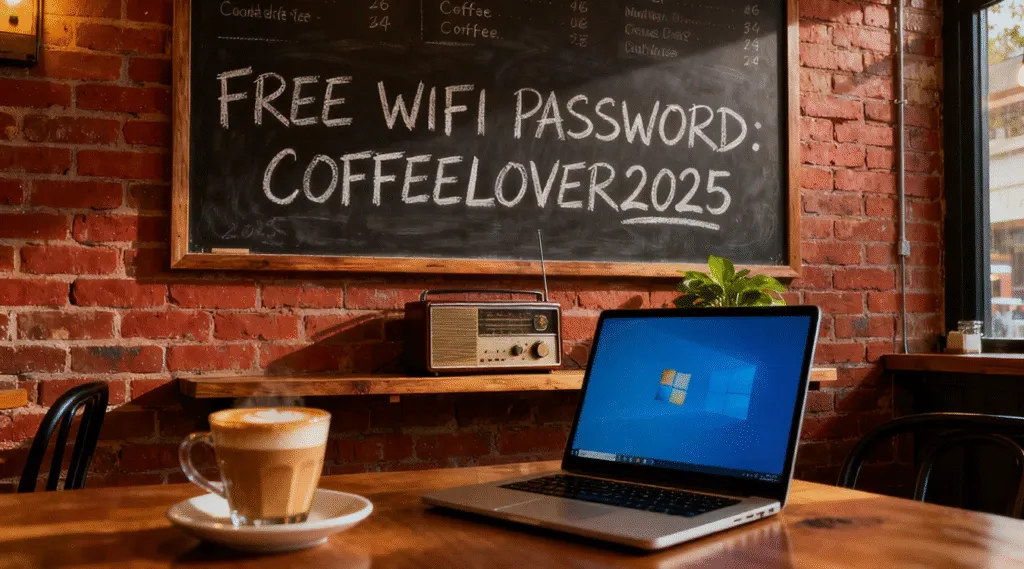
Un esempio comune nel mondo reale
Immaginate di visitare un centro commerciale o un hotel con il vostro computer portatile e di connettervi al WiFi pubblico gratuito attraverso un portale di accesso che richiede alcune informazioni di base come l'e-mail o il numero di telefono. Una volta autenticati, la connessione si è completata automaticamente e avete usufruito di Internet ad alta velocità per tutta la durata del vostro soggiorno. Settimane dopo, tornate nello stesso posto o portate con voi un secondo portatile e volete connettervi di nuovo, ma il portale di accesso non appare e la password non è visualizzata da nessuna parte. Tecnicamente già ottenuto l'accesso una volta, ma il sistema si aspetta che l'utente ricordi la password WiFi nascosta e memorizzata in Windows.
In scenari come questo, recuperare la password memorizzata diventa estremamente utile. Poiché Windows conserva un registro di tutte le reti WiFi a cui ci si è connessi con successo in passato, la password è ancora presente sul PC, ma non è visibile per impostazione predefinita. Uno strumento come Magic Recovery Key è in grado di scansionare il computer ed elencare tutte le reti WiFi precedentemente connesse insieme alla relativa password, aiutandovi a ripristinare l'accesso in modo rapido, senza dover ripetere le pagine di registrazione o richiedere l'assistenza dell'azienda.
Pensieri finali
Il modo più sicuro e affidabile per ottenere password WiFi gratuite è recuperare quelle già salvate sul computer piuttosto che cercare di aggirare le reti protette. Se vi connettete spesso a reti WiFi pubbliche per viaggiare, a scuola, per lavoro o per lavoro a distanza, recupero delle password memorizzate consente di rimanere connessi su più dispositivi senza ripetere le registrazioni o le fasi di verifica.
Se siete pronti per una soluzione senza soluzione di continuità che si occupi di tutto in pochi secondi, prendete in considerazione di provare Magic Recovery Key. Offre un modo semplice, tranquillo e sicuro per elencare tutte le password WiFi precedentemente collegate al PC - senza riga di comando, senza rischi, senza frustrazioni tecniche.
Supporta Windows 7/8/10/11 e Windows Server
FAQ
Esiste un modo per trovare una password WiFi?
Quale app può rivelare una password Wi-Fi?
Come accedere al WiFi nascosto?
Come ottenere il WiFi gratuito a casa senza internet?
Posso vedere la password del Wi-Fi?
Che cos'è una rete Wi-Fi ospite?
Come posso trovare la mia password Wi-Fi senza resettare?

Vasilii è uno specialista del recupero dati con circa 10 anni di esperienza pratica nel settore. Nel corso della sua carriera, ha risolto con successo migliaia di casi complessi riguardanti file cancellati, unità formattate, partizioni perse e file system RAW. La sua esperienza copre sia i metodi di recupero manuale utilizzando strumenti professionali come gli editor esadecimali, sia le soluzioni automatiche avanzate con i software di recupero. La missione di Vasilii è quella di rendere accessibile la conoscenza del recupero dati affidabile sia ai professionisti IT che agli utenti di tutti i giorni, aiutandoli a salvaguardare i loro preziosi beni digitali.