
Laptop HP: come ripristinare le impostazioni di fabbrica
Il ripristino delle impostazioni di fabbrica di un computer portatile HP può risolvere errori di sistema, malware e problemi di prestazioni, facendo tornare il computer come nuovo. Ma prima di fare clic su Reset, Ma c'è un passaggio cruciale che molti utenti trascurano: backup delle chiavi di sicurezza e delle credenziali, in particolare il Chiave di recupero BitLocker. Senza di essa, le unità crittografate potrebbero diventare completamente inaccessibili dopo il ripristino, con conseguente perdita permanente dei dati.
Questa guida spiega come ripristinare in modo sicuro un computer portatile HP passo dopo passo e come prevenire i problemi più comuni che gli utenti si trovano ad affrontare dopo il reset: la perdita delle chiavi di sicurezza e l'esclusione a causa di un problema di sicurezza. Crittografia BitLocker.
Supporta Windows 7/8/10/11 e Windows Server
Indice dei contenuti
Perché il ripristino delle impostazioni di fabbrica del computer portatile HP può essere una buona soluzione
Il reset di fabbrica può risolvere il problema:
- Prestazioni lente e blocchi
- Infezioni da malware e ransomware
- Errori del sistema Windows / schermata blu
- Conflitti software e corruzione del registro di sistema
- Preparazione del dispositivo per la rivendita o il trasferimento
Tuttavia, un reset cancella anche le applicazioni di sistema e le impostazioni memorizzate, il che significa che password, licenze software, credenziali di Windows, password Wi-Fi e chiavi di crittografia potrebbero andare perse se non vengono prima salvate in un backup.
Prima del ripristino: Eseguire il backup dei file e delle chiavi cruciali
La maggior parte dei team di assistenza IT professionali è d'accordo:
I dati di cui si esegue il backup non sono l'unica cosa che conta: le chiavi per accedere a tali dati sono ancora più importanti.
Prima di procedere al ripristino, gli utenti devono prepararsi:
Elementi per il backup | Perché è importante |
File personali | Previene la perdita permanente dei dati |
Chiave di ripristino BitLocker (se abilitata) | Richiesto per sbloccare l'unità dopo il reset |
Chiave di prodotto di Windows | Richiesto per la riattivazione su alcuni sistemi |
Licenze Adobe / Microsoft Office | Previene la mancata attivazione dopo il reset |
Password di rete e Wi-Fi | Risparmio di tempo durante la riconfigurazione |
Credenziali VPN/lavoro remoto | Previene le interruzioni dell'accesso al lavoro |
Tra tutti questi, La chiave di recupero BitLocker è la più critica.. Se non è stata salvata, il ripristino può essere completato con successo, ma al riavvio il sistema potrebbe richiedere la chiave per accedere al disco crittografato. Senza di essa, nemmeno le officine professionali riescono a decifrare i dati..

Come ripristinare un computer portatile HP utilizzando le impostazioni di Windows
Metodo 1: Ripristino tramite le impostazioni di Windows (Windows 10/11)
È possibile ripristinare il portatile HP utilizzando le impostazioni integrate di Windows:
1. Andare su Ripristino:
- Windows 10: Vai a Impostazioni > Aggiornamento e sicurezza > Ripristino.
- Windows 11: Vai a Impostazioni > Sistema > Ripristino.
2. In “Ripristino di questo PC”, fare clic su Iniziare.
3. Scegliere un'opzione di ripristino:
- Conservare i miei file: Rimuove le app e le impostazioni, ma conserva i dati personali.
- Rimuovere tutto: Esegue un reset completo per ottenere il massimo delle prestazioni e della sicurezza.
4. Seguire le istruzioni sullo schermo per completare la procedura.
Metodo 2: Utilizzo di Windows Recovery Environment (WinRE)
Se non è possibile accedere normalmente a Windows, il Windows Recovery Environment (WinRE) offre un modo alternativo per ripristinare il dispositivo.
1. Accedere a WinRE utilizzando uno dei seguenti metodi:
- Tenere premuto il tasto Turno mentre si fa clic su Riavvio nel menu Start.
- Forzare un'interruzione dell'avvio spegnendo il dispositivo per tre volte durante l'avvio.
- Utilizzare il supporto di installazione di Windows, se disponibile (e scegliere l'opzione “Ripara il computer”).
2. Una volta in WinRE:
- Selezionare Risoluzione dei problemi > Ripristino del PC.
- Scegliere le opzioni di ripristino preferite.
- Seguire la procedura guidata fino al completamento.
Utile quando: Windows non si avvia normalmente, non si riesce ad accedere all'app Impostazioni, i file di sistema sono danneggiati o un malware impedisce il normale funzionamento.
Una soluzione sicura - Magic Recovery Key
Magic Recovery Key è la soluzione ideale per aiutare gli utenti a recuperare ed eseguire il backup della chiave di ripristino BitLocker in modo sicuro. prima per l'esecuzione di operazioni importanti, come un reset di fabbrica, o per situazioni in cui la chiave è memorizzata in una partizione non di sistema ma inaccessibile.
L'Magic Recovery Key è progettato per situazioni in cui:
- Consigliato per: Assicurarsi che la chiave di ripristino BitLocker sia estratta in modo sicuro e sottoposta a backup. prima procedere con un reset di fabbrica.
- È stato eseguito il ripristino di fabbrica, ma la chiave di ripristino BitLocker è stata memorizzata su un'unità non di sistema, oppure non è possibile accedere all'unità.
Invece di farsi prendere dal panico o dall'incertezza, gli utenti possono recuperare ed eseguire il backup della chiave in tutta sicurezza, e quindi Continuate il processo di ripristino dei dati di fabbrica o di recupero dei dati in tutta tranquillità..
Come utilizzare Magic Recovery Key
1. Download e installazione
Scaricare e installare Magic Recovery Key dal sito ufficiale
Supporta Windows 7/8/10/11 e Windows Server
2. Individuazione delle chiavi
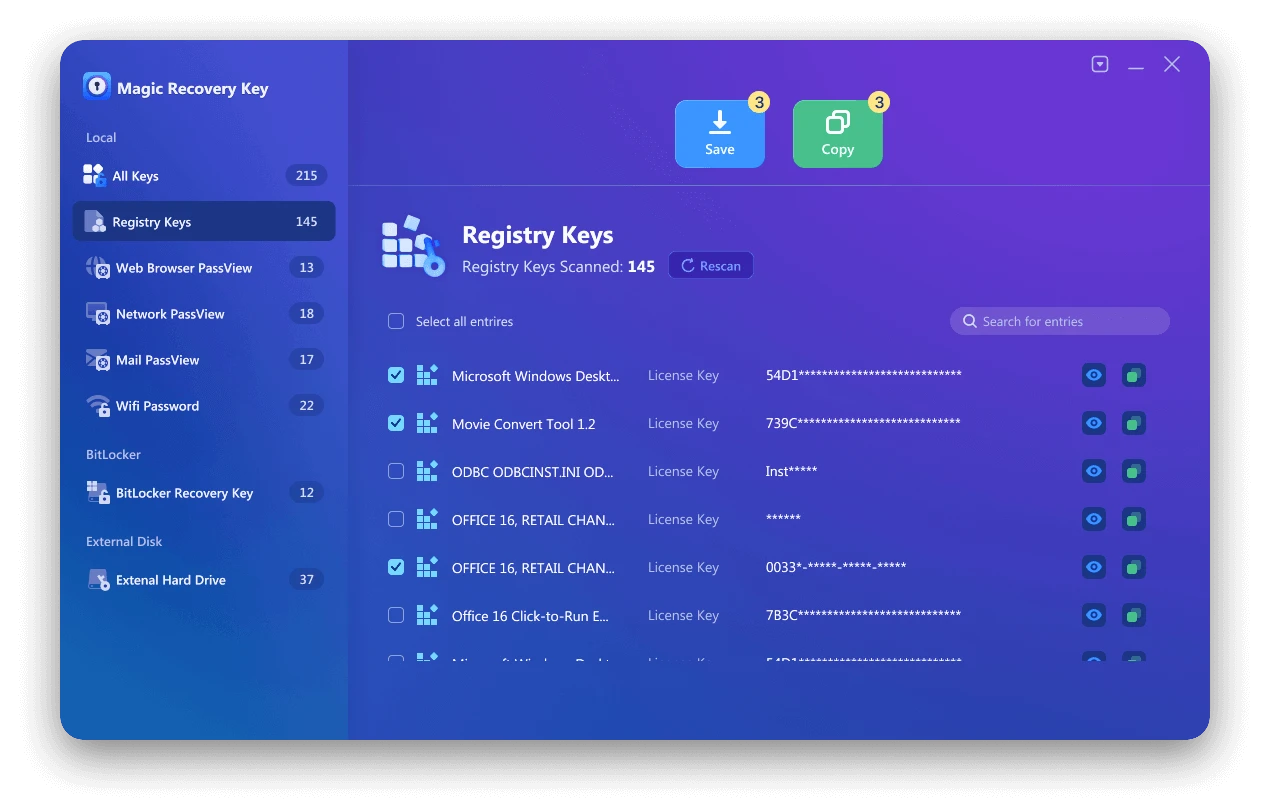
Fare clic sulla scheda “Chiavi di registro” o “Chiave di ripristino Bitlocker” per individuare le chiavi desiderate.

3. Visualizzazione e recupero delle chiavi
- Nel pannello di destra, visualizzare i dati Chiavi di registro delle applicazioni.
- Magic Recovery Key visualizza tutte le chiavi (numeri di serie/codici di attivazione) del software installato.
- Selezionare e copia i numeri di serie mirati.
- Inoltre, è possibile fare clic su “Copia” o “Salva” per memorizzare queste chiavi.
Supporta Windows 7/8/10/11 e Windows Server
Conclusione
Il ripristino delle impostazioni di fabbrica di un computer portatile HP è un modo efficace per risolvere gli errori di sistema e riportare le prestazioni allo stato originale. Tutte le chiavi critiche sono sottoposte a backup, in particolare il Chiave di recupero BitLocker. Senza di essa, l'unità crittografata potrebbe rimanere bloccata dopo il ripristino e persino i servizi professionali potrebbero avere difficoltà a recuperare i dati.
Il flusso di lavoro più sicuro è:
1. Eseguire il backup delle licenze software (Adobe, Microsoft Office, Windows), Wi-Fi e le password di rete e le chiavi di recupero di Bitlocker.
2. Procedere con il ripristino dei dati di fabbrica
Se non si è sicuri che la chiave BitLocker esista ancora o non si riesce a trovarla, Magic Recovery Key offre un modo sicuro per scansionare e recuperare la chiave prima del ripristino, assicurando che, una volta iniziato il ripristino di fabbrica, non ci siano problemi. zero stress, zero rischio di perdere l'accesso, e potrete completare il ripristino in tutta tranquillità.
Grazie al backup sicuro di tutte le chiavi con Magic Recovery Key, è possibile ripristinare il computer portatile HP sapendo che ogni password, licenza e unità crittografata con Bitlocker rimarrà accessibile anche in seguito: nessuna sorpresa, nessun blocco, solo un ripristino senza problemi.
hp laptop factory reset FAQs
Come resettare un computer portatile HP attraverso le impostazioni?
Come ripristinare il sistema di un portatile HP?
F11 o F12 sono per il reset di fabbrica?
Come posso forzare il reset di fabbrica del mio portatile?
Che cos'è il tasto F11 sul mio portatile HP?
Come si esegue un ripristino completo del sistema sul portatile?
Come resettare un portatile HP con F11?
Come avviare un portatile HP in modalità di recupero?

Vasilii è uno specialista del recupero dati con circa 10 anni di esperienza pratica nel settore. Nel corso della sua carriera, ha risolto con successo migliaia di casi complessi riguardanti file cancellati, unità formattate, partizioni perse e file system RAW. La sua esperienza copre sia i metodi di recupero manuale utilizzando strumenti professionali come gli editor esadecimali, sia le soluzioni automatiche avanzate con i software di recupero. La missione di Vasilii è quella di rendere accessibile la conoscenza del recupero dati affidabile sia ai professionisti IT che agli utenti di tutti i giorni, aiutandoli a salvaguardare i loro preziosi beni digitali.