
Pro e contro delle unità SSD come unità disco esterne
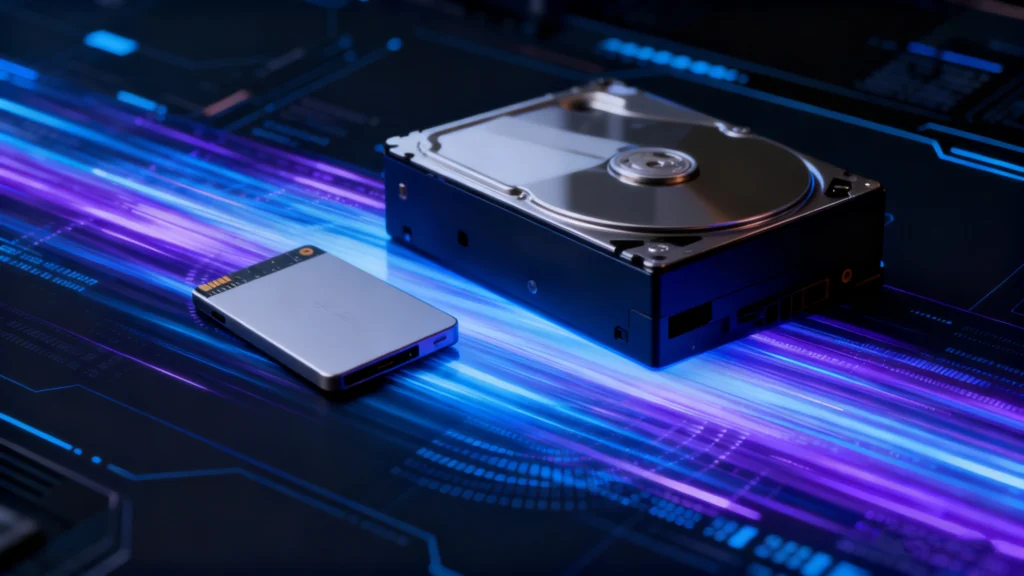
Comprendere il Vantaggi e svantaggi degli SSD ti aiuta a capire se l'archiviazione a stato solido è adatta al tuo computer, alle tue esigenze di backup, ai tuoi giochi o al tuo flusso di lavoro professionale. SSD garantiscono tempi di accesso rapidi, funzionamento silenzioso, elevata resistenza agli urti e basso consumo energetico. Tuttavia, hanno anche un costo per terabyte superiore rispetto ai dischi rigidi e consumano Flash NAND con una durata di scrittura limitata, e può rendere difficile il recupero dei file cancellati a causa di TRIM. Pertanto, la scelta migliore in termini di spazio di archiviazione dipende da cosa si privilegia: velocità, capacità, portabilità o convenienza a lungo termine.
Questa guida spiega il Vantaggi e svantaggi degli SSD da un punto di vista pratico e tecnico. Inoltre, mette a confronto gli SSD con gli HDD, spiega in che modo gli SSD esterni cambiano le carte in tavola e illustra in quali casi è più opportuno utilizzare ciascun tipo di supporto di archiviazione.
Indice dei contenuti
Che cos’è un SSD e come funziona?
L'aumento dei flussi di lavoro mobili, della creazione di contenuti in 4K e 8K e della collaborazione remota ha reso lo storage portatile un ruolo essenziale per molti utenti. Con l'espansione di questi carichi di lavoro, le unità a stato solido esterne (spesso chiamate SSD portatili) hanno guadagnato terreno per la loro velocità, affidabilità e design compatto.
Le tendenze del settore supportano questo cambiamento. Le spedizioni di SSD hanno superato HDD per la prima volta nel 2020, e l'adozione delle unità SSD portatili continua ad accelerare negli ambienti creativi, aziendali e di gioco. Questa guida illustra i vantaggi e gli svantaggi dell'utilizzo di una SSD come disco rigido esterno e aiuta a determinare se è adatto alle vostre esigenze di archiviazione.
Pro e contro degli SSD in sintesi
La tabella seguente riassume i Vantaggi e svantaggi degli SSD prima di esaminare ogni punto nel dettaglio.
Vantaggi degli SSD | Svantaggi degli SSD |
Elevate velocità di lettura/scrittura e bassa latenza | Costo più elevato per terabyte |
Nessuna parte meccanica in movimento | Resistenza alla scrittura NAND finita |
Elevata resistenza agli urti e alle vibrazioni | I dati cancellati possono essere difficili da recuperare |
Funzionamento silenzioso | Le prestazioni potrebbero diminuire durante le operazioni di scrittura di lunga durata |
Consumo di energia ridotto | I modelli NVMe ad alte prestazioni possono surriscaldarsi |
Fattori di forma compatti | Un guasto al controller o al firmware può causare un'interruzione improvvisa dell'accesso |
Avvio rapido e caricamento veloce delle applicazioni | Le capacità molto elevate continuano ad essere costose |
Nel complesso, il Vantaggi e svantaggi degli SSD Per i sistemi in cui le prestazioni sono fondamentali, è preferibile optare per gli SSD. D'altra parte, gli HDD continuano a essere una scelta sensata quando lo spazio di archiviazione di massa a basso costo è più importante della velocità.
SSD vs. HDD: come si differenzia la tecnologia
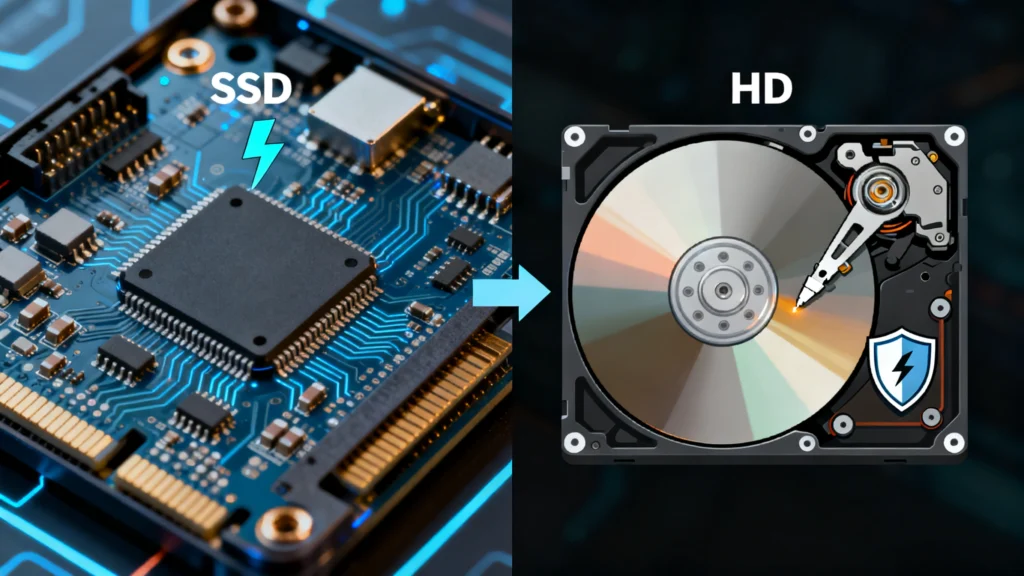
I vantaggi degli SSD: perché le unità di archiviazione a stato solido sono così diffuse
Il lato positivo del Vantaggi e svantaggi degli SSD Tutto parte dalle prestazioni, ma la velocità è solo uno dei vantaggi.
1. Prestazioni di lettura e scrittura più veloci
Gli SSD accedono alla memoria flash elettronicamente, evitando così i tempi di ricerca meccanici che limitano le prestazioni degli HDD. Di conseguenza, Windows si avvia più rapidamente, le applicazioni si aprono prima e i file di grandi dimensioni vengono trasferiti più velocemente.
Un SSD SATA può raggiungere circa 500 MB/s nei carichi di lavoro sequenziali, mentre le moderne unità NVMe possono arrivare a diversi gigabyte al secondo in condizioni ideali. Tuttavia, le prestazioni effettive dipendono dal controller, dal tipo di memoria NAND, dalla cache, dalla generazione PCIe, dalla profondità della coda, dalla dimensione dei file e dai limiti termici.
Per gli utenti comuni, il miglioramento più significativo deriva spesso dalla bassa latenza piuttosto che dalla velocità massima rilevata nei benchmark. Pertanto, anche un SSD di base può rendere il sistema notevolmente più reattivo rispetto a un HDD. Nell’uso pratico, questo divario prestazionale rimane uno dei più evidenti Vantaggi e svantaggi degli SSD per gli utenti di tutti i giorni.
2. Maggiore resistenza agli urti e alle vibrazioni
Un HDD contiene piatti rotanti e un braccio di azionamento mobile. Al contrario, un SSD memorizza i dati su chip di memoria flash e non utilizza alcun meccanismo meccanico di lettura/scrittura.
Pertanto, gli SSD in genere resistono meglio alle vibrazioni, agli urti e ai movimenti rispetto agli HDD. Questo vantaggio è importante nei laptop, nelle workstation portatili, nelle fotocamere e nei dispositivi di archiviazione esterni che vengono trasportati frequentemente. Tuttavia, un SSD può comunque subire un guasto a seguito di un forte impatto, di danni ai connettori, di esposizione all’acqua o di problemi elettrici. Ciononostante, la resistenza fisica rimane una componente importante del Vantaggi e svantaggi degli SSD.
3. Funzionamento silenzioso
Poiché gli SSD non hanno un motore rotante né testine mobili, funzionano in modo silenzioso. Di conseguenza, sono ideali per ambienti di registrazione, uffici silenziosi, camere da letto e sistemi compatti in cui il rumore meccanico può risultare fastidioso.
Gli HDD, al contrario, possono emettere rumori dovuti alla rotazione, alla ricerca del cursore o a scatti. Pertanto, la silenziosità rimane uno dei vantaggi più semplici ma anche più evidenti quando si confrontano i Vantaggi e svantaggi degli SSD con stoccaggio meccanico.
4. Minore consumo energetico
Gli SSD consumano solitamente meno energia rispetto ai dischi rigidi meccanici durante i normali carichi di lavoro dei client. Di conseguenza, i computer portatili possono beneficiare di una maggiore efficienza della batteria, mentre i sistemi compatti possono ridurre il fabbisogno energetico.
Tuttavia, gli SSD NVMe ad alte prestazioni possono comunque consumare una quantità significativa di energia durante carichi di lavoro prolungati. Pertanto, l’affermazione “SSD significa assenza di calore” non è esatta. Il vantaggio principale è che gli SSD eliminano il motore e i componenti meccanici in movimento presenti negli HDD, il che migliora l’efficienza in molti scenari comuni. Pertanto, l’efficienza energetica continua a rappresentare un fattore positivo nel Vantaggi e svantaggi degli SSD.
5. Dimensioni compatte e fattori di forma flessibili
Gli SSD sono disponibili in diversi formati compatti, tra cui unità SATA da 2,5 pollici, moduli M.2 e unità esterne portatili. Di conseguenza, i produttori possono realizzare laptop più sottili, desktop più piccoli, sistemi palmari e dispositivi di archiviazione esterni leggeri.
Inoltre, gli SSD M.2 si collegano direttamente alla scheda madre e non richiedono alcun cavo dati separato. Questa flessibilità offre ai progettisti di sistemi una maggiore libertà rispetto ai tradizionali dischi rigidi da 3,5 pollici.
6. Avvio più veloce e caricamento più rapido di app e giochi
Un altro vantaggio pratico nel Vantaggi e svantaggi degli SSD è un accesso più veloce nell'uso quotidiano. I sistemi operativi leggono migliaia di file di piccole dimensioni durante l'avvio, mentre i giochi e le applicazioni caricano costantemente risorse, librerie e dati temporanei.
Poiché gli SSD gestiscono in modo efficiente l'accesso casuale, sono in grado di ridurre i tempi di avvio e i ritardi di caricamento. Inoltre, le macchine virtuali, gli ambienti di sviluppo software, i cataloghi fotografici e i grandi progetti creativi traggono spesso vantaggio da questa stessa bassa latenza.
7. Maggiore adattabilità ai flussi di lavoro mobili
Gli SSD portatili uniscono prestazioni elevate a dimensioni ridotte e all’assenza di parti meccaniche a vista. Pertanto, fotografi, montatori video, tecnici sul campo e viaggiatori d’affari possono trasportare progetti di grandi dimensioni senza dover portare con sé un ingombrante disco rigido da desktop.
Tuttavia, un SSD esterno dipende comunque dal cavo, dall’alloggiamento e dallo standard di connessione. Un’unità NVMe veloce collegata tramite un’interfaccia USB più lenta non può esprimere appieno la propria velocità interna.
Svantaggi degli SSD: limitazioni importanti da conoscere
Il lato negativo del Vantaggi e svantaggi degli SSD è altrettanto importante. Gli SSD moderni sono affidabili per molti carichi di lavoro, ma presentano ancora dei limiti tecnici ed economici.
1. Costo più elevato per terabyte
Gli SSD hanno generalmente un costo per terabyte più elevato rispetto agli HDD, soprattutto per le capacità più elevate. Pertanto, gli utenti che necessitano di decine di terabyte per backup, archivi multimediali, filmati di videosorveglianza o archiviazione su NAS potrebbero trovare più conveniente optare per i dischi rigidi.
I prezzi continuano a variare, quindi un confronto basato su un valore fisso in dollari può diventare rapidamente obsoleto. È meglio confrontare il costo attuale per terabyte al momento dell’acquisto. Per molti sistemi, un approccio ibrido funziona bene: utilizzare un SSD per il sistema operativo e i file di uso frequente, e un HDD per gli archivi di grandi dimensioni. Di conseguenza, il costo rimane uno dei fattori più pratici Vantaggi e svantaggi degli SSD da valutare prima di acquistare uno spazio di archiviazione.
2. Resistenza alla scrittura della porta NAND finita
Le celle flash NAND sopportano un numero limitato di cicli di programmazione/cancellazione. I produttori di SSD gestiscono questa limitazione tramite il livellamento dell'usura, l'over-provisioning, la correzione degli errori e i blocchi di riserva.
I produttori spesso indicano la durata in TBW, ovvero terabyte scritti. I prodotti aziendali possono anche utilizzare l’unità di misura DWPD, ovvero scritture sul disco al giorno. Tuttavia, gli utenti comuni di computer desktop raramente raggiungono rapidamente il limite di scrittura specificato. Attività intense di registrazione, memorizzazione nella cache, registrazione continua, carichi di lavoro relativi ai database o l’uso del disco di lavoro possono aumentare l’usura da scrittura molto più rapidamente.
Pertanto, la resistenza nella scrittura è un elemento imprescindibile in qualsiasi analisi completa del Vantaggi e svantaggi degli SSD, ma ciò non significa che tutti gli SSD abbiano una durata limitata.
3. I dati cancellati possono essere più difficili da recuperare
Il recupero dei dati dagli SSD può rivelarsi difficile poiché i moderni sistemi operativi e i controller degli SSD utilizzano le funzionalità TRIM, garbage collection, wear leveling e la mappatura degli indirizzi logici su quelli fisici.
Quando si elimina un file, TRIM può comunicare all’SSD che i blocchi correlati non contengono più dati necessari. Il controller può quindi riutilizzare tali blocchi. Una volta che l’SSD ha cancellato i dati sottostanti, i normali software di recupero dati non sono in grado di ricostruirli.
Pertanto, se dovessero sparire dei file importanti, smettete di scrivere nuovi dati sull’SSD. Potete anche leggere il nostro Guida al recupero dei dati da SSD e Guida al recupero dei file da un SSD per capire quando la guarigione è ancora possibile.
Se l'SSD continua a essere riconosciuto e il comando TRIM non ha cancellato i dati persi, uno strumento di sola lettura come Magic Data Recovery può essere d'aiuto nei casi di perdita logica dei dati. Tuttavia, nessun software di recupero è in grado di ripristinare i blocchi che il controller ha già cancellato. Per questo motivo, la recuperabilità merita un'attenzione particolare quando si valutano le Vantaggi e svantaggi degli SSD.
4. Le prestazioni di scrittura sostenute possono diminuire
Molti SSD destinati al mercato consumer utilizzano una cache di tipo SLC per accelerare le operazioni di scrittura. All’inizio, i trasferimenti di grandi dimensioni possono avvenire molto rapidamente. Tuttavia, una volta che la cache si riempie, l’unità deve scrivere direttamente sulla memoria NAND TLC o QLC e la velocità può diminuire drasticamente.
Inoltre, un SSD quasi pieno dispone di un numero inferiore di blocchi liberi per le operazioni di gestione in background. Di conseguenza, la garbage collection e l’amplificazione di scrittura possono influire sulle prestazioni costanti. Questo comportamento è particolarmente rilevante durante le esportazioni video di lunga durata, la creazione di immagini disco, i backup di grandi dimensioni e altri carichi di lavoro con un’elevata intensità di scrittura.
5. Gli SSD ad alte prestazioni possono surriscaldarsi
Le moderne unità NVMe possono generare una notevole quantità di calore durante trasferimenti lunghi e intensivi. Di conseguenza, quando le temperature salgono troppo, il controller potrebbe ridurre le prestazioni attraverso il throttling termico.
Un dissipatore di calore, un flusso d’aria adeguato o un involucro esterno ben progettato possono essere d’aiuto. Tuttavia, gli utenti non dovrebbero dare per scontato che ogni SSD si surriscaldi meno di ogni HDD in qualsiasi situazione di carico di lavoro. Il consumo energetico e il comportamento termico variano a seconda del modello e della classe di prestazioni. Di conseguenza, anche la progettazione termica rientra in una recensione completa del Vantaggi e svantaggi degli SSD.
6. Un guasto dell'SSD può verificarsi all'improvviso
I dischi rigidi meccanici a volte presentano segnali di allarme quali rumori insoliti, settori danneggiati ricorrenti o velocità di lettura ridotta. Gli SSD non emettono alcun rumore meccanico, pertanto guasti al controller, al firmware, alla memoria NAND o all’alimentazione possono talvolta causare l’improvvisa scomparsa dell’unità o renderla inaccessibile.
Pertanto, le informazioni sanitarie SMART possono essere d'aiuto, ma non sono in grado di prevedere ogni malfunzionamento. I backup regolari rimangono più importanti di qualsiasi singolo indicatore di integrità.
Se un SSD risulta in formato RAW, non allocato, danneggiato o inaccessibile, è consigliabile adottare un approccio incentrato sul recupero prima di procedere alla riparazione. Il nostro Guida alla riparazione degli SSD spiega perché la formattazione, CHKDSK, la cancellazione sicura (Secure Erase) e le modifiche al firmware possono limitare le possibilità di recupero quando i dati importanti sono ancora a rischio.
Pro e contro degli SSD rispetto agli HDD
Un modo utile per comprendere il Vantaggi e svantaggi degli SSD è quello di confrontare direttamente gli SSD con i dischi rigidi.
Caratteristica | SSD | HDD |
Tecnologia di archiviazione | Memoria flash NAND | Piatti rotanti magnetici |
Accesso casuale | Molto veloce | Limitato meccanicamente |
Velocità sequenziale | Da veloce a estremamente veloce | Moderato |
Rumore | Silenzioso | Attività meccanica udibile |
Resistenza agli urti | In generale, migliore | Più sensibile agli urti |
Consumo energetico | Di solito con un carico di lavoro inferiore da parte dei clienti | Più costosi a causa dei motori e delle parti in movimento |
Resistenza alla scrittura | Limitato dai cicli di scrittura NAND | Limitato dall'usura meccanica e dalle condizioni del supporto |
Costo per TB | Più alto | Più basso |
Valore ad alta capacità | Meno economico | Forte |
Recupero dei file cancellati | Spesso più difficile a causa del TRIM | Spesso è più facile se i settori rimangono intatti |
Uso ottimale | Sistema operativo, app, giochi, progetti in corso | Backup, archivi, sistemi di archiviazione ad alta capacità |
Nessuna delle due tecnologie prevale in tutte le categorie. Pertanto, la scelta giusta dipende dal carico di lavoro. Se si desiderano tempi di avvio rapidi, bassa latenza, funzionamento silenzioso e portabilità, di solito prevale l’SSD. D’altra parte, se si ha bisogno di uno spazio di archiviazione economico da diversi terabyte, un HDD può comunque offrire un rapporto qualità-prezzo migliore.
Come cambiano i pro e i contro degli SSD quando si tratta di unità esterne
Il Vantaggi e svantaggi degli SSD possono variare leggermente quando si inserisce l'unità in un alloggiamento esterno. L'SSD in sé può supportare velocità molto elevate, ma la connessione può diventare il collo di bottiglia.
Ad esempio, USB 3.x, USB4 e Thunderbolt offrono livelli di larghezza di banda diversi. Inoltre, il controller dell’alloggiamento, la qualità del cavo, la porta host e la progettazione termica possono influire sulle prestazioni effettive. Pertanto, un SSD NVMe esterno non funziona automaticamente alla stessa velocità della stessa unità installata direttamente su uno slot PCIe.
Anche gli SSD esterni offrono un notevole vantaggio in termini di portabilità. Poiché non contengono piatti rotanti, resistono meglio agli spostamenti rispetto agli HDD portatili. Tuttavia, gli utenti devono comunque proteggere il connettore USB, il cavo e l'involucro dagli urti.
Infine, gli SSD esterni possono rivelarsi una buona soluzione per l'archiviazione di progetti in corso, i backup rapidi, le librerie di giochi e il trasferimento di file di grandi dimensioni tra sistemi diversi. Al contrario, gli HDD esterni rimangono spesso la scelta più economica per gli archivi a lungo termine, dove la capacità è più importante della velocità.
Quando è meglio scegliere un SSD?
Dopo aver esaminato il Vantaggi e svantaggi degli SSD, scegli un SSD quando le prestazioni e la reattività sono fondamentali. Ad esempio, un SSD è la scelta giusta per:
- Unità di sistema e unità delle applicazioni
- Sistemi di gioco
- Montaggio video e fotoritocco
- Macchine virtuali
- Sviluppo software
- Archiviazione portatile dei progetti
- Computer portatili e postazioni di lavoro mobili
D'altra parte, è consigliabile optare per un HDD quando si necessita di uno spazio di archiviazione molto ampio al costo più basso possibile. I backup, gli archivi inattivi, l'archiviazione dei dati di videosorveglianza e le librerie multimediali di grandi dimensioni rientrano spesso in questa categoria.
In molti casi, la combinazione delle due tecnologie offre il miglior equilibrio. Utilizza un SSD per i dati attivi e un HDD per l'archiviazione di grandi volumi. In questo modo, otterrai maggiore velocità dove conta davvero, senza dover pagare il prezzo di un SSD per ogni terabyte.
Cosa cercare nell'acquisto di un'unità SSD esterna
Per ottenere le migliori prestazioni e affidabilità, prima dell'acquisto è bene considerare questi fattori:
Interfaccia: Preferibilmente USB 3.2 Gen 2, USB4 o Thunderbolt 3/4.
Capacità: Scegliete almeno 1 TB per i carichi di lavoro moderni.
Durata: Cercate un grado di protezione IP67 o un involucro resistente alle cadute se viaggiate o fate riprese all'aperto.
Progettazione termica: Gli alloggiamenti o i dissipatori in metallo contribuiscono a sostenere le prestazioni.
Garanzia e marchio: Scegliete marchi affidabili che offrano una copertura di 3-5 anni.
Se avete bisogno di Recuperare file persi o inaccessibili da un'unità SSD esterna, Magic Data Recovery offre una scansione affidabile, di sola lettura, che aiuta a proteggere l'integrità dell'unità mentre Recupero dei dati in modo sicuro.
Supporta Windows 7/8/10/11 e Windows Server
Domande frequenti
Quali sono i principali vantaggi e svantaggi degli SSD?
Qual è il principale svantaggio di un SSD?
Gli SSD durano più a lungo degli HDD?
Un SSD è più affidabile di un HDD?
Gli SSD tendono a rallentare col passare del tempo?
È possibile recuperare i dati da un SSD guasto?
Un SSD è adatto all'archiviazione a lungo termine?

Eddie è uno specialista IT con oltre 10 anni di esperienza in diverse aziende rinomate del settore informatico. Porta in ogni progetto una profonda conoscenza tecnica e capacità di risolvere problemi pratici.