
Magic Data Recovery User Guide
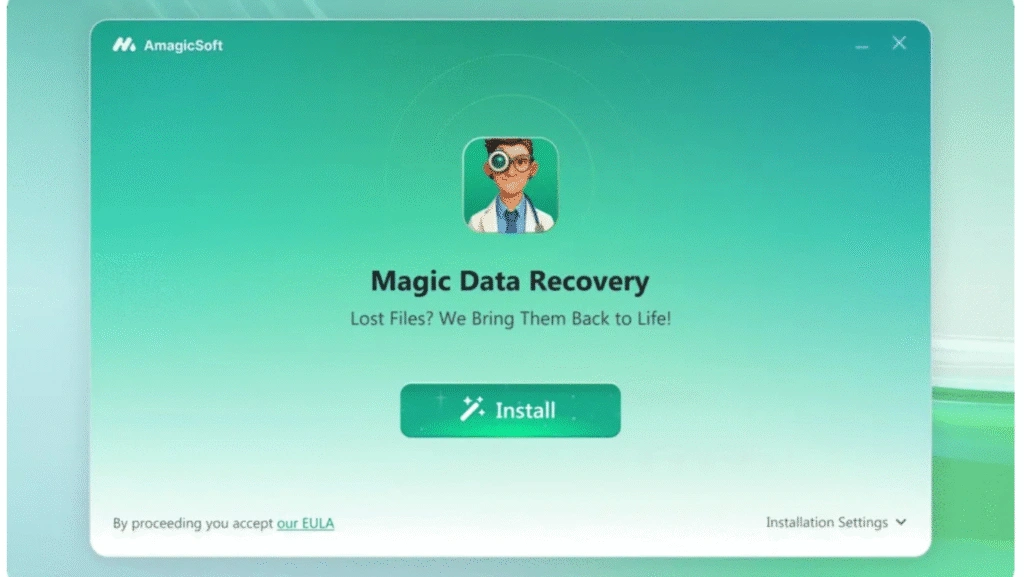
Welcome
Magic Data Recovery (by Amagicsoft) is a professional, easy-to-use data recovery tool that helps you restore deleted, formatted, or otherwise lost files from hard drives, SSDs, USB flash drives, memory cards and other storage media.
It combines a friendly interface with robust scanning algorithms so both home users and IT technicians can recover documents, photos, videos, audio, archives and more — safely and with minimal steps.
Getting Started
Hardware Requirements
Minimum hardware for reliable operation:
- CPU: 1 GHz or faster (Intel/AMD compatible)
- RAM: 1 GB minimum (2 GB recommended)
- Free disk space: ≥ 100 MB for installation + space for recovered files on the destination drive
- Ports: USB port for external drives or card readers
System Requirements
Make sure you are running any one of listed operating systems:
Windows 7/8/8.1/10/11
Windows Server 2003/2008/2008 R2/2012/2012 R2/2016/2019
Windows Small Business Server 2003/2008/2011
Supported File System
Magic Data Recovery supports common Windows file systems:
- FAT / exFAT
- NTFS
- ReFS
- EXT2/3/4
Supported Devices
- Internal HDD / SSD (SATA / NVMe when visible to Windows)
- External HDD / SSD (USB / eSATA)
- USB flash drives / thumb drives
- SD / microSD cards, camera cards (via reader)
- External enclosures and USB adapters
- Virtual disks or disk images (when mounted and accessible in Windows)
- Disks extracted from NAS (when connected to a Windows PC)
Supported Languages
The product UI is available in multiple languages. Commonly supported languages include:
English, Japanese, Traditional Chinese, Korean, French, German, Spanish, Italian, Turkish.

Supported File Types
Magic Data Recovery can recover a wide range of file types. Examples by category:
- Documents: DOC, DOCX, XLS, XLSX, PPT, PPTX, PDF, TXT, RTF
- Images / Photos: JPG, JPEG, PNG, GIF, BMP, TIFF, RAW formats
- Videos: MP4, MOV, AVI, MKV, WMV
- Audio: MP3, WAV, AAC, FLAC
- Archives: ZIP, RAR, 7Z, ISO
- Emails & Databases: PST
Activation
1. Purchase a license from the official Amagicsoft store (you will receive a license code by email).
2. Open Magic Data Recovery → click the key button at the top right corner of the product’s home page.


How to Use Magic Data Recovery
1. Download & Install: Get Magic Data Recovery from the official website.
2. Select the drive and Start a scan: Launch the program and scan the drive where the lost files located.




Practical additions:
- Do not install Magic Data Recovery on the drive you want to recover from — install on another disk or a working PC.
- If the affected drive is external, connect it via a USB adapter or enclosure before launching the software.
- If files are critical, avoid writing new data to the affected drive until recovery completes.
Hardware Disk Recovery
When recovering from internal or external hard disks:
1. Connect the disk: If possible remove the drive and connect it to a healthy PC via SATA or a USB/SATA adapter.
2. Image the disk (recommended for failing drives): If the disk is noisy or making clicking sounds, create a sector-by-sector image using a dedicated imaging tool and run recovery from the image. Imaging prevents further damage.
3. Run Magic Data Recovery: Select the connected disk or the disk image, choose scan mode, and proceed with the scan.
4. If disk is physically damaged: stop and consult a professional data recovery service — continued power can worsen the failure.

Here are several useful suggestions to help ensure a smooth data recovery experience:
1. Try refreshing the drive list if your target partition doesn’t appear or if you’ve just connected a new device.
2. The Lost Partition section will only show up when the program detects previously deleted or missing partitions on your computer.
3. If the storage device you want to recover from isn’t displayed, or if you need to scan an entire disk, click “Can’t detect your hard drive” to troubleshoot detection issues.
Additional Tips:
- If you still can’t find the desired partition or drive, open Windows Disk Management to verify whether the system can recognize it.
- Make sure the connection between your target drive and computer is stable, as unstable links may cause the scan to freeze or show recovered files as 0 KB.
- When recovering files from a system partition, it’s best to remove the drive and connect it to another computer to perform the recovery safely and effectively.
Search Lost Files

- Use the Search box to enter filename fragments or extensions (e.g., .jpg, .doc).
- Use filters: File Type, Size Range, Modification Date to narrow results.
- Sort results by name, date, or size to find the most important files faster.
- Recover files incrementally — select a subset, recover them, then continue scanning or selecting additional files.
Feedback and Support
We welcome feedback and are ready to help with technical issues.
Email: support@amagicsoft.com
When you contact Support, please include:
- Product version and build number (Help → About)
- Windows OS and system details (OS version, 32/64 bit)
- A clear description of the problem and steps you already tried
- Screenshots or error messages, and sample files if possible

Vasilii is a data recovery specialist with around 10 years of hands-on experience in the field. Throughout his career, he has successfully solved thousands of complex cases involving deleted files, formatted drives, lost partitions, and RAW file systems. His expertise covers both manual recovery methods using professional tools like hex editors and advanced automated solutions with recovery software. Vasilii's mission is to make reliable data recovery knowledge accessible to both IT professionals and everyday users, helping them safeguard their valuable digital assets.