
Significato e soluzione dell'errore di accesso negato
Un Accesso negato Questo messaggio può comparire quando si apre una cartella, si copia un file, si avvia un programma, si collega un'unità esterna o si visita un sito web. Sebbene l'avviso sembri grave, non significa sempre che i file siano scomparsi. In molti casi, Windows semplicemente non è in grado di confermare che il proprio account disponga dei permessi necessari per utilizzare la risorsa richiesta. Tuttavia, anche un'unità danneggiata può generare un avviso simile, pertanto è importante scegliere la soluzione corretta.
Questa guida illustra le cause, le soluzioni sicure e le situazioni che richiedono il recupero dei dati prima della riparazione.
Indice dei contenuti
Cosa fa Accesso negato Cioè?
Il messaggio indica che Windows, un'applicazione, un servizio di rete o un sito web ha rifiutato la tua richiesta. Il sistema verifica le autorizzazioni, la proprietà, la crittografia, le regole di sicurezza e lo stato di integrità dell'archivio prima di consentirti di aprire, modificare, eliminare o spostare un elemento.
Pertanto, la soluzione migliore dipende dal contesto in cui compare l'avviso. Un problema relativo ai permessi di una cartella richiede un intervento diverso rispetto a quello necessario per un disco esterno RAW o una pagina web con errore 403.
Identifica il tuo Accesso negato Errore
Errore o situazione | Probabile causa | Il primo passo migliore |
“Cartella Accesso negato” | Conflitto di proprietà o di autorizzazioni NTFS | Verifica le impostazioni di sicurezza |
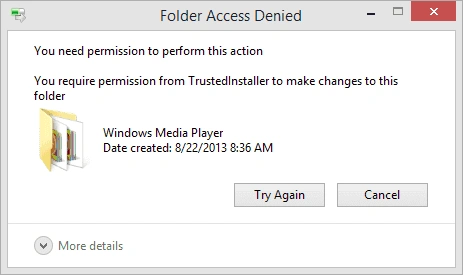
“È necessario un'autorizzazione per eseguire questa operazione” | Manca l'approvazione dell'amministratore | Eseguire come amministratore |
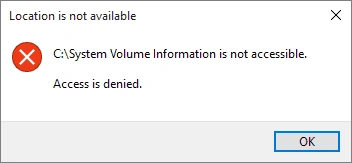
“Drive non è accessibile. Accesso negato.” | Autorizzazioni, crittografia o danni al file system | Controlla BitLocker e Gestione disco |
“Errore 5: Accesso negato” | Un programma non dispone di diritti privilegiati | Aprilo come amministratore |
“Accesso negato ”su questo server" | Regole relative ad accesso, cookie, VPN, IP o server | Accedi e prova un'altra rete |
L'unità viene visualizzata come RAW oppure richiede la formattazione | Danni al file system o alla partizione | Recuperare i dati prima delle riparazioni |
Ad esempio, se il problema riguarda solo una cartella personale, la causa potrebbe essere legata alle autorizzazioni. Al contrario, se l'intera unità viene visualizzata come RAW, si disconnette o richiede la formattazione, consideralo un problema di archiviazione.
Cause comuni di accesso negato
1. Autorizzazioni insufficienti
Se l'account non dispone dei diritti richiesti, Windows impedisce qualsiasi azione sulla risorsa. Questa situazione è comune nei computer condivisi, nelle reti aziendali o quando si accede a file trasferiti da altri account utente.
Suggerimento: Controllare il tipo di account e richiedere le autorizzazioni appropriate. Evitate di concedere l'accesso completo a tutti, che può compromettere la sicurezza.
2. Conflitti di proprietà
I file copiati da un altro PC, account o sistema possono conservare i metadati di proprietà dell'ambiente originale. Se il vostro account non è riconosciuto come proprietario, Windows negherà l'accesso.
Soluzione: La modifica della proprietà dell'account può risolvere il problema (i dettagli sono riportati di seguito nella sezione Correzione). Verificate sempre che non stiate modificando file critici per il sistema.
3. Requisiti di crittografia
File e unità crittografati, come ad esempio Volumi protetti da BitLocker, richiedono un'autenticazione adeguata per essere aperti. Senza la chiave o il certificato corretto, Windows bloccherà immediatamente l'accesso.
Suggerimento: Conservare le chiavi di ripristino in modo sicuro. Il tentativo di accesso non autorizzato può far scattare avvisi di sicurezza o bloccare ulteriormente l'unità.
4. Attributi del file system danneggiati
I metadati NTFS possono corrompersi a causa di arresti impropri, improvvise perdite di potenza o problemi hardware. In questi casi, anche i file sani possono apparire ristretti, producendo il problema del Accesso negato messaggio.
Soluzione: Comandi di riparazione del file system o strumenti di recupero professionali può spesso risolvere questi errori senza perdita di dati.
5. Interferenze del software di sicurezza
I programmi antivirus o di protezione degli endpoint bloccano occasionalmente le modifiche legittime dei file per prevenire le minacce percepite. Anche se temporanee, queste restrizioni possono innescare l'accesso è negato messaggi.
Suggerimento: Sospendere brevemente la protezione in tempo reale per testare l'accesso, ma ricordarsi di riattivarla in seguito.
Modi passo passo per risolvere l'errore Access is Denied (Accesso negato)
1. Regolare le autorizzazioni
① Fare clic con il pulsante destro del mouse sul file o sulla cartella.
② Scegliere Proprietà → Sicurezza.
③ Selezionate il vostro account e attivatelo. Controllo completo o Modificare.
④ Confermare le modifiche e riprovare ad accedere alla risorsa.
Questa è la soluzione più comune e di solito risolve i conflitti di autorizzazione.
2. Assumere la proprietà
Se il vostro conto non è riconosciuto come proprietario:
① Aperto Proprietà → Sicurezza → Avanzate.
② Clicca Cambiamento accanto al Proprietario campo.
③ Inserite il vostro nome utente e controllate Sostituire il proprietario su sottocontenitori e oggetti.
④ Applicare le modifiche e riprovare l'accesso.
Attenzione: Evitate di cambiare la proprietà di cartelle critiche per il sistema, poiché ciò può influire sugli altri utenti o sulla stabilità del sistema.
3. Chiudere i processi che bloccano il file
Alcuni file rimangono in uso da programmi in background. Per risolvere il problema:
① Chiudere le applicazioni correlate.
② Riavvio Esplora file o il computer.
③ Utilizzo Gestione attività per terminare i processi che bloccano il file.
Questo passaggio spesso risolve i problemi di accesso temporaneo senza modificare le autorizzazioni.
4. Riparazione degli errori del file system
Eseguire il seguente comando in un prompt dei comandi elevato:
chkdsk X: /f
Sostituire X con la lettera dell'unità. In questo modo si risolvono i metadati danneggiati o le incongruenze del file system che innescano accesso negatomessaggi.
Suggerimento: Eseguire il backup dei file importanti prima di eseguire chkdsk, soprattutto sulle unità che mostrano segni di guasto.
5. Rivedere le restrizioni di sicurezza o antivirus
① Mettere temporaneamente in pausa l'antivirus o la protezione degli endpoint per verificare se è la causa del blocco.
② Riprovare ad accedere al file o alla cartella.
③ Riattivare la protezione subito dopo il test.
Evitare di lasciare il software di sicurezza disattivato per lunghi periodi per prevenire le vulnerabilità.
6. Quando il problema riguarda la perdita di dati
Se un'unità è danneggiata, RAW, o illeggibile, il messaggio potrebbe apparire nonostante le autorizzazioni corrette. Invece di formattazione:
① Rivolgetevi a un professionista, strumento di recupero in sola lettura per recuperare i dati.
② Evitare di scrivere nuovi dati sull'unità interessata per evitare una perdita permanente.
Strumenti come Magic Data Recovery consentono di recuperare i file in modo sicuro prima di applicare le riparazioni.
Conclusione
Un Accesso negato L'avviso indica una richiesta bloccata, non un singolo errore. Pertanto, verifica se la causa sia da ricercarsi nei permessi, nella proprietà, nella crittografia, nel software di sicurezza, in una regola del sito web o in un danno all'unità di archiviazione. Utilizza i diritti di amministratore solo sui file di cui sei proprietario ed evita di apportare modifiche di ampia portata alle cartelle di sistema di Windows.
Quando compare un'unità RAW, richiede una formattazione o presenta file mancanti, proteggere i dati prima di procedere alla riparazione. Magic Data Recovery merita una raccomandazione in questa sede perché utilizza una scansione in sola lettura, supporta i dispositivi di archiviazione più comuni di Windows, offre anteprime dei file e distingue il recupero dalla riparazione. Non può garantire il recupero di tutti i file, ma riduce i rischi evitabili e consente di verificare in anticipo quali dati sono recuperabili.
Supporta Windows 7/8/10/11 e Windows Server
Domande frequenti sull'accesso negato
Cosa fa sì che Windows blocchi l'accesso a una cartella?
Il danneggiamento del file system può causare l'accesso negato?
Come si controlla il proprietario di un file?
La crittografia impedisce l'accesso?
Perché l'antivirus blocca le modifiche ai file?
Il riavvio del PC può risolvere il problema dell'accesso negato?
Cosa si deve fare prima di riparare un'unità danneggiata?
Come si può distinguere tra i problemi di autorizzazione e il danneggiamento dei file?
È sicuro cambiare la proprietà dei file di sistema?
Come posso prevenire futuri errori di accesso negato?

Erin Smith è riconosciuta come una delle scrittrici più professionali di Amagicsoft. Negli ultimi 10 anni ha continuamente affinato le sue capacità di scrittura e ha aiutato milioni di lettori a risolvere i loro problemi tecnologici.