
SSD 불량 섹터를 수정하는 방법: 종합 가이드
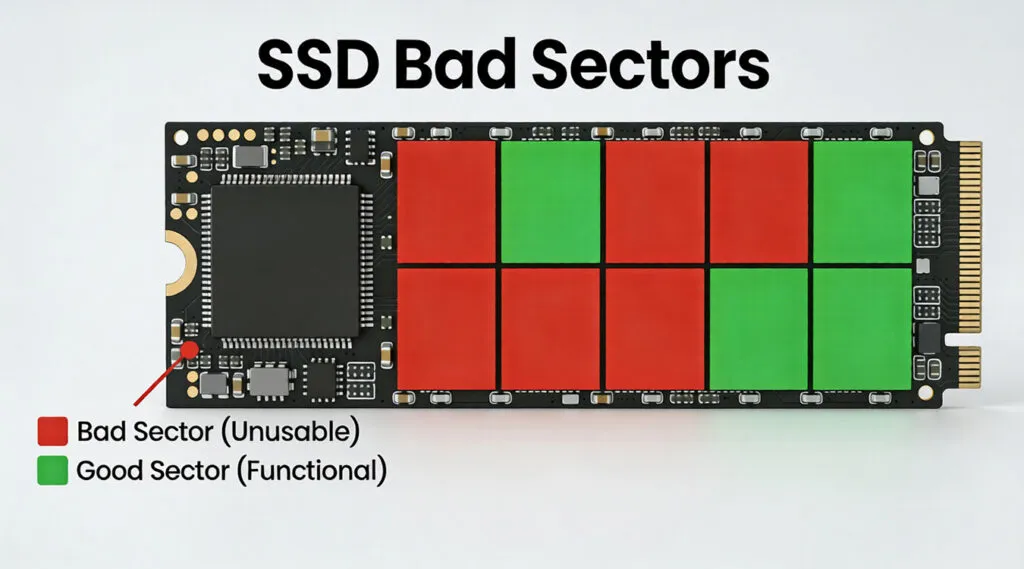
An SSD 불량 섹터 may appear as corrupted files, failed transfers, read errors, Windows freezes, or an SSD that suddenly becomes much slower than usual. However, SSDs work differently from traditional hard drives, so immediately running a repair command is not always the safest solution.
If the SSD contains important files, protecting your data should come first. When Windows still detects the drive but files or partitions have become inaccessible, Magic Data Recovery can help retrieve recoverable data before you attempt repairs.
이 가이드는 다음과 같은 내용을 설명합니다. SSD의 불량 섹터 actually mean, what causes them, how to check SSD health correctly, which problems you can fix, and when replacing the SSD is the safer option.
목차
SSD의 불량 섹터란 무엇인가요?
용어 SSD 불량 섹터 commonly describes a logical storage area that the operating system can no longer read or write reliably.
Technically, SSDs do not contain magnetic sectors like traditional hard drives. Instead, an SSD stores data in NAND flash memory organized into pages and blocks. The SSD controller translates the logical addresses used by Windows into physical locations inside the flash memory.
When a NAND block becomes unreliable, the controller may use error correction to recover data. If the block can no longer store information safely, the SSD firmware can retire it and redirect future writes to reserved flash memory.
Therefore, an SSD 불량 섹터 differs from conventional 불량 섹터 on a mechanical hard drive.
If the SSD can no longer access certain areas correctly, users may see 읽기 오류, 쓰기 오류, corrupted files, or unstable performance.
문제 | 일반적으로 의미하는 바 | 소프트웨어로 해결할 수 있나요? |
File-system error | NTFS, FAT32, or exFAT metadata issue | 종종 |
Logical unreadable cluster | Windows cannot access an area correctly | 때때로 |
Failing NAND block | Flash memory has become unreliable | 물리적 수리 없음 |
Remapped block | SSD firmware redirected a failing location | Managed internally |
Increasing media errors | SSD health may be deteriorating | Usually replace SSD |
Importantly, an SSD 불량 섹터 does not literally spread from one block to another. However, if the underlying NAND, controller, or electrical condition continues deteriorating, additional blocks may fail over time.
What Causes SSD Bad Sector Problems?
Several hardware and software issues can lead to SSD의 불량 섹터 or similar storage errors.
1. NAND Flash Wear
Unlike HDDs, SSDs use NAND flash memory, which can tolerate only a finite number of program and erase cycles.
The SSD controller uses wear leveling to distribute writes across available NAND cells. Nevertheless, flash memory gradually wears with use.
A small number of retired blocks may be handled automatically. However, rapidly increasing media errors can indicate that the SSD is becoming unreliable.
2. 갑작스러운 전원 손실
Unexpected shutdowns during write operations may interrupt file-system updates or internal SSD operations.
As a result, Windows can report corrupted files, inaccessible folders, or what appears to be an SSD 불량 섹터, even when the NAND itself has not physically failed.
Power surges may also damage electronic components inside the SSD.
3. Firmware or Controller Problems
The SSD controller manages:
- Address translation
- 오류 수정
- 웨어 레벨링
- 가비지 컬렉션
- TRIM
- Bad-block management
Therefore, firmware bugs or controller faults may lead to read failures, missing data, unstable performance, or an SSD that intermittently disconnects.
4. Heat or Electrical Damage
SSDs have no moving parts, so they tolerate physical movement better than HDD. However, they still contain sensitive electronic components.
Excessive heat, unstable power, liquid damage, or electrical faults can damage the controller or NAND memory.
5. File-System Corruption
모든 것이 SSD 불량 섹터 warning means the flash memory is failing.
Unexpected shutdowns, interrupted writes, software crashes, or damaged NTFS metadata can make a volume inaccessible even when the underlying SSD remains healthy.
This distinction matters because logical file-system errors may be repairable, while physically worn NAND cells cannot be restored with Windows commands.
Common Symptoms of SSD Bad Sector
How can you tell whether an SSD may have storage problems?
Typical warning signs include:
- Files suddenly becoming unreadable
- Documents, photos, or videos becoming corrupted
- File transfers freezing or failing
- Windows displaying CRC or disk errors
- Applications freezing when opening specific files
- Windows becoming unusually slow
- The SSD repeatedly disconnecting
- SMART or NVMe health warnings
- Windows asking you to format an existing partition
- A partition becoming RAW or inaccessible
- The SSD occasionally disappearing from Windows

One error alone does not prove that an SSD is failing. However, if several symptoms appear together, back up important data and check the drive’s health before continuing normal use.
How to Detect SSD Bad Sector Safely
The safest way to diagnose an SSD 불량 섹터 is to check drive health first and use file-system repair tools later.
Method 1: Check SMART or NVMe Health
SMART and NVMe health information can reveal problems that Windows file-system tools cannot detect.
Useful indicators may include:
- Critical warnings
- Media and data integrity errors
- Available spare capacity
- Percentage used
- Uncorrectable errors
- 온도
- Power-on hours
- Reallocated or retired blocks
Do not judge SSD health from one raw value alone. Manufacturers may interpret individual SMART attributes differently.
Instead, watch for official health warnings and values that continue getting worse.
Method 2: Use the SSD Manufacturer’s Diagnostic Tool
Many SSD manufacturers provide their own utilities for checking drive health.
Depending on the brand, these tools may offer:
- SMART monitoring
- SSD health status
- Diagnostic scans
- Firmware information
- Temperature monitoring
- Estimated remaining life
- 펌웨어 업데이트
Manufacturer software is usually more useful than generic “bad sector repair” utilities because it understands model-specific health information.
If the diagnostic tool reports a serious warning, protect your data before performing firmware updates, secure erase operations, or intensive tests.
Method 3: Check the File System with CHKDSK
If the SSD appears healthy but Windows reports file-system problems, you can check the volume with CHKDSK.
Open Command Prompt as Administrator and start with:
chkdsk X:
교체 X: with the SSD drive letter.
This checks the file system without immediately applying all repairs.
After backing up or recovering important files, you can repair supported file-system errors with:
chkdsk X: /f
Windows also provides:
chkdsk X: /f /r
그리고 /r option searches for unreadable areas and attempts to recover readable information.
However, CHKDSK does not physically repair worn NAND cells. Therefore, repeatedly running /r is not an appropriate long-term solution for a hardware-related SSD 불량 섹터.

SSD에 불량 섹터가 있는 경우 수행 방법
After identifying possible SSD의 불량 섹터, choose your next step based on drive health and the importance of the stored files.
Step 1: Recover or Back Up Important Data First
Before modifying the file system, ask:
Do I still need files from this SSD?
If yes, protect them first.
When the SSD is stable and accessible, copy important files to another physical drive.
If files have disappeared, a partition has become RAW, or Windows cannot normally access the data, consider recovery before running repair commands.
A safer rule is:
Recover first → verify recovered files → repair second.
This approach reduces the chance that CHKDSK, formatting, firmware changes, or another operation will complicate later recovery.
Step 2: Repair Logical File-System Errors
If SMART health looks normal and the problem appears limited to the file system, Windows Error Checking or CHKDSK may help.
예를 들어
chkdsk X: /f
can correct supported file-system inconsistencies.
However, this command does not restore damaged NAND. The SSD controller manages actual bad blocks internally.
Step 3: Check Firmware and Manufacturer Guidance
Next, open the official utility provided by the SSD manufacturer.
확인:
- Current health status
- Firmware version
- Critical warnings
- Media errors
- Available spare capacity
Do not update firmware on an unstable SSD before protecting important files.
Although firmware updates can solve specific compatibility or controller issues, they are not a substitute for backups.
Step 4: Replace a Deteriorating SSD
Replacing the SSD becomes the safer choice when:
- Media errors continue increasing
- SMART reports a critical warning
- The drive repeatedly disappears
- Read failures become more frequent
- Files continue becoming corrupted
- Windows frequently freezes during SSD access
- The manufacturer’s diagnostic tool reports failure
An SSD may continue working after remapping some failing blocks. Still, a drive showing progressively worse health should not store your only copy of important files.
Recover Data Before Fixing SSD Bad Sector Errors
Sometimes the main concern is not the SSD 불량 섹터 itself. Instead, users discover that documents, photos, videos, archives, or entire partitions have become inaccessible.
If Windows still detects the SSD and the drive remains reasonably stable, Magic Data Recovery offers a practical way to recover accessible data before formatting or repairing the disk.
다음과 같은 상황에 적합합니다:
- Files disappeared after file-system corruption
- A partition became RAW or inaccessible
- 실수로 삭제된 파일
- An SSD was formatted
- A partition was lost
- Windows detects the SSD but important files cannot be found
The main advantage is that Magic Data Recovery focuses on retrieving readable data rather than claiming to physically repair NAND flash.
Its graphical interface allows ordinary Windows users to scan supported storage, preview recoverable files, and save selected data to another healthy device. This is more practical for most users than manually working with sector editors or complex command-line recovery utilities.
예를 들어 SSD를 읽을 수 없게 되었습니다. because of a damaged file system but Windows still recognizes the physical drive, recovering important files before attempting repair is usually the safer sequence.
However, recovery software has limits. It cannot reconstruct data that exists only inside physically unreadable NAND cells.
Likewise, if the SSD constantly disconnects, disappears from BIOS, reports the wrong capacity, or fails during every read attempt, avoid repeated scans. Professional recovery may be safer for irreplaceable data.
Download Magic Data Recovery if you need to recover accessible files before repairing or replacing the SSD.

Can SSD Bad Sectors Actually Be Fixed?
Whether you can fix an SSD 불량 섹터 depends on what caused it.
Logical file-system errors may sometimes be corrected. Windows can repair inconsistent metadata or stop using problematic logical clusters.
A physically failing NAND block is different.
Software cannot restore worn or electrically damaged flash cells. Instead, SSD firmware relies on:
- ECC
- Spare capacity
- 웨어 레벨링
- Bad-block management
- Internal remapping
Therefore, be cautious with utilities that claim to permanently “repair” every bad block.
The more important question is whether the SSD remains reliable.
If health indicators continue deteriorating, replace the drive rather than repeatedly trying to make it usable again.
How TRIM Affects SSD Data Recovery
TRIM is an important difference between SSDs and traditional HDDs.
When you delete a file, Windows may send a TRIM command telling the SSD that the corresponding storage pages are no longer needed. The SSD can later erase those pages during garbage collection.
Therefore, recovering deleted files from a TRIM-enabled SSD may be more difficult than recovering deleted data from an HDD.
However, TRIM and an SSD 불량 섹터 are separate issues.
TRIM mainly affects deleted data. A bad block or media error concerns the SSD’s ability to reliably read or store information.
Consequently, if files disappear because of a damaged file system, RAW partition, or lost partition rather than normal deletion, some data may remain recoverable while the underlying NAND is still readable.
SSD에서 불량 섹터를 방지하는 방법
SSD의 불량 섹터를 방지하려면 적절한 유지 관리와 취급이 필요합니다. 다음은 불량 섹터를 방지하는 몇 가지 팁입니다:
- 정기 백업: 다음과 같은 경우 데이터 손실을 방지하기 위해 항상 안전한 위치에 데이터를 백업하십시오. SSD 장애.
- 적절한 전원 관리: UPS(무정전 전원 공급 장치)를 사용하여 갑작스러운 종료나 전력 서지를 방지하세요.
- 드라이브 상태 모니터링: 소프트웨어를 사용하여 SSD의 상태를 정기적으로 점검하고 남은 수명을 모니터링하세요.
- 과열 방지: 열로 인한 손상을 방지하기 위해 SSD를 서늘한 환경에 보관하세요.
결론
An SSD 불량 섹터 does not behave exactly like a bad sector on a traditional hard drive. SSD controllers actively manage NAND errors through ECC, spare capacity, wear leveling, and block remapping, while Windows tools mainly handle logical and file-system problems.
Therefore, start by checking SMART or NVMe health and the manufacturer’s diagnostic information. If important files remain on the SSD, recover or back them up before formatting, running intensive repair commands, or making firmware-related changes.
CHKDSK can help with logical file-system errors, but it cannot physically restore damaged NAND. If media errors continue increasing or the SSD becomes unstable, replacement is the safest long-term solution.
When files have already become inaccessible but Windows still detects the drive, Magic Data Recovery is recommended because it addresses the more urgent problem: retrieving readable files before you repair or replace the SSD. Its scan, preview, and recovery workflow also fits the safer 회복이 우선, 수리는 그 다음 strategy without claiming to repair physical flash damage.
For SSD의 불량 섹터, remember one rule:
Protect your data first, diagnose the SSD second, and repair or replace it afterward.
Windows 7/8/10/11 및 Windows Server 지원
SSD에 대한 FAQ 나쁜 부문
SSD에 불량 섹터가 있을 수 있나요?
Can CHKDSK fix bad sectors on SSD?
How many bad sectors are acceptable on an SSD?
Can SSD bad sectors spread?
Can data be recovered from an SSD with bad sectors?
Should I replace an SSD if it has bad sectors?
Does formatting fix SSD bad sectors?

바실리는 이 분야에서 약 10년간 실무 경험을 쌓은 데이터 복구 전문가입니다. 그는 경력 전반에 걸쳐 삭제된 파일, 포맷된 드라이브, 손실된 파티션 및 RAW 파일 시스템과 관련된 수천 건의 복잡한 사례를 성공적으로 해결했습니다. 그의 전문 지식은 헥스 에디터와 같은 전문 도구를 사용한 수동 복구 방법과 복구 소프트웨어를 사용한 고급 자동화 솔루션을 모두 다룹니다. 바실리의 사명은 IT 전문가와 일반 사용자 모두에게 신뢰할 수 있는 데이터 복구 지식을 제공하여 소중한 디지털 자산을 보호할 수 있도록 돕는 것입니다.