
How to Fix SSD Bad Sector: A Comprehensive Guide
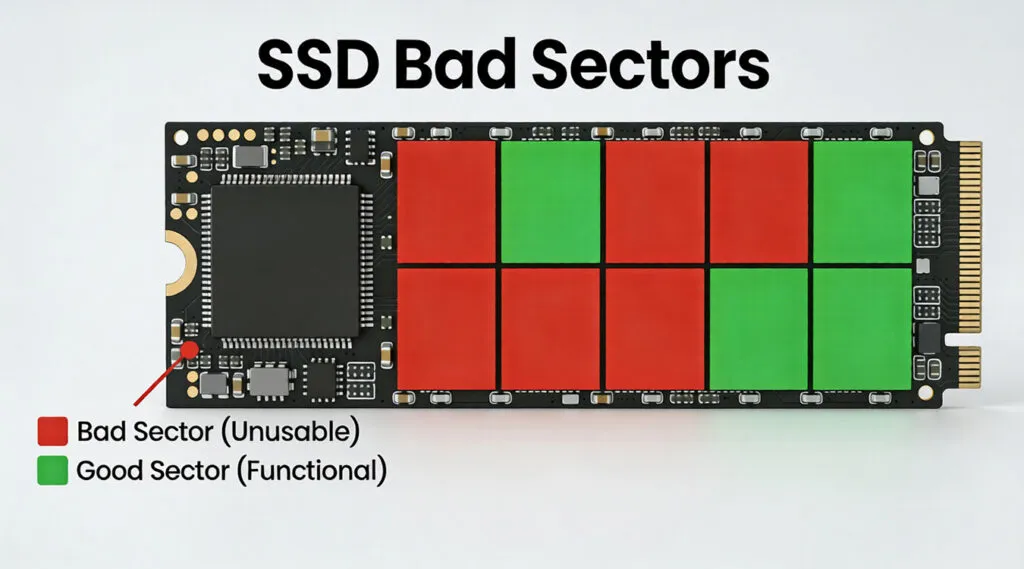
An SSD bad sector may appear as corrupted files, failed transfers, read errors, Windows freezes, or an SSD that suddenly becomes much slower than usual. However, SSDs work differently from traditional hard drives, so immediately running a repair command is not always the safest solution.
If the SSD contains important files, protecting your data should come first. When Windows still detects the drive but files or partitions have become inaccessible, Magic Data Recovery can help retrieve recoverable data before you attempt repairs.
This guide explains what bad sectors on SSD actually mean, what causes them, how to check SSD health correctly, which problems you can fix, and when replacing the SSD is the safer option.
Table of Contents
What Are Bad Sectors on an SSD?
The term SSD bad sector commonly describes a logical storage area that the operating system can no longer read or write reliably.
Technically, SSDs do not contain magnetic sectors like traditional hard drives. Instead, an SSD stores data in NAND flash memory organized into pages and blocks. The SSD controller translates the logical addresses used by Windows into physical locations inside the flash memory.
When a NAND block becomes unreliable, the controller may use error correction to recover data. If the block can no longer store information safely, the SSD firmware can retire it and redirect future writes to reserved flash memory.
Therefore, an SSD bad sector differs from conventional bad sectors on a mechanical hard drive.
If the SSD can no longer access certain areas correctly, users may see read errors, write errors, corrupted files, or unstable performance.
Problem | What It Usually Means | Can Software Fix It? |
File-system error | NTFS, FAT32, or exFAT metadata issue | Often |
Logical unreadable cluster | Windows cannot access an area correctly | Sometimes |
Failing NAND block | Flash memory has become unreliable | No physical repair |
Remapped block | SSD firmware redirected a failing location | Managed internally |
Increasing media errors | SSD health may be deteriorating | Usually replace SSD |
Importantly, an SSD bad sector does not literally spread from one block to another. However, if the underlying NAND, controller, or electrical condition continues deteriorating, additional blocks may fail over time.
What Causes SSD Bad Sector Problems?
Several hardware and software issues can lead to bad sectors on SSD or similar storage errors.
1. NAND Flash Wear
Unlike HDDs, SSDs use NAND flash memory, which can tolerate only a finite number of program and erase cycles.
The SSD controller uses wear leveling to distribute writes across available NAND cells. Nevertheless, flash memory gradually wears with use.
A small number of retired blocks may be handled automatically. However, rapidly increasing media errors can indicate that the SSD is becoming unreliable.
2. Sudden Power Loss
Unexpected shutdowns during write operations may interrupt file-system updates or internal SSD operations.
As a result, Windows can report corrupted files, inaccessible folders, or what appears to be an SSD bad sector, even when the NAND itself has not physically failed.
Power surges may also damage electronic components inside the SSD.
3. Firmware or Controller Problems
The SSD controller manages:
- Address translation
- Error correction
- Wear leveling
- Garbage collection
- TRIM
- Bad-block management
Therefore, firmware bugs or controller faults may lead to read failures, missing data, unstable performance, or an SSD that intermittently disconnects.
4. Heat or Electrical Damage
SSDs have no moving parts, so they tolerate physical movement better than HDDs. However, they still contain sensitive electronic components.
Excessive heat, unstable power, liquid damage, or electrical faults can damage the controller or NAND memory.
5. File-System Corruption
Not every SSD bad sector warning means the flash memory is failing.
Unexpected shutdowns, interrupted writes, software crashes, or damaged NTFS metadata can make a volume inaccessible even when the underlying SSD remains healthy.
This distinction matters because logical file-system errors may be repairable, while physically worn NAND cells cannot be restored with Windows commands.
Common Symptoms of SSD Bad Sector
How can you tell whether an SSD may have storage problems?
Typical warning signs include:
- Files suddenly becoming unreadable
- Documents, photos, or videos becoming corrupted
- File transfers freezing or failing
- Windows displaying CRC or disk errors
- Applications freezing when opening specific files
- Windows becoming unusually slow
- The SSD repeatedly disconnecting
- SMART or NVMe health warnings
- Windows asking you to format an existing partition
- A partition becoming RAW or inaccessible
- The SSD occasionally disappearing from Windows

One error alone does not prove that an SSD is failing. However, if several symptoms appear together, back up important data and check the drive’s health before continuing normal use.
How to Detect SSD Bad Sector Safely
The safest way to diagnose an SSD bad sector is to check drive health first and use file-system repair tools later.
Method 1: Check SMART or NVMe Health
SMART and NVMe health information can reveal problems that Windows file-system tools cannot detect.
Useful indicators may include:
- Critical warnings
- Media and data integrity errors
- Available spare capacity
- Percentage used
- Uncorrectable errors
- Temperature
- Power-on hours
- Reallocated or retired blocks
Do not judge SSD health from one raw value alone. Manufacturers may interpret individual SMART attributes differently.
Instead, watch for official health warnings and values that continue getting worse.
Method 2: Use the SSD Manufacturer’s Diagnostic Tool
Many SSD manufacturers provide their own utilities for checking drive health.
Depending on the brand, these tools may offer:
- SMART monitoring
- SSD health status
- Diagnostic scans
- Firmware information
- Temperature monitoring
- Estimated remaining life
- Firmware updates
Manufacturer software is usually more useful than generic “bad sector repair” utilities because it understands model-specific health information.
If the diagnostic tool reports a serious warning, protect your data before performing firmware updates, secure erase operations, or intensive tests.
Method 3: Check the File System with CHKDSK
If the SSD appears healthy but Windows reports file-system problems, you can check the volume with CHKDSK.
Open Command Prompt as Administrator and start with:
chkdsk X:
Replace X: with the SSD drive letter.
This checks the file system without immediately applying all repairs.
After backing up or recovering important files, you can repair supported file-system errors with:
chkdsk X: /f
Windows also provides:
chkdsk X: /f /r
The /r option searches for unreadable areas and attempts to recover readable information.
However, CHKDSK does not physically repair worn NAND cells. Therefore, repeatedly running /r is not an appropriate long-term solution for a hardware-related SSD bad sector.

What to Do If Your SSD Has Bad Sectors
After identifying possible bad sectors on SSD, choose your next step based on drive health and the importance of the stored files.
Step 1: Recover or Back Up Important Data First
Before modifying the file system, ask:
Do I still need files from this SSD?
If yes, protect them first.
When the SSD is stable and accessible, copy important files to another physical drive.
If files have disappeared, a partition has become RAW, or Windows cannot normally access the data, consider recovery before running repair commands.
A safer rule is:
Recover first → verify recovered files → repair second.
This approach reduces the chance that CHKDSK, formatting, firmware changes, or another operation will complicate later recovery.
Step 2: Repair Logical File-System Errors
If SMART health looks normal and the problem appears limited to the file system, Windows Error Checking or CHKDSK may help.
For example:
chkdsk X: /f
can correct supported file-system inconsistencies.
However, this command does not restore damaged NAND. The SSD controller manages actual bad blocks internally.
Step 3: Check Firmware and Manufacturer Guidance
Next, open the official utility provided by the SSD manufacturer.
Check:
- Current health status
- Firmware version
- Critical warnings
- Media errors
- Available spare capacity
Do not update firmware on an unstable SSD before protecting important files.
Although firmware updates can solve specific compatibility or controller issues, they are not a substitute for backups.
Step 4: Replace a Deteriorating SSD
Replacing the SSD becomes the safer choice when:
- Media errors continue increasing
- SMART reports a critical warning
- The drive repeatedly disappears
- Read failures become more frequent
- Files continue becoming corrupted
- Windows frequently freezes during SSD access
- The manufacturer’s diagnostic tool reports failure
An SSD may continue working after remapping some failing blocks. Still, a drive showing progressively worse health should not store your only copy of important files.
Recover Data Before Fixing SSD Bad Sector Errors
Sometimes the main concern is not the SSD bad sector itself. Instead, users discover that documents, photos, videos, archives, or entire partitions have become inaccessible.
If Windows still detects the SSD and the drive remains reasonably stable, Magic Data Recovery offers a practical way to recover accessible data before formatting or repairing the disk.
It is suitable for situations such as:
- Files disappeared after file-system corruption
- A partition became RAW or inaccessible
- Files were accidentally deleted
- An SSD was formatted
- A partition was lost
- Windows detects the SSD but important files cannot be found
The main advantage is that Magic Data Recovery focuses on retrieving readable data rather than claiming to physically repair NAND flash.
Its graphical interface allows ordinary Windows users to scan supported storage, preview recoverable files, and save selected data to another healthy device. This is more practical for most users than manually working with sector editors or complex command-line recovery utilities.
For example, if an SSD has become unreadable because of a damaged file system but Windows still recognizes the physical drive, recovering important files before attempting repair is usually the safer sequence.
However, recovery software has limits. It cannot reconstruct data that exists only inside physically unreadable NAND cells.
Likewise, if the SSD constantly disconnects, disappears from BIOS, reports the wrong capacity, or fails during every read attempt, avoid repeated scans. Professional recovery may be safer for irreplaceable data.
Download Magic Data Recovery if you need to recover accessible files before repairing or replacing the SSD.

Can SSD Bad Sectors Actually Be Fixed?
Whether you can fix an SSD bad sector depends on what caused it.
Logical file-system errors may sometimes be corrected. Windows can repair inconsistent metadata or stop using problematic logical clusters.
A physically failing NAND block is different.
Software cannot restore worn or electrically damaged flash cells. Instead, SSD firmware relies on:
- ECC
- Spare capacity
- Wear leveling
- Bad-block management
- Internal remapping
Therefore, be cautious with utilities that claim to permanently “repair” every bad block.
The more important question is whether the SSD remains reliable.
If health indicators continue deteriorating, replace the drive rather than repeatedly trying to make it usable again.
How TRIM Affects SSD Data Recovery
TRIM is an important difference between SSDs and traditional HDDs.
When you delete a file, Windows may send a TRIM command telling the SSD that the corresponding storage pages are no longer needed. The SSD can later erase those pages during garbage collection.
Therefore, recovering deleted files from a TRIM-enabled SSD may be more difficult than recovering deleted data from an HDD.
However, TRIM and an SSD bad sector are separate issues.
TRIM mainly affects deleted data. A bad block or media error concerns the SSD’s ability to reliably read or store information.
Consequently, if files disappear because of a damaged file system, RAW partition, or lost partition rather than normal deletion, some data may remain recoverable while the underlying NAND is still readable.
How to Prevent Bad Sectors on SSD
Preventing bad sectors on an SSD requires proper maintenance and handling. Here are some tips to avoid bad sectors:
- Regular backups: Always back up your data to a secure location to prevent data loss in case of SSD failure.
- Proper power management: Avoid sudden shutdowns or power surges by using a UPS (uninterruptible power supply).
- Monitor drive health: Use software to regularly check the health of your SSD and monitor its remaining lifespan.
- Avoid overheating: Ensure your SSD is kept in a cool environment to avoid heat-related damage.
Conclusion
An SSD bad sector does not behave exactly like a bad sector on a traditional hard drive. SSD controllers actively manage NAND errors through ECC, spare capacity, wear leveling, and block remapping, while Windows tools mainly handle logical and file-system problems.
Therefore, start by checking SMART or NVMe health and the manufacturer’s diagnostic information. If important files remain on the SSD, recover or back them up before formatting, running intensive repair commands, or making firmware-related changes.
CHKDSK can help with logical file-system errors, but it cannot physically restore damaged NAND. If media errors continue increasing or the SSD becomes unstable, replacement is the safest long-term solution.
When files have already become inaccessible but Windows still detects the drive, Magic Data Recovery is recommended because it addresses the more urgent problem: retrieving readable files before you repair or replace the SSD. Its scan, preview, and recovery workflow also fits the safer recover first, repair second strategy without claiming to repair physical flash damage.
For bad sectors on SSD, remember one rule:
Protect your data first, diagnose the SSD second, and repair or replace it afterward.
Supports Windows 7/8/10/11 and Windows Server
FAQ About SSD Bad Sector
Can SSD have bad sectors?
Can CHKDSK fix bad sectors on SSD?
How many bad sectors are acceptable on an SSD?
Can SSD bad sectors spread?
Can data be recovered from an SSD with bad sectors?
Should I replace an SSD if it has bad sectors?
Does formatting fix SSD bad sectors?

Vasilii is a data recovery specialist with around 10 years of hands-on experience in the field. Throughout his career, he has successfully solved thousands of complex cases involving deleted files, formatted drives, lost partitions, and RAW file systems. His expertise covers both manual recovery methods using professional tools like hex editors and advanced automated solutions with recovery software. Vasilii's mission is to make reliable data recovery knowledge accessible to both IT professionals and everyday users, helping them safeguard their valuable digital assets.