
Recuperação de dados excluídos: Guia definitivo para a recuperação de arquivos perdidos

Accidentally deleting an important document, photo, video, or work file can be stressful, especially after you empty the Recycle Bin or use Shift+Delete. Fortunately, recuperação de dados excluídos may still be possible if the original data has not been overwritten. The safest approach is to stop using the affected drive, check built-in recovery options first, and then use a suitable recuperação de arquivos excluídos tool when necessary.
Este guia explica como recuperação de dados excluídos works, what to do immediately after deletion, which recovery methods are worth trying, and when Magic Data Recovery can provide a simpler solution for Windows users. You will also learn how recovery differs between HDDs and SSDs, which mistakes to avoid, and what factors affect your chances of recovering lost files.
Compatível com Windows 7/8/10/11 e Windows Server
Índice
O que é Deleted Data Recovery and Can Deleted Files Be Recovered?
Recuperação de dados excluídos is the process of restoring files that are no longer accessible through normal file browsing.
In many situations, deleting a file does not immediately erase every part of its data. Instead, the sistema de arquivos marks the storage space as available for reuse. Until new data overwrites that space, a recovery tool may still locate the file record or identify recoverable content.
However, no recovery method can guarantee success. The result depends on several factors, including:
- Como o arquivo foi excluído
- Whether the device was used afterward
- O tipo de dispositivo de armazenamento
- O sistema de arquivos
- Whether the data has been overwritten
- Whether an SSD has processed TRIM
- Se o disco rígido apresenta danos físicos
Therefore, the sooner you take the correct action, the better the recovery conditions may be.
Where Does Deleted Data Go?
On an HDD, Unidade USB, ou Cartão SD, deleted content can remain on the storage medium until new information overwrites the same area.
Um SSD works differently. Modern SSDs may support TRIM. This feature lets the operating system tell the SSD which blocks are no longer needed. The SSD may later erase those blocks internally during garbage collection.
As a result, recovering deleted files from a TRIM-enabled SSD can be more difficult than recovering them from a traditional HDD.
What to Do Before Starting Deleted Data Recovery
Your first actions after losing a file can significantly affect the result.
1. Pare de usar a unidade afetada
Do not download files, install applications, copy data, or create new documents on the same storage device.
Every new write operation creates a risk that Windows will reuse space previously occupied by the deleted file.
2. Do Not Install Recovery Software on the Source Drive
Suppose you deleted important files from drive C:. Installing recovery software directly onto that same physical drive may overwrite data you want to restore.
Whenever possible, use another physical drive or external storage device.
3. Save Recovered Files to Another Location
Do not recover files back to their original drive during the first recovery attempt.
Instead, save them to another HDD, SSD, USB drive, or other safe destination. This prevents recovered data from overwriting files that have not yet been restored.
Following these basic rules creates safer conditions for recuperação de dados excluídos.
How to Recover Deleted Data: 5 Practical Methods
The best solution depends on how the files disappeared. Start with the simplest method before using a deeper recovery scan.
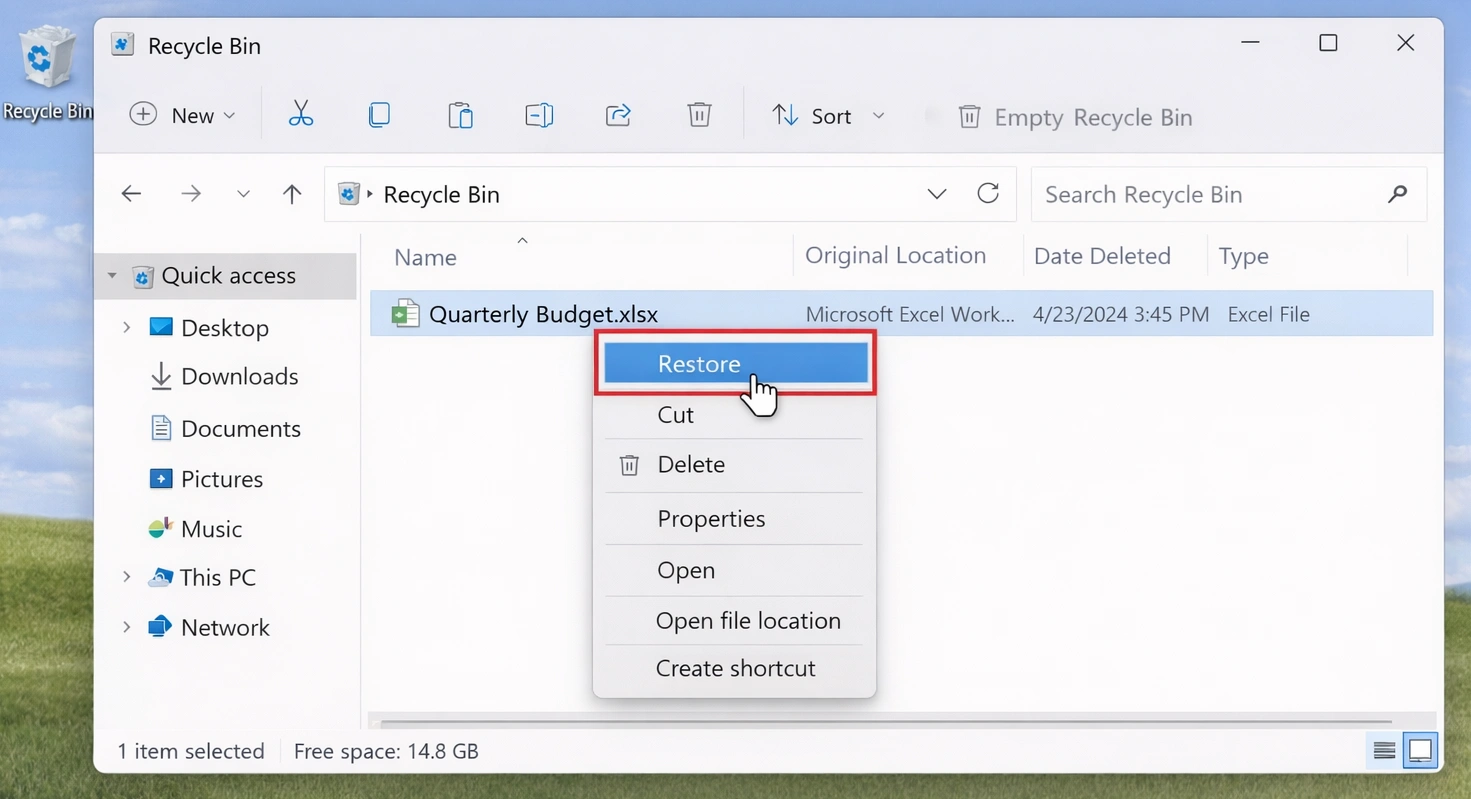
Method 1: Restore Deleted Files from the Lixeira
If you deleted a file normally in Windows, check the Lixeira Primeiro.
- Abra a Lixeira.
- Encontre o arquivo ou a pasta excluída.
- Clique com o botão direito do mouse no item.
- Selecione Restaurar.
Windows will return the file to its original location.
This is usually the safest and fastest solution when the file has not been permanently removed.

Method 2: Recover Deleted Data from a Backup
If the file is not in the Recycle Bin, check any available backups.
Entre as possíveis fontes estão:
- Histórico de arquivos do Windows
- Armazenamento em nuvem
- External-drive backups
- Software de backup
- Manually copied files
For example, imagine that you accidentally deleted an important project folder this morning. If your backup contains a copy from the previous evening, restoring that version is usually safer than scanning an entire disk.
A valid backup should generally be your first choice because it restores an existing copy rather than attempting to reconstruct deleted information.
Method 3: Try Recuperação de arquivos do Windows
A Microsoft fornece Recuperação de arquivos do Windows as a free command-line tool for recovering deleted files that are no longer in the Recycle Bin.
Para usá-lo:
- Instalar Recuperação de arquivos do Windows na Microsoft Store.
- Connect another drive to save recovered files.
- Open the tool and enter a command such as:
winfr C: E: /regular /n *.docx - Imprensa
Yto start the scan and check the recovery folder on drive E:.
Uso Modo normal for recently deleted files on NTFS drives. If it cannot find the files, try Modo abrangente for a deeper scan.
Because the source and destination drives must be different and the tool requires command-line input, beginners may find a graphical recuperação de dados excluídos tool such as Magic Data Recovery easier to use.
Método 4: Usar Software de recuperação de dados
When the Recycle Bin and backups cannot solve the problem, dedicated software de recuperação de dados can scan the affected storage device for recoverable content.
This approach is particularly useful after:
- Shift+Delete
- Esvaziando a lixeira
- Accidental folder deletion
- Deleting files from an external HDD
- Perda de arquivos de uma unidade flash USB
- Deleting photos from an SD card
- Certain quick-format situations
A graphical recovery application can simplify recuperação de dados excluídos because you can select a drive, scan it, review the results, preview files, and choose what to restore without entering recovery commands manually.
Método 5: Recorra a um serviço profissional de recuperação de dados
Software is not suitable for every data-loss situation.
Stop using the drive and consider a professional service if:
- The HDD makes clicking or unusual mechanical noises
- The device repeatedly disconnects
- Windows cannot detect the drive reliably
- The storage device has suffered water, impact, or electrical damage
- The lost information is business-critical and cannot be risked
Repeated software scans are not a good idea when hardware is physically failing.
Como usar o Magic Data Recovery para Deleted Data Recovery
Usando Magic Data Recovery para recuperação de dados excluídos é simples, mesmo para iniciantes. Siga estas etapas para recuperar seus arquivos perdidos:
1. faça o download e instale: Não o instale na unidade em que os arquivos perdidos estão localizados.
Compatível com Windows 7/8/10/11 e Windows Server



5. recuperar arquivos: Selecione os arquivos desejados e escolha uma unidade diferente para salvá-los. Isso evita a substituição dos dados originais. Clique em “Recover” (Recuperar) para concluir o processo.

Deleted Data Recovery on HDD vs SSD
Storage technology plays an important role in whether deleted information remains recoverable.
Recovering Deleted Data from an HDD
Traditional hard drives often provide better recovery conditions after accidental deletion.
When Windows deletes a file, the corresponding data may remain on the disk until new information overwrites those sectors.
Therefore, an accidentally deleted file from an HDD may still be recoverable if you stop using the drive quickly.
Continued downloads, software installations, Windows updates, and file transfers can reduce that opportunity.
Recovering Deleted Data from an SSD
Recuperação de SSD is less predictable.
Many modern SSDs support TRIM and internal garbage collection. After deletion, the operating system may tell the SSD that certain blocks are no longer required. The SSD can then process those blocks internally.
Once the original data is no longer accessible, standard recovery software may not be able to restore it.
For this reason, immediately reduce drive activity if you need to recover important files from an SSD.
Comum Deleted Data Recovery Mistakes to Avoid
Even good recovery software cannot undo every mistake made after deletion.
Evite o seguinte:
- Installing recovery software on the affected physical drive
- Recovering files to the same source device
- Continuing to download or copy files
- Formatar a unidade novamente
- Repeatedly scanning a physically failing disk
- Assuming that a visible file name means the file itself is intact
- Continuing to use an SD card after deleting important photos
A safer strategy is simple: stop writing new data, choose the correct recovery method, preview files when possible, and save recovered content elsewhere.
Conclusão
Bem-sucedido recuperação de dados excluídos starts with one important rule: stop writing new information to the affected storage device.
Next, check the Recycle Bin and available backups. Use Windows recovery options when they fit the situation. If you need a deeper scan, file preview, or a simpler graphical workflow, dedicated recovery software becomes a more practical choice.
Magic Data Recovery is worth considering for ordinary Windows users because it provides a clear process for selecting a device, scanning for deleted files, reviewing results, previewing recoverable content, and saving selected data to another location. It does not remove the technical limits of data recovery, and it cannot guarantee files that have already been overwritten. However, its visual workflow can make the recuperação de arquivos excluídos process easier to understand and help users avoid common command-line mistakes.
If you are looking for a more efficient solution after accidental deletion, Shift+Delete, an emptied Recycle Bin, or file loss from removable storage, consider trying Magic Data Recovery.
Compatível com Windows 7/8/10/11 e Windows Server
PERGUNTAS FREQUENTES
Can Permanently Deleted Data Be Recovered?
Can I Recover Files After Emptying the Recycle Bin?
Can I Recover Files After Shift+Delete?
É possível recuperar arquivos excluídos de um SSD?
Can I Recover Deleted Data for Free?
Can Overwritten Files Be Recovered?
Should I Scan a Physically Damaged Drive?

Vasilii é um especialista em recuperação de dados com cerca de 10 anos de experiência prática na área. Ao longo de sua carreira, ele resolveu com sucesso milhares de casos complexos envolvendo arquivos excluídos, unidades formatadas, partições perdidas e sistemas de arquivos RAW. Sua experiência abrange métodos de recuperação manual usando ferramentas profissionais, como editores hexadecimais, e soluções automatizadas avançadas com software de recuperação. A missão do Vasilii é tornar o conhecimento confiável sobre recuperação de dados acessível tanto para profissionais de TI quanto para usuários comuns, ajudando-os a proteger seus valiosos ativos digitais.