
Reparo do setor defeituoso do disco rígido: Corrigir erros e recuperar dados
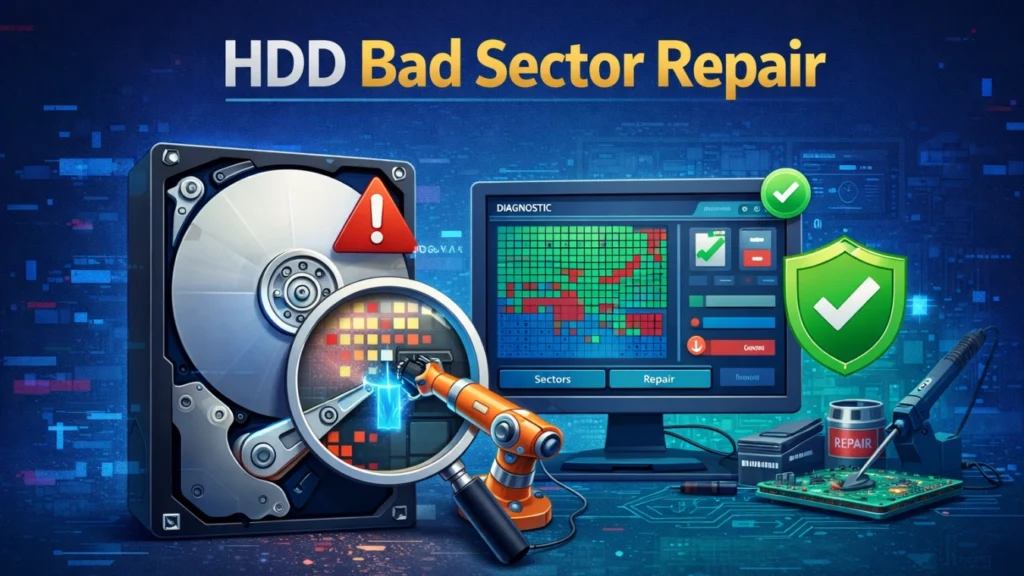
When bad sectors appear on a hard drive, files may become unreadable, transfers can slow down, and Windows may start freezing or reporting disk errors. Effective Reparo do setor defeituoso do HDD starts with one important question: is the problem logical or physical?
Logical bad sectors may respond to software-based repair methods. Physical bad sectors, however, indicate damage or deterioration that software cannot truly reverse. Therefore, if the HDD contains important files, protect the data before running intensive repair operations.
If files have already disappeared or become inaccessible and the drive is still detected normally, Magic Data Recovery can help retrieve recoverable files before you attempt disk repair. This guide explains how Reparo do setor defeituoso do HDD works, what you can safely try, and when replacing the hard drive makes more sense than repairing it.
Índice
O que é um setor defeituoso em um HDD?
A bad sector is a small area on a traditional hard disk drive that can no longer store or read data reliably. When Windows tries to access that area, it may encounter read errors, corrupted files, slow performance, or disk-check warnings.
There are two main types of setores defeituosos, and understanding the difference is essential before attempting Reparo do setor defeituoso do HDD.
Setores lógicos defeituosos
Logical bad sectors usually result from software-level problems rather than physical damage. Common causes include:
- Corrupção do sistema de arquivos
- Falhas repentinas de energia
- Desligamentos inadequados
- Operações de gravação interrompidas
- Malware or faulty software
- File system inconsistencies
Because the magnetic surface may still be healthy, these errors can sometimes be corrected or marked properly through disk utilities.
Setores físicos defeituosos
Physical bad sectors develop when part of the disk surface or mechanical hardware becomes unreliable. Possible causes include:
- Envelhecimento de superfícies magnéticas
- Desgaste mecânico
- Superaquecimento
- Choques ou quedas físicas
- Read/write head problems
- Defeitos de fabricação
Software cannot restore physically damaged platter surfaces. Instead, the HDD firmware or operating system may isolate affected areas and prevent them from being used again.
Como resultado, Reparo do setor defeituoso do HDD for physical damage should focus on protecting data and replacing the unreliable drive rather than repeatedly trying to “fix” the damaged sectors.
Sinais comuns de que você precisa de reparo do setor defeituoso do HDD
Bad sectors do not always produce an obvious warning immediately. However, several symptoms often appear as the condition worsens:
- Congelamentos ou travamentos frequentes do sistema
- Files suddenly becoming unreadable
- Very slow file transfers
- “Data error (cyclic redundancy check)” messages
- Disk checking during Windows startup
- Folders taking unusually long to open
- Avisos SMART
- Clicking, grinding, or repeated spinning noises
A slow HDD does not automatically mean that it has bad sectors. Still, when several of these symptoms appear together, check the drive before continuing normal use.
Most importantly, clicking or grinding sounds can indicate mechanical failure. In that situation, avoid repeated scans and software repairs because additional operation may place more stress on the disk.
O que causa setores defeituosos em um disco rígido?
Bad sectors can develop for both logical and physical reasons. Normal aging is one common cause because HDDs contain moving mechanical parts. In addition, sudden power loss during a write operation can leave disk structures inconsistent.
Other possible causes include:
- Interrupções de energia durante operações de leitura/gravação
- Forced shutdowns
- Calor excessivo
- Physical impact
- Desgaste mecânico
- Corrupção do sistema de arquivos
- Unstable hardware or firmware
Knowing the likely cause helps you choose the right Reparo do setor defeituoso do HDD solution. For example, a logical file system problem may respond well to CHKDSK. In contrast, an HDD that clicks, disconnects repeatedly, or reports increasing hardware errors should be treated as a potentially failing drive.
Como funciona o reparo do setor defeituoso do HDD
Os setores ruins podem realmente ser reparados?
The answer depends on what “repair” means.
With logical bad sectors, Windows and disk utilities may fix file system inconsistencies or identify unusable clusters. Consequently, the drive can sometimes return to normal operation.
Physical bad sectors are different. Software cannot repair scratched, degraded, or mechanically damaged platter surfaces. Modern HDDs may remap failing sectors to spare areas, but this does not restore the damaged physical location.
Therefore, the goal of Reparo do setor defeituoso do HDD is usually to:
- Correct logical disk errors
- Detect unreadable areas
- Prevent the operating system from using damaged clusters
- Preserve accessible data
- Determine whether the HDD remains reliable enough to use
This distinction prevents a common mistake: repeatedly running repair utilities on hardware that is already failing.
Best Practice Before HDD Bad Sector Repair: Data First
Antes de usar qualquer bad sector repair method, secure important files whenever possible.
Repair operations can modify file system metadata, mark clusters as unusable, and force the drive to perform extensive reads. Those actions may be acceptable on a healthy drive with logical errors. However, they are risky when the HDD is physically unstable.
Follow this order:
- Pare de salvar novos arquivos na unidade afetada.
- Copy important accessible files to another healthy disk.
- Recover missing files before repair if necessary.
- Check the HDD’s physical condition.
- Only then attempt logical repairs.
If the drive clicks, grinds, repeatedly disconnects, disappears from Disk Management, or prevents Windows from responding, stop DIY repair attempts. Professional recovery may be safer for valuable data.
5 Safe HDD Bad Sector Repair Solutions
Once your important data is safe, you can choose the appropriate Reparo do setor defeituoso do HDD method based on the condition of the drive.
Method 1: Check HDD Health Before Repair
Before modifying the disk, first determine whether you are dealing with logical corruption or a deteriorating HDD.
SMART information can provide useful warning signs. In particular, pay attention to attributes related to:
- Setores realocados
- Current pending sectors
- Uncorrectable sectors
- Overall drive health
A small number of previously reallocated sectors does not automatically prove immediate failure. However, increasing counts over time suggest that the disk surface may continue deteriorating.
You should also consider physical symptoms. If the HDD produces abnormal mechanical noises or constantly disconnects, skip software repair and prioritize data recovery.
This initial diagnosis makes every later Reparo do setor defeituoso do HDD step safer.
Method 2: Use CHKDSK to Repair Logical Bad Sectors
O Windows inclui CHKDSK, a built-in utility for checking file system integrity and disk errors.
After backing up or recovering important data, open Prompt de comando como administrador e digite:
chkdsk X: /f /r
Substituir X: with the drive letter of the affected HDD.
The parameters have different roles:
/ffixes file system errors./rlocates bad sectors and attempts to recover readable information./rtambém inclui a funcionalidade de/f.
For a system drive, Windows may ask you to schedule the scan for the next restart.
CHKDSK can help with logical corruption and mark unusable areas so Windows avoids them. Nevertheless, it cannot physically repair a damaged platter.
Além disso, /r scans the disk extensively. On a large HDD, the operation can take a long time. Avoid repeatedly running it on a drive that freezes, disconnects, or makes unusual noises.
Method 3: Run Windows Error Checking
Users who prefer a graphical interface can use Windows Error Checking instead of entering commands manually.
- Aberto Explorador de arquivos.
- Selecione Este PC.
- Right-click the affected HDD.
- Escolha Propriedades.
- Abra o Ferramentas guia.
- Abaixo de Verificação de erros, clique em Verificar.
- Follow the Windows instructions.
This option checks the file system for common errors and can resolve some logical problems.
However, Windows Error Checking has the same basic limitation as other software-based Reparo do setor defeituoso do HDD methods: it cannot reverse physical platter damage.
Method 4: Use the HDD Manufacturer’s Diagnostic Tool
Hard drive manufacturers often provide diagnostic utilities designed for their own devices. These tools may perform SMART checks, short tests, extended scans, and other hardware diagnostics.
A manufacturer diagnostic is especially useful when you need to decide whether an HDD remains safe to use after logical repairs.
For example, if CHKDSK completes successfully but the manufacturer test continues reporting hardware problems, do not rely on the drive for important files. Back up the remaining data and plan a replacement.
Third-party HDD utilities can also scan disk surfaces and monitor health. However, be cautious with tools that claim they can physically regenerate damaged platter surfaces. No ordinary software can truly repair mechanical or magnetic damage.
Software de reparo de HDD de terceiros: Prós e contras
Many utilities advertise advanced Reparo do setor defeituoso do HDD, but their capabilities vary.
O que essas ferramentas podem fazer
Depending on the utility, software may:
- Scan the HDD surface
- Identificar setores ilegíveis
- Monitor SMART information
- Detect logical disk errors
- Help isolate problem areas
O que eles não podem fazer
Software cannot:
- Repair physically damaged platters
- Fix a failed read/write head
- Restore a mechanically damaged motor
- Guarantee that a deteriorating HDD will remain reliable
Therefore, repair software should never replace backups or proper hardware diagnosis.
Method 5: Format the HDD Only as a Last Resort
If the drive has only logical problems, your data is already safe, and previous repair methods do not solve the issue, formatting may provide a clean file system.
However, formatting deletes access to existing files. Never use it as the first Reparo do setor defeituoso do HDD method when important data remains on the drive.
A full format can also scan the volume for problematic sectors, but it still cannot repair physical platter damage. Moreover, if SMART warnings continue or new bad sectors appear after formatting, replace the HDD rather than continuing to store important data on it.
Recuperação de dados de setores defeituosos com o Magic Data Recovery
When a damaged HDD remains detected and stable enough for software scanning, Magic Data Recovery provides a practical way to retrieve lost or inaccessible files before repair.
Principais problemas que ele resolve
The software is useful when:
- Files disappear after disk errors
- An external HDD becomes inaccessible
- Important folders cannot be opened
- Logical corruption prevents normal access
- You want to recover files before running repair commands
Principais vantagens
Magic Data Recovery uses a somente leitura scanning approach, which means it does not intentionally write recovered data back to the source drive during scanning.
It also supports multiple sistemas de arquivos and lets users preview recoverable files before saving them to another storage device.
Most importantly, its role is different from an HDD repair utility. A repair tool tries to correct disk structures. Magic Data Recovery focuses on extracting accessible data first.
Caso de uso no mundo real
Consider an external HDD that still appears in Windows but freezes when you open certain folders. Running intensive repairs immediately may not be the best first move if those folders contain important work documents.
Instead, you can attempt to recover the accessible files to another healthy drive. After the files are safe, continue with logical repair or replace the HDD if its condition keeps deteriorating.
Isso recuperar primeiro, reparar depois approach is often more appropriate than forcing repairs before protecting important files.
Importante: If an HDD clicks, grinds, repeatedly loses connection, or is no longer detected, software recovery may not be suitable. Stop using the drive and consider professional recovery service.

Reparo do setor defeituoso do HDD vs. recuperação de dados: Qual você deve escolher?
Situação | Ação recomendada |
Erros menores no sistema de arquivos | Back up data, then use HDD repair tools |
HDD works normally but reports logical errors | Try CHKDSK or Windows Error Checking |
Os arquivos estão ausentes ou ilegíveis | Recupere dados importantes primeiro |
Bad sector counts keep increasing | Back up and replace the HDD |
Clicking, grinding, or repeated disconnections | Stop using the drive and seek professional help |
Physical bad sectors are confirmed | Recover data and replace the HDD |
O ponto principal é simples: Reparo do setor defeituoso do HDD makes sense for logical problems, while data recovery and drive replacement become more important as hardware failure develops.
Dicas para evitar setores ruins no futuro
No HDD lasts forever. Still, several habits can reduce unnecessary wear and lower the risk of logical corruption:
- Avoid sudden power loss.
- Use a reliable surge protector or UPS.
- Keep the drive properly ventilated.
- Protect external HDDs from shocks and drops.
- Shut down Windows normally.
- Watch for SMART warnings.
- Stop using drives that show worsening failure symptoms.
- Manter backups regulares.
Regular backups remain more effective than depending on Reparo do setor defeituoso do HDD after a drive starts failing.
Conclusão
Reparo do setor defeituoso do HDD is useful when the problem involves logical file system errors or isolated unreadable areas, but it cannot restore physically damaged HDD surfaces. Therefore, first determine whether the drive is logically corrupted or physically deteriorating.
Once important data is safe, CHKDSK, Windows Error Checking, and manufacturer diagnostic utilities can help diagnose or correct logical problems. If bad sectors continue increasing, replacement is the safer long-term solution.
When files have already disappeared or become inaccessible, Magic Data Recovery is worth considering because it focuses on recovering accessible data before you modify the damaged file system. Its read-only scanning approach also supports the safer principle of protecting data before repair.
Ultimately, successful Reparo do setor defeituoso do HDD is not about forcing a failing drive to work indefinitely. It is about protecting your files, choosing the correct repair method, and knowing when to recupere seus arquivos antes de uma falha permanente.
Compatível com Windows 7/8/10/11 e Windows Server
Perguntas frequentes
O que é reparo de setor defeituoso de HDD?
Os setores defeituosos da unidade de disco rígido podem ser reparados permanentemente?
Is CHKDSK safe for HDD bad sector repair?
O reparo do setor defeituoso da unidade de disco rígido recupera os dados perdidos?
When should I stop repairing an HDD?
Can Magic Data Recovery recover files from an HDD with bad sectors?
How can I prevent HDD bad sectors?

Jason é especialista em recuperação de dados e suporte técnico, com mais de 15 anos de experiência prática. Ele tem trabalhado extensivamente com usuários finais, resolvendo casos complexos de perda de dados e oferecendo soluções práticas de recuperação para exclusões acidentais, unidades formatadas, sistemas de arquivos danificados, partições perdidas, falhas de sistema e outras emergências de recuperação. Sua especialização também abrange backup e restauração, reparo de arquivos e recuperação de desastres, com forte ênfase em orientações seguras, confiáveis e tecnicamente precisas.