
Fragmented Files Explained: What They Are and How to Fix Them

Table of Contents
What Is Fragmented Files?
Fragmented files are files stored in non-contiguous clusters on a hard drive or storage medium. Instead of being saved in one continuous block, a single file may be broken into multiple pieces scattered across the disk. This typically happens as files are created, modified, or deleted over time, leaving gaps in the storage area. When the system needs to read or write data from a fragmented file, it must locate and assemble each piece, leading to slower performance and increased wear on storage devices.
Fragmentation affects traditional HDDs (Hard Disk Drives) more than SSDs (Solid State Drives) because HDDs rely on mechanical arm movement to access data. While SSDs access data electronically without moving parts, excessive fragmentation can still impact indexing and metadata efficiency.
To summarize, what is fragmented files:
- It is a condition where file parts are stored in separate, non-adjacent sections.
- It can slow down system performance.
- It increases seek time and processing overhead.
- It is a normal byproduct of system use, especially on high-capacity storage.
How Fragmentation Occurs
Fragmentation typically happens when:
- Files are updated or deleted, creating free space gaps.
- Large files do not fit into one contiguous block.
- Storage space becomes saturated and free blocks diminish.
Over time, repeated write and delete operations cause the disk to fill in non-optimal ways, scattering file fragments to the furthest available space.
How to Identify Fragmented Files
Signs your system has fragmented files may include:
- Slow boot or application load times.
- Frequent disk access activity when idle.
- Reduced system responsiveness.
- Alerts from optimization or antivirus tools suggesting defragmentation.
To verify fragmentation levels manually:
- Use built-in utilities like Windows Defragment and Optimize Drives.
- Run third-party disk analysis tools that report fragmentation statistics.
How to Fix Fragmented Files
Fixing fragmented files is essential to maintain storage performance. Here are the most common and effective methods:
1. Use Built-In OS Tools
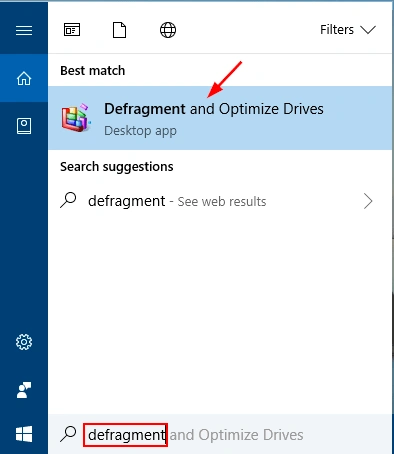
For Windows
- Open Defragment and Optimize Drives.
- Select the drive.
- Click Analyze to check fragmentation level.
- Click Optimize to defragment.
Windows automatically schedules defragmentation for HDDs, but you can manually trigger it when performance degrades.
For macOS
macOS does not include a direct defragmentation tool because its file system (APFS or HFS+) manages fragmentation automatically. However, large file movements or backups can still benefit from free space consolidation.
2. Use Third-Party Defragmentation Software
There are professional tools that:
- Provide deeper analysis.
- Defragment system and user files.
- Consolidate free space.
- Optimize boot files.
Examples include Smart Defrag, Auslogics Disk Defrag, and Defraggler.
3. Free Up Disk Space
Free space reduction decreases the chance of fragmentation. To keep your drive healthy:
- Remove unnecessary files.
- Uninstall unused applications.
- Clean temporary files regularly.
Benefits of Fixing Fragmented Files
Proper defragmentation:
- Improves file read/write speed.
- Reduces mechanical stress on HDD platters.
- Enhances overall system responsiveness.
- Extends the usable life of storage hardware.
By understanding how to fix fragmented files, users ensure their systems run optimally, especially for data-intensive applications and environments.
What to Do If Defragmentation Causes Errors or Data Loss
While defragmenting is usually safe, unexpected problems can happen:
- Power failures during defragmentation.
- Software crashes or incompatibilities.
- Disk errors or bad sectors discovered mid-process.
In some rare cases, defragmentation may cause data loss, render partitions inaccessible, or corrupt files. If you experience:
- A drive that won’t mount,
- Missing folders or files,
- Error messages when accessing data,
you need a reliable data recovery solution.
Recover Lost Data With Magic Data Recovery
When data is lost due to defragmentation errors, system crashes, or inaccessible partitions, Magic Data Recovery can help you recover files safely and effectively. It supports:
- Recovery of deleted or lost files,
- Restoration from corrupted or fragmented storage,
- Retrieval from inaccessible partitions.
Magic Data Recovery uses advanced scanning algorithms to rebuild files and restore data even in challenging scenarios after fragmentation issues.
Supports Windows 7/8/10/11 and Windows Server
Conclusion
FAQs
What is a fragmented file?
How to fix file fragmentation?
What is fragmented recovery?
Is defragging the same as disk cleanup?
How to tell if a file is fragmented?
How to get rid of fragmentation?
Are fragmented files bad?
What are the causes of file fragmentation?

Jason is a data recovery and technical support specialist with over 15 years of hands-on experience. He has worked extensively with frontline users, troubleshooting difficult data loss cases and providing practical recovery solutions for accidental deletion, formatted drives, damaged file systems, lost partitions, system failures, and other recovery emergencies. His expertise also includes backup and restoration, file repair, and disaster recovery, with a strong emphasis on safe, reliable, and technically accurate guidance.