
Tesla Not Recognizing USB Drive? How to Fix and Recover Data
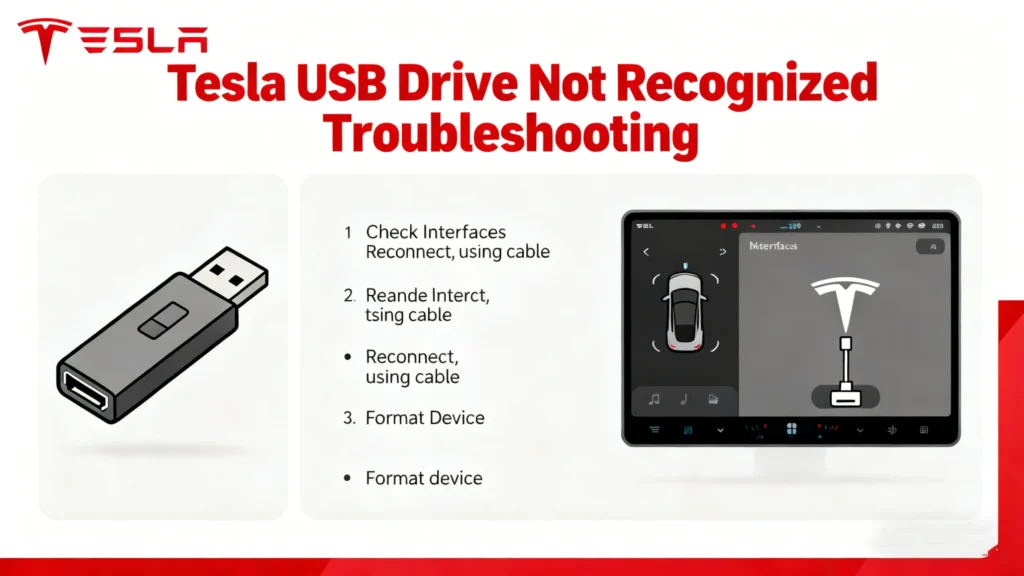
Tesla not recognizing USB drive is a common issue many owners encounter when trying to use Dashcam, Sentry Mode, or play media in their vehicle. You get into your Tesla expecting everything to work seamlessly, only to see messages like “USB device not recognized” or a dashcam icon marked with a red “X.” While frustrating, this problem usually results from file system errors, improper formatting, incompatible USB devices, or corrupted data. More importantly, if the USB drive stores Dashcam or Sentry footage, the issue may also put critical video evidence at risk.
This guide explains why your Tesla is not recognizing a USB drive, provides step-by-step fixes, and shows how to recover lost footage safely using Magic Data Recovery.
Supports Windows 7/8/10/11 and Windows Server
Table of Contents
Understanding Why Your Tesla USB Drive Fails
Before diving into fixes, understanding the “why” is crucial. Tesla’s systems, particularly for Dashcam and Sentry Mode, have specific requirements. When these aren’t met, the system will reject the drive. The causes generally fall into a few key categories.
1. Hardware and Connection Issues
Often, the simplest explanation is the correct one. Faulty hardware is a frequent culprit.
- Faulty USB Port or Cable: The USB ports in your Tesla, especially the one in the glovebox used for dashcam, experience constant plug/unplug cycles. Dust or physical damage can interfere. If you’re using a USB hub or an extension cable, these can introduce power and data instability.
- Insufficient Power Delivery: High-endurance, high-capacity USB drives, especially SSDs, may draw more power than the Tesla’s port can consistently supply. This leads to intermittent recognition or the drive disconnecting during write operations.
- Worn-Out USB Drive: USB flash drives have a finite number of write cycles. Continuous recording from Sentry and Dashcam accelerates wear. A failing drive will often show up as unrecognized before it dies completely.
2. File System and Formatting Problems
This is the most common technical reason for a Tesla not recognizing a USB drive. Tesla’s software requires a specific digital “layout” to read and write data.
- Incorrect File System: Tesla vehicles primarily support the exFAT or FAT32 file systems for media and dashcam. If your drive is formatted as NTFS (common for Windows), APFS (Mac), or others, the car’s Linux-based system cannot interact with it.
- Corrupted File System: Improper ejection (just pulling the drive out), a power interrupt during writing, or drive errors can corrupt the file system. To your Tesla, the drive will appear as “unreadable” or simply not show up.
- Incorrect Partition Scheme: The drive must be formatted with an MBR (Master Boot Record) or GPT (GUID Partition Table) scheme that is compatible. Some drives pre-formatted for specific use cases may have unusual partitions that confuse the Tesla computer.
3. Software and Naming Requirements
Tesla’s software looks for specific folder structures to organize different types of data.
- Missing TeslaCam Folder: For Dashcam and Sentry Mode to work, the root directory of the drive must contain a folder named exactly “TeslaCam” (case-sensitive). No other name will work.
- Software Glitches: Occasionally, a bug in your Tesla’s firmware or a temporary software hang can cause peripheral recognition to fail. This is usually resolved with a system reboot.
Step-by-Step Solutions to Fix Recognition Issues
Follow this systematic troubleshooting guide. Start with the simplest USB flash drive solution and move to more involved steps.
Initial Quick Fixes
Perform a Tesla Touchscreen Reboot
A soft reboot clears temporary glitches. Simply hold down both scroll wheels on the steering wheel until the screen turns black and the Tesla logo appears. Wait for the system to restart, then reinsert the USB drive.
Check Physical Connections
Inspect the USB port for debris. Try a different port if your model has more than one (e.g., center console). If using a cable, try a different, high-quality cable. Plug the drive directly into the port without any hubs or adapters.
Advanced Formatting and Setup
If quick fixes fail, the drive itself likely needs to be reconfigured.
Properly Format the USB Drive (Windows & Mac)
- Backup Data First: This process will erase everything on the drive. If you have important data, see the recovery section below.
- Connect to a Computer: Use a reliable adapter or port.
- Format to exFAT: For Windows: Right-click the drive in ‘This PC’ > ‘Format’. Choose exFAT and “Default allocation size.” Uncheck “Quick Format” for a thorough job, then click Start. For Mac: Use “Disk Utility.” Select the drive, click “Erase,” choose “ExFAT” and “Master Boot Record” scheme.
- Create the TeslaCam Folder: On the newly formatted drive, create a new folder and name it exactly
TeslaCam. - Safely Eject: Always use the “Eject” function on your computer before removing the drive.
- Test in Tesla: Plug the drive into your car. It should recognize it within a few seconds for media, and the dashcam icon should show a red recording dot if you tap it.
Use Tesla’s Built-In Format Tool
Some software versions offer a format option. Go to ‘Controls’ > ‘Safety’ > ‘Security’ > ‘Format USB Drive.’ This method is foolproof as the car creates the perfect structure for itself.
What to Do When Data Loss Occurs
A corrupted drive often means lost Sentry or Dashcam footage. The file system error that caused the Tesla USB drivenot to be recognized may have also made your data inaccessible. Do not format the drive immediately if you need the data inside.
Recovering Lost TeslaCam Footage
The safest approach is to treat the malfunctioning drive as a “patient” and attempt data extraction on another system.
- Stop Using the Drive: Prevent any new writes that could overwrite your lost files.
- Connect as a Secondary Drive: Remove the drive from your Tesla and connect it to a Windows PC as a secondary/non-bootable drive. This allows recovery software to scan it without interference.
- Use Specialized Recovery Software: Standard methods won’t work on a corrupted drive. You need a tool designed for this exact scenario.
Why Choose Magic Data Recovery for This Task
When facing potential data loss from a corrupted Tesla drive, a powerful and focused tool is essential. Magic Data Recovery by Amagicsoft is engineered for these high-stakes situations. Let’s examine why it’s a reliable solution.

Supports Windows 7/8/10/11 and Windows Server
Core Pain Point: Targeted Recovery for Corrupted Drives
The core pain point it solves is the inability to access valuable video footage after a file system error. Unlike basic tools, Magic Data Recovery performs deep scans of the drive’s raw data, looking for file signatures and fragments that belong to Tesla’s video clips (which are saved as small, sequential files).
Key Advantages Over Generic Solutions
Its key advantages include a high recovery success rate for formatted, corrupted, or inaccessible drives and a user-friendly interface that guides you through the process. The software is also fast, which is critical when you need to verify if your footage is recoverable.
A Practical Recovery Scenario
Consider this use case: Your drive was corrupted after a sudden sentry event. The car no longer recognizes it. By connecting the drive to your computer and running Magic Data Recovery, you can scan, preview recovered video files, and selectively save only the crucial clips from the incident timeframe.
Why It’s a More Reliable Choice
It stands out as more reliable than free alternatives because it’s specifically optimized for complex recoveries and offers technical support. Free tools often have deep scan limitations or may not reassemble sequential video files correctly. For irreplaceable dashcam evidence, using a dedicated tool like Magic Data Recovery provides the best chance of success. If you are dealing with inaccessible Tesla footage, trying Magic Data Recovery offers a focused and efficient solution.
Conclusion
Dealing with a Tesla not recognizing USB drive is a multi-step process. Start with physical checks and reboots, then move to correct formatting—always using exFAT and the mandatory TeslaCam folder. To prevent future issues, invest in a high-endurance microSD card with a USB adapter or a Tesla-approved SSD designed for constant writing. Regularly (every few months) reformat the drive in the Tesla to clear file system fragmentation and errors.
When prevention fails and data loss occurs, avoid panic. The methodology of connecting the drive to a Windows computer for analysis is the industry best practice. In these scenarios, a USB recovery tool like Magic Data Recovery proves invaluable. It addresses the specific technical challenge of recovering data from a drive rendered unreadable by the vehicle, providing a clear path to salvage your important recordings. By following this guide, you can ensure your Tesla’s features remain functional and your data remains secure.
Supports Windows 7/8/10/11 and Windows Server
FAQs
Why is my USB drive not detected in my Tesla?
How to reset USB on Tesla?
Does exFAT work on Tesla?
Why is my car not recognizing my USB?
How do I manually detect a USB device?
How to access USB drive on Tesla?
Do I need to format a Tesla USB drive?
How to manually reset Tesla?

Jason is a data recovery and technical support specialist with over 15 years of hands-on experience. He has worked extensively with frontline users, troubleshooting difficult data loss cases and providing practical recovery solutions for accidental deletion, formatted drives, damaged file systems, lost partitions, system failures, and other recovery emergencies. His expertise also includes backup and restoration, file repair, and disaster recovery, with a strong emphasis on safe, reliable, and technically accurate guidance.