
Deleting a Recovery Partition Safely: How to Recover if Lost Data
A recovery partition is designed to protect your system. However, many users attempt to remove it to reclaim disk space or reorganize storage. During this process, mistakes happen. Deleting the wrong partition, selecting an incorrect disk, or using DiskPart without full understanding can instantly lead to serious data loss.
If you are searching for how to delete a recovery partition, chances are you want a safe and controlled method. Unfortunately, real-world scenarios are rarely perfect. Users often report losing an entire data partition while trying to delete a recovery partition. At that point, recovering files becomes far more urgent than freeing disk space.
This guide explains what a recovery partition is, how to delete it safely, and—most importantly—how to recover lost data after an accidental partition deletion using Magic Data Recovery, a professional partition recovery solution built for complex data loss scenarios.
Supports Windows 7/8/10/11 and Windows Server
Table of Contents
What Is a Recovery Partition?
A recovery partition is a dedicated section of a storage drive created by Windows or the device manufacturer. It stores system recovery tools, boot repair files, and sometimes a factory image of the operating system.
Key Characteristics of a Recovery Partition
- Hidden by default in File Explorer
- Usually labeled as “Recovery” in Disk Management
- Contains no personal user files
- Essential for system repair and reset options
Although a recovery partition does not store documents, photos, or videos, deleting it incorrectly can affect nearby data partitions. This risk increases when users rely on command-line tools without fully understanding disk structures.
Why Do Users Want to Delete a Recovery Partition?
The most common reasons include:
- Freeing up disk space on small SSDs
- Removing duplicate recovery partitions after system upgrades
- Preparing a drive for reuse or reinstallation
- Reorganizing partitions for better storage efficiency
Searching for how to delete a recovery partition is common, especially after Windows updates create multiple recovery partitions. However, the process requires careful execution.
Risks of Deleting a Recovery Partition
Deleting a recovery partition is not inherently dangerous, but mistakes can be costly.
Common Risks
- Accidentally deleting a data partition instead
- Turning a healthy partition into unallocated space
- Losing access to important files
- Removing system recovery options permanently
In many real cases, users intended to delete a recovery partition but selected the wrong volume. Once confirmed, the data disappears immediately from the operating system.
How to Delete a Recovery Partition Safely
Before proceeding, always back up important data. This step alone prevents most disasters.
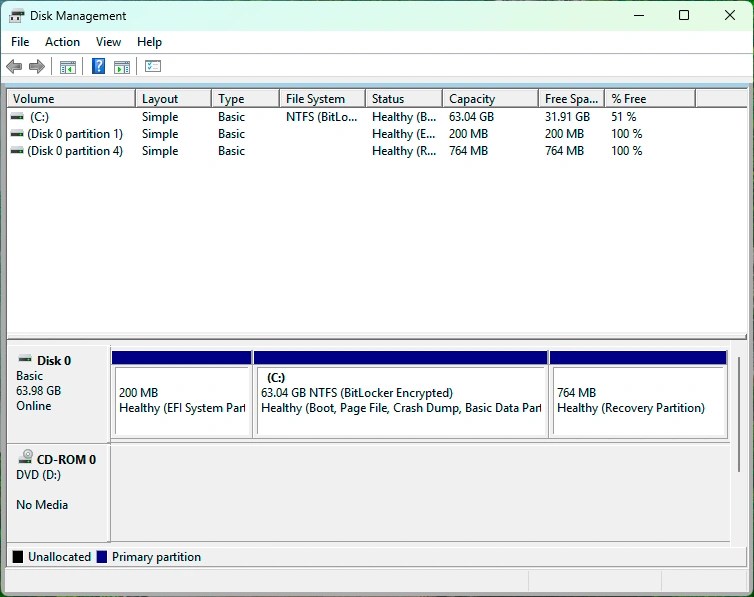
Method 1: Using Windows Disk Management
Disk Management shows recovery partitions, but Windows often blocks deletion to protect system stability. This method works only in limited scenarios.
Method 2: Using DiskPart (Advanced Users)
DiskPart allows forced deletion.
Basic Steps:
- Open Command Prompt as Administrator
- Enter
diskpart - Use
list diskandselect disk - Use
list partition - Carefully select the recovery partition
- Run
delete partition override
One wrong selection can delete a data partition instantly. This is the most common cause of accidental data loss.
Method 3: Using Third-Party Partition Tools
Some tools provide a visual interface and reduce human error. Even so, mistakes still occur when users rush through the process.
What Happens If You Delete the Wrong Partition?
When a data partition is deleted:
- The space becomes unallocated
- Files are no longer visible
- The file system information is removed
- New data may overwrite recoverable files
At this stage, rebuilding the partition immediately is risky. Writing new data can permanently destroy recoverable files.
How to Recover Data After Accidental Partition Deletion
This is where many guides fail. They focus on deletion but ignore recovery.
Important Safety Principle
Do not rebuild the partition first.
Recover data before making structural changes.
Why This Matters
Partition reconstruction tools write new metadata. If done prematurely, they overwrite original file records.
Recovering Lost Files with Magic Data Recovery
When users lose data while trying to delete a recovery partition, Magic Data Recovery offers a safer and more controlled approach.
What Magic Data Recovery Can Do
Magic Data Recovery does not directly restore deleted partitions. Instead, it allows you to:
- Scan the lost partition area
- Recover files to a separate, healthy partition
- Preserve original data integrity
This workflow aligns with professional data recovery best practices.
Step-by-Step: Safe Data Recovery Process
1. Install Magic Data Recovery: Download and Install the software on a healthy drive—not on the unallocated disk—to avoid overwriting lost data.
Supports Windows 7/8/10/11 and Windows Server




Why Magic Data Recovery Is a Reliable Solution
Core Advantages
- Supports recovery after deletion, formatting, file system errors, and OS reinstallation
- Works with NTFS, exFAT, FAT32, and other common file systems
- Read-only scanning minimizes further damage
- Clear preview improves recovery accuracy
Real-World Use Case
A user deletes a data partition while following a guide on how to delete a recovery partition. Instead of attempting risky partition repairs, they recover files first using Magic Data Recovery, then rebuild the partition safely.
This method significantly reduces permanent data loss risk.
Why This Approach Is Safer Than Rebuilding First
Many tools advertise direct partition recovery. In practice, rebuilding partitions without data backup often causes irreversible overwrites.
Magic Data Recovery focuses on:
- Data-first recovery
- Minimal disk interaction
- Controlled restoration
If you value data integrity over speed, this approach is more reliable.
Best Practices to Avoid Partition Data Loss
- Always back up critical data
- Label partitions clearly
- Avoid command-line tools unless necessary
- Disconnect external drives during partition operations
- Recover data before rebuilding partitions
Conclusion: Delete Carefully, Recover Safely
Understanding a recovery partition and learning how to delete a recovery partition safely is essential. However, mistakes happen—even to experienced users. When accidental partition deletion causes data loss, immediate and cautious recovery is critical.
Magic Data Recovery provides a professional, safer way to recover lost files before rebuilding partitions, reducing the risk of permanent data loss. If you are dealing with files lost during partition operations, this solution offers a practical and trustworthy recovery path.
If you are looking for a safer way to recover data after partition deletion, Magic Data Recovery is a solution worth considering.
Supports Windows 7/8/10/11 and Windows Server
FAQs
What is the recovery partition?
How to recover a partition deleted?
How to see recovery partition?
How to make a recovery partition?
Can I safely remove a recovery partition?
Can I reinstall Windows from a recovery partition?
What happens when a partition is deleted?
How to recover lost partitions for free?
How to recover deleted D drive?

Jason is a data recovery and technical support specialist with over 15 years of hands-on experience. He has worked extensively with frontline users, troubleshooting difficult data loss cases and providing practical recovery solutions for accidental deletion, formatted drives, damaged file systems, lost partitions, system failures, and other recovery emergencies. His expertise also includes backup and restoration, file repair, and disaster recovery, with a strong emphasis on safe, reliable, and technically accurate guidance.