
How to Fix Enter the Recovery Key to Get Going Again
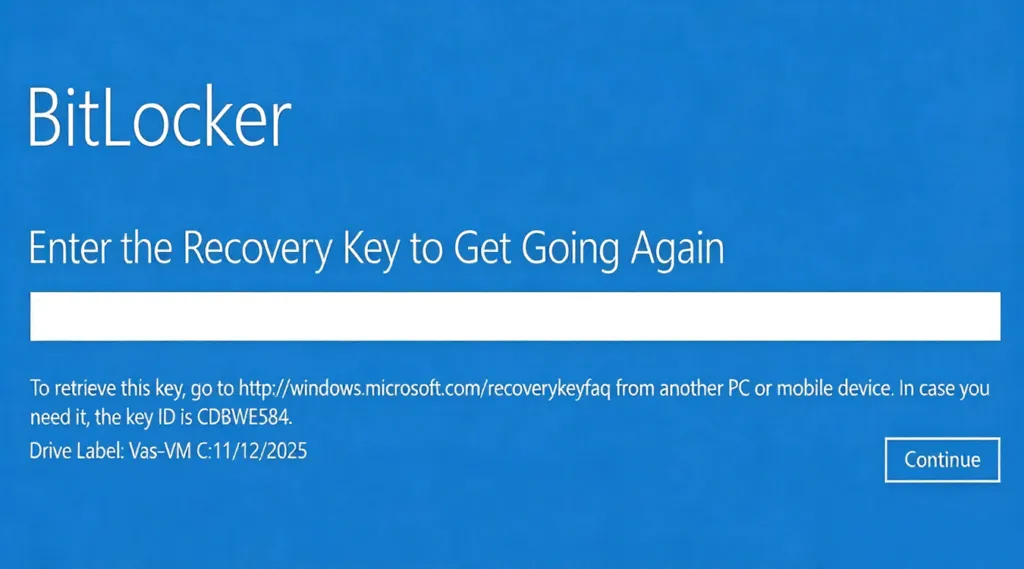
You power on your Windows PC—only to be greeted by a blue screen demanding: “Enter the recovery key to get going again.” No login, no desktop, just a 48-digit code you likely never wrote down. If this sounds familiar, you’re not alone. Thousands of users face this BitLocker recovery screen lockout after system updates, BIOS changes, or hardware tweaks—especially on Dell, HP, and Lenovo devices.
This guide explains exactly what this message means, why it appears, and—most importantly—how to regain access to your BitLocker-encrypted drive. Whether you’ve lost your BitLocker recovery key or are stuck in a recovery loop, we’ll walk you through every option, including a reliable last-resort solution: Magic Recovery Key from Amagicsoft.
Supports Windows 7/8/10/11 and Windows Server
Table of Contents
What Does “Enter the Recovery Key to Get Going Again” Mean?
The phrase “enter the recovery key to get going again” is BitLocker’s security fail-safe. When Windows detects an unexpected change to your system’s startup environment—such as a new BIOS version, altered UEFI settings, or a replaced motherboard—it assumes a potential security breach. To protect your encrypted data, BitLocker halts booting and demands the 48-digit recovery key before allowing access.
This isn’t an error—it’s working as designed. But for users who never backed up that key, it becomes a digital dead end.
Why Is My Computer Asking Me for a Recovery Key?
Several common triggers cause BitLocker to request a recovery key:
- BIOS/UEFI firmware update (common after Windows Update)
- TPM (Trusted Platform Module) reset or failure
- Hardware changes (e.g., swapping SSDs or motherboards)
- Secure Boot toggled on/off
- Legacy vs. UEFI boot mode switch
In enterprise environments, group policies or Azure AD sync issues can also trigger this prompt. Regardless of the cause, the result is the same: you’re locked out until you provide the correct BitLocker recovery key.
Where to Find Your BitLocker Recovery Key
Before resorting to advanced tools, try these official locations:
1. Your Microsoft account: Go to account.microsoft.com/devices/recoverykey and sign in.
2. USB flash drive: Look for a file named BitLocker Recovery Key XXXXXXXX.txt.
3. Printed copy: Check filing cabinets or email confirmations from initial setup.
4. Azure Active Directory: For work/school devices, contact your IT admin.
5. Command Prompt (if another admin account exists):
manage-bde -protectors C: -get
⚠️ Note: If you never saved the key anywhere, these methods won’t help. That’s where professional recovery tools become essential.
When All Else Fails: Magic Recovery Key to the Rescue
If you’ve exhausted all options and still can’t locate your BitLocker recovery key, Magic Recovery Key offers a safe and efficient alternative.
Why It Works When Nothing Else Does
Unlike data recovery software that scans for deleted files, Magic Recovery Key directly addresses the root problem: locked BitLocker access. It creates a bootable USB that boots into a lightweight environment, detects encrypted volumes, and provides options to:
- Reconstruct or reset the BitLocker protector
- Bypass the recovery prompt without decrypting data
- Restore normal boot flow on Windows 10/11 systems
How to Use Magic Recovery Key
Using Magic Recovery Key is straightforward—even if you aren’t tech-savvy. The tool was built specifically to help everyday users recover lost BitLocker recovery keys without needing command-line knowledge or system administration experience. Even if the computer cannot boot normally, you can still connect it to another computer and recover the key. Here’s exactly how it works:
1. Download and Install Magic Recovery Key
Go to the official website and download the latest version. Installation takes less than a minute, and no reboot is required.
Supports Windows 7/8/10/11 and Windows Server
2. Launch and Select “BitLocker Recovery Key”
Open the software and click “BitLocker Recovery Key” in the left-hand menu. This module scans deep into system folders, registry backups, Windows.old directories, connected USB drives, and even remnants of previous Windows installations—precisely where Windows stores or caches BitLocker credentials.

3. Click “Search” to Start the Scan
Press the “Search” button, and the tool will automatically scan all relevant locations. No user input is needed during the scan—it runs silently in the background.
4. Review and Use the Recovered Key
If a BitLocker recovery key is found, it will appear clearly on-screen as a 48-digit numeric code, formatted in groups for easy reading (e.g., 123456-789012-345678-...). You can copy or save it to a save location.

Once you have the key, simply restart your locked PC, enter the code when prompted with “enter the recovery key to get going again,” and regain full access to your system and files—no data loss, no reinstallation required.
Conclusion
Supports Windows 7/8/10/11 and Windows Server
FAQs About “Enter the recovery key to get going again”Issue
What is "BitLocker enter the recovery key to get going again"?
Why did my computer go into BitLocker Recovery?
Can I skip the BitLocker recovery key?
How do I reset my computer without a password or recovery key?
Is F11 or F12 factory reset?
How to get rid of recovery key?

Vasilii is a data recovery specialist with around 10 years of hands-on experience in the field. Throughout his career, he has successfully solved thousands of complex cases involving deleted files, formatted drives, lost partitions, and RAW file systems. His expertise covers both manual recovery methods using professional tools like hex editors and advanced automated solutions with recovery software. Vasilii's mission is to make reliable data recovery knowledge accessible to both IT professionals and everyday users, helping them safeguard their valuable digital assets.