
Why You See the Bitlocker Recovery Screen and How to Fix It
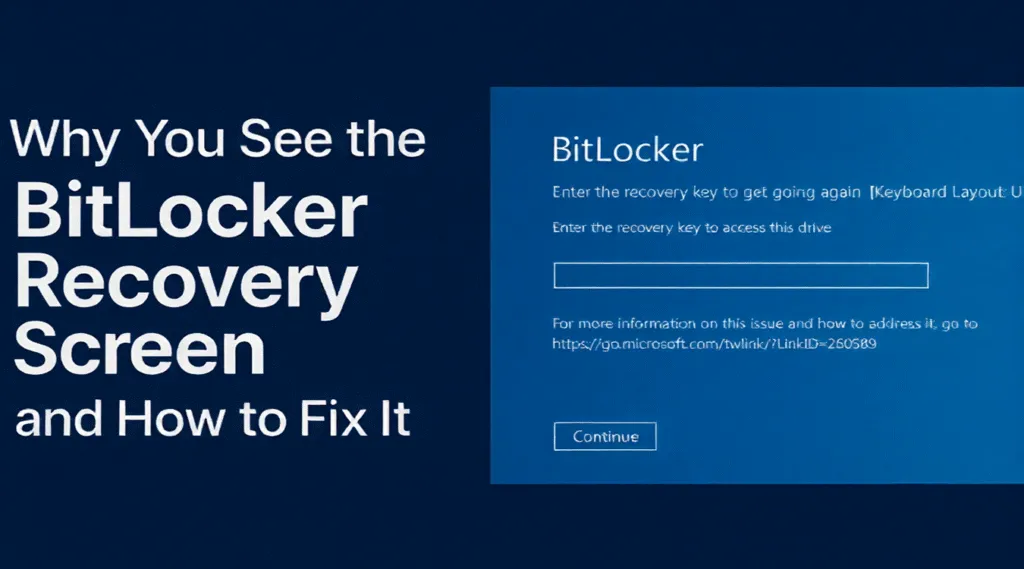
Seeing the bitlocker recovery screen without warning can be alarming, especially when your computer suddenly asks for a recovery key. Many users encounter this issue after a Windows update, BIOS change, hardware replacement, or unexpected system crash. In some cases, the keyboard stops working, or the system becomes stuck in a continuous loop, making the situation even more stressful.
This guide explains why the bitlocker recovery screen appears, how to fix common issues such as keyboard malfunction and endless loops, and how to retrieve BitLocker recovery key using every available method. Additionally, if your system cannot be unlocked or Windows no longer boots normally, we introduce a safe and effective solution—Magic Data Recovery—to help you retrieve your files before attempting more disruptive fixes.
Supports Windows 7/8/10/11 and Windows Server
Table of Contents
What Is the bitlocker recovery screen and Why It Appears
BitLocker is Microsoft’s full-disk encryption technology designed to protect data when unauthorized access is detected. When your system detects changes that might indicate tampering or the system is corrupted, it will display the bitlocker recovery screen and require the 48-digit recovery key to continue. Below are the most common triggers:
System or Firmware Updates
Large Windows updates and firmware changes may break the trusted platform module (TPM) signature. If the TPM information does not match what BitLocker expects, the system triggers the recovery screen.
Hardware Changes
Replacing the motherboard, SSD, RAM, or even disconnecting internal components can cause BitLocker to believe the system has been tampered with.
Boot Configuration Corruption
Corrupt BCD files, sudden shutdowns, or forced power-off may lead to a BitLocker validation failure.
Attempted Unauthorized Access
If the system detects suspicious activity, it forces the recovery screen to protect your data.
Understanding these triggers helps you respond more confidently and prevents unnecessary troubleshooting.
Common Problems Related to the Bitlocker Recovery Screen
Keyboard Not Working on the bitlocker recovery screen
A frequent issue is that the keyboard becomes unresponsive, especially on laptops with modern USB controllers. Common causes include:
- Legacy USB support disabled in BIOS
- Fast Boot interfering with keyboard initialization
- Damaged system drivers
- Using a wireless keyboard before driver loading
Quick Fixes
1. Unplug and reconnect the keyboard.
2. Try a wired USB keyboard instead of a wireless one.
3. Enter BIOS and enable USB Legacy Support.
4. Disable Fast Boot temporarily.
5. Restart the system and try pressing the recovery key again.
These steps usually resolve the problem without requiring advanced repair.
Bitlocker Recovery Screen Loop (Repeated Prompt)
When your device repeatedly returns to the bitlocker recovery screen, it usually means BitLocker cannot validate the boot environment.
Common reasons
- Corrupt bootloader
- TPM misalignment
- Wrong BIOS configuration
- Secure Boot inconsistencies
- Recently installed hardware
How to Fix It
1. Boot into WinRE and run:
bootrec /fixmbr
bootrec /fixboot
bootrec /rebuildbcd
2. Roll back recent BIOS or UEFI changes.
3. Disable Secure Boot, reboot, then re-enable it.
4. Restore the previous Windows installation if available.
These solutions resolve most loop cases when the recovery key is correct, but the system refuses to unlock.
How to Retrieve Your BitLocker Recovery Key
If you forget the BitLocker Recovery Key, try the following sources:
1. Microsoft Account
Visit: https://account.microsoft.com/devices/recoverykey
Most home users will find their key here.
2. Azure AD / Office 365
Business-managed devices store keys in the Azure portal.
3. Local Text File
Windows often saves a copy locally if you chose that option.
4. Printed Copy
Some users print a physical backup and store it offline.
5. USB Flash Drive
If BitLocker was configured to store the key on a USB, plug it in during startup.
6. Domain Administrators
Enterprise IT departments can retrieve keys from Active Directory.
If none of these methods work, you may not be able to unlock the encrypted system directly.
How to Fix the bitlocker recovery screen (Step-by-Step)
Method 1: Enter the Recovery Key
Enter your 48-digit key exactly as shown. This is the fastest fix if you already have the correct key.
Method 2: Repair Boot Files
If the system keeps returning to the recovery screen, boot into WinRE and repair corrupted boot data using BCD commands.
Method 3: Correct BIOS/UEFI Settings
- Enable TPM
- Enable Secure Boot (or disable temporarily)
- Set the correct boot mode (UEFI vs. Legacy)
Method 4: Undo Recent System Changes
Roll back firmware, disconnect recently installed hardware, or revert Windows updates.
Method 5: Restore System Image
If you have a system image, restore it to bring the boot environment back to a trusted state. But it may cause data loss.
When You Cannot Unlock Your PC: Recover Your Files with Magic Data Recovery
If the system remains stuck in a loop, the priority becomes protecting your data before attempting more invasive operations. This is where Magic Data Recovery provides real value.
How to Use Magic Data Recovery
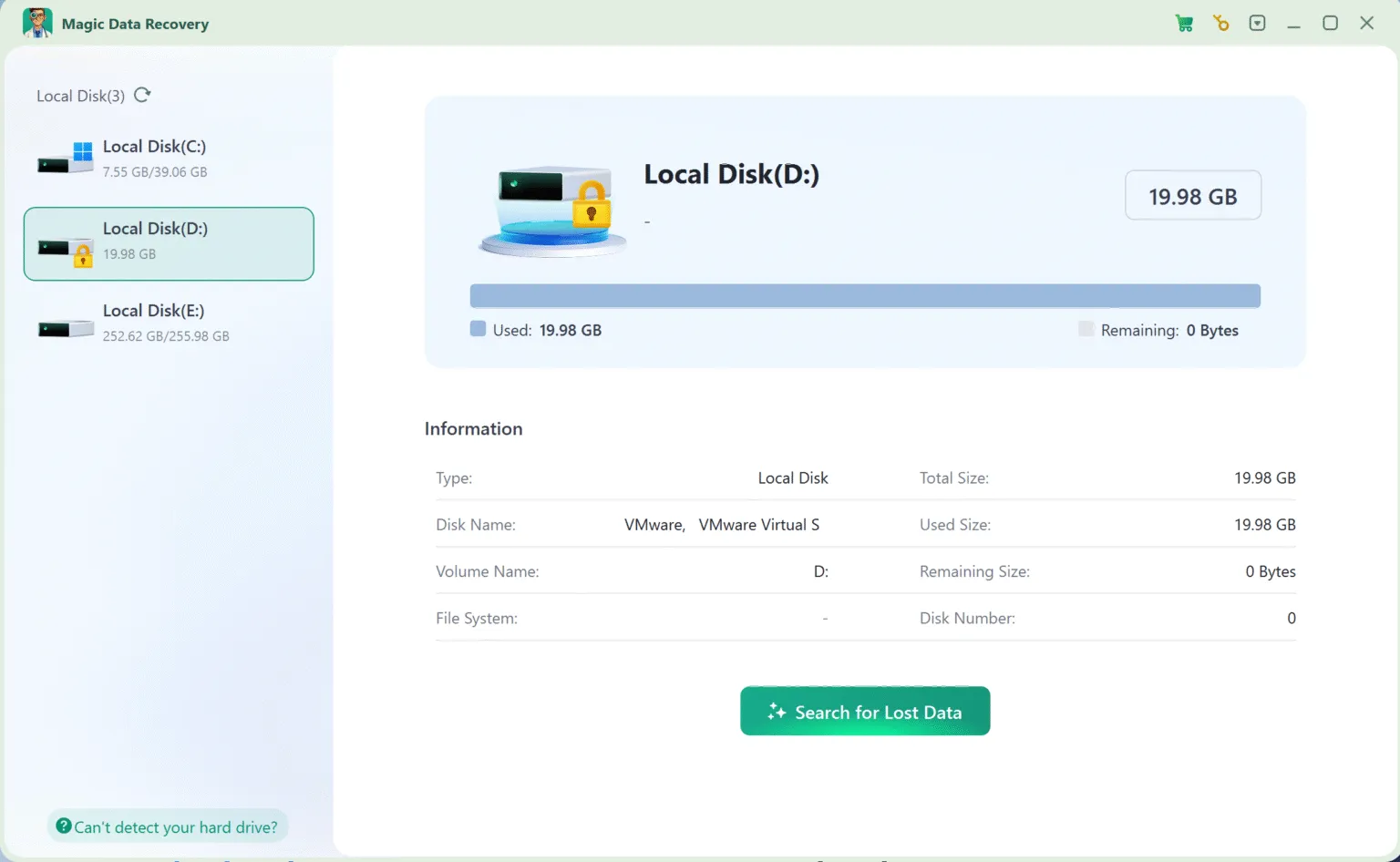
1. Download and install Magic Data Recovery and connect the drive to another bootable computer.
Supports Windows 7/8/10/11 and Windows Server



Conclusion
The bitlocker recovery screen protects your data, but unexpected system corruptions can make it difficult to access your system. By understanding the causes, retrieving your recovery key through the correct methods, and applying structured troubleshooting steps, you can usually resolve the issue quickly.
However, if the system refuses to unlock, protecting your files becomes the priority. This is why Magic Data Recovery is recommended—it provides a dependable BitLocker recovery solution for retrieving essential data before attempting more advanced repairs. Its ease of use, strong recovery capability, and versatility make it a reliable choice when traditional fixes are no longer enough.
Supports Windows 7/8/10/11 and Windows Server
Bitlocker Recovery Screen-FAQ
How do I get out of the BitLocker recovery screen?
Why BitLocker recovery screen appears?
What to do when computer says BitLocker recovery?
What triggers BitLocker recovery key prompt?
Why is my computer stuck on BitLocker?
How do I force BitLocker off?
Can I skip the BitLocker recovery key?
How did BitLocker get on my computer?

Vasilii is a data recovery specialist with around 10 years of hands-on experience in the field. Throughout his career, he has successfully solved thousands of complex cases involving deleted files, formatted drives, lost partitions, and RAW file systems. His expertise covers both manual recovery methods using professional tools like hex editors and advanced automated solutions with recovery software. Vasilii's mission is to make reliable data recovery knowledge accessible to both IT professionals and everyday users, helping them safeguard their valuable digital assets.