
Windows Disk Encryption: How to Protect Your Data

Data protection is no longer optional. With increasing device theft, malware attacks, and privacy concerns, users and businesses need reliable ways to secure sensitive information stored on their Windows computers. That is why Windows disk encryption has become one of the most important built-in security features on modern PCs. However, many users still struggle to understand the difference between encryption options, how to enable them correctly, and what to do when something goes wrong—such as finding a lost recovery key or getting stuck in an unexpected BitLocker prompt.
This guide offers a complete, practical overview designed for everyday users and professionals. You will learn how Windows encrypts your drives, how windows device encryption differs from BitLocker, how to enable encryption step by step, and how to find the lost recovery key. In situations where Microsoft’s options are limited, the article also explains how a dedicated tool like Magic Recovery Key can help you recover lost encryption keys or regain access to your drive.
Supports Windows 7/8/10/11 and Windows Server
Table of Contents
What Is Windows Disk Encryption?
Windows disk encryption refers to the process of protecting all data on a storage drive by converting it into unreadable code. Only someone with the correct password, Windows login, or recovery key can unlock the drive. Windows typically accomplishes this through BitLocker or Device Encryption, depending on the edition and hardware capabilities of the computer.
Disk encryption ensures that even if a laptop is stolen or a hard drive is removed, the data remains protected. This security layer is a critical element of modern cybersecurity, especially for users who store personal information, financial files, business documents, or regulated data such as customer records.
Key benefits include:
- Prevents unauthorized access
- Protects data on lost or stolen devices
- Helps meet compliance standards
- Low performance impact on modern systems
Windows Device Encryption vs BitLocker: What’s the Difference?
Windows Device Encryption is a simplified, automatic version of disk encryption. It is available on many consumer PCs that meet specific hardware requirements such as Modern Standby capability and TPM 2.0.
Characteristics:
- Enables automatically after Microsoft account sign-in
- Stores the recovery key in your Microsoft account
- Designed for home users
- Fewer customization options
- Minimal configuration required
BitLocker Drive Encryption
BitLocker is the full-featured, professional-grade encryption system available on Windows Pro, Enterprise, and Education editions.
Advantages:
- Allows encryption of internal and external drives
- Offers multiple unlock methods
- Supports enterprise key management
- Provides advanced configuration such as XTS-AES encryption
In summary, windows device encryption is ideal for casual users who need simple automatic protection, whereas BitLocker offers deeper control, configuration flexibility, and enterprise-grade security.
How to Enable Windows Device Encryption
If your device supports this feature, enabling encryption is straightforward. Follow these steps:
1. Open Settings.
2. Go to Update & Security.
3. Select Device encryption.
4. Toggle Device encryption to On.
5. Confirm that the recovery key is backed up to your Microsoft account.
If the option does not appear, your hardware may not support this feature. In that case, BitLocker is the alternative.
How to Enable BitLocker for Full Windows Disk Encryption
If you want deeper control or your device does not support Device Encryption, BitLocker provides a complete solution for windows disk encryption.
Steps to enable BitLocker:
1. Search for Control Panel.
2. Select System and Security.
3. Click BitLocker Drive Encryption.
4. Choose the drive you want to encrypt.
5. Click Turn on BitLocker.
6. Save your recovery key safely.
7. Choose whether to encrypt the entire drive or used space only.
8 Begin encryption.
The process is typically fast on modern SSDs and works in the background while you continue using the computer.
How to Check if Your Drive Is Encrypted
You can confirm the encryption status in several ways:
Method 1: Settings
- Go to Settings → Privacy & Security → Device encryption
- If it shows “On,” the drive is already encrypted.
Method 2: Control Panel
- Navigate to BitLocker Drive Encryption
- Each drive will display its current status.
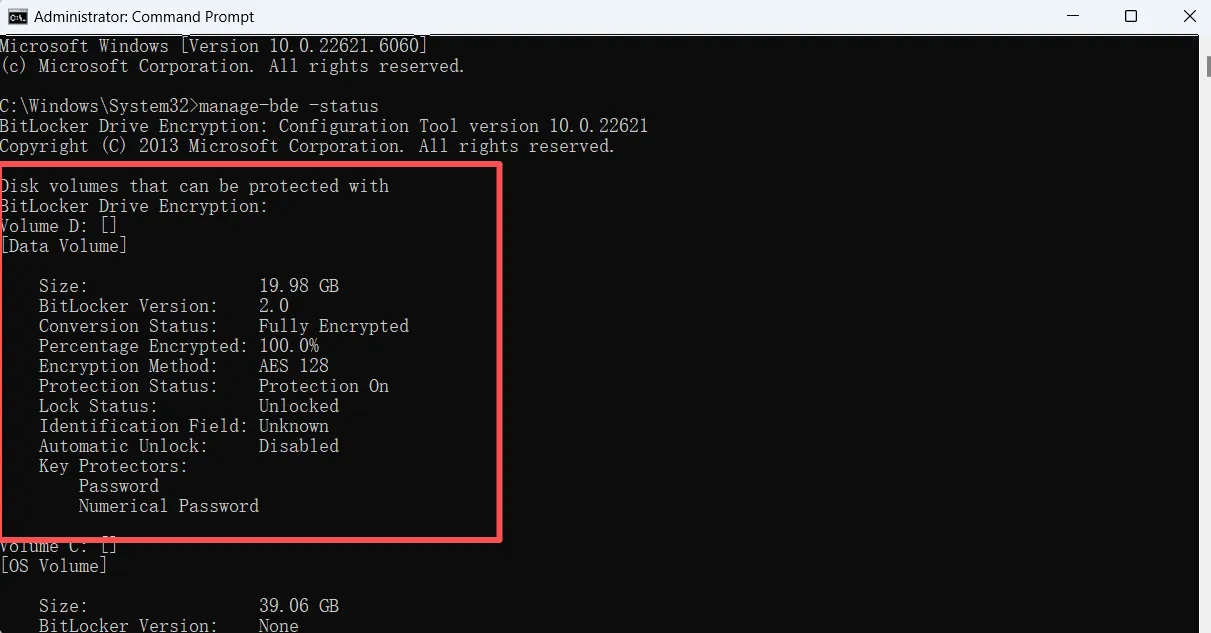
Method 3: CMD
Run CMD as administrator and enter:
manage-bde -status
This method is often preferred by IT administrators.
Common Windows Disk Encryption Problems and Fixes
Device Encryption Not Appearing
Device Encryption requires:
- TPM 2.0
- Modern Standby support
- A Microsoft account
If any requirement is missing, BitLocker is the recommended alternative.
BitLocker Not Turning On
This issue usually relates to:
- Disabled TPM
- Pending Windows updates
- Corrupted system files
Enabling TPM in BIOS or running Windows Update often resolves the problem.
Stuck at a BitLocker Recovery Screen
This scenario typically indicates:
- Hardware changes
- File system errors
- TPM resets
If you get stuck at a BitLocker recovery screen and do not have the recovery key, you will need a recovery method, which is explained later in this article.
External Drives Not Decrypting
Ensure:
- The drive is recognized
- The recovery key is correct
- No read-only attribute is applied
If you still cannot decrypt the drive, the file system or BitLocker metadata might have been damaged. You will need to use a specialized tool like Magic Data Recovery to recover the files from the drive first.
How to Recover a Lost BitLocker or Device Encryption Key
Windows users can often find the recovery key through:
- Microsoft account (most common for Device Encryption)
- Azure AD account (business devices)
- USB backup
- Active Directory
- Printout
- Local file stored earlier
However, many users discover their key is missing or inaccessible, particularly after reinstalling Windows, replacing hardware, or inheriting a previously encrypted device. When this happens, the built-in options may not be enough.
When You Lose Access: Magic Recovery Key Helps
When standard Microsoft methods cannot retrieve the recovery key—or when the drive becomes locked due to corruption—Magic Recovery Key offers a practical, higher-success-rate alternative.
Magic Recovery Key can help when:
- The BitLocker recovery key was never backed up
- The recovery key file was lost
- The disk is locked due to TPM changes
- The BitLocker metadata is damaged
How to Use Magic Recovery Key
Using Magic Recovery Key is straightforward, even for users who have never worked with encryption recovery tools before. The software guides you through each step, helping you retrieve your lost BitLocker recovery key or regain access to your encrypted drive quickly and safely.
Step 1: Download and Install Magic Recovery Key
Visit the official Magic Recovery Key website and download the installer. The setup process takes only a few minutes and does not require advanced configuration.
Supports Windows 7/8/10/11 and Windows Server
Step 2: Launch the Program and Select “BitLocker Recovery Key”
Open the software. On the main interface, choose the BitLocker Recovery Key module. This feature is designed specifically to scan every possible location for missing recovery key information.

Step 3: Click Search and Start a Scan
Press the “Search” button, and the tool will automatically scan all relevant locations. You just need to wait for a moment.
Step 4: Review and Use the Recovered Key
If a BitLocker recovery key is found, it will appear clearly on-screen as a 48-digit numeric code, formatted in groups for easy reading (e.g., 123456-789012-345678-...). You can copy or save it to a save location.

Step 5: Unlock Your Drive
Use the recovered key to unlock your BitLocker-encrypted drive via Windows, Command Prompt, or the BitLocker recovery screen.
Conclusion
Strong data protection begins with effective windows disk encryption, whether through Windows Device Encryption or BitLocker. Both solutions significantly reduce the risk of unauthorized access, and they offer essential protection for personal and business data. However, encryption can also create challenges when recovery keys are misplaced or the system becomes inaccessible. In those moments, conventional methods may not be enough.
This is why Magic Recovery Key stands out. It provides a reliable way to recover lost BitLocker keys, restore access to encrypted drives, and solve problems that built-in Windows tools cannot fix. If you want a practical, dependable recovery solution, it is a tool worth considering—especially when your data matters most.
Supports Windows 7/8/10/11 and Windows Server
Windows Disk Encryption-FAQ
Does Windows have disk encryption?
Does Windows 11 use full-disk encryption?
Should I enable disk encryption?
How to encrypt a hard disk in Windows?
Is there a downside for using BitLocker?
Can you still use Windows 10 after October 14, 2025?
Does Windows 11 automatically encrypt hard drives?
Why does no one want to use Windows 11?

Vasilii is a data recovery specialist with around 10 years of hands-on experience in the field. Throughout his career, he has successfully solved thousands of complex cases involving deleted files, formatted drives, lost partitions, and RAW file systems. His expertise covers both manual recovery methods using professional tools like hex editors and advanced automated solutions with recovery software. Vasilii's mission is to make reliable data recovery knowledge accessible to both IT professionals and everyday users, helping them safeguard their valuable digital assets.