
BitLocker CMD: Encrypt and Manage Drives
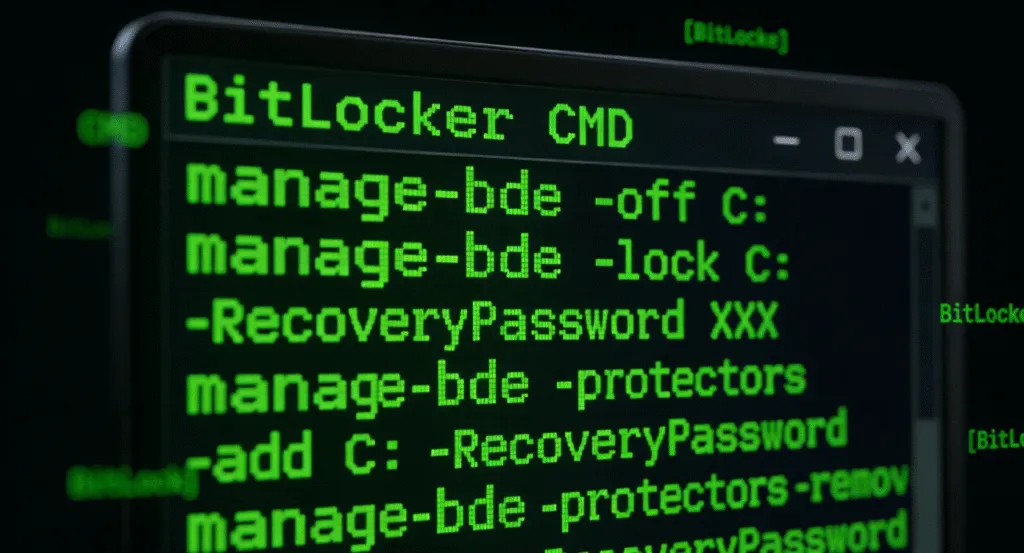
Losing access to your encrypted drives or forgetting your BitLocker password can be frustrating and disruptive. For IT administrators and everyday users alike, managing BitLocker through the command line offers flexibility and control. This guide will explain how to use BitLocker CMD effectively, from encryption to recovery, while introducing Magic Recovery Key as a reliable tool for retrieving lost BitLocker credentials.
Supports Windows 7/8/10/11 and Windows Server
Table of Contents
Understanding BitLocker CMD
BitLocker CMD refers to the use of Windows command line tools, primarily manage-bde, to manage BitLocker encryption on your drives. Unlike the graphical interface, CMD allows automation, remote management, and advanced configurations. The command line is particularly useful when you need to:
- Encrypt drives via scripts
- Unlock drives with CMD
- Reset or manage recovery keys
- Diagnose encryption issues
The encrypt BitLocker command line function enables you to start encryption without opening the GUI, offering speed and precision.
Getting Started with BitLocker CMD
Before executing commands, ensure you have administrator privileges. Open Command Prompt as an administrator and verify BitLocker status using:
manage-bde -status
This will display encryption status, protection method, and recovery key information for all drives.
Common initial commands include:
manage-bde -on <drive> -RecoveryPassword→ Enable BitLocker encryption with a recovery passwordmanage-bde -off <drive>→ Decrypt a drivemanage-bde -protectors -add <drive> -TPM→ Add TPM protector
Encrypting Drives via Command Line
Using the command line to encrypt a drive ensures consistency and reduces human error. Steps include:
1. Check Drive Status:
manage-bde -status D:
2. Encrypt the Drive:
manage-bde -on D: -RecoveryPassword
3. Verify Encryption:
manage-bde -status D:
Advanced parameters allow customization: encryption algorithms, auto-unlock options, and PIN requirements. Using encrypt BitLocker command line ensures you can automate these settings across multiple systems efficiently.
Unlocking and Managing BitLocker Drives via CMD
Unlocking drives or recovering lost keys can be stressful. With CMD, you can:
- Unlock a drive:
manage-bde -unlock D: -RecoveryPassword <48-digit-key>
- Disable BitLocker:
manage-bde -off D:
For users who forgot their recovery keys or passwords, relying solely on CMD may not suffice. This is where Magic Recovery Key becomes invaluable.
How to Use Magic Recovery Key
Magic Recovery Key simplifies BitLocker recovery, even if CMD commands fail or keys are misplaced. Follow these steps:
1. Download and Install the Software
Visit the official Magic Recovery Key website to download and install. The installation is quick, enabling recovery scans within minutes.
Supports Windows 7/8/10/11 and Windows Server
2. Launch and Select “BitLocker Recovery Key”
Open the application and select “BitLocker Recovery Key” from the left-hand menu. This module scans your system for any stored BitLocker credentials.

3. Start the Scan
Click “Search” to initiate scanning. The software automatically analyzes Windows installations, connected drives, system files, and configuration data. This process is fully automated.
4. Retrieve and Use Your Key
If a BitLocker recovery key is found, it will display on-screen. Copy the 48-digit recovery key and use it to unlock your drive via the Windows recovery prompt or manage-bde command-line.

Magic Recovery Key is reliable because it automates scanning and retrieval, saving time and avoiding common mistakes during manual recovery.
Conclusion
Managing BitLocker via CMD provides powerful control for encryption, unlocking, and key management. However, challenges such as forgotten passwords or lost recovery keys can impede access. Magic Recovery Key offers a safe, automated, and efficient solution to recover BitLocker keys, ensuring data remains accessible without compromising security.
For users looking for a combination of professional CMD control and reliable recovery assistance, this workflow represents the optimal balance of security, usability, and efficiency. If you want a streamlined recovery solution, try Magic Recovery Key today.
Supports Windows 7/8/10/11 and Windows Server
FAQ: Common BitLocker CMD Issues
How to open BitLocker via CMD?
How to use CMD to remove BitLocker?
How to check if BitLocker is on in CMD?
How to unlock a drive with CMD?
Can I skip the BitLocker recovery key?
How to unlock a computer locked by BitLocker?
How do I disable BitLocker?
How to unlock BitLocker drive in Windows 10 forgot password?

Vasilii is a data recovery specialist with around 10 years of hands-on experience in the field. Throughout his career, he has successfully solved thousands of complex cases involving deleted files, formatted drives, lost partitions, and RAW file systems. His expertise covers both manual recovery methods using professional tools like hex editors and advanced automated solutions with recovery software. Vasilii's mission is to make reliable data recovery knowledge accessible to both IT professionals and everyday users, helping them safeguard their valuable digital assets.