
Wiederherstellung gelöschter Fotos: So stellen Sie gelöschte Fotos unter Windows wieder her

Wiederherstellung gelöschter Fotos Dies ist oft möglich, wenn Bilder versehentlich von einem Windows-PC, einer SD-Karte, einem USB-Stick oder einer externen Festplatte gelöscht werden. In den meisten Fällen wird beim Löschen eines Fotos lediglich der Verweis im Dateisystem entfernt, ohne dass die zugrunde liegenden Daten sofort gelöscht werden. Eine Wiederherstellung ist so lange möglich, bis neue Daten denselben Speicherplatz überschreiben.
Verwenden Sie das betroffene Gerät nicht mehr, sobald Sie den Verlust bemerken. Nehmen Sie keine neuen Fotos auf der SD-Karte auf, kopieren Sie keine Dateien auf das Laufwerk und installieren Sie keine Wiederherstellungssoftware auf demselben Speicherort. In dieser Anleitung wird erläutert, wie Sie gelöschte Fotos mithilfe des Papierkorbs, von Cloud-Diensten, Windows-Sicherungen, „Vorherige Versionen“ und Magic Data Recovery.
Weitere Szenarien zum Verlust von Fotos finden Sie auf unserer Foto-Wiederherstellung Leitfaden.
Unterstützt Windows 7/8/10/11 und Windows Server
Inhaltsübersicht
Können gelöschte Fotos wiederhergestellt werden?
Ja, gelöschte Fotos lassen sich oft wiederherstellen, sofern ihre Daten noch nicht überschrieben wurden. Überprüfen Sie zunächst den Papierkorb, den Cloud-Papierkorb und vorhandene Sicherungskopien. Wenn die Fotos endgültig gelöscht, von einer SD-Karte entfernt oder nach einer Formatierung verloren gegangen sind, scannen Sie das ursprüngliche Speichermedium mit einer Software zur Fotowiederherstellung.
Die Chancen auf eine Datenwiederherstellung sind in der Regel bei Festplatten, SD-Karten und USB-Sticks höher, die noch nicht wiederverwendet wurden. Die Wiederherstellung von einer SSD kann schwieriger sein, da TRIM gelöschte Speicherblöcke automatisch löschen kann.
| Situation bei Fotoverlust | Empfohlene erste Maßnahme | Heilungschance |
|---|---|---|
| Kürzlich unter Windows gelöscht | Papierkorb überprüfen | Hoch |
| Aus OneDrive gelöscht | OneDrive-Papierkorb überprüfen | Hohe Verweildauer |
| Umschalttaste + Löschen | Das ursprüngliche Laufwerk scannen | Hängt vom Überschreiben ab |
| Von einer SD-Karte gelöscht | Die Karte nicht mehr verwenden und einscannen | Oft gut, wenn es nicht wiederverwendet wird |
| Schnellformatierte Karte oder Laufwerk | Führen Sie einen Tiefenscan durch | Möglicherweise |
| Von einer SSD gelöscht | Hören Sie sofort auf, es zu benutzen. | Kann durch TRIM reduziert werden |
| Gerät mit physischen Schäden | Wenden Sie sich an einen Pannendienst | Die Software ist möglicherweise nicht geeignet |
Warum werden Fotos gelöscht oder sind nicht mehr zugänglich?
Fotos können aus verschiedenen Gründen verschwinden, und die Ursache bestimmt, welche Wiederherstellungsmethode am besten geeignet ist:
- Versehentliche Löschung: Fotos werden über die Befehle „Löschen“, „Umschalt + Entf“ oder durch Leeren des Papierkorbs entfernt.
- Formatieren einer SD-Karte oder eines Laufwerks: Bei einer Schnellformatierung werden die Dateisystemdatensätze gelöscht, doch einige Fotodaten bleiben möglicherweise erhalten, bis sie überschrieben werden.
- Beschädigung des Dateisystems: Ein unsachgemäßes Entfernen, ein Stromausfall oder Schreibfehler können dazu führen, dass eine Karte oder ein Laufwerk als „RAW“ angezeigt wird oder nicht mehr lesbar ist.
- Fehlende Partitionen: Eine Beschädigung der Partitionstabelle kann dazu führen, dass ein ganzer Fotoordner oder ein ganzes Volume verschwindet.
- Malware: Manche Schadprogramme löschen Dateien, während Ransomware diese verschlüsselt. Wiederherstellungssoftware kann durch Ransomware verschlüsselte Fotos nicht entschlüsseln.
- Hardwarefehler: Eine klickende Festplatte, ein nicht mehr angeschlossenes Speichergerät oder eine beschädigte Speicherkarte erfordern unter Umständen eine professionelle Datenwiederherstellung.
Formatieren, initialisieren oder führen Sie CHKDSK nicht auf einem Gerät durch, auf dem Fotos fehlen, bevor Sie versuchen, diese wiederherzustellen.
So stellen Sie gelöschte Fotos unter Windows wieder her
Methode 1: Gelöschte Fotos aus dem Papierkorb wiederherstellen
Fotos, die von einem internen Windows-Laufwerk gelöscht werden, werden in der Regel in den Papierkorb verschoben, es sei denn, Sie haben die Tastenkombination „Umschalt + Entf“ verwendet oder den Papierkorb geleert.
- Öffnen Sie den Papierkorb.
- Suchen Sie das gelöschte Foto nach Name, Datum oder Dateityp.
- Klicken Sie mit der rechten Maustaste auf das Foto.
- Wählen Sie Wiederherstellen.
Windows verschiebt das Foto zurück in den ursprünglichen Ordner. Befindet sich das Foto nicht im Papierkorb, fahren Sie mit der nächsten Methode fort.
Methode 2: Überprüfen Sie den Papierkorb von OneDrive oder einem anderen Cloud-Dienst
Falls Ihr Ordner „Bilder“ oder „Desktop“ mit OneDrive, Google Drive oder Dropbox synchronisiert wurde, befindet sich das gelöschte Foto möglicherweise noch im Online-Papierkorb des jeweiligen Dienstes. Melden Sie sich über die offizielle Website an, öffnen Sie den Papierkorb oder den Bereich „Gelöschte Dateien“, wählen Sie das Foto aus und stellen Sie es wieder her.
Der Cloud-Papierkorb hat eine begrenzte Aufbewahrungsdauer, daher sollten Sie ihn so schnell wie möglich überprüfen.
Methode 3: Fotos aus dem Dateiverlauf oder früheren Versionen wiederherstellen
Die Windows-Dateiversionsgeschichte kann eine frühere Version eines Ordners wiederherstellen, sofern der Sicherungsschutz vor dem Löschen der Fotos aktiviert war.
- Öffnen Sie den Ordner, in dem sich die Fotos zuvor befanden.
- Klicken Sie mit der rechten Maustaste auf den Ordner und wählen Sie Eigenschaften.
- Öffnen Sie die Frühere Versionen tab.
- Wählen Sie eine verfügbare Version aus.
- Klicken Sie auf Öffnen Sie um den Inhalt zu überprüfen, und wählen Sie anschließend Wiederherstellen.
Diese Methode funktioniert nur, wenn zuvor die Dateiversionsgeschichte, Wiederherstellungspunkte oder ein anderes Sicherungssystem eingerichtet wurden.
Methode 4: Dauerhaft gelöschte Fotos mit Magic Data Recovery wiederherstellen
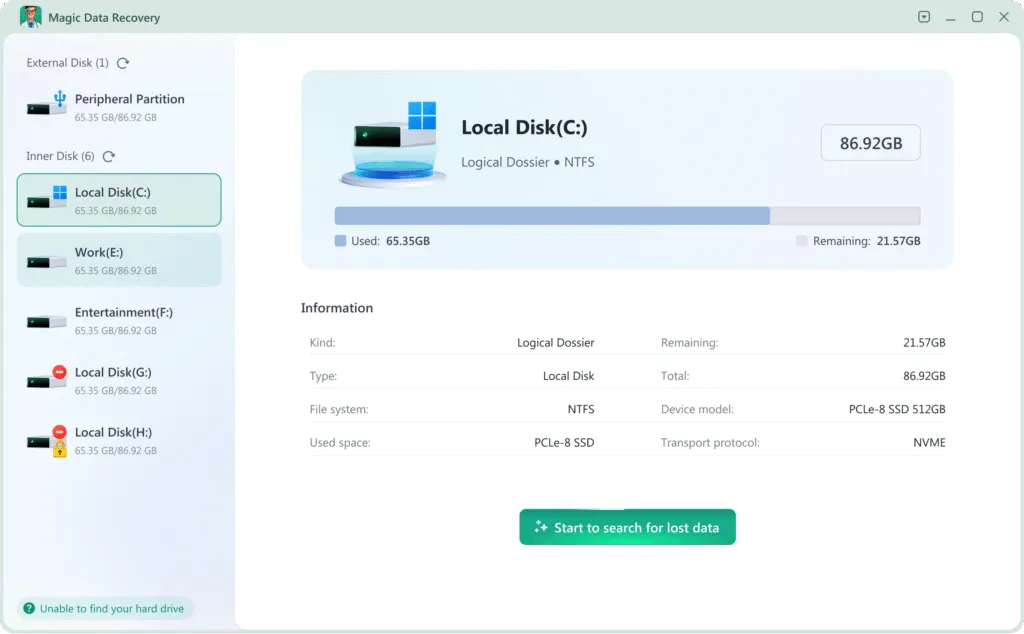
Sollten sich die Fotos nicht mehr im Papierkorb oder in den Sicherungskopien befinden, scannen Sie das ursprüngliche Speichermedium mit Magic Data Recovery. Die Software unterstützt die Wiederherstellung gelöschter Fotos von Windows-Laufwerken, externen Festplatten, USB-Sticks, SD-Karten und anderen erkennbaren Speichermedien.
Installieren Sie das Programm auf einem anderen Laufwerk als dem, auf dem sich die gelöschten Fotos befinden. Eine Installation auf dem betroffenen Laufwerk könnte wiederherstellbare Daten überschreiben.
Wenn Sie diese Schritte befolgen, haben Sie die besten Chancen gelöschte Fotos wiederherstellen mit Magic Data Recovery:
1. Sicheres Herunterladen und Installieren: Herunterladen und installieren Magic Data Recovery in einem unterschiedlicher Antrieb als die, von der Sie wiederherstellen. Dadurch wird verhindert, dass verlorene Dateien überschrieben werden.
Unterstützt Windows 7/8/10/11 und Windows Server


Methode 5: Kontaktieren Sie einen professionellen Wiederherstellungsdienst
Verwenden Sie die Software nicht weiter und wenden Sie sich an einen professionellen Datenrettungsdienst, wenn das Speichermedium Klick- oder Schleifgeräusche von sich gibt, wiederholt die Verbindung unterbricht, im BIOS oder in der Datenträgerverwaltung nicht erkannt wird oder durch Wasser, Feuer oder Stöße beschädigt wurde. Das wiederholte Einschalten eines physisch beschädigten Geräts kann die Chancen auf eine erfolgreiche Datenrettung verringern.
Abschließende Überlegungen
Gelöschte Fotos lassen sich oft wiederherstellen, doch die richtige Vorgehensweise hängt davon ab, wo die Fotos gespeichert waren und wie sie verloren gegangen sind. Beginnen Sie mit dem Papierkorb, dem Cloud-Papierkorb, der Dateiversionsgeschichte und vorhandenen Sicherungskopien. Sollten diese Optionen fehlschlagen, scannen Sie das ursprüngliche Gerät, bevor neue Daten die gelöschten Fotos überschreiben.
Magic Data Recovery kann Windows-Laufwerke, SD-Karten, USB-Geräte und externe Speichermedien nach gelöschten und verlorenen Bildern durchsuchen. Sehen Sie sich die wiederherstellbaren Fotos zunächst in der Vorschau an und speichern Sie die ausgewählten Dateien auf einem anderen Laufwerk.
Weitere Szenarien zum Verlust von Fotos sowie Anleitungen zur Wiederherstellung finden Sie auf unserer Foto-Wiederherstellung Seite.
Unterstützt Windows 7/8/10/11 und Windows Server
FAQs
Können dauerhaft gelöschte Fotos wiederhergestellt werden?
Kann ich vor Monaten gelöschte Fotos wiederherstellen?
Wie kann ich gelöschte Fotos ohne Software wiederherstellen?
Können gelöschte Fotos von einer SD-Karte wiederhergestellt werden?
Können Fotos nach dem Formatieren einer SD-Karte wiederhergestellt werden?
Warum sind manche wiederhergestellte Fotos beschädigt?
Können gelöschte Fotos von einer SSD wiederhergestellt werden?
Wo soll ich die wiederhergestellten Fotos speichern?

Erin Smith gilt als eine der professionellsten Autorinnen bei Amagicsoft. In den letzten 10 Jahren hat sie ihre schriftstellerischen Fähigkeiten kontinuierlich verfeinert und Millionen von Lesern bei der Lösung ihrer technischen Probleme geholfen.