
Anleitung zur Wiederherstellung von Dateien mit TestDisk
Wenn Sie auf der Suche nach Mit TestDisk Dateien wiederherstellen, haben Sie wahrscheinlich wichtige Dokumente gelöscht, Fotos verloren oder ein Laufwerk geöffnet, auf dem die benötigten Dateien nicht mehr angezeigt werden. TestDisk kann in manchen Fällen Abhilfe schaffen, insbesondere wenn das Dateisystem noch wiederherstellbare gelöschte Einträge enthält. Für normale Windows-Nutzer ist dies jedoch nicht immer die einfachste oder sicherste Option.
Dieser Leitfaden erklärt, wie TestDisk stellt Dateien wieder her wie es funktioniert, wann PhotoRec zum Einsatz kommt und was Sie tun sollten, bevor Sie ein Wiederherstellungsprogramm starten. Für einen umfassenderen Wiederherstellung gelöschter Dateien Lösungen finden Sie auch auf der Website von Amagicsoft Wiederherstellung gelöschter Dateien Zentrale für entsprechende Wiederherstellungsanleitungen.
Außerdem erfahren Sie, wann ein grafisches Tool wie Magic Data Recovery Das ist sinnvoller, insbesondere wenn Sie gelöschte, formatierte oder unzugängliche Dateien wiederherstellen müssen, ohne dabei eine textbasierte Benutzeroberfläche nutzen zu müssen.
Unterstützt Windows 7/8/10/11 und Windows Server
Inhaltsübersicht
Was bedeutet “TestDisk-Dateien wiederherstellen” eigentlich?
Die Phrase TestDisk stellt Dateien wieder her bezieht sich in der Regel auf zwei verschiedene Wiederherstellungsvorgänge.
Erstens, TestDisk kann gelöschte Dateien aus bestimmten Dateisystemen wiederherstellen, wie zum Beispiel NTFS, FAT, exFAT, sowie ext2. Diese Methode funktioniert am besten, wenn die Datensätze der gelöschten Dateien noch vorhanden sind und der ursprüngliche Dateiinhalt nicht durch neue Daten überschrieben wurde.
Zweitens nutzen viele Menschen TestDisk zur Wiederherstellung von Partitionen. In diesem Fall sucht TestDisk nicht einfach nach einzelnen gelöschten Dateien. Stattdessen sucht es nach verlorenen Partitionen, beschädigten Bootsektoren oder fehlerhaften Partitionstabellen. Sobald der Zugriff auf eine Partition wiederhergestellt ist, werden Ihre Dateien möglicherweise wieder sichtbar.
Diese Unterscheidung ist wichtig. Wenn Sie gestern mehrere Dateien gelöscht haben, Dateiwiederherstellung mit TestDisk könnte helfen. Falls Ihr gesamtes Laufwerk in den RAW-Modus gewechselt ist oder eine Partition verschwunden ist, kann TestDisk möglicherweise dabei helfen, die Festplattenstruktur wiederherzustellen. Ist das Dateisystem stark beschädigt, sind PhotoRec oder ein anderes Wiederherstellungstool möglicherweise die bessere Wahl.
Bevor Sie TestDisk verwenden, sichern Sie zunächst die verlorenen Dateien
Bevor Sie es versuchen TestDisk stellt Dateien wieder her, führen Sie einige vorsichtige Schritte durch. Diese Schritte können das Ergebnis Ihrer Datenwiederherstellung verbessern und einen dauerhaften Datenverlust verhindern.
Verwenden Sie das betroffene Laufwerk ab sofort nicht mehr. Wenn Windows eine Datei löscht, markiert es den Speicherplatz oft als verfügbar, anstatt jedes Byte sofort zu löschen. Jede neue Datei, Softwareinstallation, jeder Browser-Cache oder jedes Systemupdate kann diesen verfügbaren Speicherplatz jedoch überschreiben.
Installieren Sie TestDisk oder andere Wiederherstellungssoftware keinesfalls auf demselben Laufwerk, auf dem sich die verlorenen Dateien befanden. Befanden sich die verlorenen Dateien auf Laufwerk C, installieren Sie die Wiederherstellungssoftware nach Möglichkeit auf einem anderen Computer oder einer anderen Partition.
Speichern Sie wiederhergestellte Dateien außerdem niemals wieder auf demselben Laufwerk. Verwenden Sie als Speicherort eine andere intakte Festplatte, eine externe Festplatte oder ein USB-Gerät. Diese Regel gilt für TestDisk, PhotoRec und Magic Data Recovery.
Sie sollten es außerdem vermeiden, das Laufwerk zu formatieren und CHKDSK, Partitionen neu aufzubauen oder vor der Wiederherstellung ein neues Volume zu erstellen. Diese Maßnahmen können die Dateisystemstrukturen verändern und die Chancen auf eine erfolgreiche Wiederherstellung gelöschter Dateien.
Wenn Ihr Laufwerk Klickgeräusche macht, wiederholt die Verbindung unterbricht oder nicht in der Datenträgerverwaltung angezeigt wird, sollten Sie die eigenständige Wiederherstellung abbrechen. In diesem Fall liegt möglicherweise ein physischer Defekt vor. Bei einem logischen Datenverlust auf einem erkennbaren Laufwerk können Sie mit der softwarebasierten Wiederherstellung fortfahren.
Weitere Tipps speziell für dieses Laufwerk findest du hier Wiederherstellung gelöschter Dateien auf der Festplatte Leitfaden.
So stellen Sie gelöschte Dateien mit TestDisk wieder her
Wenn Ihr Laufwerk weiterhin erkannt wird und Sie mit einem textbasierten Tool gut zurechtkommen, können Sie Folgendes versuchen: Gelöschte Dateien mit TestDisk wiederherstellen indem Sie diesen allgemeinen Arbeitsablauf befolgen.
Schritt 1: TestDisk herunterladen und ausführen
Laden Sie TestDisk von der offiziellen CGSecurity-Website herunter. Entpacken Sie das Paket und führen Sie anschließend die ausführbare Datei „TestDisk“ unter Windows als Administrator aus. Durch die Ausführung mit Administratorrechten kann das Programm ordnungsgemäß auf Festplatten und Partitionen zugreifen.
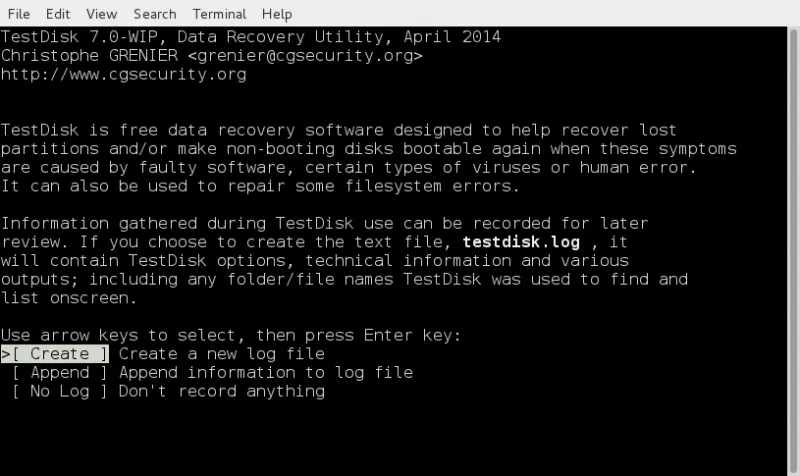
Beim Start von TestDisk werden Sie gefragt, ob eine Protokolldatei erstellt werden soll. Für eine normale Wiederherstellung können Sie “Erstellen” wählen. Das Protokoll kann Ihnen dabei helfen, nachzuvollziehen, was das Tool erkannt hat.
Schritt 2: Wählen Sie die richtige Festplatte aus
TestDisk listet physische Festplatten auf, nicht nur Laufwerksbuchstaben. Überprüfen Sie daher die Festplattengröße und das Modell sorgfältig. Wählen Sie die Festplatte aus, auf der die gelöschten Dateien ursprünglich gespeichert waren.
Dieser Schritt verdient besondere Beachtung. Wenn Sie die falsche Festplatte auswählen, verschwenden Sie möglicherweise Zeit damit, irrelevanten Speicherplatz zu scannen. Schlimmer noch: Sie könnten später Änderungen an der falschen Partition vornehmen.
Schritt 3: Wählen Sie den Partitionstabellentyp aus
TestDisk erkennt den Partitionstabellentyp in der Regel automatisch. Bei den meisten modernen Windows-Systemen wird dabei Intel/PC, EFI GPT oder eine andere relevante Struktur identifiziert. Wenn Sie die Optionen nicht verstehen, sollten Sie keine Änderungen an den erweiterten Partitionseinstellungen vornehmen.
Für einfache TestDisk stellt Dateien wieder her Bei diesen Aufgaben benötigen Sie häufig eher das Menü “Erweitert” als die tiefergehenden Optionen zur Partitionsreparatur.
Schritt 4: Öffnen Sie die Wiederherstellungsfunktion
Wählen Sie die betroffene Partition aus und wählen Sie anschließend die Option „Dateien wiederherstellen“. TestDisk durchsucht das Dateisystem und zeigt gelöschte Einträge an, sofern es diese noch finden kann.
Auf unterstützten Dateisystemen werden gelöschte Dateien möglicherweise rot angezeigt. Durchsuchen Sie die Liste und suchen Sie die gewünschten Dateien oder Ordner. Sie können einzelne Dateien oder mehrere Elemente auswählen.
Schritt 5: Dateien auf ein anderes Laufwerk kopieren
Kopieren Sie die ausgewählten Dateien an einen anderen Speicherort. Wählen Sie nicht die ursprüngliche Partition als Speicherort für die Wiederherstellung aus.
Dieser letzte Schritt ist unerlässlich. Wenn Sie die wiederhergestellten Dateien zurück auf das Laufwerk kopieren, von dem die beschädigten oder gelöschten Dateien stammen, überschreiben Sie möglicherweise andere Dateien, die noch wiederherstellbar sind.
Wenn TestDisk die Dateien nicht finden kann
Manchmal TestDisk stellt Dateien wieder her zeigt nicht die Dateien an, die Sie erwarten. Dies kann verschiedene Ursachen haben.
Die gelöschten Einträge wurden möglicherweise bereits überschrieben. Das Dateisystem unterstützt die Funktion von TestDisk zur direkten Wiederherstellung möglicherweise nicht. Die Partition wurde möglicherweise formatiert. In anderen Fällen liegt möglicherweise eine Beschädigung des Dateisystems vor, die TestDisk daran hindert, die alte Verzeichnisstruktur zu lesen.
In diesem Fall kann PhotoRec Abhilfe schaffen. PhotoRec ist nicht so stark auf die ursprünglichen Dateisystemdatensätze angewiesen. Stattdessen durchsucht es den Rohspeicher nach bekannten Dateisignaturen. Mit diesem Ansatz lassen sich Fotos, Dokumente, Videos, Archive und andere Dateitypen auch dann wiederherstellen, wenn das Dateisystem beschädigt ist.
PhotoRec weist jedoch eine wichtige Einschränkung auf. Oftmals kann das Programm die ursprünglichen Dateinamen oder Ordnerpfade nicht wiederherstellen. Daher erhalten Sie möglicherweise viele wiederhergestellte Dateien mit allgemeinen Namen. Das Sortieren dieser Dateien kann einige Zeit in Anspruch nehmen.
Daher ist PhotoRec nützlich, wenn Sie lediglich den Inhalt der Datei benötigen. Wenn Sie eine übersichtlichere Wiederherstellungsstruktur, Vorschauen, Filter und einen einfacheren Arbeitsablauf wünschen, ist ein GUI-basiertes Wiederherstellungsprogramm möglicherweise besser geeignet.
TestDisk vs. Magic Data Recovery: Welches Programm sollten Sie verwenden?
TestDisk ist nach wie vor ein geschätztes kostenloses Dienstprogramm, insbesondere für technisch versierte Nutzer. Dennoch suchen viele Nutzer nach Mit TestDisk Dateien wiederherstellen Sie möchten eigentlich keinen Wiederherstellungsprozess über die Befehlszeile. Sie möchten eine übersichtliche Möglichkeit, ein Laufwerk zu scannen, eine Vorschau der Dateien anzuzeigen und nur das wiederherzustellen, was wichtig ist.
Das ist der Punkt, an dem Magic Data Recovery kann praktischer sein.
Merkmal | TestDisk | Magic Data Recovery |
Am besten für | Erweiterte Partitionsreparatur und Wiederherstellung gelöschter Dateien unter unterstützten Dateisystemen | Wiederherstellung gelöschter, formatierter, beschädigter, RAW-Dateien sowie bei Dateisystemfehlern |
Schnittstelle | Textbasierte Benutzeroberfläche | Grafische Benutzeroberfläche |
Kenntnisstand des Benutzers | Besser für technisch versierte Nutzer | Geeignet für normale Windows-Benutzer |
Dateivorschau | Begrenzt | Vorschau vor der Wiederherstellung |
Filtern | Begrenzt | Nach Name, Typ, Größe und Datum suchen und filtern |
Wiederherstellungsablauf | Anleitungen und technische Informationen | Laufwerk auswählen, scannen, Vorschau anzeigen, wiederherstellen |
Risiko einer Fehlbedienung | Für Anfänger schwieriger | Geringer, da der Arbeitsablauf gesteuert wird |
Idealszenario | Verlorene Partition, Problem mit dem Bootsektor, erweiterte Reparatur | Tägliche Datenwiederherstellung von Festplatten, SSDs, USB-Sticks, SD-Karten und externen Laufwerken |
Kurz gesagt: TestDisk kann hervorragend sein, wenn man weiß, was man tut. Magic Data Recovery bietet jedoch eine benutzerfreundlichere Lösung, wenn man eine schnelle, visuelle und sicherere Wiederherstellung bei typischen Datenverlustszenarien benötigt.
Warum Magic Data Recovery eine praktische Alternative zu TestDisk ist
Eine gute Alternative zu TestDisk Es sollte nicht nur Dateien wiederherstellen, sondern auch Fehler bei der Wiederherstellung reduzieren. Magic Data Recovery konzentriert sich auf diesen praktischen Bedarf.
Es hilft bei der Lösung mehrerer häufig auftretender Probleme:
- Mit Umschalt + Entf gelöschte Dateien
- Dateien, die nach dem Leeren des Papierkorbs gelöscht wurden
- Datenverlust auf formatierten Laufwerken
- Fehlende Dateien auf RAW-Partitionen oder beschädigten Partitionen
- Verlorene Fotos und Videos von USB-Sticks oder SD-Karten
- Durch Dateisystemfehler verlorene Dokumente
- Datenverlust nach versehentlicher Bedienung oder durch Virenbefall
Der größte Vorteil ist der geführte Arbeitsablauf. Sie wählen das betroffene Gerät aus, starten einen Scan, zeigen eine Vorschau der wiederherstellbaren Dateien an und speichern diese an einem anderen sicheren Speicherort. Dieser Ansatz eignet sich besser für Benutzer, die keine Partitionstabellen auswerten oder sich nicht in einer textbasierten Benutzeroberfläche zurechtfinden möchten.
Magic Data Recovery unterstützt zudem gängige Wiederherstellungsziele wie Dokumente, Fotos, Videos, Audiodateien, Archive und vieles mehr. Wenn Sie beispielsweise einen Arbeitsordner von einer externen Festplatte gelöscht haben, können Sie das Laufwerk scannen, nach Dokumenttyp filtern, eine Vorschau der Dateien anzeigen und nur die benötigten Elemente wiederherstellen.
Im Vergleich zu TestDisk liegt der größte Unterschied in der Bedienbarkeit. TestDisk bietet technisch versierten Anwendern leistungsstarke Low-Level-Optionen. Magic Data Recovery bietet normalen Anwendern einen übersichtlicheren Wiederherstellungsprozess auf Dateiebene. Daher ist es oft die bessere Wahl, wenn es vorrangig darum geht, wichtige Dateien sicher wiederherzustellen, anstatt Festplattenstrukturen manuell zu reparieren.
Wie man Dateien mit Magic Data Recovery wiederherstellt
Wenn TestDisk stellt Dateien wieder her Wenn Ihnen das zu kompliziert erscheint, können Sie stattdessen Magic Data Recovery verwenden. Das Verfahren ist ganz einfach.
Schritt 1: Installieren Sie die Software auf einem sicheren Laufwerk
Herunterladen und installieren Magic Data Recovery. Installieren Sie das Programm nicht auf dem Laufwerk, auf dem sich Ihre verlorenen Dateien befinden. Wenn sich die verlorenen Dateien auf Laufwerk C befanden, verwenden Sie nach Möglichkeit eine andere Partition oder einen anderen Computer.
Unterstützt Windows 7/8/10/11 und Windows Server
Schritt 2: Wählen Sie das betreffende Laufwerk aus
Öffnen Sie das Programm und wählen Sie das Laufwerk, die Partition, den USB-Stick, die SD-Karte oder die externe Festplatte aus, auf der die Dateien verloren gegangen sind.

Schritt 3: Starten Sie den Scan
Führen Sie einen Scan durch, um nach gelöschten, verlorenen, formatierten oder nicht mehr zugänglichen Dateien zu suchen. Lassen Sie das betroffene Laufwerk während des Scans angeschlossen und vermeiden Sie es, es für andere Aufgaben zu verwenden.

Schritt 4: Vorschau und Filterung der Ergebnisse
Durchsuchen Sie nach dem Scanvorgang die wiederherstellbaren Dateien. Nutzen Sie Filter nach Dateityp, Dateiname, Größe oder Datum, um wichtige Daten schneller zu finden. Durch die Vorschau der Dateien vor der Wiederherstellung können Sie vermeiden, dass Sie nutzlose oder beschädigte Dateien wiederherstellen.

Schritt 5: Dateien an einem anderen Ort wiederherstellen
Wählen Sie die benötigten Dateien aus und speichern Sie sie auf einem anderen intakten Laufwerk. So verhindern Sie, dass andere wiederherstellbare Daten überschrieben werden.

Ausführliche Anleitungen zu den einzelnen Produkten finden Sie auch unter Magic Data Recovery Benutzerhandbuch.
Häufige Fehler, die den Erfolg der Dateiwiederherstellung verringern
Viele Fehler bei der Wiederherstellung entstehen dadurch, dass Benutzer zu voreilig handeln. Wenn Sie versuchen, TestDisk stellt Dateien wieder her oder bei jeder anderen Wiederherstellungsmethode sollten Sie diese Fehler vermeiden.
Verwenden Sie das betroffene Laufwerk nicht weiter. Selbst kleine Schreibvorgänge im Hintergrund können gelöschte Daten überschreiben. Laden Sie keine Wiederherstellungssoftware auf dieselbe Partition herunter. Speichern Sie wiederhergestellte Dateien nicht auf der Quellfestplatte.
Formatieren Sie das Laufwerk außerdem nicht, nur weil Windows Sie dazu auffordert. Wenn ein USB-Stick oder eine SD-Karte den Status „RAW“ annimmt, kann eine Formatierung das Gerät zwar wieder nutzbar machen, jedoch auch wiederherstellbare Dateisätze beschädigen.
Sie sollten es außerdem vermeiden, vor der Wiederherstellung willkürlich Reparaturprogramme auszuführen. Ein Reparaturprogramm kann die Metadaten des Dateisystems verändern. Stellen Sie zunächst die Dateien wieder her und reparieren Sie das Gerät erst danach.
Falls Ihre Dateien aus dem Papierkorb gelöscht wurden, bedeutet dies, dass Gelöschte Dateien aus dem Papierkorb wiederherstellen Dieser Leitfaden kann Ihnen dabei helfen, einen sichereren ersten Schritt zu wählen.
Für umfassendere Softwarevergleiche können Sie sich auch die Beiträge von Amagicsoft ansehen Die beste kostenlose Software zur Datenwiederherstellung Leitfaden.
Optimaler Arbeitsablauf: Zuerst TestDisk oder zuerst Magic Data Recovery?
Welches Werkzeug am besten geeignet ist, hängt von der jeweiligen Situation ab.
Verwenden Sie zunächst TestDisk, wenn Sie sich mit Festplattenstrukturen auskennen, die Partition fehlt oder Sie einen Bootsektor oder eine Partitionstabelle reparieren müssen. TestDisk bietet fortgeschrittenen Benutzern in diesen Fällen umfassende Kontrollmöglichkeiten.
Verwenden Sie Magic Data Recovery Erstens, wenn Sie hauptsächlich gelöschte Dateien, formatierte Daten oder Dateien von einem beschädigten, aber noch erkennbaren Laufwerk wiederherstellen möchten. Dank der Vorschaufunktion und der Filteroptionen lässt sich der Wiederherstellungsprozess leichter überprüfen.
Verwenden Sie PhotoRec, wenn TestDisk keine Dateien finden kann und Sie damit einverstanden sind, dass die ursprünglichen Dateinamen und Ordner möglicherweise nicht wiederhergestellt werden können.
Am wichtigsten ist es, wichtige Dateien zu sichern, bevor Sie Reparaturen an der Festplatte vornehmen. Sobald Ihre Daten in Sicherheit sind, können Sie das Gerät formatieren, Partitionen neu anlegen oder weitere Reparaturen mit geringerem Risiko versuchen.
Fazit: Ist „TestDisk Recover Files“ die beste Option?
TestDisk stellt Dateien wieder her ist eine nützliche Lösung, wenn Sie den Arbeitsablauf verstehen und Ihr Dateisystem noch wiederherstellbare gelöschte Einträge enthält. Sie ist besonders wertvoll für technisch versierte Anwender, die eine Partitionswiederherstellung, eine Reparatur des Bootsektors oder eine Low-Level-Festplattenanalyse benötigen.
Allerdings ist TestDisk nicht immer die beste Wahl für normale Nutzer. Die textbasierte Benutzeroberfläche, die eingeschränkten Vorschaufunktionen und die technischen Schritte können die Wiederherstellung zu einer stressigen Angelegenheit machen. Wenn Sie gelöschte, formatierte oder unzugängliche Dateien mit einem übersichtlicheren Verfahren wiederherstellen möchten, Magic Data Recovery ist eine praktischere Lösung.
Es bietet einen geführten Scanvorgang, eine Dateivorschau, Filter sowie Unterstützung für gängige Speichermedien wie Festplatten, SSDs, USB-Sticks, SD-Karten und externe Festplatten. Wenn Sie nach einer sichereren und effizienteren Methode für den Umgang mit alltäglichen Wiederherstellung gelöschter Dateien, besuchen Sie die Wiederherstellung gelöschter Dateien Hub oder versuchen Sie es mit Magic Data Recovery, bevor die verlorenen Daten überschrieben werden.
Unterstützt Windows 7/8/10/11 und Windows Server
Häufig gestellte Fragen zu TestDisk – Dateien wiederherstellen
Kann TestDisk gelöschte Dateien wiederherstellen?
Ja, TestDisk kann gelöschte Dateien von unterstützten Dateisystemen wie NTFS, FAT, exFAT und ext2 wiederherstellen, sofern die Dateieinträge und Daten noch vorhanden sind. Allerdings, TestDisk stellt Dateien wieder her funktioniert nicht in jedem Fall gleich gut. Wenn das Dateisystem beschädigt, formatiert oder überschrieben wurde, benötigen Sie möglicherweise PhotoRec oder Magic Data Recovery.
Ist TestDisk für die Dateiwiederherstellung sicher?
TestDisk ist sicher, wenn Sie es vorsichtig einsetzen und vermeiden, Änderungen auf die falsche Festplatte zu schreiben. Am sichersten ist es, die wiederhergestellten Dateien auf ein anderes Laufwerk zu kopieren und von einer Partitionsreparatur abzusehen, bis Ihre Daten sicher sind. Anfänger sollten vorsichtig sein, da TestDisk fortgeschrittene Festplattenoptionen enthält, die für technisch weniger versierte Nutzer verwirrend sein können.
Warum kann TestDisk meine gelöschten Dateien nicht finden?
TestDisk kann gelöschte Dateien möglicherweise nicht finden, wenn die ursprünglichen Dateisätze nicht mehr vorhanden sind, der Speicherplatz durch neue Daten überschrieben wurde oder das Dateisystem für eine direkte Wiederherstellung nicht unterstützt wird. In diesen Fällen kann PhotoRec Dateien anhand ihrer Signatur wiederherstellen, während Magic Data Recovery einen übersichtlicheren Scan- und Vorschau-Workflow bietet.
Was ist der Unterschied zwischen TestDisk und PhotoRec?
TestDisk konzentriert sich auf die Wiederherstellung von Partitionen, die Reparatur von Bootsektoren und die Wiederherstellung gelöschter Dateien aus unterstützten Dateisystemen. PhotoRec konzentriert sich auf das „File Carving“, d. h., es durchsucht den Rohspeicher nach Dateisignaturen. PhotoRec kann unter Umständen Dateien wiederherstellen, die TestDisk nicht wiederherstellen kann, verliert dabei jedoch häufig die ursprünglichen Dateinamen und die Ordnerstruktur.
Behält TestDisk die ursprünglichen Dateinamen bei?
TestDisk behält möglicherweise die ursprünglichen Dateinamen bei, wenn es gelöschte Dateien über die gelöschten Einträge des Dateisystems wiederherstellt. Dies hängt jedoch vom Zustand des Dateisystems ab und davon, ob die Metadaten intakt geblieben sind. Wenn Sie stattdessen PhotoRec verwenden, erhalten die wiederhergestellten Dateien oft generische Namen, da PhotoRec den Dateiinhalt und nicht die ursprüngliche Verzeichnisstruktur wiederherstellt.
Ist Magic Data Recovery eine gute Alternative zu TestDisk?
Ja, Magic Data Recovery ist ein gutes Alternative zu TestDisk für Nutzer, die eine grafische Benutzeroberfläche und einen geführten Arbeitsablauf bevorzugen. Das Programm unterstützt gelöschte Dateien, formatierte Laufwerke, Dateisystemfehler und gängige Speichergeräte. Dank der Vorschau- und Filteroptionen können Nutzer zudem vor dem Speichern an einem anderen Speicherort überprüfen, welche Dateien wiederherstellbar sind.
Wo sollte ich wiederhergestellte Dateien speichern?
Speichern Sie wiederhergestellte Dateien stets auf einem anderen intakten Laufwerk und nicht am ursprünglichen Speicherort. Diese Regel gilt für TestDisk, PhotoRec, Magic Data Recovery und andere Wiederherstellungstools. Wenn Sie Dateien wieder auf demselben Laufwerk speichern, können dadurch andere wiederherstellbare Daten überschrieben werden, was Ihre Chancen verringert, später weitere verlorene Dateien wiederherzustellen.
Kann ich mit TestDisk Dateien nach einer Formatierung wiederherstellen?
TestDisk kann helfen, wenn durch das Formatieren Partitionsinformationen beschädigt oder gelöscht wurden, die eigentlichen Dateidaten jedoch nicht überschrieben wurden. Die direkte Wiederherstellung gelöschter Dateien wird nach einer Formatierung jedoch schwieriger. Bei formatierten Laufwerken bietet Magic Data Recovery oft einen einfacheren Arbeitsablauf, da es das Laufwerk scannt, wiederherstellbare Dateien auflistet, eine Vorschau ermöglicht und ausgewählte Dateien sicher speichert.

Jason ist ein Spezialist für Datenwiederherstellung und technischen Support mit über 15 Jahren praktischer Erfahrung. Er hat intensiv mit Endnutzern zusammengearbeitet, schwierige Fälle von Datenverlust behoben und praktische Lösungen für versehentlich gelöschte Daten, formatierte Laufwerke, beschädigte Dateisysteme, verlorene Partitionen, Systemausfälle und andere Notfälle im Bereich der Datenwiederherstellung bereitgestellt. Zu seinen Fachgebieten gehören außerdem Datensicherung und -wiederherstellung, Dateireparatur sowie Notfallwiederherstellung, wobei er besonderen Wert auf eine sichere, zuverlässige und technisch korrekte Beratung legt.