
Dateien sind vom Desktop unter Windows 7 verschwunden
Wenn Ihr Dateien sind vom Desktop unter Windows 7 verschwunden, gehen Sie nicht davon aus, dass sie endgültig verloren sind. Windows 7 kann Desktop-Symbole ausblenden, ein anderes Benutzerprofil laden, Dateien verschieben oder gelöschte Elemente in den Papierkorb verschieben. In anderen Fällen sind die Dateien möglicherweise tatsächlich gelöscht. Daher hilft Ihnen diese Anleitung dabei, die Ursache zu ermitteln, zunächst sichere Windows-Lösungen auszuprobieren und ein spezielles Wiederherstellung gelöschter Dateien Werkzeug wie Magic Data Recovery nur wenn die integrierten Optionen die fehlenden Daten nicht wiederherstellen können.
Das ist wichtig: Wenn Sie einen tatsächlichen Datenverlust vermuten, speichern Sie keine neuen Dateien mehr auf dem betroffenen Laufwerk. Neue Schreibvorgänge können gelöschte Daten überschreiben und die Chancen auf eine Wiederherstellung verringern.
Unterstützt Windows 7/8/10/11 und Windows Server
Inhaltsübersicht
Warum sind Dateien vom Desktop unter Windows 7 verschwunden?
Wenn Dateien sind vom Desktop unter Windows 7 verschwunden, eine Deletion ist nur eine mögliche Ursache. Vergleichen Sie zunächst Ihre Symptome mit der wahrscheinlichsten Erklärung.
Was Sie sehen | Wahrscheinliche Ursache | Beste erste Maßnahme |
Alle Desktop-Elemente verschwinden | Die Desktop-Symbole sind ausgeblendet | Desktop-Symbole anzeigen |
Einige Dateien fehlen | Versteckte Attribute oder Löschung | Versteckte Dateien anzeigen |
Hintergrundbild oder Einstellungen geändert | Abweichendes oder vorübergehendes Profil | Überprüfe C:\Users |
Die Suche findet die Dateien weiterhin | Die Dateien wurden verschoben | Standort anzeigen |
Dateien werden im Papierkorb angezeigt | Versehentliche Löschung | Stelle sie wieder her |
Es ist ein Backup vorhanden | Frühere Versionen oder Windows-Sicherung | Sicherung wiederherstellen |
Die Dateien sind nirgends zu finden | Mögliche Löschung | Scannen mit Magic Data Recovery |
Beginnen Sie daher mit der am wenigsten eingreifenden Lösung. Bei einem Problem mit der Anzeige oder dem Profil reicht die Windows-Fehlerbehebung aus, während für eine vollständige Löschung eine Wiederherstellungslösung erforderlich ist.
Methode 1: Desktop-Symbole unter Windows 7 anzeigen
Wenn Dateien sind vom Desktop unter Windows 7 verschwunden Zusammen mit Verknüpfungen und Ordnern kann Windows möglicherweise einfach alle Desktop-Symbole ausblenden.
- Klicken Sie mit der rechten Maustaste auf eine freie Stelle auf dem Desktop.
- Zeige auf Siehe.
- Vergewissern Sie sich Desktop-Symbole anzeigen ist mit einem Häkchen markiert.
Wenn die Dateien wieder angezeigt werden, haben die Daten den Desktop nie verlassen. Sollten jedoch weiterhin einige Elemente fehlen, fahren Sie mit der nächsten Methode fort.
Diese Überprüfung sollte an erster Stelle stehen, da sie lediglich die Darstellung auf dem Desktop verändert und keine Auswirkungen auf gespeicherte Dateien hat.
Methode 2: Versteckte Dateien und Ordner unter Windows 7 anzeigen
Windows 7 kann einzelne Dateien mithilfe des Attributs „Versteckt“ ausblenden. Daher kann eine Datei möglicherweise weiterhin im Ordner „Desktop“ vorhanden sein, auch wenn Sie sie normalerweise nicht sehen können.
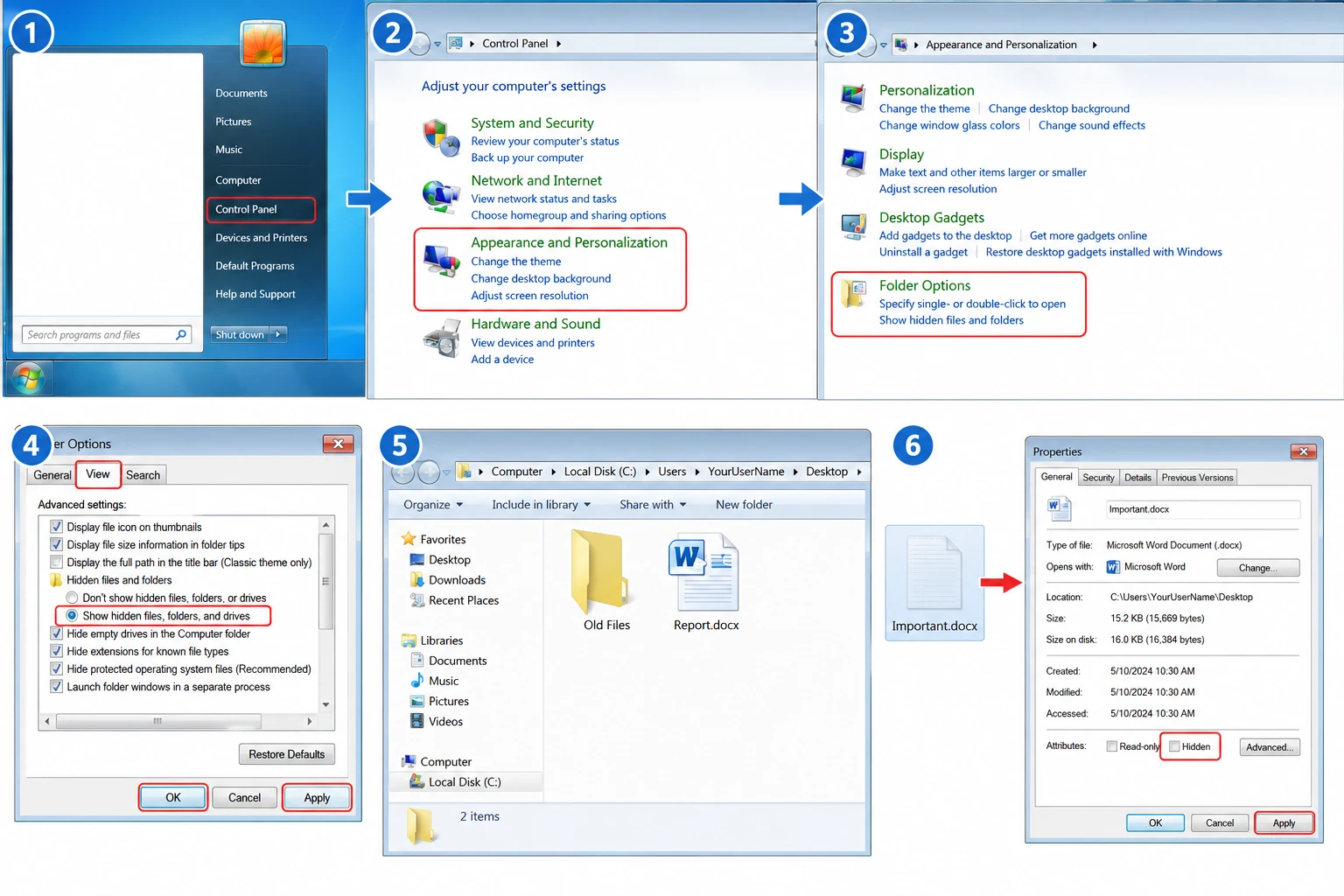
An Versteckte Dateien unter Windows 7 anzeigen:
- Klicken Sie auf Start und öffnen Bedienfeld.
- Wählen Sie Darstellung und Anpassung > Ordneroptionen.
- Öffnen Sie die Siehe tab.
- Wählen Sie Versteckte Dateien, Ordner und Laufwerke anzeigen.
- Klicken Sie auf Bewerbung und OK.
- Öffnen Sie
C:\Benutzer\IhrBenutzername\Desktop.
Wenn eine Datei verblasst erscheint, klicken Sie mit der rechten Maustaste darauf und wählen Sie Eigenschaften, klar Versteckt, und übernehmen Sie die Änderung.
Diese Methode behebt oft Dateien sind vom Desktop unter Windows 7 verschwunden wenn sich die Dateiattribute geändert haben, die eigentlichen Daten jedoch unverändert geblieben sind.
Methode 3: Ein anderes oder temporäres Benutzerprofil überprüfen
Wenn Dateien sind vom Desktop unter Windows 7 verschwunden Nach einem Neustart oder der Anmeldung hat Windows möglicherweise ein anderes Profil geladen. Bei einem temporären oder anderen Profil kann der Desktop leer sein, während Ihre ursprünglichen Daten weiterhin unter Ihrem üblichen Konto gespeichert sind.
Öffnen Sie zunächst:
Computer > Lokale Festplatte (C:) > Benutzer
Suchen Sie als Nächstes Ihren normalen Kontoordner unter:
C:\Benutzer
Öffnen Sie dann dessen Schreibtisch Ordner und suchen Sie nach den fehlenden Dateien.
Überprüfen Sie außerdem, ob sich der Hintergrund geändert hat, Personalisierungseinstellungen fehlen oder das Desktop-Layout ungewohnt aussieht. Diese Anzeichen deuten eher auf ein Problem mit dem Profil hin als auf eine dauerhafte Löschung.
Sollten Sie die Originaldateien finden, kopieren Sie wichtige Daten an einen sicheren Speicherort, bevor Sie das Profil ändern. In diesem Fall ist eine Wiederherstellungssoftware nicht erforderlich, da die Dateien noch vorhanden sind.
Methode 4: Suche nach fehlenden Desktop-Dateien unter Windows 7
Manchmal Windows 7-Desktop-Dateien fehlen weil jemand sie versehentlich verschoben hat. Durchsuche daher den Computer, bevor du sie als gelöscht betrachtest.
Öffnen Sie die Start Menü und geben Sie einen Teil des Dateinamens ein. Sie können auch nach der Dateiendung suchen:
*.docxfür Word-Dokumente*.xlsxfür Excel-Dateien*.jpgfür Fotos*.pdffür PDF-Dokumente
Wenn Windows die Datei findet, öffnen Sie den Speicherort und kopieren oder verschieben Sie sie zurück auf den Desktop.
So können beispielsweise durch versehentliches Ziehen mehrere Dateien in einen anderen Ordner verschoben werden, ohne dass sie gelöscht werden. Die Windows-Suche kann ihren neuen Speicherort oft sofort anzeigen.
Methode 5: Desktop-Dateien aus dem Papierkorb wiederherstellen
Wenn Dateien sind vom Desktop unter Windows 7 verschwunden Überprüfen Sie nach dem normalen Löschen als Nächstes den Papierkorb.
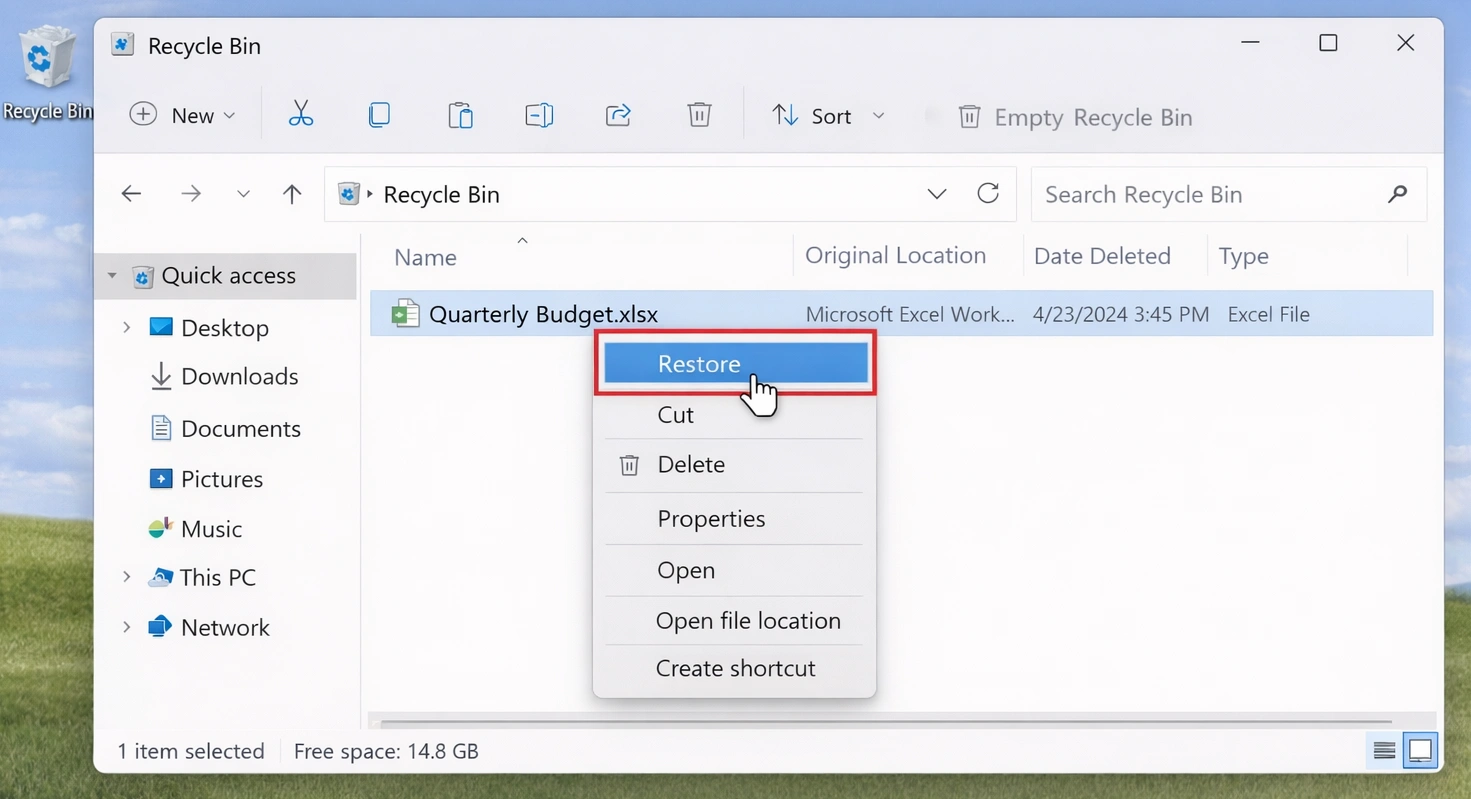
- Öffnen Sie Papierkorb.
- Suchen Sie die fehlende Datei oder den fehlenden Ordner.
- Klicken Sie mit der rechten Maustaste darauf.
- Wählen Sie Wiederherstellen.
Windows verschiebt das Element wieder an seinen ursprünglichen Speicherort.
Allerdings, Umschalttaste + Löschen umgeht den normalen Ablauf des Papierkorbs. Ebenso wird der Inhalt des Papierkorbs durch das Leeren des Papierkorbs aus dem normalen Zugriff entfernt. Wenn die fehlenden Daten dort nicht zu finden sind, überprüfen Sie die Windows-Sicherungsoptionen, bevor Sie einen Wiederherstellungsscan starten.
Methode 6: Vorherige Versionen oder Windows 7-Sicherungen wiederherstellen
Wenn Dateien sind vom Desktop unter Windows 7 verschwunden Und falls Sie zuvor ein Backup erstellt haben, verfügt Windows 7 möglicherweise bereits über eine brauchbare Kopie.
Wiederherstellen einer früheren Version
Öffnen Sie Ihren Benutzerordner und klicken Sie mit der rechten Maustaste darauf Schreibtisch, und wählen Sie Frühere Versionen wiederherstellen.
Falls Windows eine ältere Version anzeigt, öffnen Sie diese zunächst und vergewissern Sie sich, dass sie die benötigten Dateien enthält. Durch diese zusätzliche Überprüfung vermeiden Sie, dass Sie die falsche Version wiederherstellen.
„Sichern und Wiederherstellen“ verwenden
Gehen Sie zu:
Systemsteuerung > System und Sicherheit > Sichern und Wiederherstellen
Verwenden Sie anschließend die Wiederherstellungsoption, um fehlende Dateien in einer vorhandenen Sicherung zu finden.
Diese integrierten Methoden funktionieren gut, wenn bereits Wiederherstellungsdaten vorhanden sind. Sie helfen jedoch nicht weiter, wenn Windows keine geeignete frühere Version oder Sicherung hat.
Methode 7: So stellen Sie Dateien wieder her, die vom Desktop unter Windows 7 verschwunden sind
Wenn Dateien sind vom Desktop unter Windows 7 verschwunden und wenn keine der oben genannten Überprüfungen sie findet, wurden sie möglicherweise vom Laufwerk gelöscht. An dieser Stelle, Magic Data Recovery bietet eine praktische Möglichkeit, den betroffenen Speicher nach wiederherstellbaren Dateien zu durchsuchen.
Magic Data Recovery unterstützt Windows 7 und kann nach Dokumenten, Fotos, Videos, Archivdateien und vielen anderen Dateitypen suchen. Darüber hinaus helfen Ihnen die Vorschaufunktionen und Filtertools dabei, die Scan-Ergebnisse vor der Wiederherstellung zu überprüfen.
Daher eignet sich dieser Ansatz für Situationen, in denen die Der Papierkorb ist leer, Windows kann die Dateien nicht finden, und es ist kein brauchbares Backup vorhanden.
Schritt 1: Herunterladen und Installieren von Magic Data Recovery
Laden Sie zunächst Magic Data Recovery herunter. Installieren Sie das Programm nach Möglichkeit auf einem Laufwerk, auf dem sich die fehlenden Dateien nicht befinden.
Diese Vorsichtsmaßnahme reduziert unnötige Schreibvorgänge in den betroffenen Speicherbereich. Dadurch wird das Risiko verringert, dass Daten überschrieben werden, die möglicherweise noch wiederherstellbar sind.
Unterstützt Windows 7/8/10/11 und Windows Server
Schritt 2: Wählen Sie das Laufwerk aus, auf dem die Desktop-Dateien verloren gegangen sind
Starten Sie anschließend Magic Data Recovery. Wählen Sie auf der Hauptoberfläche das Laufwerk aus, auf dem zuvor Ihre Windows 7-Desktop-Dateien gespeichert waren. Bei den meisten Windows 7-Installationen befindet sich der Ordner „Desktop“ auf dem Systemlaufwerk. Wählen Sie das betreffende Laufwerk aus und starten Sie den Scanvorgang.

Schritt 3: Nach fehlenden oder gelöschten Desktop-Dateien suchen
Die Software durchsucht anschließend das ausgewählte Laufwerk nach verlorenen und gelöschten Dateien. Dabei werden die gefundenen Elemente im Verlauf des Scanvorgangs angezeigt.
Sie können die Ergebnisse bereits während des Scanvorgangs einsehen. Wenn Sie den Vorgang jedoch bis zum Ende laufen lassen, kann die Software möglicherweise weitere wiederherstellbare Daten finden.

Schritt 4: Vorschau der Dateien vor der Wiederherstellung
Nachdem der Scan mögliche Übereinstimmungen gefunden hat, verwenden Sie Vorschau um deren Inhalt zu überprüfen.
Außerdem können Sie die Ergebnisse nach Dateiname, Dateityp oder mithilfe der verfügbaren Filter eingrenzen. Dieser Schritt hilft Ihnen dabei, vor der Wiederherstellung die richtigen Dokumente, Fotos, Videos oder andere Dateien auf Ihrem Desktop auszuwählen.

Schritt 5: Dateien an einem sicheren Ort wiederherstellen
Wählen Sie abschließend die gewünschten Dateien aus und starten Sie die Wiederherstellung. Speichern Sie die wiederhergestellten Daten auf einem anderen Laufwerk oder Speichermedium als dem betroffenen Laufwerk. Dadurch verringern Sie das Risiko, andere gelöschte Dateien zu überschreiben, die möglicherweise noch wiederherstellbar sind.

Öffnen Sie anschließend mehrere wiederhergestellte Dateien und vergewissern Sie sich, dass sie einwandfrei funktionieren, bevor Sie sie zurück auf den Windows 7-Desktop kopieren.
Warum sollte man Magic Data Recovery für fehlende Windows 7-Desktop-Dateien verwenden?
Magic Data Recovery behebt ein Problem, das sich weder über die Desktop-Einstellungen noch über den Papierkorb noch über die Windows-Sicherungstools lösen lässt: gelöschte Dateien, für die keine brauchbare Sicherung vorhanden ist.
Nehmen wir zum Beispiel an, Sie löschen einen Projektordner aus Ihrem Windows 7 Desktop und höher den Papierkorb leeren. Das Anzeigen versteckter Dateien kann den gelöschten Ordner nicht wiederherstellen. Ebenso kann die Funktion „Sichern und Wiederherstellen“ nicht helfen, wenn Sie nie eine Sicherung erstellt haben.
In dieser Situation lässt sich das Problem direkt durch eine Überprüfung des betroffenen Speichermediums beheben.
Darüber hinaus bietet Magic Data Recovery einen unkomplizierten Arbeitsablauf für das Scannen, die Vorschau und die Wiederherstellung. Dank der Unterstützung von Windows 7 eignet sich das Programm auch für Nutzer, die Windows 7 Datenwiederherstellungssoftware anstatt einer Lösung, die auf neuere Windows-Versionen beschränkt ist.
Dennoch kann kein Wiederherstellungsprogramm den Erfolg garantieren. Gelöschte Daten können unwiederherstellbar werden, wenn sie durch neue Informationen überschrieben werden. Unterlassen Sie daher jegliche unnötigen Aktivitäten auf dem betroffenen Laufwerk, sobald Sie einen Datenverlust bemerken.
Methode 8: Auf Malware oder Probleme mit dem Dateisystem prüfen
Wenn Dateien sind vom Desktop unter Windows 7 verschwunden Überprüfen Sie das zugrunde liegende System mehrmals, nachdem Sie wichtige Daten gesichert haben.
Führen Sie zunächst einen Sicherheitsscan mit einer bewährten Software durch. Achten Sie anschließend auf Warnzeichen wie beispielsweise:
- Wiederholte Lesefehler
- Unerwartete Unterbrechung der Laufwerksverbindung
- Starke Verlangsamungen
- Ungewöhnliche mechanische Geräusche
- Wiederkehrende Probleme mit fehlenden Dateien
Sollte das Laufwerk instabil erscheinen, sollten Sie wiederholte Reparaturversuche vermeiden.
Tools zur Reparatur des Dateisystems können die Festplattenstrukturen verändern. Stellen Sie daher nach Möglichkeit zunächst wertvolle Dateien wieder her. Führen Sie anschließend die Fehlerbehebung für Windows oder das betroffene Laufwerk durch.
Welche Lösung eignet sich am besten, wenn Dateien auf dem Desktop unter Windows 7 verschwunden sind?
Für Dateien sind vom Desktop unter Windows 7 verschwunden, halte dich an folgende Reihenfolge:
- Desktop-Symbole anzeigen.
- Versteckte Dateien und Ordner anzeigen.
- Überprüfen Sie den Ordner „C:\Users“ auf ein weiteres Benutzerprofil.
- In Windows nach verschobenen Dateien suchen.
- Überprüfen Sie den Papierkorb.
- Probieren Sie „Vorherige Versionen“ oder „Sichern und Wiederherstellen“ aus.
- Verwenden Sie Magic Data Recovery, wenn die Befunde auf eine Deletion hindeuten.
- Untersuchen Sie Malware- oder Festplattenprobleme, nachdem Sie wichtige Daten gesichert haben.
Diese Vorgehensweise beginnt mit schnellen, risikoarmen Überprüfungen. Erst wenn einfachere Erklärungen nicht mehr zutreffen, wird zur Datenwiederherstellung übergegangen.
So vermeiden Sie, Zeit mit einem Wiederherstellungsscan zu verschwenden, wenn Windows die Dateien lediglich ausgeblendet oder verschoben hat.
So verhindern Sie, dass Dateien auf dem Desktop unter Windows 7 verschwinden – Probleme
Nachdem du die Aufgabe gelöst hast Dateien sind vom Desktop unter Windows 7 verschwunden, ergreifen Sie einige Maßnahmen, um das Risiko eines weiteren Vorfalls zu verringern.
Erstens: Bewahren Sie mindestens eine Sicherungskopie auf einem separaten Speichermedium auf. Vermeiden Sie es außerdem, den Desktop als einzigen Speicherort für wichtige Dokumente, Fotos oder Arbeitsdateien zu nutzen.
Vergewissern Sie sich außerdem, welches Windows-Konto Sie verwenden, bevor Sie große Ordner verschieben oder löschen. Sollte Windows plötzlich einen unbekannten Desktop laden, überprüfen Sie Ihr Benutzerprofil, bevor Sie neue Dateien erstellen.
Achten Sie schließlich auf Festplattenfehler, ungewöhnliche Geräusche und wiederkehrende Probleme mit dem Profil. Eine einfache Sicherungsroutine spart oft weitaus mehr Zeit als ein Wiederherstellungsprozess.
Fazit: Wiederherstellung von Dateien, die vom Desktop unter Windows 7 verschwunden sind
Wenn Dateien sind vom Desktop unter Windows 7 verschwunden, beginnen Sie mit den einfachsten Erklärungen. Überprüfen Sie die Sichtbarkeit der Desktop-Symbole, die Einstellungen für versteckte Dateien, die Benutzerprofile, die Windows-Suche, den Papierkorb und die vorhandenen Sicherungskopien, bevor Sie von einem dauerhaften Datenverlust ausgehen.
Sollten die Dateien jedoch tatsächlich gelöscht worden sein und Windows sie nicht wiederherstellen können, Magic Data Recovery ist ein sinnvoller nächster Schritt. Das Programm unterstützt Windows 7 und bietet einen direkten Arbeitsablauf für Scan, Vorschau und Wiederherstellung. Noch wichtiger ist, dass es genau jene Situation abdeckt, in der die integrierten Windows-Methoden versagen, weil keine brauchbare Kopie mehr vorhanden ist.
Kombinieren Sie daher eine sorgfältige Diagnose mit einer sicheren Wiederherstellung. Reduzieren Sie die Schreibvorgänge auf das betroffene Laufwerk und wählen Sie die Methode zur Wiederherstellung gelöschter Dateien die der tatsächlichen Ursache entspricht, und stellen Sie wichtige Dateien an einem sicheren Ort wieder her. Dieser Vorgang bietet Ihnen eine kontrollierte Möglichkeit, das Problem zu beheben Dateien sind vom Desktop unter Windows 7 verschwunden ohne sich auf Vermutungen verlassen zu müssen.
Unterstützt Windows 7/8/10/11 und Windows Server
Häufig gestellte Fragen zu Dateien, die vom Desktop verschwunden sind
Warum sind alle meine Dateien auf dem Desktop unter Windows 7 verschwunden?
Sollten Dateien auf dem Desktop unter Windows 7 verschwunden sein, prüfen Sie zunächst, ob Windows die Desktop-Symbole ausgeblendet oder ein anderes Benutzerprofil geladen hat. Sehen Sie sich außerdem den Ordner „C:\Users\IhrBenutzername\Desktop“ an, blenden Sie versteckte Dateien ein und suchen Sie nach den fehlenden Dateinamen. Sollten diese Überprüfungen erfolglos bleiben, überprüfen Sie den Papierkorb und die verfügbaren Sicherungskopien, bevor Sie einen Scan zur Datenwiederherstellung in Betracht ziehen.
Wie kann ich fehlende Desktop-Dateien unter Windows 7 wiederherstellen?
Beginnen Sie mit den sichersten Optionen. Blenden Sie die Desktop-Symbole ein, zeigen Sie versteckte Dateien an, überprüfen Sie Ihr normales Benutzerprofil und suchen Sie in Windows nach verschobenen Elementen. Stellen Sie anschließend die Dateien aus dem Papierkorb oder einer vorhandenen Sicherung wieder her. Wenn Dateien unter Windows 7 aufgrund einer endgültigen Löschung vom Desktop verschwunden sind, setzen Sie eine Wiederherstellungssoftware ein, bevor sie durch neue Daten überschrieben werden.
Warum sind meine Desktop-Dateien nach dem Neustart von Windows 7 verschwunden?
Ein Neustart kann ein Problem mit dem Benutzerprofil aufdecken. Beispielsweise kann Windows ein temporäres oder anderes Profil laden, wodurch ein unbekannter oder fast leerer Desktop angezeigt wird. Suchen Sie unter „C:\Users“ nach dem Ordner Ihres normalen Kontos und öffnen Sie dessen Verzeichnis „Desktop“. Wenn die ursprünglichen Dateien dort noch vorhanden sind, sichern Sie diese zunächst und beheben Sie dann das Problem mit dem Profil.
Kann ein temporäres Profil dazu führen, dass Dateien auf dem Windows 7-Desktop als fehlend angezeigt werden?
Ja. Ein temporäres Profil kann einen anderen Desktop, andere Einstellungen und andere persönliche Ordner anzeigen, sodass Ihre üblichen Dateien scheinbar verschwunden sind. Die Daten befinden sich jedoch möglicherweise weiterhin in Ihrem ursprünglichen Ordner unter „C:\Users“. Bevor Sie eine Wiederherstellungssoftware verwenden, sollten Sie das ursprüngliche Desktop-Verzeichnis überprüfen und wichtige Dateien, falls Sie diese finden, an einen sicheren Speicherort kopieren.
Wie kann ich versteckte Dateien auf dem Desktop unter Windows 7 anzeigen?
Öffnen Sie die Systemsteuerung, wählen Sie „Darstellung und Anpassung“ > „Ordneroptionen“ und wechseln Sie zur Registerkarte „Ansicht“. Aktivieren Sie dort die Option „Alle Dateien, Ordner und Laufwerke anzeigen“. Sehen Sie sich anschließend den Ordner „C:\Users\IhrBenutzername\Desktop“ an. Wenn eine Datei ausgeblendet erscheint, öffnen Sie die Eigenschaften und deaktivieren Sie die Option „Versteckt“, damit Windows sie wieder normal anzeigt.
Wo werden Desktop-Dateien unter Windows 7 gespeichert?
Windows 7 speichert die Desktop-Dateien eines Benutzers normalerweise unter „C:\Users\IhrBenutzername\Desktop“. Daher hilft Ihnen die Überprüfung dieses Ordners dabei, ein Anzeigefehler von einem tatsächlichen Datenverlust zu unterscheiden. Wenn die Dateien dort vorhanden sind, aber nicht auf dem sichtbaren Desktop angezeigt werden, überprüfen Sie die Sichtbarkeit der Symbole, die Attribute für versteckte Dateien und die Profileinstellungen, bevor Sie versuchen, die Dateien wiederherzustellen.
Kann ich unter Windows 7 dauerhaft gelöschte Dateien vom Desktop wiederherstellen?
Möglicherweise, aber die Wiederherstellung hängt davon ab, ob die gelöschten Daten durch neue Daten überschrieben wurden. Verwenden Sie das betroffene Laufwerk nicht unnötig und überprüfen Sie zunächst Ihre Sicherungskopien. Falls keine brauchbare Sicherungskopie vorhanden ist, kann Magic Data Recovery das Laufwerk nach wiederherstellbaren Dateien durchsuchen. Speichern Sie die wiederhergestellten Daten an einem anderen Ort, um zu vermeiden, dass weitere gelöschte Inhalte überschrieben werden.

Vasilii ist ein Datenrettungsspezialist mit rund 10 Jahren praktischer Erfahrung in diesem Bereich. Im Laufe seiner Karriere hat er Tausende von komplexen Fällen mit gelöschten Dateien, formatierten Laufwerken, verlorenen Partitionen und RAW-Dateisystemen erfolgreich gelöst. Sein Fachwissen umfasst sowohl manuelle Wiederherstellungsmethoden mit professionellen Tools wie Hex-Editoren als auch fortschrittliche automatische Lösungen mit Wiederherstellungssoftware. Vasilii hat es sich zur Aufgabe gemacht, zuverlässiges Wissen zur Datenwiederherstellung sowohl IT-Fachleuten als auch normalen Nutzern zugänglich zu machen und ihnen dabei zu helfen, ihre wertvollen digitalen Ressourcen zu schützen.