
Error de Inicialización de Disco y Guía de Solución Segura
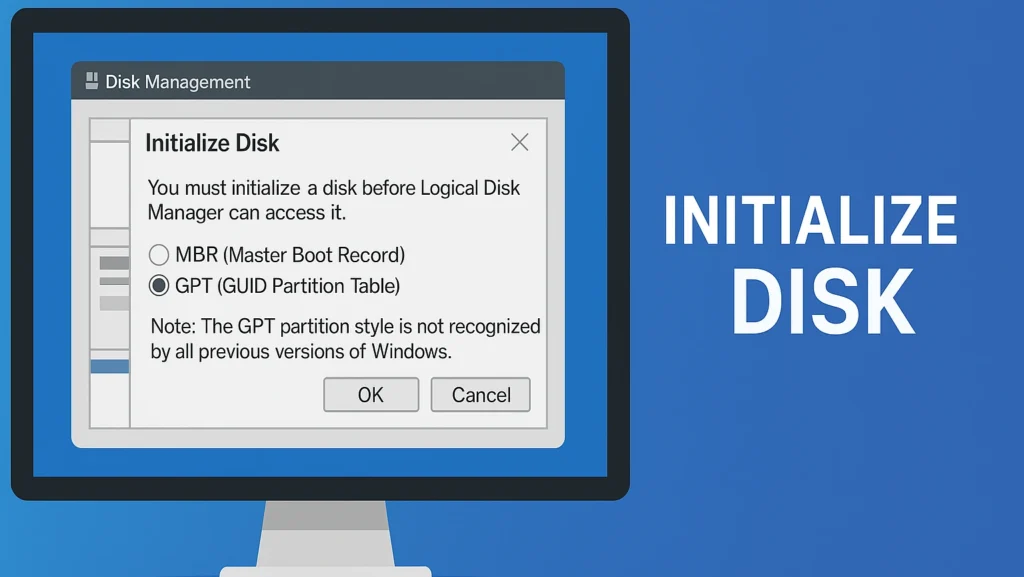
“Inicializar disco” se refiere al proceso de preparar un disco duro nuevo o dañado para su uso mediante la asignación de una tabla de particiones, ya sea MBR (Registro de arranque maestro) o GPT (tabla de particiones GUID). Este proceso ayuda a su sistema operativo a reconocer la unidad, permitiéndole crear volúmenes y almacenar datos.
Cuando un sistema muestra un error “no inicializado”, por lo general significa que la unidad no se puede leer correctamente debido a metadatos dañados o corrupción de particiones.
Índice
¿Por qué aparece el mensaje “Inicializar disco”?
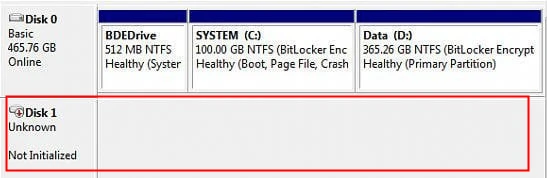
Este mensaje puede aparecer cuando:
Nunca se ha formateado un nuevo disco duro o SSD.
Una unidad externa o interna se vuelve ilegible tras una subida de tensión, un fallo o una extracción incorrecta.
El estilo de partición de la unidad (MBR o GPT) falta o está dañado.
Se producen problemas de conexión del disco o fallos del controlador del controlador.
En resumen, este mensaje no siempre significa que el disco esté muerto, sino que indica que Windows no puede leer la estructura existente.
Cómo funciona
Al inicializar un disco:
Detección - La Administración de discos de Windows identifica un dispositivo no asignado o RAW.
Pregunte a - Un cuadro de diálogo le preguntará si desea inicializar el disco como MBR o GPT.
Configuración - Una vez seleccionada, se escribe una tabla de particiones en el disco.
Particionamiento - A continuación, puede crear volúmenes lógicos y asignar letras de unidad.
Elegir entre MBR y GPT depende del tipo de sistema y de la capacidad del disco.GPT se recomienda para unidades de más de 2 TB o sistemas basados en UEFI.
Paso a Paso: Cómo Inicializar un Nuevo Disco en Windows
Si tu disco es nuevo y no tiene datos que proteger, sigue estos pasos con seguridad:
1. Abra Administración de discos:.Pulse Win + X → seleccionar Gestión de discos.
2. Localice el disco no inicializado:.El disco aparecerá como “Desconocido” y “No inicializado”.”
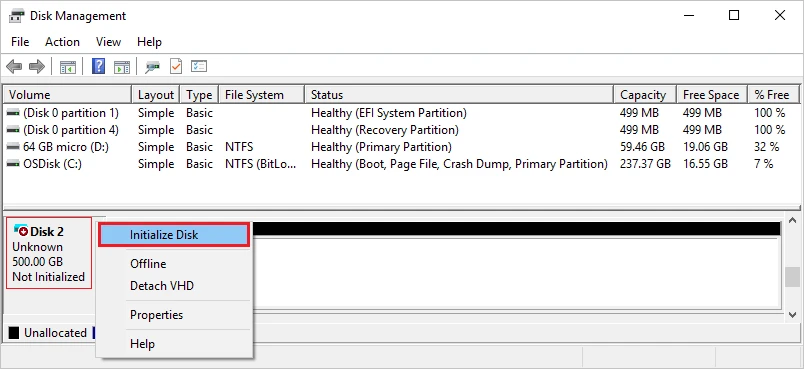
3. Inicializar el disco:Haga clic con el botón derecho del ratón en el disco → seleccione Inicializar disco.
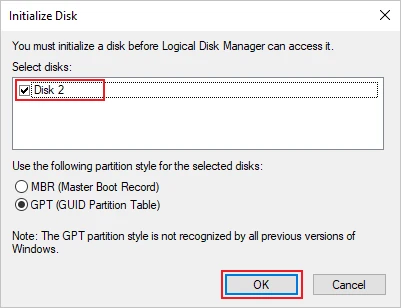
5. Crear un nuevo volumen:Haga clic con el botón derecho del ratón en el → espacio no asignado. Nuevo Volumen Simple → siga el asistente.
6. Asigne una letra de unidad y un formato:.Elija NTFS o exFAT y, a continuación, complete la configuración.
💡 Consejo: Si su disco contenía datos anteriormente, haga lo siguiente no inicializar inmediatamente. El proceso puede sobrescribir la información de la partición, provocando la pérdida de datos.
Cómo arreglar “No inicializado” sin pérdida de datos
Si Windows le pide de repente que inicialice un disco que antes funcionaba, es señal de que la tabla de particiones está dañada.
Esto es lo que debes hacer:
Detener todas las operaciones - No escribas ni formatees nada.
Utilizar una herramienta de recuperación - Corre Magic Data Recovery para escanear el disco no reconocido y recuperar los archivos.
Guardar los datos recuperados a otra conducción segura.
Inicializar el disco manualmente mediante Gestión de discos o diskpart.
Reformatear y restaurar su datos recuperados después.
Este método evita la sobreescritura accidental y garantiza que tus archivos permanezcan intactos.
Ventajas de una inicialización adecuada
Permite el reconocimiento del sistema operativo y el acceso de lectura y escritura.
Permite a los usuarios elegir MBR o GPT para mayor compatibilidad.
Ayuda a gestionar las particiones de forma eficiente.
Evita errores de disco RAW o sin asignar en unidades nuevas.
Inicializar disco vs Formatear disco
Muchos usuarios confunden el “Inicializar” con el formateo, pero sirven para fines muy distintos en la gestión de discos.
Aspecto | Inicializar disco | Formatear disco |
Propósito | Crea la tabla de particiones (MBR/GPT) | Prepara un sistema de archivos (NTFS, FAT32, exFAT) |
Cuando sea necesario | Cuando la unidad es nueva o ilegible | Después de la inicialización o antes de la reutilización |
Impacto de los datos | Puede borrar la información de la partición | Borra los archivos del volumen seleccionado |
Nivel de proceso | Configuración de la estructura de bajo nivel | Estructura de archivos de alto nivel |
Herramientas utilizadas | Gestión de discos, diskpart | Asistente de formato, Explorador de archivos |
Error típico | desconocido, No inicializado | Formatear la unidad antes de usar |
En resumen, la inicialización configura el disco de estructura, mientras se prepara el formato espacio de almacenamiento. Ambos son necesarios, pero sirven para fines distintos.
Conclusión
El mensaje Disco No Inicializado puede ser intimidante, pero a menudo es un signo de corrupción de la partición más que de un fallo total.
Siempre recupere sus datos y, a continuación, inicializar el disco de forma segura. MBR o GPT dependiendo de su sistema.
Con los pasos adecuados y herramientas fiables, su unidad se puede restaurar a la función normal sin perder archivos importantes.
Recuperar antes de inicializar
Compatible con Windows 7/8/10/11 y Windows Server
Preguntas frecuentes sobre la inicialización del disco
¿Qué significa “Inicializar disco” en Windows?
¿Es seguro inicializar un disco?
¿Qué debo hacer si aparece un error de no inicializado?
¿Cuál es la diferencia entre inicializar un disco a MBR o GPT?
¿Puedo cambiar de MBR a GPT después de la inicialización?
¿Por qué Windows me pide que inicialice una unidad externa?
¿Se pueden recuperar los datos tras la inicialización?

Erin Smith es reconocida como una de las redactoras más profesionales de Amagicsoft. Ha perfeccionado continuamente sus habilidades de escritura durante los últimos 10 años y ha ayudado a millones de lectores a resolver sus problemas tecnológicos.