
Cifrado y recuperación de datos del disco duro de Windows
Protección de datos se ha convertido en una prioridad tanto para los usuarios particulares como para las empresas. Para evitar accesos no autorizados, Windows incorpora tecnologías de cifrado que bloquean los discos duros a nivel de sistema. Por eso Cifrado del disco duro de Windows está ahora ampliamente activado por defecto en muchos dispositivos.
Sin embargo, la seguridad siempre conlleva contrapartidas.
Muchos usuarios sólo se dan cuenta de los riesgos de Cifrado del disco duro de Windows tras encontrarse con problemas como llaves de recuperación olvidadas, o fallos del sistema, o unidades cifradas corruptas. En ese momento, el acceso a datos importantes puede desaparecer repentinamente. Magic Data Recovery puede ayudar a recuperar datos de unidades cifradas con BitLocker cuando fallan los métodos estándar.
Compatible con Windows 7/8/10/11 y Windows Server
Índice
¿Qué es el cifrado de disco duro de Windows?
Cifrado del disco duro de Windows es una tecnología que protege los datos convirtiéndolos en un formato ilegible mediante potentes algoritmos de cifrado. Sólo los usuarios con las credenciales correctas -contraseña, PIN o clave de recuperación-puede desencriptar y acceder a los datos.
Aunque alguien retire el disco duro y lo conecte a otro ordenador, los datos cifrados siguen siendo inaccesibles.
Esto hace que Cifrado del disco duro de Windows altamente eficaz contra:
- Robo de dispositivos
- Acceso no autorizado fuera de línea
- Exposición de datos tras una pérdida de hardware
Explicación de las opciones de cifrado del disco duro de Windows
Cifrado de unidad BitLocker
BitLocker es la principal solución de cifrado integrada en Windows. Está disponible en:
- Windows 10/11 Pro
- Empresa
- Ediciones de educación
Las características clave incluyen:
- Cifrado de disco completo para HDD y SSD
- Compatibilidad con unidades externas (BitLocker To Go)
- Integración con TPM para la seguridad basada en hardware
Para los usuarios más avanzados, BitLocker representa la implementación estándar de Cifrado del disco duro de Windows.
Cifrado de dispositivos (Windows Home)
Algunos dispositivos Windows Home incluyen Cifrado de dispositivos:
- Cifra automáticamente una vez que el usuario inicia sesión con una cuenta Microsoft.
- Opciones de configuración limitadas
- Fuerte dependencia de Recuperación de cuentas Microsoft
Aunque cómodo, ofrece menos flexibilidad que BitLocker.
Por qué es importante cifrar el disco duro de Windows
Utilizando Cifrado del disco duro de Windows ofrece varias ventajas en el mundo real:
- Evita la fuga de datos en caso de pérdida o robo del portátil
- Protege la intimidad personal o de la empresa
- Ayuda a cumplir las políticas de protección de datos
- Funciona en silencio con un impacto mínimo en el rendimiento
A pesar de estas ventajas, el cifrado introduce un riesgo crítico: los datos se vuelven inaccesibles si algo va mal.
Cómo activar el cifrado de disco duro de Windows de forma segura
Antes de encender encriptación, La preparación es esencial.
Paso 1: Compruebe la compatibilidad
Asegúrese de que:
- Está utilizando una edición de Windows compatible
- TPM está activado (recomendado pero no obligatorio)
- Tiene privilegios de administrador
Paso 2: Activar BitLocker
- Abrir Cifrado de unidad BitLocker desde el panel de control
- Seleccione la unidad de destino
- Elegir un método de desbloqueo
- Realice inmediatamente una copia de seguridad de la clave de recuperación de BitLocker
- Iniciar encriptación
Error común: Los usuarios activan el cifrado sin asegurar la clave de recuperación, lo que conduce a pérdida permanente de datos más tarde.
Riesgos comunes del cifrado de discos duros de Windows
La experiencia del mundo real demuestra que la pérdida de datos relacionada con el cifrado suele producirse en estos escenarios:
- Clave de recuperación de BitLocker se pierde
- El sistema se bloquea durante la actualización de Windows
- La unidad encriptada pasa a ser RAW
- La estructura de la partición está dañada
- Se borran archivos de una unidad encriptada desbloqueada
En estos casos, las herramientas normales de recuperación de datos suelen fallar porque no pueden interpretar los datos cifrados.
¿Se pueden recuperar datos de una unidad BitLocker cifrada?
Sí, pero sólo en determinadas condiciones.
Las unidades cifradas requieren un software de recuperación que entiende:
- Metadatos de BitLocker
- Sistemas de archivos dentro de volúmenes cifrados
- Métodos de escaneado seguros y no destructivos
Aquí es donde Magic Data Recovery se convierte en esencial.
Cómo recuperar datos de una unidad BitLocker con Magic Data Recovery
Magic Data Recovery está diseñado para escanear archivos encriptados, parcialmente dañados o Unidades RAW y recuperar archivos cuando las herramientas integradas de BitLocker dejan de funcionar.
A continuación se describe un proceso de recuperación seguro y práctico.
Paso 1 - Instalar Magic Data Recovery en un sistema sano
Descargue e instale Magic Data Recovery a tu ordenador primero.
Compatible con Windows 7/8/10/11 y Windows Server
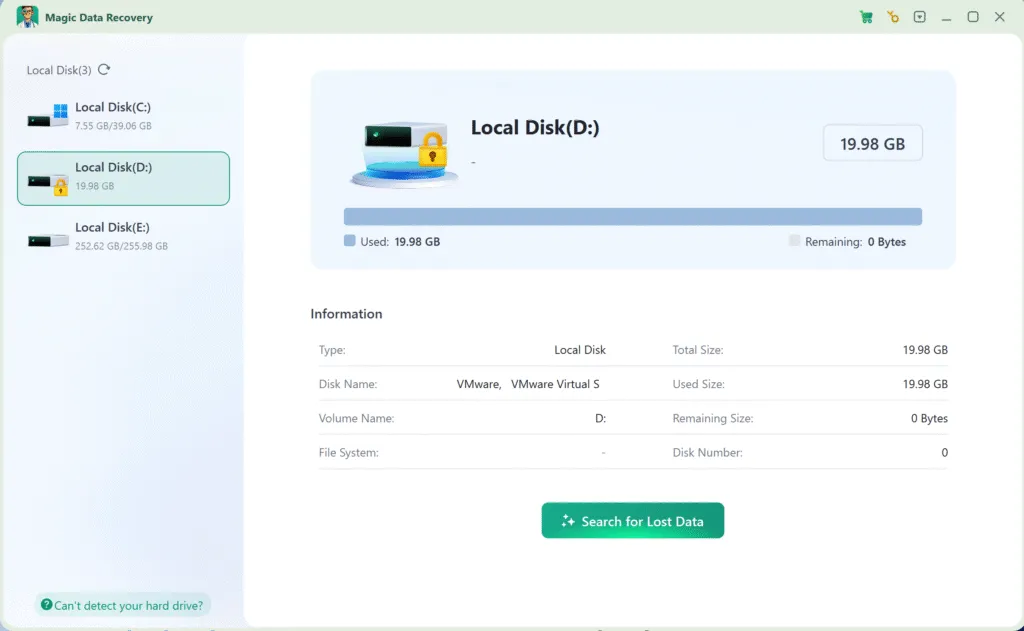
Paso 2 - Seleccione la unidad cifrada con BitLocker
Lanza Magic Data Recovery.
Verá claramente todas las unidades conectadas.
- Las unidades protegidas con BitLocker están marcadas con un icono de candado
- Seleccione el HDD o SSD encriptado
- Si se le solicita, introduzca la contraseña de BitLocker o la clave de recuperación
Esto permite al software interpretar correctamente los sectores cifrados.
Paso 3 - Deje que la exploración se ejecute hasta el final
Una vez iniciada la exploración:
- Magic Data Recovery analiza estructuras de archivos encriptados
- Busca archivos borrados, perdidos o inaccesibles
- Incluso los sectores dañados pueden procesarse con seguridad
El tiempo de escaneado depende del tamaño y el estado de la unidad. Evite interrumpir el proceso.

Paso 4 - Vista previa de los archivos recuperables
Después de escanear:
- Todos los archivos recuperables se enumeran por tipo y carpeta
- Puedes previsualizar documentos, imágenes y vídeos
- La vista previa ayuda a verificar la integridad del archivo antes de recuperarlo
Aunque Windows no pueda montar la unidad cifrada, Magic Data Recovery puede seguir mostrando el contenido de los archivos.

Paso 5 - Recuperar archivos a una ubicación segura
Selecciona los archivos que necesites y restáuralos:
- Una unidad externa
- Otra unidad interna
- Un dispositivo de almacenamiento seguro
Nunca guarde los archivos recuperados en la unidad cifrada original, ya que podría sobrescribir los datos.

Por qué Magic Data Recovery es una solución de confianza
En comparación con las herramientas de recuperación genéricas, Magic Data Recovery ofertas:
- Conocimiento de las estructuras de cifrado de BitLocker
- Tecnología de escaneado no destructiva
- Mejores resultados en discos duros y SSD cifrados
- Previsualización clara de archivos y control de recuperación
En lugar de forzar correcciones inseguras, se centra en preservar la integridad de los datos.
Si busca un solución de recuperación práctica y prudente, Magic Data Recovery es una opción fiable.
Prácticas recomendadas para el cifrado seguro de discos duros de Windows
Para minimizar los riesgos durante el uso Cifrado del disco duro de Windows:
- Almacene las claves de recuperación de BitLocker en varias ubicaciones
- Realice copias de seguridad periódicas
- Pausa el cifrado antes de actualizar el firmware o la BIOS
- Evite volver a particionar las unidades cifradas
- Prepare un plan de recuperación antes de pérdida de datos sucede
El cifrado es más eficaz cuando se combina con una concienciación adecuada sobre la recuperación.
Conclusión
Cifrado del disco duro de Windows es una herramienta excelente para salvaguardar la información sensible. Si se configura correctamente, Cifrado del disco duro de Windows con BitLocker proporciona una fuerte protección contra el acceso no autorizado.
Sin embargo, el cifrado por sí solo no puede impedir borrado accidental, fallos del sistema, o corrupción de disco.
Por eso es importante una estrategia de recuperación.
Magic Data Recovery ofrece una solución responsable y eficaz para recuperar datos de unidades cifradas con BitLocker-sin procedimientos arriesgados ni conjeturas.
Compatible con Windows 7/8/10/11 y Windows Server
Preguntas frecuentes sobre el cifrado de discos duros
¿Cómo cifrar un disco duro en Windows?
¿Es seguro BitLocker 100%?
¿Está Windows 11 totalmente cifrado?
¿Se podrá seguir utilizando Windows 10 después del 14 de octubre de 2025?
¿Se puede cifrar un disco duro entero?
¿Tiene Windows 10 software de cifrado integrado?
¿Merece la pena cifrar un disco duro?
¿Cómo puedo comprobar si mi unidad de Windows está cifrada?
¿Windows 11 cifra automáticamente los discos duros?
¿Es AES-256 el más seguro?

Erin Smith es reconocida como una de las redactoras más profesionales de Amagicsoft. Ha perfeccionado continuamente sus habilidades de escritura durante los últimos 10 años y ha ayudado a millones de lectores a resolver sus problemas tecnológicos.