
Cómo recuperar archivos en Excel sin perder datos
Perder un libro de Excel puede paralizar tu trabajo en cuestión de segundos. Un informe puede desaparecer tras un fallo del sistema, un borrado o una sobrescritura accidental. Por lo tanto, Cómo recuperar archivos en Excel Depende de lo que haya ocurrido antes de que se perdiera el archivo.
Esta guía explica Cómo recuperar archivos en Excel para libros de trabajo no guardados, eliminados, sobrescritos, dañados y perdidos. Utilizarás la función de recuperación automática de Excel, los archivos temporales de Excel, la Papelera de reciclaje, el historial de versiones, las copias de seguridad en la nube y Magic Data Recovery. Además, sabrás cuándo Software de recuperación de archivos de Excel te indica cuál es el mejor paso a seguir.
Compatible con Windows 7/8/10/11 y Windows Server
Índice
Elige el método adecuado para recuperar archivos de Excel
En primer lugar, hay que elegir el método adecuado para cada problema.
Problema | El mejor método |
Excel se ha bloqueado antes de guardar | Recuperación de documentos o función de recuperación automática de Excel |
Has cerrado Excel sin guardar | Recuperar libros de trabajo no guardados |
Has eliminado el libro de trabajo | Papelera de reciclaje o papelera |
La papelera de reciclaje está vacía | Magic Data Recovery |
Has guardado la versión equivocada | Historial de versiones o versiones anteriores |
El archivo ha desaparecido del USB, la tarjeta SD, el disco duro o el SSD | Magic Data Recovery |
El libro se abre en blanco o está dañado | Abrir y reparar |
El archivo se ha sincronizado en línea | Historial de versiones en la nube |
Esta lista de comprobación permite Cómo recuperar archivos en Excel más fácil y más seguro.
Método 1: Recuperar archivos en Excel tras un fallo del programa o un cierre sin guardar
Si Excel se ha bloqueado, se ha colgado o se ha cerrado durante un corte de corriente, empieza por el panel «Recuperación de documentos». Vuelve a abrir Excel, abre la versión recuperada más reciente y guárdala con un nuevo nombre.
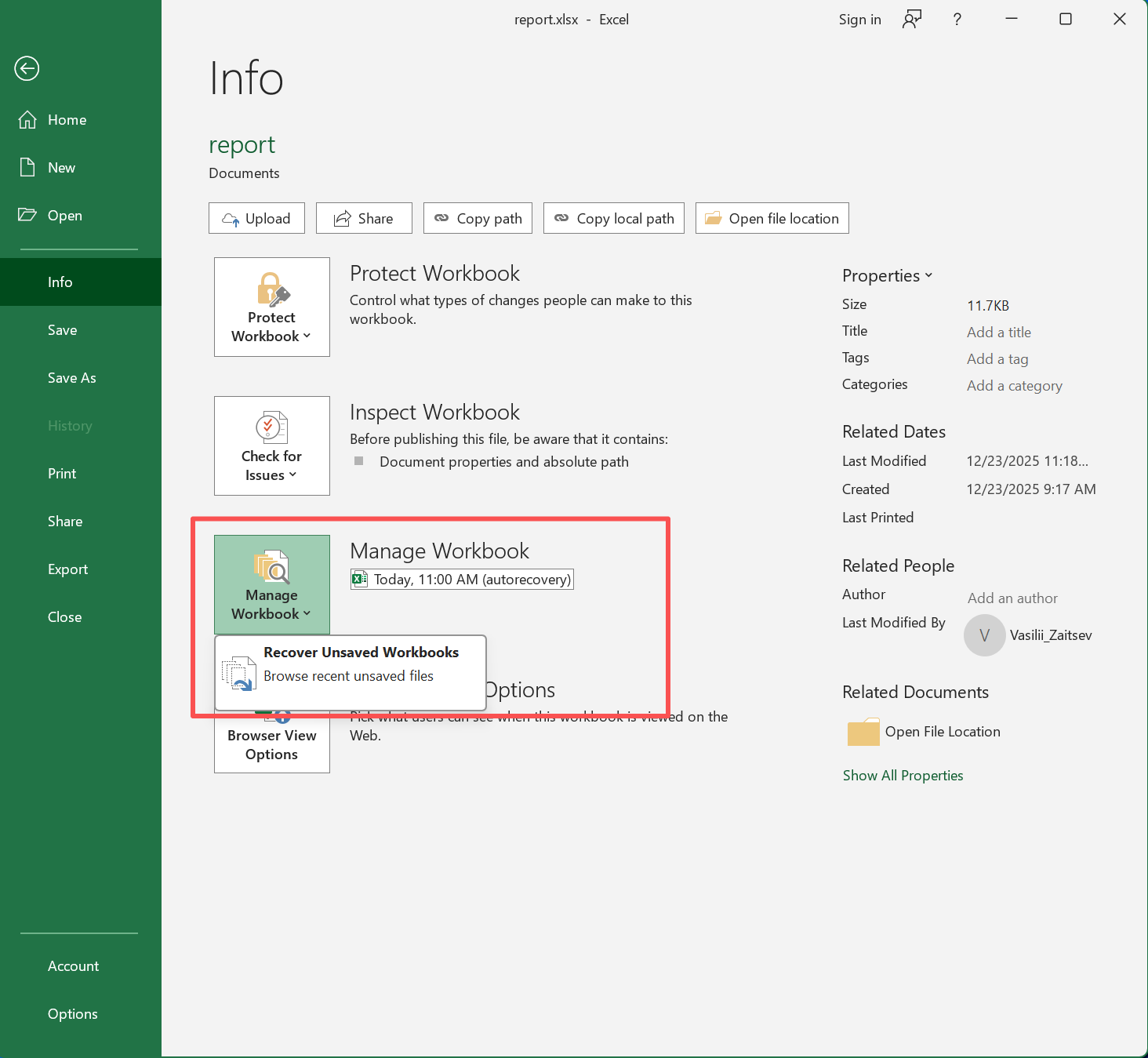
Si no aparece el panel, prueba a seleccionar «Recuperar libros sin guardar»:
- Abre Excel.
- Haz clic en Archivo > Información.
- Seleccione Gestionar Libro de Trabajo.
- Haz clic en «Recuperar libros sin guardar».
- Elige el archivo que necesites.
- Ábrelo y guárdalo inmediatamente.
Este método te ayuda a Recuperar un archivo de Excel sin guardar contenido cuando Excel conservaba una copia temporal reciente. Sin embargo, es posible que no funcione si Excel ha borrado esa copia. A continuación, comprueba la función de recuperación automática y las ubicaciones de los archivos temporales.
Método 2: Recuperar archivos de Excel con la función de recuperación automática y los archivos temporales
Recuperación automática de Excel Guarda información de recuperación a intervalos regulares. No sustituye al guardado manual, pero puede resultar útil tras fallos del sistema o errores. Para comprobarlo, abre Archivo > Opciones > Guardar, comprueba que la opción «Recuperación automática» esté activada y revisa la ubicación del archivo.
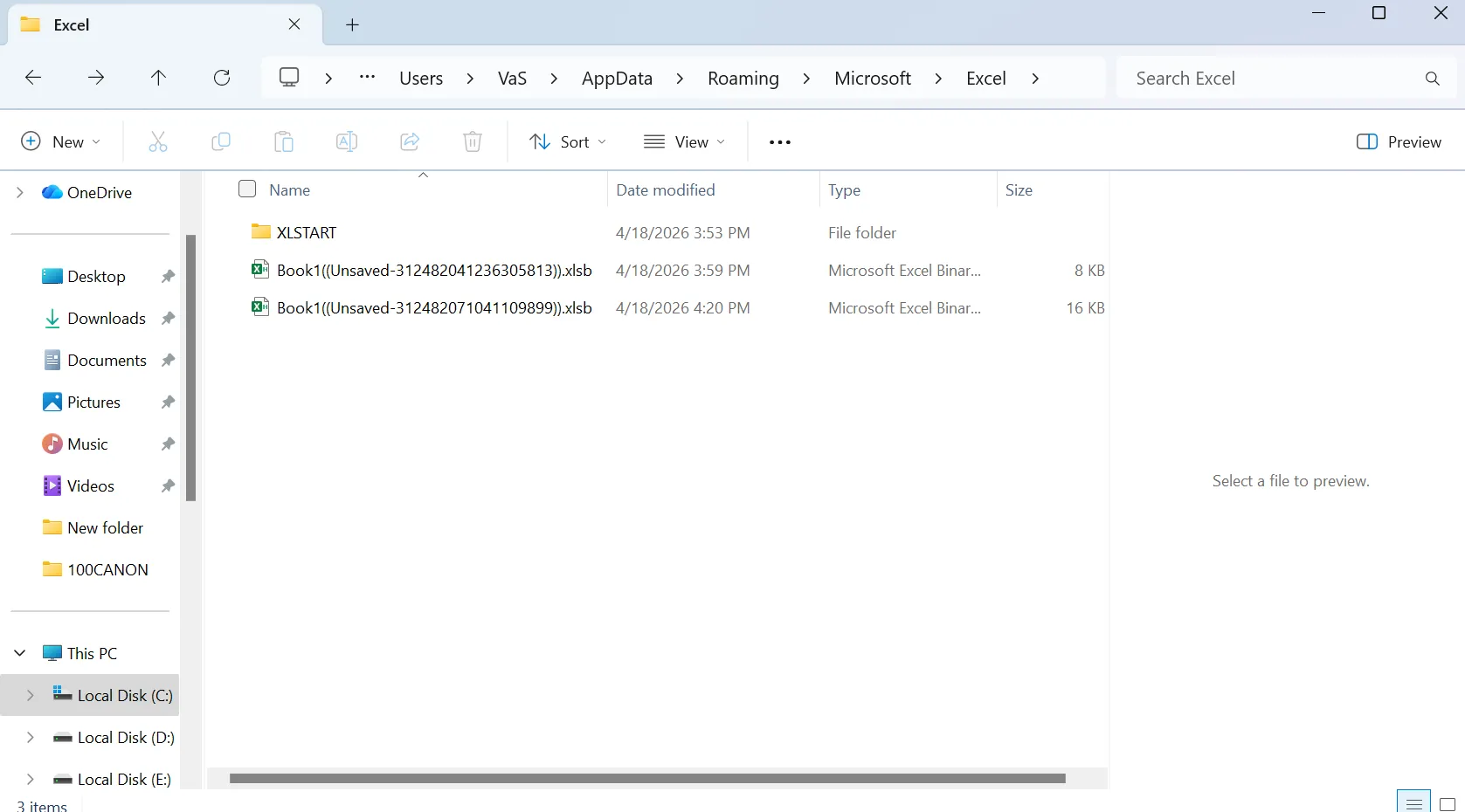
A continuación, busca en estas carpetas de Windows:
%AppData%\Microsoft\Excel\%LocalAppData%\Microsoft\Office\UnsavedFiles%temp%
Busca también .xlsx, .xls, .xlsm, .tmp, y ~$. Al comprobar Archivos temporales de Excel, ordena los resultados por fecha de modificación. Los archivos temporales suelen tener nombres poco habituales, por lo que la fecha, el tamaño y la extensión pueden ser de ayuda. Cuando encuentres un archivo que pueda ser el que buscas, ábrelo y guarda una nueva copia.
Método 3: Recuperar archivos de Excel tras su eliminación o sobrescritura
Si usted borré un archivo de Excel Por lo general, comprueba primero la Papelera de reciclaje. Busca por nombre de archivo o .xlsx, haz clic con el botón derecho del ratón en el libro y selecciona «Restaurar». Esto puede recuperar archivo Excel eliminado datos rápidamente.
Sin embargo, la Papelera de reciclaje no sirve de nada después de pulsar Mayús + Supr, Vaciado de la papelera de reciclaje, errores de formateo o del dispositivo de almacenamiento. En esos casos, deja de utilizar la unidad afectada y analízala con un programa de recuperación.
Si has guardado por error sobre un libro de Excel, puedes intentar restaurarlo desde «Versiones anteriores» en Windows. Esta función puede contener copias anteriores de tus archivos creadas por el Historial de archivos, los puntos de restauración o la configuración de copias de seguridad.
Sigue estos pasos:
- Abrir Explorador de archivos y ve a la carpeta donde se guardó originalmente el archivo de Excel que se ha sobrescrito.
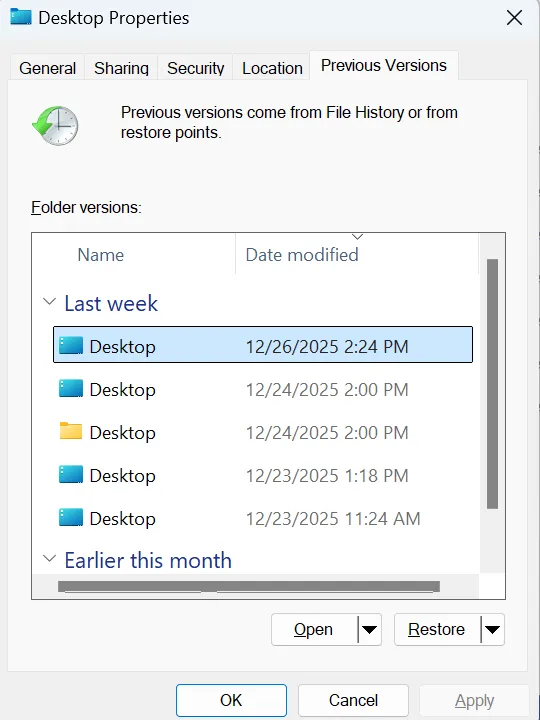
- Haz clic con el botón derecho del ratón en la carpeta que contiene el libro de Excel y, a continuación, selecciona Propiedades.
- En la ventana «Propiedades», haz clic en el Versiones anteriores ficha.
- Windows mostrará una lista de las versiones anteriores disponibles de esta carpeta. Selecciona una versión creada antes de que se sobrescribiera el archivo de Excel.
- Haga clic en Abrir Lo primero es comprobar si el archivo de Excel más antiguo se encuentra en esa carpeta.
- Si encuentras el libro de trabajo correcto, cópialo en otra ubicación segura, como el escritorio o una unidad externa.
- Si estás seguro de que esta es la versión que necesitas, también puedes hacer clic en Restaurar para restaurar la carpeta a ese estado anterior. Ten cuidado, ya que al restaurar toda la carpeta se pueden sobrescribir los archivos más recientes que contenga.
- Abre el libro de Excel recuperado y comprueba si los datos están completos.
Si no aparecen versiones anteriores, suele significar que las opciones de «Historial de archivos», «Protección del sistema» o «Copia de seguridad» no estaban activadas antes de que se sobrescribiera el archivo. En ese caso, prueba a consultar el «Historial de versiones» de OneDrive o SharePoint si el archivo se sincronizó en línea, o utiliza un programa profesional de recuperación de archivos para analizar la unidad.
Método 4: Recuperar archivos de Excel cuando el libro está dañado
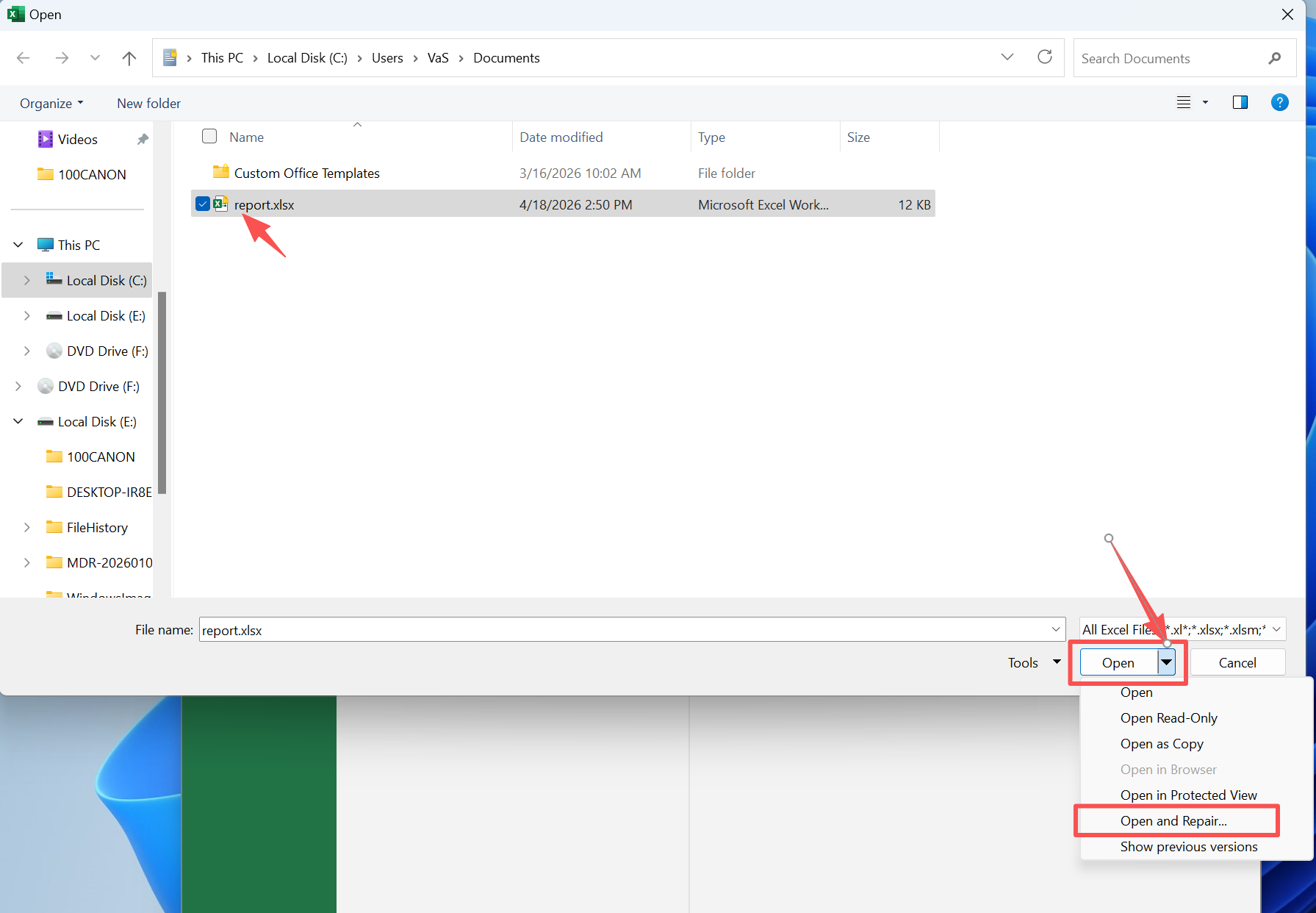
A veces, el libro sigue existiendo, pero se abre en blanco, muestra un error o indica que el formato no es válido. En ese caso, prueba la herramienta «Abrir y reparar» de Excel.
- Abre Excel.
- Ve a Archivo > Abrir > Examinar.
- Seleccione el libro dañado.
- Haz clic en la flecha situada junto a «Abrir».
- Seleccione Abrir y Reparar.
- Prueba primero con «Reparar» y, después, con «Extraer datos».
Este método puede recuperar valores y fórmulas. Sin embargo, es posible que no restaure todos los gráficos, macros o formatos. Por lo tanto, guarda el libro reparado como una nueva copia y mantén el original sin cambios.
Método 5: Recuperar archivos del almacenamiento en la nube
Muchos libros de Excel se almacenan en OneDrive, SharePoint, Google Drive, Dropbox o iCloud. Si tu archivo ha desaparecido tras una sincronización o una colaboración, comprueba la papelera de reciclaje en la nube, el historial de versiones, las carpetas compartidas, los archivos recientes, las carpetas de sincronización sin conexión y los archivos adjuntos de los correos electrónicos.
La recuperación en la nube funciona bien con los libros de trabajo compartidos. Sin embargo, no servirá de nada si el libro de trabajo solo existía en una unidad local, una memoria USB, una tarjeta SD, un disco duro (HDD) o un SSD. En ese caso, Magic Data Recovery podría ser una opción más adecuada.
Método 6: Cómo recuperar archivos de Excel con Magic Data Recovery
Cuando las opciones integradas de Excel no logran localizar tu libro de trabajo, Magic Data Recovery puede analizar la unidad afectada. Este método resulta útil cuando un libro de trabajo se ha eliminado permanentemente, eliminados de la Papelera de reciclaje, perdidos tras formatear o que faltan en un dispositivo de almacenamiento.
Magic Data Recovery funciona como Software de recuperación de archivos de Excel en casos más graves pérdida de datos. Analiza directamente las ubicaciones de almacenamiento, muestra una lista de los archivos recuperables durante el análisis y te permite previsualizar los archivos antes de recuperarlos. De este modo, podrás centrarte en el libro de trabajo que necesites.
Utiliza Magic Data Recovery cuando tu archivo de Excel no se encuentre en la Papelera de reciclaje, lo hayas eliminado definitivamente, haya desaparecido de una memoria USB o una tarjeta SD, o se haya formateado una unidad por error, Recuperación automática de Excel no muestra nada, o la búsqueda de Windows no lo encuentra.
En comparación con los métodos manuales, Magic Data Recovery abarca los casos más complejos. La Papelera de reciclaje se encarga de los borrados normales. El historial de versiones requiere copias de seguridad o sincronización en la nube. La función de recuperación automática (AutoRecover) resulta útil principalmente en caso de fallos del sistema y archivos no guardados. Por el contrario, Magic Data Recovery escanea la propia ubicación de almacenamiento.
Cómo utilizar Magic Data Recovery
Siga estos pasos para recuperar archivos Excel con Magic Data Recovery.
Paso 1: Descargar e instalar Magic Data Recovery
En primer lugar, descarga Magic Data Recovery e instálalo en una unidad distinta a aquella en la que se perdió tu archivo de Excel. Este paso es importante, ya que instalar un nuevo programa en la unidad afectada podría sobrescribir los datos de Excel que se pueden recuperar.
Compatible con Windows 7/8/10/11 y Windows Server
Paso 2: Seleccione la unidad a escanear
Abre Magic Data Recovery. A continuación, en la interfaz principal, selecciona la unidad o partición en la que se borró, se perdió o se guardó anteriormente tu libro de Excel. Después, inicia el análisis.

Paso 3: Analiza la unidad en busca de archivos de Excel perdidos
El programa comienza a escanear la unidad seleccionada. Mientras tanto, va mostrando los archivos recuperables a medida que los encuentra, para que puedas comprobar si los que has perdido .xlsx, .xls, o .xlsm El libro de ejercicios aparece en los resultados.

Paso 4: Vista previa de archivos de Excel antes de la recuperación
A continuación, utiliza la función de vista previa para comprobar el contenido del archivo antes de la recuperación. Este paso te ayuda a confirmar que has encontrado el libro de trabajo correcto, en lugar de restaurar archivos innecesarios, obsoletos o duplicados.

Paso 5: Recuperar archivos Excel a una ubicación segura
Por último, selecciona los archivos de Excel que quieras recuperar y guárdalos en otra unidad o en una carpeta segura. No restaures los archivos recuperados en la misma ubicación en la que se perdieron, ya que al hacerlo podrías sobrescribir otros datos recuperables o provocar que los archivos se dañen.

Los mejores consejos tras recuperar archivos de Excel perdidos
Una vez que comprenda Cómo recuperar archivos en Excel, reduce el riesgo en el futuro. Activa la función de guardado automático, mantén Recuperación automática de Excel activar esta función, acortar el intervalo de recuperación automática y realizar copias de seguridad de los libros de trabajo importantes tanto en el almacenamiento en la nube como en otra unidad local.
Además, evita editar archivos importantes directamente desde memorias USB inestables, guarda las actualizaciones importantes como versiones independientes y comprueba tus copias de seguridad de vez en cuando, ya que una copia de seguridad solo sirve de algo cuando puedes restaurarla.
Conclusión
La mejor respuesta a Cómo recuperar archivos en Excel Depende del problema. En caso de fallos del programa, empieza por «Recuperación de documentos» y «Recuperación automática». Para los libros de trabajo sin guardar, prueba con «Recuperar libros de trabajo sin guardar». Para los archivos eliminados, comprueba la Papelera de reciclaje. Para los libros de trabajo sobrescritos, utiliza «Historial de versiones» o «Versiones anteriores».
Sin embargo, las herramientas integradas no pueden resolver todos los casos. Cuando un libro se elimina de forma definitiva, no aparece en la Papelera de reciclaje, se pierde tras formatear el disco o no está disponible a través de las copias de seguridad en la nube, Magic Data Recovery te ofrece un proceso de recuperación más eficaz. Analiza la unidad afectada, ayuda a localizar los archivos de Excel recuperables, permite previsualizarlos antes de la recuperación y guía a los usuarios a través de un proceso sencillo.
Por ese motivo, Magic Data Recovery es una opción práctica cuando el estándar Recuperación de Excel los métodos fallan. Si aún te preguntas Cómo recuperar archivos en Excel Después de probar soluciones manuales, esta herramienta puede ayudarte a seguir adelante sin tener que ir a ciegas.
Compatible con Windows 7/8/10/11 y Windows Server
PREGUNTAS FRECUENTES
¿Puedo recuperar un archivo de Excel que no he guardado?
Sí. Abre Excel y ve a Archivo > Información > Administrar libro > Recuperar libros no guardados. Además, comprueba la función de recuperación automática de Excel y la carpeta «UnsavedFiles». Sin embargo, esto solo funciona si Excel ha guardado una copia temporal, así que guarda inmediatamente el libro recuperado en una carpeta segura.
¿Cómo puedo recuperar un archivo de Excel que he borrado?
En primer lugar, abre la Papelera de reciclaje y busca el nombre del archivo o la extensión .xlsx. Si lo encuentras, restáuralo. Sin embargo, si la Papelera de reciclaje está vacía, utiliza herramientas de copia de seguridad, el historial en la nube o Magic Data Recovery para recuperar los datos del archivo de Excel eliminado de la unidad afectada.
¿Puedo recuperar un archivo de Excel que se ha sobrescrito?
Sí, si existe una versión anterior. Comprueba primero el historial de versiones en OneDrive o SharePoint. A continuación, prueba con las «Versiones anteriores» de Windows si hay un historial de archivos o puntos de restauración disponibles. Si ninguna de estas opciones funciona, deja de editar el archivo y realiza un análisis de la ubicación de almacenamiento.
¿Dónde se guardan los archivos temporales de Excel?
Excel puede almacenar archivos temporales en %AppData%\Microsoft\Excel\, %LocalAppData%\Microsoft\Office\UnsavedFiles o %temp%. Dado que los archivos temporales de Excel pueden tener nombres poco habituales, busca archivos con las extensiones .xlsx, .xls, .xlsm, .tmp y ~$, y luego ordénalos por fecha de modificación para encontrar copias recientes de los libros de trabajo.
¿Puede Magic Data Recovery recuperar archivos de Excel de una memoria USB?
Sí. Magic Data Recovery puede analizar una memoria USB y ayudarte a recuperar archivos de Excel que hayan desaparecido tras un borrado, un formateo o un error del dispositivo. Para obtener mejores resultados, deja de utilizar la memoria USB primero. A continuación, analízala y guarda los libros recuperados en otra ubicación segura.
¿Por qué se abre en blanco mi archivo de Excel recuperado?
Es posible que un libro recuperado se abra en blanco debido a que el archivo se ha dañado por corrupción o por una sobrescritura parcial. En primer lugar, prueba la opción «Abrir y reparar» de Excel. A continuación, comprueba si hay versiones anteriores o vuelve a escanear el archivo. Además, no modifiques el archivo original recuperado para poder probar otro método de recuperación.

Vasilii es un especialista en recuperación de datos con unos 10 años de experiencia práctica en este campo. A lo largo de su carrera, ha resuelto con éxito miles de casos complejos relacionados con archivos borrados, unidades formateadas, particiones perdidas y sistemas de archivos RAW. Su experiencia abarca tanto métodos de recuperación manual con herramientas profesionales como editores hexadecimales como soluciones automatizadas avanzadas con software de recuperación. La misión de Vasilii es poner los conocimientos sobre recuperación de datos al alcance tanto de los profesionales informáticos como de los usuarios de a pie, ayudándoles a salvaguardar sus valiosos activos digitales.