
Guía para recuperar archivos con TestDisk
Si busca testdisk: recuperar archivos, es probable que hayas borrado documentos importantes, perdido fotos o abierto una unidad en la que ya no aparecen los archivos que necesitas. TestDisk puede ser de ayuda en algunos casos, sobre todo cuando el sistema de archivos aún contiene entradas borradas que se pueden recuperar. Sin embargo, no siempre es la opción más sencilla ni la más segura para los usuarios habituales de Windows.
Esta guía explica cómo TestDisk recupera archivos funciona, cuándo es necesario utilizar PhotoRec y qué debes hacer antes de ejecutar cualquier herramienta de recuperación. Para obtener información más amplia recuperación de archivos eliminados soluciones, también puedes visitar la página de Amagicsoft Recuperación de archivos eliminados centro de recursos con guías de recuperación relacionadas.
También aprenderás cuándo una herramienta gráfica como Magic Data Recovery tiene más sentido, sobre todo si necesitas recuperar archivos borrados, formateados o inaccesibles sin tener que utilizar una interfaz basada en texto.
Compatible con Windows 7/8/10/11 y Windows Server
Índice
¿Qué significa realmente “TestDisk recupera archivos”?
La frase TestDisk recupera archivos suele referirse a dos tareas de recuperación distintas.
Primero, TestDisk puede recuperar archivos borrados de determinados sistemas de archivos, como NTFS, FAT, exFAT, y ext2. Este método funciona mejor cuando los registros de los archivos eliminados aún existen y los nuevos datos no han sobrescrito el contenido original del archivo.
En segundo lugar, muchas personas utilizan TestDisk para recuperar particiones. En ese caso, TestDisk no se limita a buscar archivos borrados de forma individual. En su lugar, busca particiones perdidas, sectores de arranque dañados o tablas de particiones dañadas. Una vez que se restablece el acceso a una partición, es posible que tus archivos vuelvan a aparecer.
Esa distinción es importante. Si ayer borraste varios archivos, Recuperación de archivos con TestDisk puede ser de ayuda. Si todo el disco duro ha pasado a estar en formato RAW o ha desaparecido una partición, TestDisk puede ayudarte a reparar la estructura del disco. Si el sistema de archivos está muy dañado, PhotoRec u otra herramienta de recuperación podrían funcionar mejor.
Antes de utilizar TestDisk, protege primero los archivos perdidos
Antes de intentarlo TestDisk recupera archivos, sigue estos pasos con cuidado. Estos pasos pueden mejorar el resultado de la recuperación y evitar la pérdida definitiva de datos.
Deja de utilizar inmediatamente la unidad afectada. Cuando Windows elimina un archivo, a menudo marca el espacio como disponible en lugar de borrar cada byte de una sola vez. Sin embargo, cualquier archivo nuevo, instalación de software, caché del navegador o actualización del sistema puede sobrescribir ese espacio disponible.
A continuación, no instales TestDisk ni ningún otro programa de recuperación en la misma unidad en la que se almacenaban los archivos perdidos. Si los archivos perdidos se encontraban en la unidad C, instala el programa de recuperación en otro ordenador o en otra partición, siempre que sea posible.
Además, nunca guardes los archivos recuperados en la misma unidad. Utiliza otro disco en buen estado, un disco duro externo o un dispositivo USB como destino. Esta regla se aplica a TestDisk, PhotoRec y Magic Data Recovery.
También deberías evitar formatear la unidad, ejecutar CHKDSK, reconstruir particiones o crear un nuevo volumen antes de la recuperación. Estas acciones pueden modificar las estructuras del sistema de archivos y reducir las posibilidades de que la recuperación se realice con éxito recuperación de archivos eliminados.
Si tu disco duro emite chasquidos, se desconecta repetidamente o no aparece en «Administración de discos», deja de intentar la recuperación por tu cuenta. En ese caso, es posible que se trate de un fallo físico. Si se trata de una pérdida lógica de datos en un disco duro detectable, puedes continuar con la recuperación mediante software.
Si quieres más consejos específicos sobre la conducción, lee esto recuperación de archivos borrados del disco duro guía.
Cómo recuperar archivos borrados con TestDisk
Si la unidad sigue siendo detectable y te sientes cómodo utilizando una herramienta basada en texto, puedes probar Recuperar archivos borrados con TestDisk siguiendo este procedimiento general.
Paso 1: Descargar y ejecutar TestDisk
Descarga TestDisk desde la página oficial de CGSecurity. Descomprime el paquete y, a continuación, ejecuta el archivo ejecutable de TestDisk como administrador en Windows. Ejecutarlo con permisos de administrador permite que el programa acceda correctamente a los discos y las particiones.
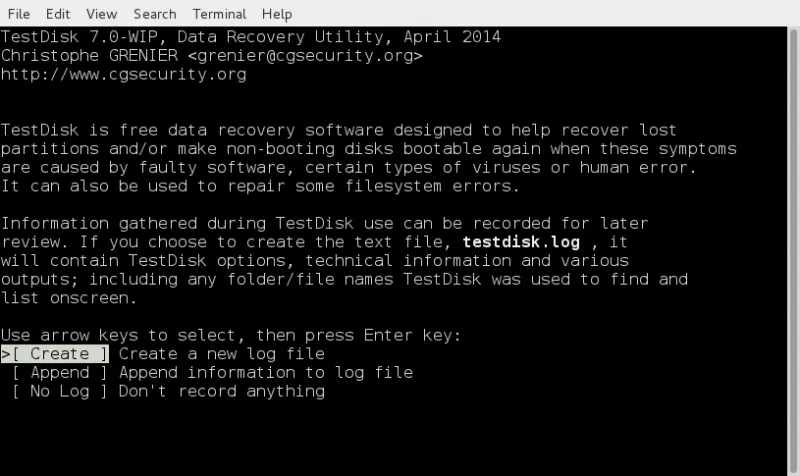
Al abrir TestDisk, te preguntará si deseas crear un archivo de registro. Puedes seleccionar “Crear” para una recuperación normal. El registro puede ayudarte a revisar lo que ha detectado la herramienta.
Paso 2: Selecciona el disco correcto
TestDisk muestra una lista de discos físicos, no solo de letras de unidad. Por lo tanto, comprueba con atención el tamaño y el modelo del disco. Selecciona el disco en el que se almacenaban originalmente los archivos eliminados.
Este paso merece especial atención. Si seleccionas el disco equivocado, podrías perder tiempo analizando un espacio de almacenamiento irrelevante. Y lo que es peor, podrías acabar realizando cambios en la partición equivocada más adelante.
Paso 3: Elige el tipo de tabla de particiones
TestDisk suele detectar automáticamente el tipo de tabla de particiones. En la mayoría de los casos con versiones modernas de Windows, puede identificar Intel/PC, EFI GPT u otra estructura relevante. Si no entiendes las opciones, evita modificar la configuración avanzada de las particiones.
Para casos sencillos TestDisk recupera archivos Para estas tareas, a menudo es necesario utilizar el menú “Avanzado” en lugar de las opciones más específicas de reparación de particiones.
Paso 4: Abre la función «Undelete»
Selecciona la partición afectada y, a continuación, elige la opción de recuperación de archivos. TestDisk analizará el sistema de archivos y mostrará las entradas eliminadas si aún puede encontrarlas.
En los sistemas de archivos compatibles, los archivos eliminados pueden aparecer en rojo. Examina la lista y localiza los archivos o carpetas que necesites. Puedes seleccionar archivos individuales o varios elementos.
Paso 5: Copiar archivos a otra unidad
Una vez seleccionados los archivos, cópialos en otra ubicación. No elijas la partición original como ubicación de recuperación.
Este último paso es fundamental. Si copias los archivos recuperados de nuevo en la unidad de origen de los archivos dañados o eliminados, podrías sobrescribir otros archivos que aún se puedan recuperar.
Cuando TestDisk no encuentra los archivos
A veces TestDisk recupera archivos no muestra los archivos que esperas. Esto puede deberse a varias razones.
Es posible que los archivos eliminados ya se hayan sobrescrito. Es posible que el sistema de archivos no sea compatible con la función de recuperación directa de TestDisk. Es posible que la partición se haya formateado. En otros casos, es posible que la unidad presente un error en el sistema de archivos que impida a TestDisk leer la estructura de directorios anterior.
En este punto, PhotoRec puede resultar de ayuda. PhotoRec no depende en gran medida de los registros originales del sistema de archivos. En su lugar, busca en el espacio en bruto del disco firmas de archivos conocidas. Este método permite recuperar fotos, documentos, vídeos, archivos comprimidos y otros tipos de archivos, incluso cuando el sistema de archivos está dañado.
Sin embargo, PhotoRec tiene una limitación importante. A menudo no puede recuperar los nombres originales de los archivos ni las rutas de las carpetas. Por ello, es posible que obtengas muchos archivos recuperados con nombres genéricos. Clasificarlos puede llevar bastante tiempo.
Por lo tanto, PhotoRec resulta útil cuando solo necesitas el contenido del archivo. Si prefieres un árbol de recuperación más claro, vistas previas, filtros y un flujo de trabajo más sencillo, quizá te convenga más un programa de recuperación con interfaz gráfica de usuario.
TestDisk frente a Magic Data Recovery: ¿cuál deberías usar?
TestDisk sigue siendo una herramienta gratuita muy valorada, sobre todo entre los usuarios con conocimientos técnicos. No obstante, muchos usuarios que buscan testdisk: recuperar archivos En realidad, no quieren un proceso de recuperación mediante la línea de comandos. Quieren una forma sencilla de escanear una unidad, previsualizar los archivos y recuperar solo lo que les interesa.
Ahí es donde Magic Data Recovery puede resultar más práctico.
Característica | TestDisk | Magic Data Recovery |
Lo mejor para | Reparación avanzada de particiones y recuperación de archivos en sistemas de archivos compatibles | Recuperación de archivos borrados, formateados, dañados, en formato RAW y con errores del sistema de archivos |
Interfaz | Interfaz de texto | Interfaz gráfica |
Nivel de conocimientos del usuario | Más adecuado para usuarios con conocimientos técnicos | Apto para usuarios habituales de Windows |
Vista previa del archivo | Limitado | Vista previa antes de la recuperación |
Filtrado | Limitado | Buscar y filtrar por nombre, tipo, tamaño y fecha |
Flujo de trabajo de recuperación | Manuales y documentos técnicos | Seleccionar unidad, escanear, previsualizar, recuperar |
Riesgo de un funcionamiento incorrecto | Nivel superior para principiantes | Menor, ya que el flujo de trabajo está guiado |
El escenario ideal | Partición perdida, problema con el sector de arranque, reparación avanzada | Recuperación diaria de archivos de discos duros (HDD), SSD, dispositivos USB, tarjetas SD y unidades externas |
En resumen, TestDisk puede ser una herramienta excelente si sabes lo que estás haciendo. Sin embargo, Magic Data Recovery ofrece una opción más intuitiva cuando necesitas una recuperación rápida, visual y más segura en situaciones habituales de pérdida de datos.
Por qué Magic Data Recovery es una alternativa práctica a TestDisk
Una buena Alternativa a TestDisk No debería limitarse a recuperar archivos. Debería reducir los errores durante la recuperación. Magic Data Recovery se centra en esa necesidad práctica.
Ayuda a resolver varios problemas habituales:
- Archivos eliminados con Shift + Supr
- Archivos eliminados tras vaciar la Papelera de reciclaje
- Datos perdidos de unidades formateadas
- Archivos que faltan en particiones RAW o dañadas
- Fotos y vídeos perdidos de memorias USB o tarjetas SD
- Documentos perdidos tras errores en el sistema de archivos
- Pérdida de datos tras una operación accidental o daños causados por un virus
La principal ventaja es el flujo de trabajo guiado. Solo tienes que seleccionar el dispositivo afectado, iniciar un análisis, obtener una vista previa de los archivos recuperables y guardarlos en otra ubicación segura. Este método resulta más adecuado para los usuarios que no desean interpretar tablas de particiones ni navegar por una interfaz de texto.
Magic Data Recovery también admite tipos de archivos habituales para la recuperación, como documentos, fotos, vídeos, archivos de audio, archivos comprimidos y mucho más. Por ejemplo, si has borrado una carpeta de trabajo de un disco duro externo, puedes escanear la unidad, filtrar por tipo de documento, previsualizar los archivos y recuperar solo los elementos que necesites.
En comparación con TestDisk, la mayor diferencia radica en el control. TestDisk ofrece a los usuarios con conocimientos técnicos potentes opciones de bajo nivel. Magic Data Recovery, por su parte, ofrece a los usuarios normales un proceso de recuperación a nivel de archivo más claro. Por lo tanto, suele ser la mejor opción cuando la prioridad es recuperar archivos importantes de forma segura, en lugar de reparar manualmente las estructuras del disco.
Cómo recuperar archivos con Magic Data Recovery
Si TestDisk recupera archivos Si te parece demasiado complicado, puedes utilizar Magic Data Recovery en su lugar. El proceso es sencillo.
Paso 1: Instale el software en una unidad segura
Descargar e instalar Magic Data Recovery. No lo instales en la unidad que contiene los archivos perdidos. Si los archivos perdidos estaban en la unidad C, utiliza otra partición u otro ordenador siempre que sea posible.
Compatible con Windows 7/8/10/11 y Windows Server
Paso 2: Seleccione la unidad afectada
Abre el programa y selecciona la unidad, la partición, la memoria USB, la tarjeta SD o el disco externo en el que se perdieron los archivos.

Paso 3: Iniciar la exploración
Realiza un análisis para buscar archivos eliminados, perdidos, formateados o inaccesibles. Durante el análisis, mantén conectada la unidad afectada y evita utilizarla para otras tareas.

Paso 4: Previsualizar y filtrar resultados
Una vez finalizado el análisis, explora los archivos recuperables. Utiliza filtros por tipo de archivo, nombre de archivo, tamaño o fecha para localizar los datos importantes más rápidamente. La vista previa de los archivos antes de la recuperación te ayuda a evitar restaurar elementos inútiles o dañados.

Paso 5: Recuperar archivos a otra ubicación
Selecciona los archivos que necesites y guárdalos en otra unidad que esté en buen estado. De este modo, evitarás que se sobrescriban otros datos recuperables.

Para conocer los pasos detallados del producto, también puedes consultar el Manual del usuario Magic Data Recovery.
Errores comunes que reducen el éxito de la recuperación de archivos
Muchos fallos en la recuperación se deben a que los usuarios actúan con demasiada precipitación. Si estás intentando TestDisk recupera archivos o cualquier otro método de recuperación, evita estos errores.
No sigas utilizando la unidad afectada. Incluso las pequeñas operaciones de escritura en segundo plano pueden sobrescribir los datos eliminados. No descargues software de recuperación en la misma partición. No guardes los archivos recuperados en el disco de origen.
Además, no formatees la unidad solo porque Windows te lo pida. Si una unidad USB o una tarjeta SD pasa a estar en formato RAW, el formateo puede hacer que el dispositivo vuelva a ser utilizable, pero también puede dañar los registros de los archivos recuperables.
También debes evitar ejecutar herramientas de reparación al azar antes de la recuperación. Una herramienta de reparación podría modificar los metadatos del sistema de archivos. Recupera primero los archivos y repara el dispositivo más tarde.
Si tus archivos se han eliminado de la Papelera de reciclaje, esto Recuperar archivos eliminados de la Papelera de reciclaje Esta guía puede ayudarte a dar un primer paso más seguro.
Si quieres ver comparativas más amplias de software, también puedes consultar las de Amagicsoft: el mejor software gratuito de recuperación de datos guía.
¿Cuál es el mejor procedimiento: usar primero TestDisk o Magic Data Recovery?
La mejor herramienta depende de cada situación.
Utiliza primero TestDisk si tienes conocimientos sobre estructuras de disco, si falta una partición o si necesitas reparar un sector de arranque o una tabla de particiones. TestDisk ofrece a los usuarios avanzados un gran control en esos casos.
Utilice Magic Data Recovery En primer lugar, si lo que quieres principalmente es recuperar archivos borrados, datos de discos formateados o archivos de una unidad dañada pero detectable. Sus funciones de vista previa y filtrado facilitan la verificación del proceso de recuperación.
Utiliza PhotoRec si TestDisk no encuentra los archivos y aceptas que es posible que no se recuperen los nombres originales de los archivos ni las carpetas.
Lo más importante es recuperar los archivos importantes antes de realizar reparaciones en el disco. Una vez que tus datos estén a salvo, podrás formatear el dispositivo, volver a crear particiones o intentar reparaciones adicionales con menos riesgo.
Conclusión: ¿Es TestDisk Recover Files la mejor opción?
TestDisk recupera archivos Es una solución útil cuando se comprende su funcionamiento y el sistema de archivos aún contiene entradas eliminadas que se pueden recuperar. Resulta especialmente valiosa para usuarios con conocimientos técnicos que necesitan recuperar particiones, reparar el sector de arranque o realizar análisis de disco de bajo nivel.
Sin embargo, TestDisk no siempre es la mejor opción para los usuarios normales. Su interfaz basada en texto, sus limitadas opciones de vista previa y los pasos técnicos que hay que seguir pueden hacer que la recuperación resulte estresante. Si tu objetivo es recuperar archivos borrados, formateados o inaccesibles mediante un proceso más sencillo, Magic Data Recovery es una solución más práctica.
Ofrece un escaneo guiado, vista previa de archivos, filtros y compatibilidad con dispositivos de almacenamiento habituales, como discos duros (HDD), discos SSD, memorias USB, tarjetas SD y discos duros externos. Si buscas una forma más segura y eficiente de gestionar tus tareas diarias recuperación de archivos eliminados, visita la Recuperación de archivos eliminados hub o prueba Magic Data Recovery antes de que los datos perdidos se sobrescriban.
Compatible con Windows 7/8/10/11 y Windows Server
Preguntas frecuentes sobre la recuperación de archivos con TestDisk
¿Puede TestDisk recuperar archivos borrados?
Sí, TestDisk puede recuperar archivos borrados de sistemas de archivos compatibles, como NTFS, FAT, exFAT y ext2, siempre que los registros de los archivos y los datos sigan estando disponibles. Sin embargo, TestDisk recupera archivos no funciona igual de bien en todos los casos. Si el sistema de archivos está dañado, formateado o se ha sobrescrito, es posible que necesites PhotoRec o Magic Data Recovery.
¿Es seguro utilizar TestDisk para recuperar archivos?
TestDisk puede ser seguro si se utiliza con cuidado y se evita escribir cambios en el disco equivocado. Lo más seguro es copiar los archivos recuperados a otra unidad y evitar reparar la partición hasta que los datos estén a salvo. Los principiantes deben tener cuidado, ya que TestDisk incluye opciones avanzadas de disco que pueden resultar confusas para los usuarios sin conocimientos técnicos.
¿Por qué TestDisk no encuentra mis archivos borrados?
Es posible que TestDisk no consiga encontrar los archivos eliminados si los registros originales de los archivos ya no existen, si el espacio de almacenamiento ha sido sobrescrito por nuevos datos o si el sistema de archivos no es compatible con la recuperación directa. En estos casos, PhotoRec puede recuperar los archivos mediante su firma, mientras que Magic Data Recovery ofrece un proceso de análisis y vista previa más claro.
¿Cuál es la diferencia entre TestDisk y PhotoRec?
TestDisk se centra en la recuperación de particiones, la reparación del sector de arranque y la recuperación de archivos borrados en los sistemas de archivos compatibles. PhotoRec se centra en la recuperación de archivos mediante «carving», lo que significa que busca firmas de archivos en el espacio sin procesar del disco. PhotoRec puede recuperar archivos cuando TestDisk no es capaz de hacerlo, pero a menudo pierde los nombres de archivo originales y la estructura de carpetas.
¿TestDisk conserva los nombres originales de los archivos?
TestDisk puede conservar los nombres de archivo originales al recuperar archivos borrados a través de las entradas eliminadas del sistema de archivos. Sin embargo, esto depende del estado del sistema de archivos y de si los metadatos permanecen intactos. Si, en cambio, utilizas PhotoRec, los archivos recuperados suelen recibir nombres genéricos, ya que PhotoRec recupera el contenido de los archivos en lugar de la estructura de directorios original.
¿Es Magic Data Recovery una buena alternativa a TestDisk?
Sí, Magic Data Recovery es una buena Alternativa a TestDisk para usuarios que prefieren una interfaz gráfica y un proceso guiado. Es compatible con archivos eliminados, unidades formateadas, errores del sistema de archivos y dispositivos de almacenamiento habituales. Sus opciones de vista previa y filtrado también ayudan a los usuarios a confirmar qué archivos se pueden recuperar antes de guardarlos en otra ubicación.
¿Dónde debo guardar los archivos recuperados?
Guarda siempre los archivos recuperados en otra unidad en buen estado, nunca en la ubicación original. Esta regla se aplica a TestDisk, PhotoRec, Magic Data Recovery y otras herramientas de recuperación. Si guardas los archivos de nuevo en el mismo disco, podrías sobrescribir otros datos recuperables y reducir tus posibilidades de restaurar más archivos perdidos más adelante.
¿Puedo recuperar archivos después de formatear con TestDisk?
TestDisk puede resultar útil si el formateo ha dañado o eliminado la información de la partición, pero no ha sobrescrito los datos reales de los archivos. Sin embargo, la recuperación directa de archivos borrados resulta más difícil tras el formateo. En el caso de las unidades formateadas, Magic Data Recovery suele ofrecer un proceso más sencillo, ya que analiza la unidad, muestra una lista de los archivos recuperables, permite previsualizarlos y guarda los archivos seleccionados de forma segura.

Jason es un especialista en recuperación de datos y asistencia técnica con más de 15 años de experiencia práctica. Ha trabajado intensamente con usuarios finales, resolviendo casos complejos de pérdida de datos y ofreciendo soluciones prácticas de recuperación para eliminaciones accidentales, unidades formateadas, sistemas de archivos dañados, particiones perdidas, fallos del sistema y otras situaciones de emergencia relacionadas con la recuperación. Su experiencia también abarca las copias de seguridad y la restauración, la reparación de archivos y la recuperación ante desastres, con especial énfasis en ofrecer una orientación segura, fiable y técnicamente precisa.