
Recuperación de la tarjeta SD de la cámara Kitamura: Coste y Guía DIY

Cuando desaparecen archivos de una tarjeta SD, muchos usuarios buscan inmediatamente kitamura camera sd card recovery. Sin embargo, aunque este servicio parece fiable, no siempre es el mejor primer paso. En muchos casos, puede recuperar datos de tarjetas SD más rápido y a menor coste sin visitar una tienda.
Por eso, esta guía explica el coste, el proceso y el porcentaje de éxito de los servicios de recuperación. Al mismo tiempo, muestra cuándo es necesaria la ayuda profesional y cuándo funciona mejor un planteamiento de bricolaje. De este modo, podrá elegir con confianza la solución más eficaz.
Compatible con Windows 7/8/10/11 y Windows Server
Índice
¿Realmente necesita recuperar la tarjeta SD de la cámara Kitamura?
Antes de tomar una decisión, debe evaluar su Tarjeta SD para cámara Kitamura con cuidado.
Por un lado, la recuperación profesional se hace necesaria cuando:
- La tarjeta SD está dañada físicamente
- El dispositivo no puede detectarlo en absoluto
- Se han producido problemas de agua o electricidad
Por otro lado, a menudo puede evitar la recuperación basada en almacenes si:
- Archivos borrados accidentalmente
- Se ha formateado la tarjeta
- El sistema muestra RAW
- La tarjeta sigue apareciendo en Gestión de discos
Por lo tanto, en lugar de ir corriendo a una tienda, debería determinar primero si el problema es lógico o físico. Este paso suele ahorrar tiempo y dinero.
Problemas comunes y causas de la tarjeta SD de la cámara Kitamura
Para elegir la solución adecuada, hay que entender por qué se produce la pérdida de datos.
Borrado o formateo accidental
En primer lugar, ésta es la situación más común. Aunque los archivos desaparezcan, los datos suelen permanecer en el Tarjeta SD para cámara Kitamura. Por lo tanto, el éxito de la recuperación sigue siendo elevado.
Sistema de archivos RAW o dañado
A continuación, cuando la tarjeta se convierte en RAW, el sistema no puede acceder a ella. Sin embargo, los datos internos siguen existiendo en muchos casos.
Errores lógicos
Además, una eliminación inadecuada o un fallo del sistema pueden causar problemas de acceso temporal.
En consecuencia, la recuperación basada en software suele resolver estos problemas más rápidamente que los servicios profesionales.
Cómo recuperar una tarjeta SD comprada en Kitamura Camera : servicio profesional vs bricolaje.
Si pierde fotos o vídeos almacenados en una tarjeta SD adquirida en Kitamura Camera , existen tres formas de intentar recuperarlos. Compare los pasos, costes y conocimientos necesarios para cada método para encontrar la mejor opción.
Utiliza el servicio de recuperación de datos de Kitamura Camera.
En la cámara Kitamura , nuestro personal experto ofrece servicios de recuperación de datos para daños físicos en tarjetas SD y errores complejos.
- procedimiento:
1. Presenta tu tarjeta SD y los datos de la consulta en una tienda Kitamura Camera o en línea.
2. Obtenga un diagnóstico y una estimación de la recuperación.
Repararemos tu dispositivo y recuperaremos tus datos, si así lo deseas.
- Coste: 17.000 yenes (impuestos incluidos) a 126.500 yenes (impuestos incluidos) por artículo (según el estado de los datos y el grado de deterioro)
- Conocimientos especializados:No es necesario. El personal de Camera Kitamura le ayudará, por lo que los usuarios no necesitan tener ningún conocimiento especial.
- Ventajas:También puede hacer frente a fallos físicos y tiene un alto porcentaje de éxito.
- Contras: Puede ser caro. Puede pasar vergüenza si los datos almacenados en su tarjeta SD quedan expuestos a otras personas..
Reparación de sistemas de archivos con WinHex (usuarios avanzados)
Este método implica el uso de herramientas como WinHex para reparar el sistema de archivos de la tarjeta SD directamente. Este método requiere conocimientos y habilidades avanzadas, y una operación incorrecta puede dañar aún más sus datos.
- procedimiento:
1. Descargue e instale un editor de datos como WinHex (existen versiones gratuitas).
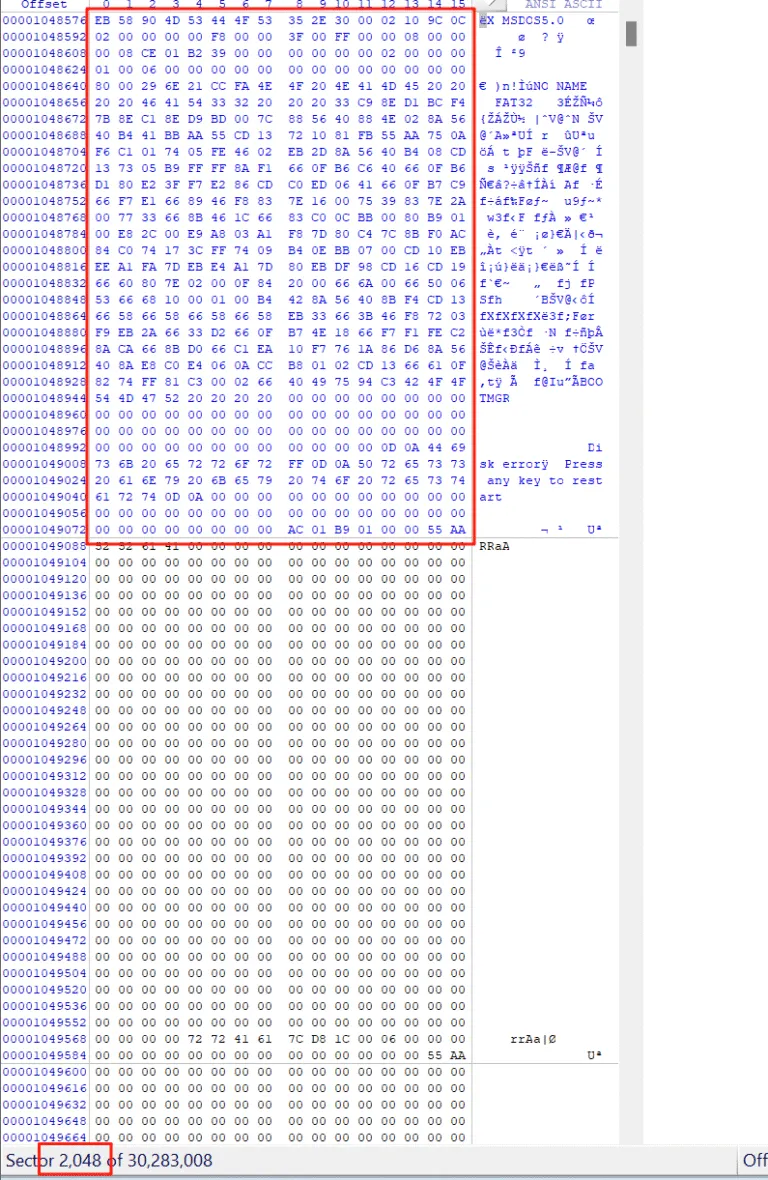
2. Compruebe la letra de la unidad de la tarjeta SD. En el ejemplo, la tarjeta SD se reconoce como “G:”. Si aparece como “RAW”, es posible que el sistema de archivos esté dañado.


3. Abra la tarjeta SD con WinHex. La partición de la unidad G comienza en el sector 2048, y falta el DBR (el área al principio de la partición que registra la información del sistema de archivos).

4. El DBR de copia de seguridad FAT32 reside en el sector 6 de la partición. Si comprueba allí, verá que el DBR de copia de seguridad permanece intacto.

5. Copie este DBR de copia de seguridad en el sector 2048 y guárdelo. La partición se reparará correctamente y se podrá acceder a ella con normalidad.


- Coste: Las herramientas en sí son gratuitas o de bajo coste, pero la asistencia técnica y la consultoría pueden conllevar gastos adicionales.
- Experiencia: Se requieren habilidades y conocimientos avanzados de PC, incluida la estructura del sistema de archivos y los conceptos de MFT.
- Pros: Prueba gratuita (excluidas las tasas de licencia de la herramienta), eficaz para determinados errores del sistema de archivos.
- Desventajas: Existe un alto riesgo de operación errónea, y el porcentaje de éxito depende de los conocimientos y la experiencia.
Utilizar Magic Data Recovery (Fácil incluso para principiantes)
Magic Data Recoveryes un software para recuperar datos de tarjetas SD, con una interfaz intuitiva y compatible con archivos RAW..
- procedimiento:
1. Descargue e instale el software desde el botón de abajo.
Compatible con Windows 7/8/10/11 y Windows Server
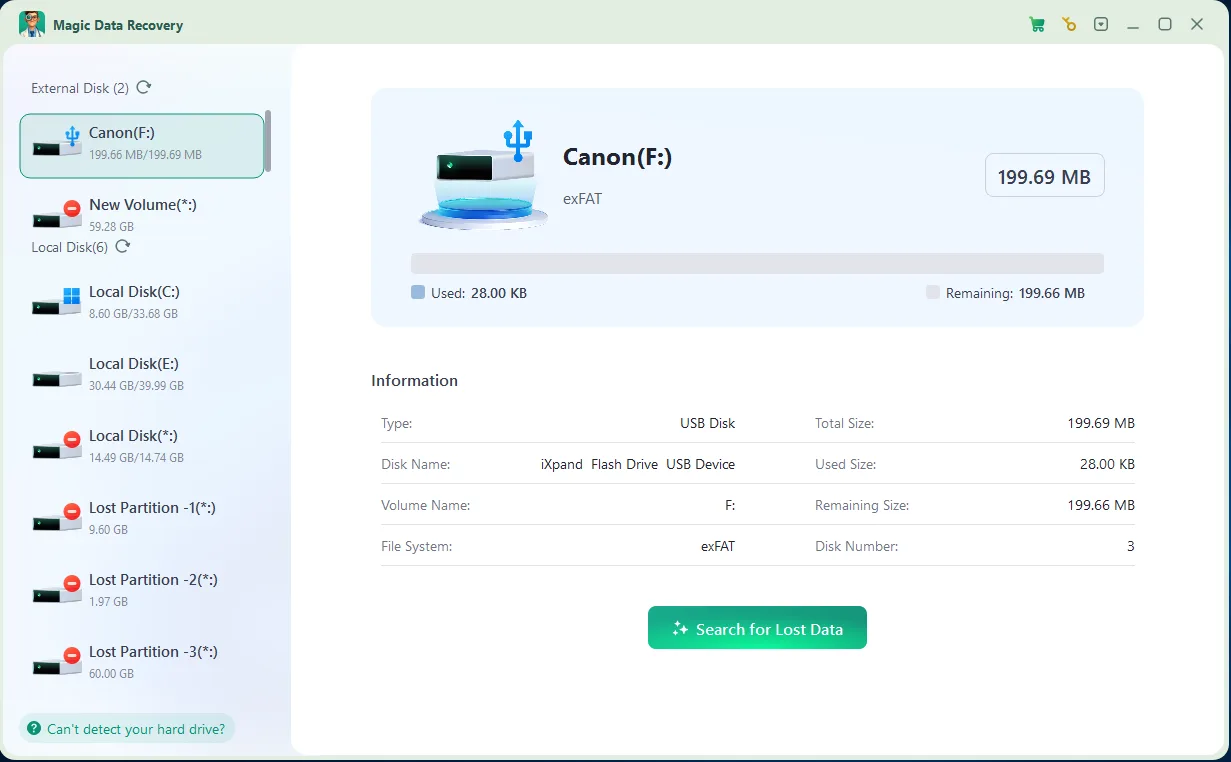
2. Inicie el software y seleccione su tarjeta SD para iniciar el escaneo.
3. Espere a que finalice el escaneado.
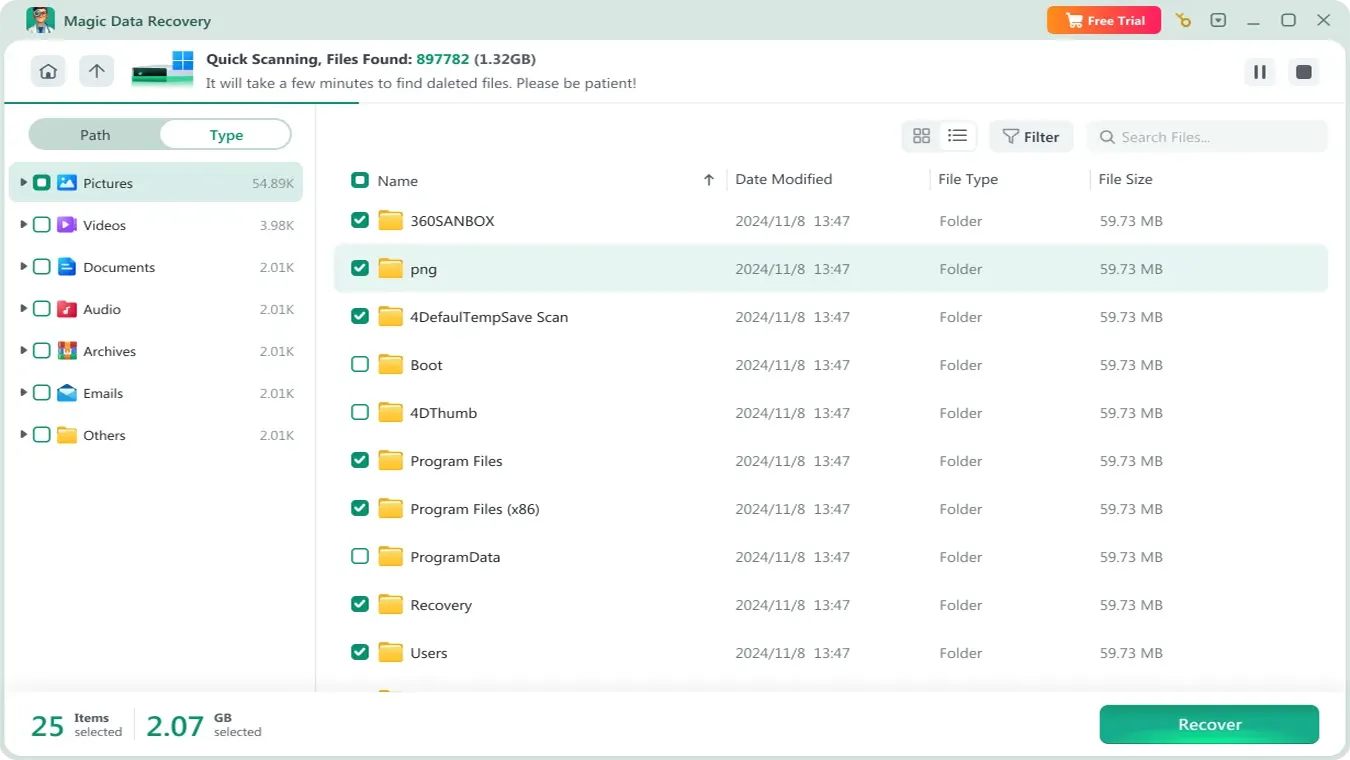
4. Una vez finalizado el escaneo, se mostrará una lista de archivos recuperables. Selecciona los que necesites.

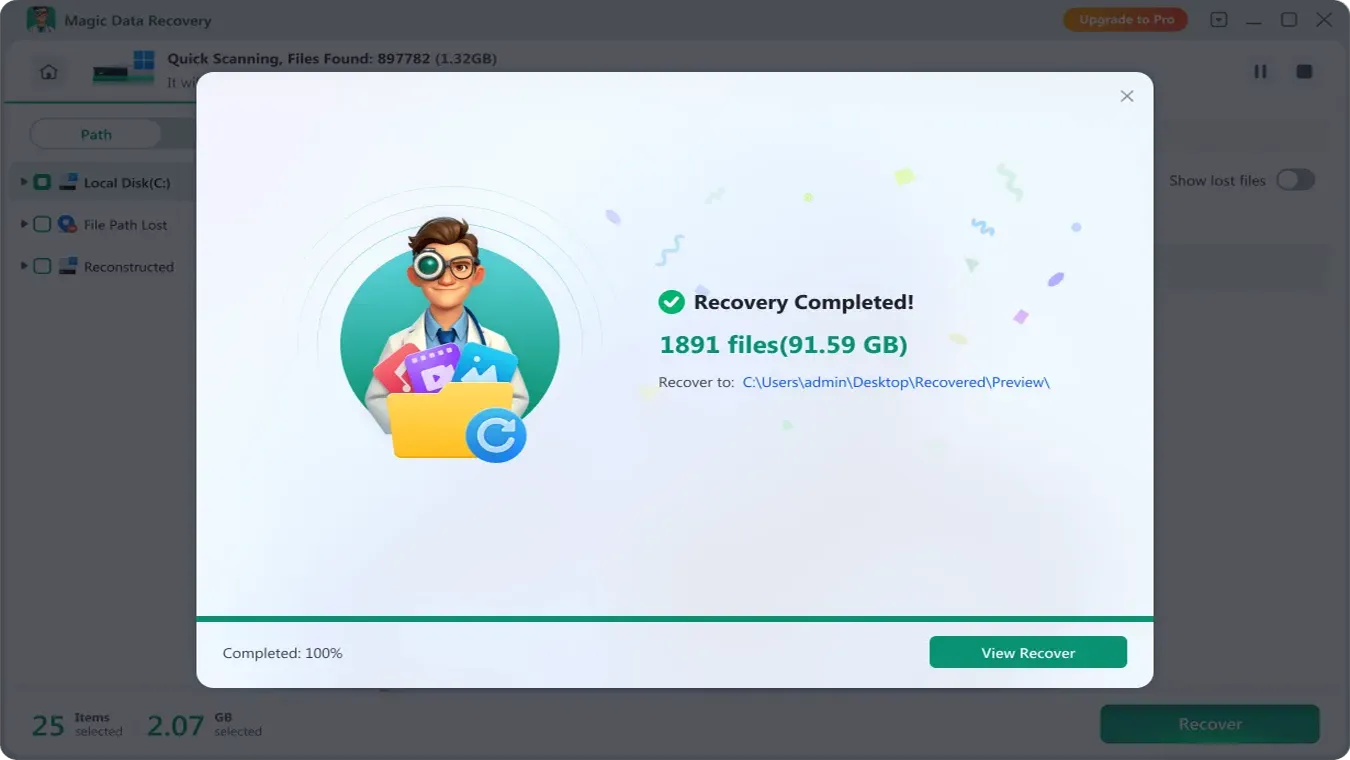
5. Guarde el archivo en otro disco.
Coste y proceso del servicio en Kitamura Camera
Muchos usuarios consideran que kitamura camera sd card recovery porque es conveniente. Sin embargo, el coste y el plazo de entrega varían.
Resumen de costes
- Diagnóstico: a menudo gratuito o de bajo coste
- Recuperación lógica: precio moderado
- Daños físicos: coste significativamente superior
Proceso típico
- Lleva la tarjeta SD a una tienda
- Solicitar un diagnóstico
- Recibir un presupuesto
- Aprobar la recuperación
Aspectos a tener en cuenta
Sin embargo, los costes pueden aumentar rápidamente. Además, el proceso puede durar varios días o incluso semanas. Además, algunos casos requieren tramitación externa.
Por lo tanto, para problemas menores, esta opción puede no ser la más eficiente.
Servicio profesional frente a recuperación por cuenta propia: ¿Cuál elegir?
Antes de decidirse, conviene comparar las principales opciones.
Método | Tasa de éxito | Coste | Dificultad | Recomendación |
Servicio profesional | Alta | Alta | Fácil | ✔ |
Software de recuperación | Medio-Alto | Bajo | Fácil | ✔✔ |
Herramientas de reparación manual | Inestable | Bajo | Duro | ❌ |
Está claro que los servicios profesionales aportan fiabilidad. Sin embargo, las soluciones de software ofrecen una mayor eficacia para los problemas cotidianos. Por lo tanto, la mayoría de los usuarios deberían probar primero la recuperación DIY y solo utilizar un servicio si es necesario.
Conclusión
Si su tarjeta SD es reconocida por software como Magic Data Recovery , puede probar el Solución de recuperación de tarjetas SD para recuperar los datos perdidos. Pero, si no es así, puede que haya un problema físico con la propia tarjeta. En este caso, póngase en contacto con su tienda Kitamura Camera más cercana y pregunte por su servicio de recuperación. En es importante tomar las medidas adecuadas para asegurarse de no volver a perder sus fotos y vídeos importantes.
Compatible con Windows 7/8/10/11 y Windows Server
PREGUNTAS FRECUENTES
¿Cuánto tiempo se tarda en recuperar una tarjeta SD de Kitamura Camera?
¿Hay alguna forma de restaurar una tarjeta SD que no sea a través de Kitamura Camera?
Si pido a Kitamura Camera que recupere mi tarjeta SD, ¿puedo estar seguro de que mis datos están a salvo?
¿Se puede recuperar una tarjeta SD formateada?
¿Qué ocurre si una tarjeta SD se convierte en RAW?

Vasilii es un especialista en recuperación de datos con unos 10 años de experiencia práctica en este campo. A lo largo de su carrera, ha resuelto con éxito miles de casos complejos relacionados con archivos borrados, unidades formateadas, particiones perdidas y sistemas de archivos RAW. Su experiencia abarca tanto métodos de recuperación manual con herramientas profesionales como editores hexadecimales como soluciones automatizadas avanzadas con software de recuperación. La misión de Vasilii es poner los conocimientos sobre recuperación de datos al alcance tanto de los profesionales informáticos como de los usuarios de a pie, ayudándoles a salvaguardar sus valiosos activos digitales.