
Kitamura Camera SD Card Recovery: Cost & DIY Guide

When files disappear from an SD card, many users immediately search for kitamura camera sd card recovery. However, although this service feels reliable, it is not always the best first step. In many cases, you can recover data from SD cards faster and at a lower cost without visiting a store.
Therefore, this guide explains the cost, process, and success rate of recovery services. At the same time, it shows when professional help is necessary and when a DIY approach works better. As a result, you can choose the most efficient solution with confidence.
Supports Windows 7/8/10/11 and Windows Server
Table of Contents
Do You Really Need Kitamura Camera SD Card Recovery?
Before making a decision, you should evaluate your Kitamura Camera SD card carefully.
On the one hand, professional recovery becomes necessary when:
- The SD card is physically damaged
- The device cannot detect it at all
- Water or electrical issues occurred
On the other hand, you can often avoid store-based recovery if:
- Files were accidentally deleted
- The card was formatted
- The system shows RAW
- The card still appears in Disk Management
Therefore, instead of rushing to a store, you should first determine whether the issue is logical or physical. This step often saves both time and money.
Common Kitamura Camera SD Card Problems and Causes
To choose the right solution, you need to understand why data loss happens.
Accidental Deletion or Formatting
First, this is the most common situation. Although files disappear, the data often remains on the Kitamura Camera SD card. Therefore, recovery success remains high.
RAW or Corrupted File System
Next, when the card becomes RAW, the system cannot access it. However, the internal data still exists in many cases.
Logical Errors
In addition, improper removal or system crashes may cause temporary access issues.
As a result, software-based recovery usually solves these problems faster than professional services.
How to recover an SD card purchased from Kitamura Camera : Professional service vs. DIY
If you lose photos or videos stored on an SD card purchased from Kitamura Camera , there are three ways to attempt recovery. Compare the steps, costs, and expertise required for each method to find the best option.
Use Kitamura Camera’s data recovery service
At Camera Kitamura , our expert staff offers data recovery services for physical damage to SD cards and complex errors.
- procedure:
1. Submit your SD card and consultation details at a Kitamura Camera store or online.
2. Get a diagnosis and a recovery estimate.
We will repair your device and get your data back, if you so wish.
- Cost: 17,000 yen (tax included) to 126,500 yen (tax included) per item (depending on the condition of the data and the degree of damage)
- Specialized knowledge: Not required. Camera Kitamura staff will assist you, so users do not need to have any special knowledge.
- Advantages: It can also handle physical failures and has a high success rate.
- Cons: It can be expensive. You may have embarrassment if the data stored on your SD card is exposed to others .
Repairing file systems with WinHex (advanced users)
This method involves using tools like WinHex to repair the file system of the SD card directly. This method requires advanced knowledge and skills, and incorrect operation may further damage your data.
- procedure:
1. Download and install a data editor such as WinHex (free versions available).
2. Check the drive letter of the SD card. In the example, the SD card is recognized as “G:”. If it shows as “RAW”, the file system may be corrupted.


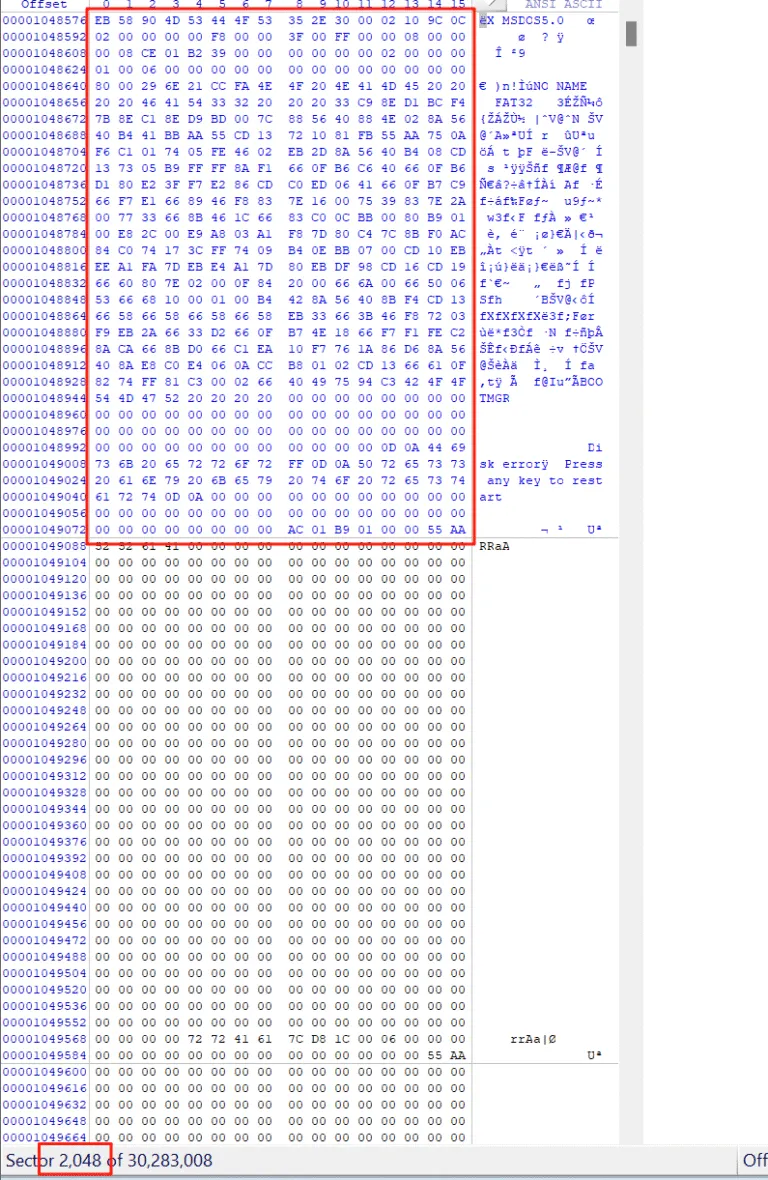
3. Open the SD card with WinHex. The partition of the G drive starts at sector 2048, and the DBR (the area at the beginning of the partition that records file system information) is missing.

4. The FAT32 backup DBR resides in sector 6 of the partition. If you check there, you will find that the backup DBR remains intact.

5. Copy this backup DBR to sector 2048 and save it. The partition will be repaired successfully and can be accessed normally.


- Cost: The tools themselves are free or low-cost, but technical support and consulting may incur additional fees.
- Expertise: Advanced PC skills and knowledge are required, including file system structure and MFT concepts.
- Pros: Free to try (excluding tool licensing fees), effective for certain file system errors.
- Disadvantages: There is a high risk of misoperation, and the success rate depends on knowledge and experience.
Use Magic Data Recovery (Easy even for beginners)
Magic Data Recovery is software for recovering data from SD cards, featuring an intuitive interface and support for RAW files.
- procedure:
1. Download and install the software from the button below.
Supports Windows 7/8/10/11 and Windows Server
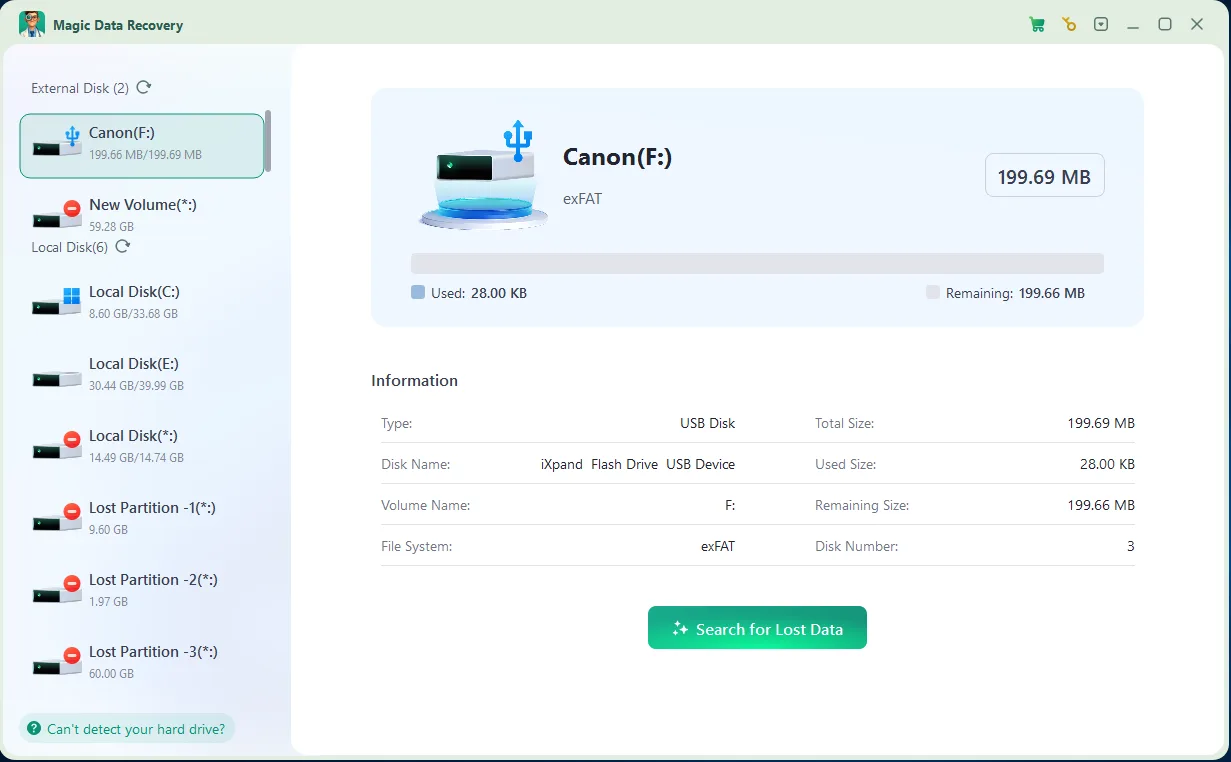
2. Launch the software and select your SD card to start scanning.
3. Wait for the scan to complete.
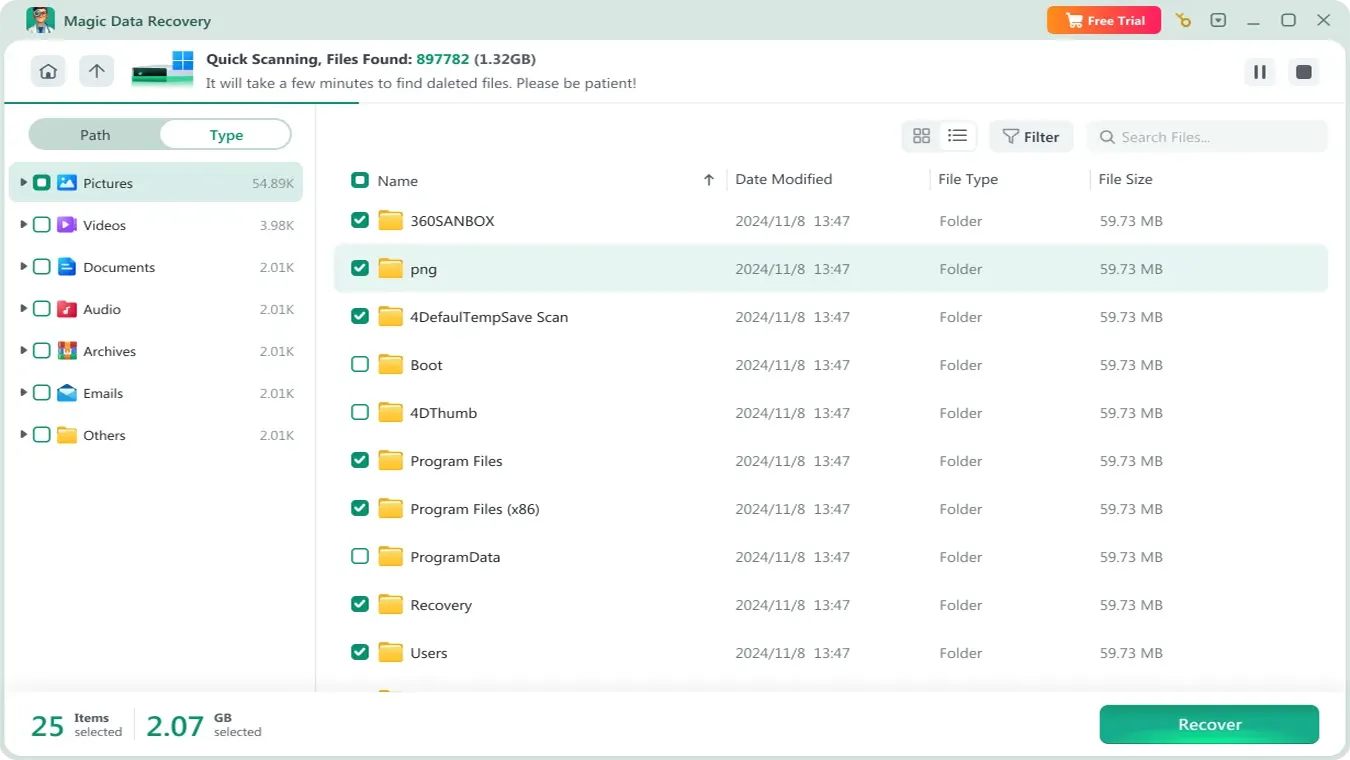
4. After the scan is complete, a list of recoverable files will be displayed. Select the ones you need.

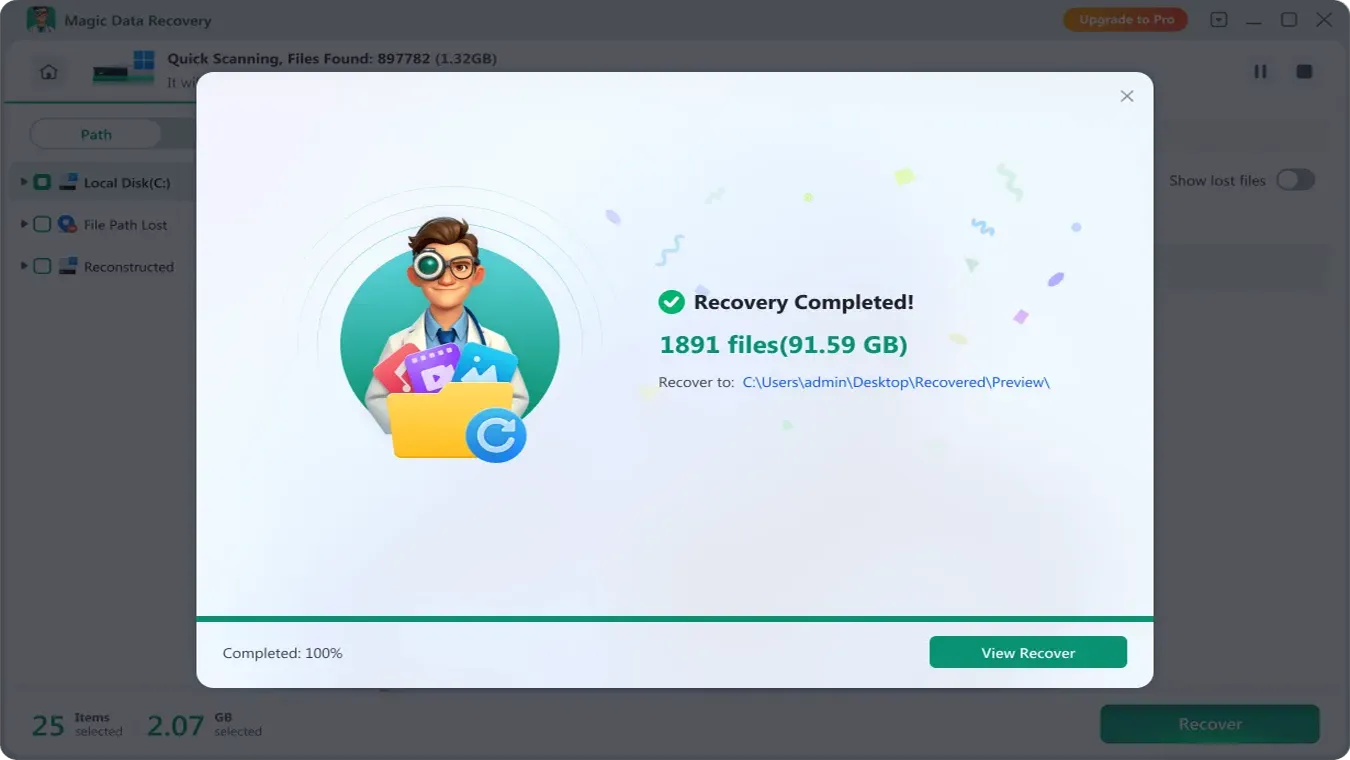
5. Save the file to another disk.
Service Cost and Process at Kitamura Camera
Many users consider kitamura camera sd card recovery because it is convenient. However, the cost and turnaround time vary.
Cost Overview
- Diagnosis: often free or low cost
- Logical recovery: moderate pricing
- Physical damage: significantly higher cost
Typical Process
- Bring the SD card to a store
- Request a diagnosis
- Receive a quotation
- Approve the recovery
Things to Keep in Mind
However, costs can rise quickly. In addition, the process may take several days or even weeks. Furthermore, some cases require external processing.
Therefore, for minor issues, this option may not be the most efficient.
Professional Service vs DIY Recovery: Which Should You Choose?
Before deciding, it helps to compare the main options.
Method | Success Rate | Cost | Difficulty | Recommendation |
Professional service | High | High | Easy | ✔ |
Recovery software | Medium–High | Low | Easy | ✔✔ |
Manual repair tools | Unstable | Low | Hard | ❌ |
Clearly, professional services provide reliability. However, software solutions offer better efficiency for everyday problems. Therefore, most users should try DIY recovery first and only use a service if necessary.
Conclusion
If your SD card is recognized by software like Magic Data Recovery , you can try the SD card recovery solution to get your lost data back. But, if not, there may be a physical problem with the card itself. In this case, please contact your local Kitamura Camera store and ask about their recovery service. It is important to take appropriate measures to ensure that you never lose your important photos and videos again.
Supports Windows 7/8/10/11 and Windows Server
FAQ
How long does it take to recover an SD card from Kitamura Camera?
Is there any way to restore an SD card other than through Kitamura Camera?
If I ask Kitamura Camera to recover my SD card, can I be assured that my data is safe?
Can a formatted SD card be recovered?
What happens if an SD card becomes RAW?

Vasilii is a data recovery specialist with around 10 years of hands-on experience in the field. Throughout his career, he has successfully solved thousands of complex cases involving deleted files, formatted drives, lost partitions, and RAW file systems. His expertise covers both manual recovery methods using professional tools like hex editors and advanced automated solutions with recovery software. Vasilii's mission is to make reliable data recovery knowledge accessible to both IT professionals and everyday users, helping them safeguard their valuable digital assets.