
¿Qué es el comando TRIM y cómo utilizarlo de forma segura?
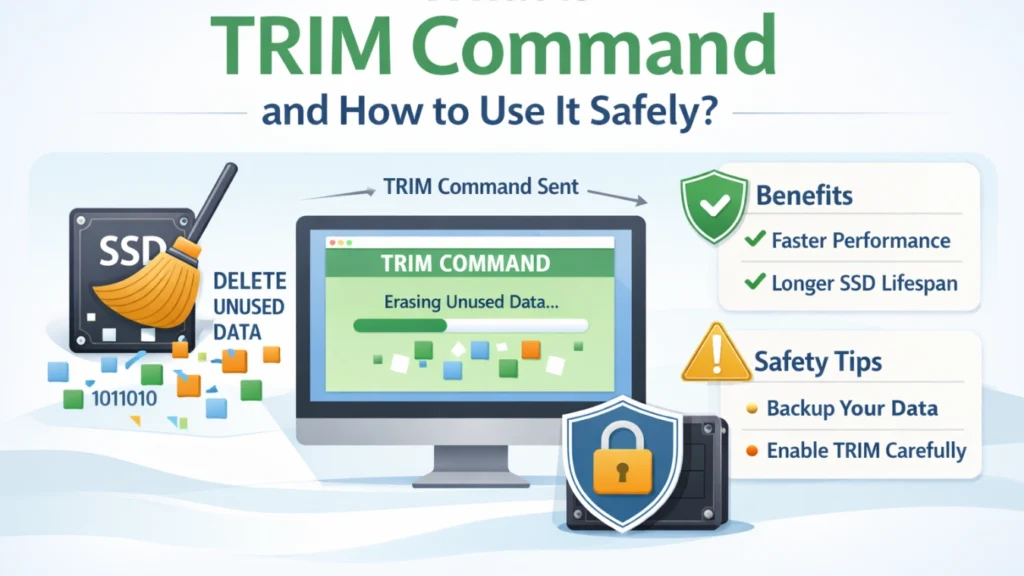
En Comando TRIM is an SSD management feature that allows the operating system to tell a solid-state drive which data blocks are no longer in use. This helps the SSD manage free space efficiently and maintain consistent write performance over time.
In Windows 11 and Windows 10, TRIM is normally managed automatically, but you can check its status, enable or disable it, and manually optimize an SSD when necessary.
In this guide, we’ll explain how the TRIM command works, how to check and use TRIM on Windows, Linux, and macOS, and what TRIM means for Recuperación de datos SSD if files are accidentally deleted.
Índice
¿Qué es exactamente el Mando de recorte?
En Comando TRIM is a storage instruction that allows an operating system to tell an SSD which logical blocks are no longer being used by the file system.
When you delete a file, the operating system can send a TRIM notification for the blocks that previously stored that data. The SSD controller can then treat those blocks as unused and reclaim them during its internal cleanup and garbage-collection processes.
TRIM does not simply “delete files faster.” Its main purpose is to help the SSD manage unused space efficiently so future write operations do not have to spend as much time reorganizing or preparing previously used blocks.
In practice, TRIM can help:
- maintain consistent SSD write performance;
- reduce unnecessary internal data movement;
- improve free-space management;
- support the SSD’s long-term efficiency.
Modern operating systems generally manage TRIM automatically when both the storage device and the storage stack support it.
Why SSDs Need TRIM
Las unidades SSD almacenan los datos en celdas de memoria flash. Estas celdas no pueden sobrescribir datos antiguos directamente.
Por tanto, antes de escribir nuevos datos, la unidad SSD debe borrar primero los bloques existentes.
En comando recortar ayuda a resolver esto:
- reducir los retrasos de escritura
- mejorar la velocidad a largo plazo
- menor desgaste de las células de memoria
Debido a estos beneficios, la mayoría de los expertos recomiendan mantener el comando trim SSD función activada.
How to Check TRIM Status in Windows 11/10
Muchos usuarios quieren confirmar si el comando está activo.
Afortunadamente, Windows proporciona un sencillo método integrado.
Paso 1: Abra el símbolo del sistema como administrador
- Buscar “cmd”
- Haga clic con el botón derecho del ratón en
- Elija “Ejecutar como administrador”
Paso 2: Ejecute el comando TRIM Status
Tipo:
fsutil behavior query DisableDeleteNotify
Step 3: Understand the TRIM Status
After running the command, Windows may display results such as:
NTFS DisableDeleteNotify = 0
or:
NTFS DisableDeleteNotify = 1
Here is what they mean:
- DisableDeleteNotify = 0: TRIM/delete notifications are enabled for the file system.
- DisableDeleteNotify = 1: TRIM/delete notifications are disabled.
A value of 0 means Windows is configured to send TRIM notifications when supported. However, this setting alone does not guarantee that every connected SSD or storage controller supports TRIM.
Cómo activar TRIM en Windows
Si TRIM está desactivado, puede activarlo ejecutando:
fsutil behavior set DisableDeleteNotify 0
Después de eso, Windows empezará a utilizar el recorte automáticamente.
How to Disable TRIM in Windows
In most cases, you should leave TRIM enabled. However, if you need to temporarily disable TRIM for testing or troubleshooting, open Command Prompt as administrator and run:
fsutil behavior set DisableDeleteNotify 1
To enable it again, run:
fsutil behavior set DisableDeleteNotify 0
You can verify the current setting at any time with:
fsutil behavior query DisableDeleteNotify
For normal SSD use, keeping TRIM enabled is generally recommended.
How to Manually Run the TRIM Command in Windows 11/10
Windows normally optimizes supported SSDs automatically, so most users do not need to run TRIM manually. However, you can trigger SSD optimization yourself when troubleshooting performance or checking drive maintenance.
Method 1: Use Optimize Drives
- Open Windows Search and type Desfragmentar y optimizar unidades.
- Open the Optimize Drives utility.
- Select your SSD.
- Haga clic en Optimice.
Windows recognizes supported solid-state drives and performs the appropriate SSD optimization rather than treating them like traditional hard drives.
Method 2: Run ReTrim with PowerShell
Abre PowerShell como administrador y ejecuta:
Optimize-Volume -DriveLetter C -ReTrim -Verbose
Sustituir C with the drive letter of the SSD you want to optimize.
En -ReTrim option sends TRIM/UNMAP hints for unused sectors to the underlying storage device.
Cómo utilizar el Recorte en Linux
Linux provides the fstrim utility for sending discard requests for unused blocks on supported filesystems and storage devices.
Check Discard/TRIM Support
Corre:
lsblk --discard
This displays discard-related information for each block device. Devices that report supported discard capabilities may support TRIM or a similar discard operation.
Manually Run TRIM
To trim the root filesystem, run:
sudo fstrim -v /
You can also trim all supported mounted filesystems with:
sudo fstrim -av
Use Scheduled TRIM
Many Linux distributions provide an fstrim.timer service for periodic TRIM. Where available, you can enable it with:
sudo systemctl enable --now fstrim.timer
For typical desktop and server systems, periodic TRIM is usually preferable to running fstrim unnecessarily often.
Cómo gestiona macOS el Mando de recorte
macOS activa el recorte automáticamente en las unidades SSD de Apple.
Para unidades SSD de otros fabricantes, puede activar TRIM mediante:
sudo trimforce enable
Apple recomienda utilizarlo sólo con unidades compatibles.
Why TRIM Makes Deleted SSD Data Harder to Recover
TRIM can significantly reduce the chance of recovering deleted files from an SSD.
When a file is deleted, the operating system may notify the SSD that the corresponding logical blocks are no longer needed. The SSD controller can then reclaim those blocks as part of its internal garbage-collection process.
Once the underlying NAND pages containing the deleted data have been erased or are no longer accessible through the SSD controller, conventional recovery software generally cannot reconstruct the original file data.
This is one of the key differences between recovering deleted files from an SSD and recovering them from a traditional HDD.
However, TRIM behavior is not identical in every situation. Recovery results can vary depending on the SSD, controller, operating system, file system, storage interface, and whether TRIM was actually issued and processed.
Qué hacer inmediatamente después de la pérdida de datos en una unidad SSD TRIM
If important files are deleted from an SSD, minimize activity on the affected drive immediately.
- Stop copying or downloading files to the SSD.
- Avoid installing software on the affected SSD.
- Do not format, initialize, or run unnecessary repair operations on the drive.
- If possible, install recovery software on another healthy drive.
- Save any recovered files to a different storage device.
TRIM can reduce the recoverability of deleted SSD data, but there is no universal time limit such as 10 minutes or 30 minutes. Whether files remain recoverable depends on whether the relevant blocks have already been processed by the SSD.
Can Data Be Recovered from a TRIM-Enabled SSD?
Sometimes, but recovery from a TRIM-enabled SSD can be much more difficult than recovery from a traditional HDD.
If TRIM has already been processed and the SSD controller has reclaimed the affected blocks, the deleted data may no longer be accessible to recovery software. However, recovery may still be possible in other SSD data-loss scenarios, including damaged file systems, RAW partitions, inaccessible volumes, or cases where the relevant data blocks have not been cleared.

If the SSD is still detected by Windows, Magic Data Recovery can scan the drive for recoverable files. Install the software on a different healthy drive whenever possible, and never save recovered files back to the affected SSD.
For a detailed explanation of what can and cannot be recovered, see our Guía de recuperación de datos de SSD.
Compatible con Windows 7/8/10/11 y Windows Server
Conclusión
En Comando TRIM is an important part of modern SSD management. It allows the operating system to notify an SSD about unused blocks, helping the drive manage free space and maintain efficient write performance.
On Windows 11 and Windows 10, TRIM is normally handled automatically. You can check its status with fsutil behavior query DisableDeleteNotify, enable or disable delete notifications with fsutil, and manually retrim an SSD through Optimize Drives or PowerShell when necessary.
Keep in mind that TRIM can also make deleted-file recovery more difficult. If important data is lost from an SSD, stop using the affected drive and avoid writing new data to it. If the data is still recoverable, Magic Data Recovery puede scan the SSD and help restore accessible files to another storage device.
Preguntas frecuentes
¿Qué es el comando trim en un SSD?
¿Cómo puedo comprobar si la función de recorte está activada en Windows?
¿Cómo puedo activar el recorte en mi SSD?
¿El comando recortar borra permanentemente los archivos eliminados?
Can Magic Data Recovery recover files from a TRIM-enabled SSD?
¿Cuál es el equivalente en Linux del comando trim?
¿Debo desactivar el comando trim para una mejor recuperación?
Does Windows 11 automatically run TRIM?
What command manually trims an SSD in Windows?

Jason es un especialista en recuperación de datos y asistencia técnica con más de 15 años de experiencia práctica. Ha trabajado intensamente con usuarios finales, resolviendo casos complejos de pérdida de datos y ofreciendo soluciones prácticas de recuperación para eliminaciones accidentales, unidades formateadas, sistemas de archivos dañados, particiones perdidas, fallos del sistema y otras situaciones de emergencia relacionadas con la recuperación. Su experiencia también abarca las copias de seguridad y la restauración, la reparación de archivos y la recuperación ante desastres, con especial énfasis en ofrecer una orientación segura, fiable y técnicamente precisa.