
Riparazione degli errori del disco: Cause, soluzioni e guida al recupero dei dati
Perché la riparazione degli errori del disco non deve essere ignorata
Vedere il messaggio “Riparazione degli errori del disco” durante l'avvio di Windows può essere allarmante, soprattutto quando il sistema rimane bloccato per ore. Per molti utenti questo accade all'improvviso, dopo un arresto forzato, un crash del sistema o un'interruzione di corrente inaspettata.
Mentre Windows cerca di proteggere il sistema scansionando e riparando automaticamente i problemi del disco, errori del disco spesso segnalano problemi di file system più profondi o segni precoci di guasto dell'unità. Se gestiti in modo errato, questi errori possono portare a problemi permanenti. perdita di dati.
Questa guida spiega cosa riparazione degli errori del disco significa davvero, perché si verifica e come risolverlo in modo sicuro. Ma soprattutto, mostra come proteggere e recuperare i dati quando le riparazioni standard non sono sufficienti, utilizzando una soluzione affidabile come Magic Data Recovery.
Supporta Windows 7/8/10/11 e Windows Server
Indice dei contenuti
Cosa significa “Riparazione degli errori del disco” in Windows?
Quando Windows visualizza riparazione degli errori del disco, indica che il sistema operativo ha rilevato delle incongruenze nel file system o nella struttura del disco.
Nella maggior parte dei casi, Windows lancia automaticamente un'utilità di controllo del disco, in genere CHKDSK-per scansionare l'unità alla ricerca di errori logici, voci di file danneggiate o settori danneggiati.
Questo processo mira a:
- Correggere le incongruenze del file system
- Contrassegnare i settori inutilizzabili
- Ripristino della stabilità del disco
Tuttavia, il successo della riparazione dipende dalla gravità del problema del disco. Gli errori logici sono solitamente risolvibili, mentre i danni fisici possono continuare a peggiorare nel tempo.
Cause comuni di errori di riparazione del disco
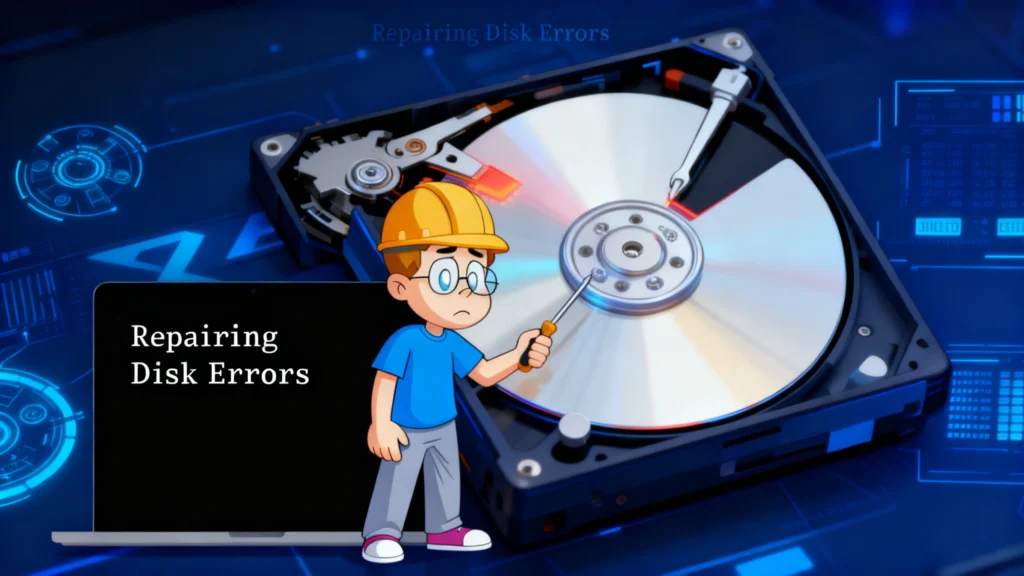
La comprensione della causa principale aiuta a scegliere la soluzione più sicura e a evitare inutili perdite di dati.
1. Spegnimenti impropri e interruzioni dell'alimentazione
Un'improvvisa perdita di potenza interrompe le operazioni di scrittura del disco. Di conseguenza, le tabelle dei file possono diventare inconsistenti, innescando riparazione degli errori del disco all'avvio successivo.
2. Corruzione del file system
Corrotto NTFS o GRASSO I file system si verificano spesso dopo arresti anomali del sistema, riavvii forzati o aggiornamenti di Windows non riusciti.
3. Settori danneggiati sul disco rigido
Settori danneggiati sono aree non leggibili di un disco.
- Settori danneggiati morbidi derivano da errori logici.
- Settori danneggiati rigidi indicano un danno fisico e spesso peggiorano nel tempo.
4. Hardware invecchiato o guasto
L'usura meccanica, il surriscaldamento o i difetti di fabbricazione possono degradare gradualmente l'affidabilità di un convertitore di frequenza.
5. Malware o conflitti software
Alcuni malware o utility di sistema di basso livello possono danneggiare le strutture del disco, causando errori ricorrenti.
Sintomi che indicano un grave problema al disco
Alcuni segnali di allarme suggeriscono che riparazione degli errori del disco potrebbe non risolvere il problema di fondo:
- Ripetuti cicli di riparazione del disco durante l'avvio
- Tempi di avvio estremamente lenti
- Frequenti blocchi del sistema o schermate blu
- Rumori di scatto o di rettifica dagli HDD
Quando compaiono questi sintomi, la protezione dei dati diventa più importante della riparazione forzata.
Come risolvere gli errori di riparazione del disco in modo sicuro
Metodo 1: lasciare che Windows completi la riparazione
Se il processo si avvia automaticamente, la pazienza è spesso la scelta più sicura. Interrompere la riparazione del disco può peggiorare la corruzione del file system.
Suggerimento:
Se il processo dura più di 2-3 ore senza progressi, il problema potrebbe essere più serio.
Metodo 2: Eseguire CHKDSK manualmente (consigliato)
In corsa CHKDSK manualmente vi permette di avere un maggiore controllo sul processo di riparazione.
Passi:
- Avviare il ripristino di Windows o la modalità provvisoria
- Aprire il Prompt dei comandi come amministratore
- Entrare:
chkdsk C: /f
- Riavviare il PC quando viene richiesto
/f risolve gli errori del file system logico senza scansionare ogni settore.
Metodo 3: Usare CHKDSK /r per riparazioni più approfondite
chkdsk C: /r
Il /r Il parametro individua i settori danneggiati e tenta di recupero dati.
Importante:
Questo processo può richiedere diverse ore e aumenta lo stress del disco. Non è l'ideale per le unità in avaria.
Metodo 4: Eseguire SFC e DISM
Se gli errori del disco interessano i file di sistema:
sfc /scannow
Seguito da:
DISM /Online /Pulizia immagine /Ripristino salute
Questi strumenti riparano i componenti del sistema Windows senza alterare i file utente.
Quando la riparazione degli errori del disco causa la perdita di dati
Gli strumenti di riparazione del disco modificano le strutture dei file. Durante questo processo:
- I file danneggiati possono diventare inaccessibili
- Intere partizioni possono scomparire
- I file possono essere contrassegnati come persi
È qui che i metodi tradizionali di riparazione dei dischi falliscono.
Recupero dei dati persi con Magic Data Recovery
Quando riparazione degli errori del disco Se il risultato è un file mancante o inaccessibile, Magic Data Recovery offre un approccio più sicuro e incentrato sul recupero.
Come l'Magic Data Recovery aiuta
- Recupera i file persi dopo le riparazioni CHKDSK
- Estrae i dati da partizioni danneggiate o inaccessibili
- Funziona anche quando Windows non si avvia correttamente
Vantaggi principali
- La scansione in sola lettura impedisce ulteriori danni
- Supporti HDD, SSD, unità USB e schede di memoria
- Tecnologia di scansione profonda per corruzione complessa del disco
Caso d'uso tipico
Un sistema entra in un ciclo di riparazione del disco dopo un'interruzione di corrente. Il CHKDSK viene completato, ma mancano documenti e foto. Magic Data Recovery esegue la scansione dell'unità interessata e ripristina i file recuperabili prima di un ulteriore deterioramento.
Perché è più affidabile
A differenza degli strumenti di riparazione del disco che privilegiano la struttura rispetto ai dati, Magic Data Recovery si concentra sulla conservazione e sul recupero sicuro dei file.
Se siete alla ricerca di una soluzione più affidabile per recuperare i dati dopo riparazione degli errori del disco, l'Magic Data Recovery merita di essere preso in considerazione.
Come prevenire gli errori del disco in futuro
- Spegnere correttamente Windows
- Utilizzate un UPS per prevenire le perdite di potenza
- Eseguire controlli periodici del disco
- Mantenere backup regolari
- Sostituire le unità obsolete in modo proattivo
La manutenzione preventiva riduce il rischio di danneggiamento ricorrente del disco.
Conclusione: Risolvere gli errori del disco senza rischiare i dati
Mentre riparazione degli errori del disco è una protezione integrata di Windows, ma non garantisce la sicurezza dei dati. Le riparazioni di base funzionano per i problemi minori, ma i problemi gravi del disco richiedono un attento equilibrio tra riparazione e ripristino.
Quando perdita di dati si verifica, Magic Data Recovery offre una soluzione pratica e più sicura, consentendo di recuperare i file prima che si verifichino danni irreversibili. La scelta dell'approccio giusto protegge sia il sistema che i dati.
Supporta Windows 7/8/10/11 e Windows Server
Domande frequenti
Come si risolve un errore di riparazione del disco?
Quanto tempo devo aspettare per riparare gli errori del disco?
È sicuro riparare gli errori del disco da soli?
Come eseguire una riparazione CHKDSK?
Posso interrompere la riparazione degli errori del disco?
Cosa è meglio, CHKDSK /f o /r?
Posso spegnere il PC durante la riparazione automatica?

Erin Smith è riconosciuta come una delle scrittrici più professionali di Amagicsoft. Negli ultimi 10 anni ha continuamente affinato le sue capacità di scrittura e ha aiutato milioni di lettori a risolvere i loro problemi tecnologici.