
Si è verificato un errore di lettura del disco: Cause, soluzioni e suggerimenti per il recupero dei dati

Incontro con il messaggio di errore “Si è verificato un errore di lettura del disco”.” all'avvio del computer può essere allarmante. Questo messaggio di solito appare su una schermata nera e impedisce a Windows di avviarsi normalmente, lasciando molti utenti confusi sul passo successivo. È sufficiente premere Ctrl+Alt+Canc in genere si limita a riavviare il computer, ma non risolve il problema di fondo.
In questo articolo analizziamo perché si è verificato un errore di lettura del disco presentare soluzioni tecniche e accurate da provare passo dopo passo, e spiegare come proteggere le persone in modo sicuro. recuperare i dati se i file diventano inaccessibili, utilizzando uno strumento affidabile come Magic Data Recovery.
Supporta Windows 7/8/10/11 e Windows Server
Indice dei contenuti
Cosa fa Si è verificato un errore di lettura del disco Cioè?
A differenza degli errori di sistema ordinari che si verificano dopo il caricamento di Windows, l'errore si è verificato un errore di lettura del disco viene visualizzato il messaggio prima il sistema operativo si avvia. In termini tecnici, ciò indica che il BIOS o l'UEFI del sistema ha tentato di leggere il disco di avvio, ma non è riuscito a recuperare le strutture di dati necessarie, quali:
- Master Boot Record (MBR)
- Dati di configurazione di avvio (BCD)
- Tabella di partizione
- Settori di avvio essenziali
Questo guasto interrompe il processo di avvio e blocca il sistema.
Cause primarie di Si è verificato un errore di lettura del disco
La comprensione delle cause principali vi aiuterà a scegliere le giuste misure di risoluzione dei problemi.
1. Master Boot Record (MBR) o BCD danneggiato
Il Master Boot Record e BCD memorizzano le istruzioni essenziali per l'avvio di Windows. Se si corrompono, spesso a causa di una perdita di potenza, di uno spegnimento improprio o di errori di partizione, il PC non è in grado di individuare il punto di avvio corretto.
2. Tabella delle partizioni non configurata correttamente
Una tabella delle partizioni danneggiata o non correttamente configurata può impedire al sistema di trovare la partizione del sistema operativo attivo. Questa è una causa frequente di errori di lettura dopo l'interruzione della scrittura del disco.
3. Ordine di avvio errato o rilevamento dell'unità mancante
Quando il BIOS/UEFI tenta di eseguire l'avvio da un dispositivo sbagliato (ad esempio, USB o unità esterna), il sistema non funziona e segnala si è verificato un errore di lettura del disco. Inoltre, se il disco rigido non viene rilevato nel BIOS, ciò suggerisce fortemente problemi di connessione o hardware.
4. Cavi interni allentati o difettosi
Un SATA sciolto, NVMe, o il cavo di alimentazione possono interrompere la comunicazione tra l'unità e la scheda madre. Anche se l'unità è intatta, una cattiva connessione può causare errori di lettura.
5. Settori danneggiati o disco rigido in avaria
Usura fisica dei dischi rigidi o SSD I problemi possono creare settori illeggibili. Con il tempo, i settori contenenti dati critici del sistema possono danneggiarsi, causando questo errore.
6. RAM difettosa o problemi di BIOS/UEFI
In casi rari, moduli RAM difettosi o firmware del BIOS non aggiornato possono introdurre instabilità che porta il sistema a leggere male il disco.
Soluzioni passo-passo per risolvere i problemi Si è verificato un errore di lettura del disco
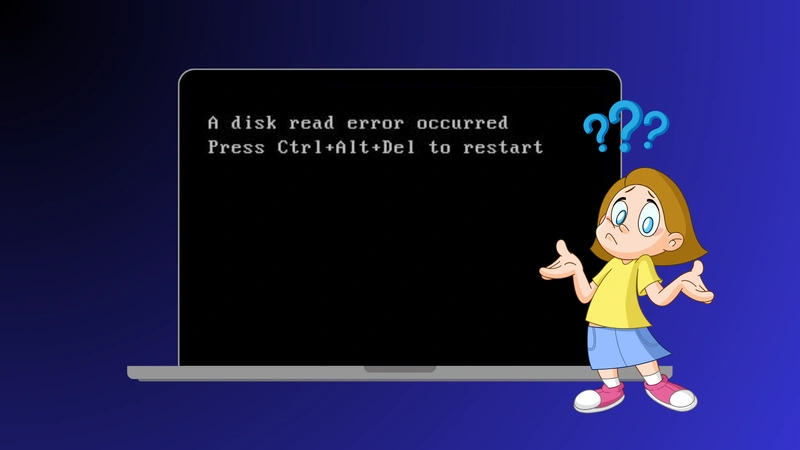
Ecco i metodi affidabili, da quelli più sicuri e facili a quelli più avanzati:
1. Preliminari: Ciclo di alimentazione e rimozione dei dispositivi esterni
Prima di avviare correzioni complesse:
- Spegnere completamente il computer.
- Scollegare tutte le unità USB e i dispositivi di archiviazione esterni.
- Attendere 10-15 secondi e riavviare.
In questo modo si garantisce che la sequenza di avvio non venga interrotta da dispositivi esterni o da interruzioni transitorie.
2. Confermare il rilevamento del disco rigido nel BIOS/UEFI
È essenziale assicurarsi che l'unità venga riconosciuta:
- Riavviare il PC e accedere al BIOS/UEFI (di solito premendo il tasto Del, F2, F10 o Esc).
- Andare a Immagazzinamento o Stivale sezione.
- Verificare che l'unità di avvio primaria sia elencata e impostata come primo dispositivo di avvio.
Se l'unità non viene visualizzata, è possibile che sia scollegata, non correttamente posizionata o difettosa.
3. Ricostruzione del MBR e correzione della configurazione di avvio
Se le strutture di avvio sono danneggiate:
- Avvio da USB o DVD di installazione di Windows.
- Scegliere Riparare il computer > Risoluzione dei problemi > Opzioni avanzate > Prompt dei comandi.
- Nel prompt dei comandi, eseguire:
bootrec /fixmbr
bootrec /fixboot
bootrec /scanos
bootrec /rebuildbcd
- Riavviare dopo il completamento.
Questa sequenza ripara l'MBR e ricostruisce i dati di configurazione di avvio.
4. Usare CHKDSK per riparare gli errori del file system
Anche i file system danneggiati possono causare problemi di lettura:
- Avviare l'ambiente di ripristino di Windows come indicato sopra.
- Correre:
chkdsk C: /f /r
Sostituire C: con la lettera dell'unità del sistema, se necessario.
Questa utility esegue una scansione e tenta di riparare i settori danneggiati o gli errori mirati.
5. Riposizionare i cavi e controllare l'hardware
Per i desktop:
- Spegnere e scollegare la spina.
- Controllare che i cavi SATA/dati e di alimentazione non siano rigidi o danneggiati.
- Provare con diverse porte del cavo.
Per i computer portatili:
- Se non è possibile, riposizionare l'unità o rivolgersi a un professionista.
In questo modo si eliminano molti errori di connessione.
6. Ripristino o aggiornamento del BIOS
A volte le impostazioni del BIOS bloccano l'avvio corretto:
- Accedere al BIOS/UEFI.
- Carico Impostazioni predefinite o predefiniti ottimizzati.
- Salvare e riavviare.
Se l'errore persiste, considerare l'aggiornamento alla versione più recente del BIOS secondo le istruzioni del produttore.
Che cosa fare se i file sono inaccessibili o persi?
Recuperare i dati con Magic Data Recovery
Perché utilizzare Magic Data Recovery?
Magic Data Recovery è stato progettato specificamente per gestire:
- Unità danneggiate che non consentono l'avvio di Windows
- Unità con settori danneggiati
- File inaccessibili o persi dopo le riparazioni del sistema
A differenza del ripristino manuale da riga di comando o del ripristino del sistema, si concentra su La sicurezza dei dati prima di tutto.
Vantaggi principali
- Una scansione approfondita rileva i file recuperabili anche nei file system danneggiati.
- Funziona su HDD, SSD, USB e memoria esterna
- Supporta il recupero di foto, documenti, video e file di sistema.
- Le operazioni di sola lettura impediscono la sovrascrittura dei dati esistenti.
Scenario di recupero tipico
Immaginate di riparare si è verificato un errore di lettura del disco con CHKDSK-ma in seguito vengono a mancare importanti documenti di lavoro. Collegando l'unità interessata a un PC funzionante ed eseguendo Magic Data Recovery, è possibile eseguire la scansione dei file recuperabili e ripristinarli in una posizione sicura. prima eseguire operazioni rischiose come la riformattazione o la reinstallazione di Windows.
Se state cercando un modo più sicuro ed efficiente per recuperare i file persi, prendete in considerazione l'idea di provare Magic Data Recovery prima di procedere in modo irreversibile.
Prevenire Si è verificato un errore di lettura del disco nel futuro
- Eseguite regolarmente il backup dei dati importanti
- Monitoraggio della salute dell'unità tramite strumenti SMART
- Utilizzate un gruppo di continuità per evitare arresti improvvisi
- Sostituzione preventiva delle unità obsolete
- Mantenere puliti i collegamenti dei cavi e gli aggiornamenti del BIOS
Conclusione
Il si è verificato un errore di lettura del disco Il messaggio è un problema di avvio comune ma spesso risolvibile, che può derivare da dati di avvio corrotti, problemi di cavi, errori di partizione o guasti hardware. La risoluzione sistematica dei problemi, dai controlli del BIOS alla riparazione delle strutture di avvio, può risolvere la maggior parte dei casi senza sostituire l'hardware.
Tuttavia, la protezione dei dati rimane la priorità. Quando i file critici diventano inaccessibili, l'utilizzo di uno strumento di recupero affidabile come Magic Data Recovery offre le migliori possibilità di recuperare le informazioni in modo sicuro prima di effettuare interventi più invasivi.
Supporta Windows 7/8/10/11 e Windows Server
Domande frequenti
Come si risolve un errore di lettura del disco?
Come risolvere gli errori CHKDSK in Windows 10?
Gli errori di lettura del disco sono comuni sulle unità SSD?
Come risolvere l'errore Ctrl Alt Delete?
Come fare CHKDSK e riparare?
Come premere Ctrl+Alt+Canc per riavviare?
È meglio CHKDSK /f o /r?
Come risolvere un disco corrotto?

Erin Smith è riconosciuta come una delle scrittrici più professionali di Amagicsoft. Negli ultimi 10 anni ha continuamente affinato le sue capacità di scrittura e ha aiutato milioni di lettori a risolvere i loro problemi tecnologici.