
Il supporto di Windows 10 finirà, cosa devo fare?
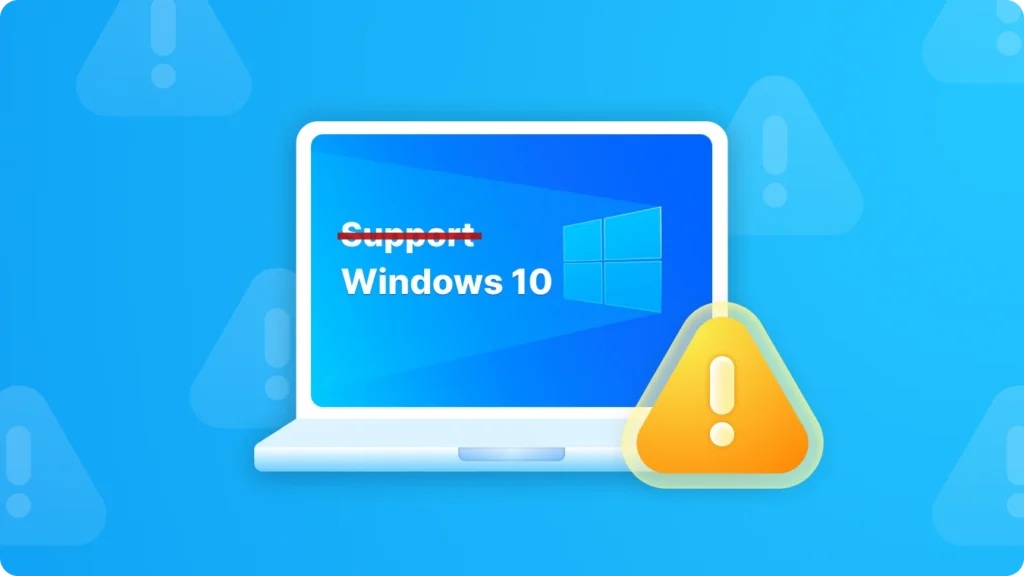
Come Il supporto di Windows 10 terminerà il 14 ottobre 2025, molti utenti iniziano a preoccuparsi del futuro dei loro sistemi, software e dati. Senza aggiornamenti continui o patch di sicurezza, i dispositivi Windows 10 diventeranno gradualmente meno sicuri e meno compatibili con le applicazioni moderne. Per prepararsi a questa transizione, è importante non solo pianificare il proprio percorso di aggiornamento, ma anche eseguire il backup delle chiavi di licenza del software. Utilizzando uno strumento dedicato come Magic Recovery Key può aiutarvi facilmente recuperare e salvare tutte le chiavi di attivazione prima di passare a un altro sistema o di reinstallare Windows.
Supporta Windows 7/8/10/11 e Windows Server
Indice dei contenuti
Quando finirà il supporto di Windows 10?
Il supporto per Windows 10 terminerà il 14 ottobre 2025. A partire da questa data, Microsoft non fornirà più aggiornamenti software gratuiti da Windows Update, assistenza tecnica o correzioni di sicurezza per Windows 10. Il vostro PC continuerà a funzionare, ma vi consigliamo di passare a Windows 11. Windows 11 offre un'esperienza moderna ed efficiente, progettata per soddisfare le attuali esigenze di maggiore sicurezza.

Impatto sugli utenti dopo la fine del supporto di Windows 10
Una volta terminato il supporto, gli utenti dovranno affrontare diversi rischi significativi. In primo luogo, senza aggiornamenti di sicurezza, il sistema sarà più vulnerabile alle minacce informatiche come virus, malware e hacker. Queste minacce possono potenzialmente rubare informazioni personali, danneggiare i file o addirittura prendere il controllo del computer. In secondo luogo, possono sorgere problemi di compatibilità. Con il continuo progresso degli sviluppatori di software, le nuove applicazioni potrebbero non essere completamente compatibili con il sistema. Windows 10, e il software esistente potrebbe non ricevere più aggiornamenti, con conseguente esperienza utente non ottimale.
Opzioni per gli utenti dopo la fine del supporto di Windows 10
1. Aggiornamento a Windows 11

- Pro: Windows 11 è dotato di nuove funzionalità, migliori prestazioni e funzioni di sicurezza potenziate. Inoltre, garantisce la compatibilità con il software e l'hardware più recenti. Ad esempio, ha un'interfaccia utente ridisegnata, migliori capacità di multitasking e supporto per le tecnologie più recenti come DirectX 12 Ultimate.
- Contro: Alcuni computer più vecchi potrebbero non soddisfare i requisiti di sistema per Windows 11. L'aggiornamento può anche richiedere l'acquisto di una nuova licenza se quella attuale di Windows 10 non è idonea per l'aggiornamento gratuito. Inoltre, per gli utenti abituati all'interfaccia di Windows 10 potrebbe essere necessaria una curva di apprendimento.
2. Rimanere con Windows 10
- Pro: Familiarità. Gli utenti che si trovano a proprio agio con l'interfaccia di Windows 10 e che hanno tutti i software e l'hardware che funzionano bene, potrebbero non voler affrontare il fastidio dell'aggiornamento. Inoltre, se il computer non soddisfa i requisiti di Windows 11, questa potrebbe essere l'unica opzione pratica a breve termine.
- Contro: Come già detto, i rischi per la sicurezza aumenteranno in modo significativo. Non ci saranno più correzioni ufficiali per i bug e le vulnerabilità di sicurezza. Anche la compatibilità del software potrebbe diventare un problema importante nel tempo.
3. Passare a un sistema operativo alternativo come macOS

- Pro: macOS ha un'interfaccia esteticamente più gradevole e interazioni più amichevoli, e l'esperienza complessiva è migliore rispetto a Windows.
- Contro: La curva di apprendimento può essere ripida per chi è abituato all'ecosistema Windows. Alcuni software comunemente utilizzati su Windows potrebbero non avere equivalenti diretti o richiedere uno sforzo maggiore per essere configurati su macOS.
Sia che si scelga di passare a un PC Windows 11 o un Mac con macOS, incontrerete delle difficoltà nella migrazione di dati e software. In particolare, il software acquistato rappresenta una risorsa digitale. Trovare il modo di salvaguardare questa risorsa digitale, ottenere le chiavi di attivazione del software dal PC Windows 10 e riattivare il software su un nuovo computer può essere piuttosto problematico. Fortunatamente, Magic Recovery Key può aiutarvi a estrarre le chiavi di attivazione di tutti i vostri software.
Come estrarre tutte le chiavi di licenza del software al termine dell'assistenza?
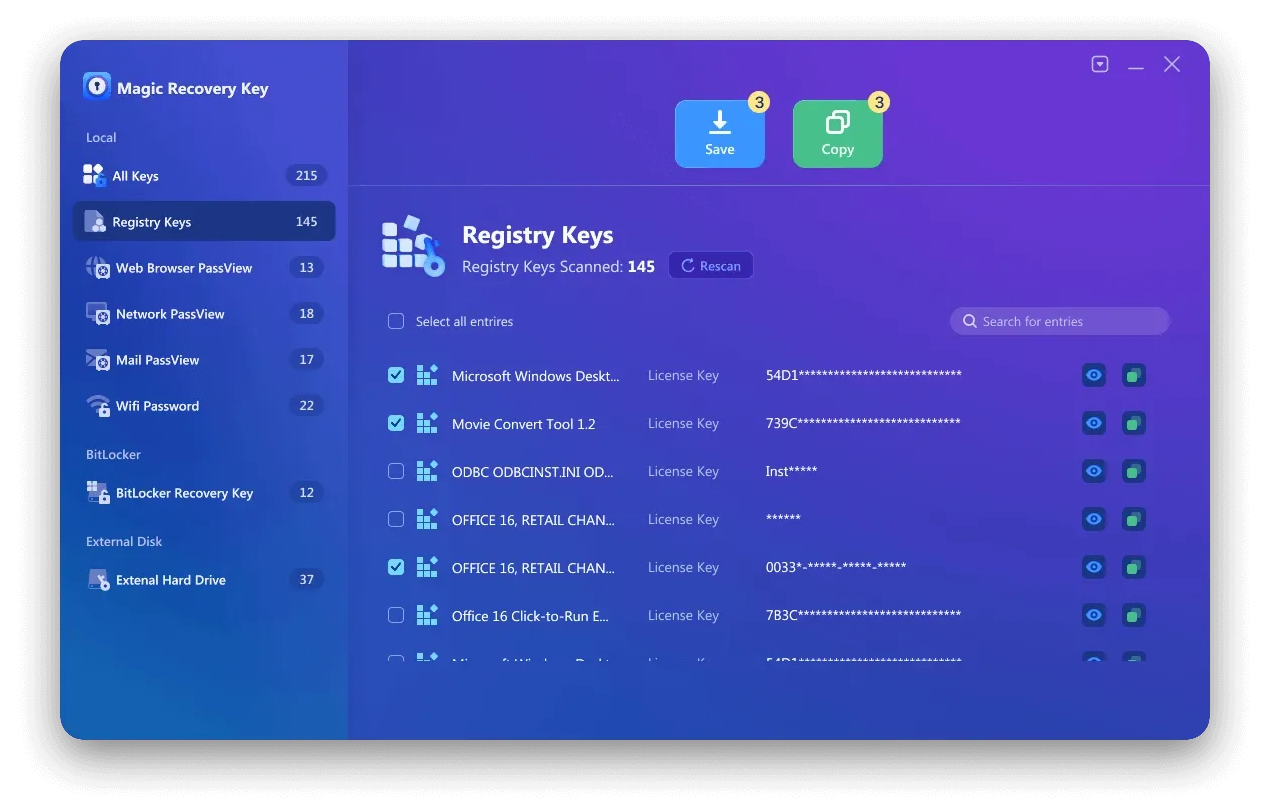
Quando si decide di aggiornare o cambiare sistema operativo, è importante conservare le chiavi di licenza del software. Uno strumento consigliato a questo scopo è Magic Recovery Key. Questo software è in grado di scansionare rapidamente il computer e recuperare le chiavi di attivazione per varie applicazioni, tra cui Microsoft Office, prodotti Adobe e altro ancora. Ecco 3 passaggi per ottenere tutte le chiavi di licenza del software:
Scaricare e installare: Iniziate scaricando e installando Magic Recovery Key sul vostro computer. Assicuratevi di scaricarlo dal sito ufficiale per garantirne l'autenticità e la sicurezza.
Supporta Windows 7/8/10/11 e Windows Server
Avviare il programma: Una volta installato, lanciare il programma. Verrà elencata la chiave di licenza del software su questo computer.

Salvare o copiare le chiavi di licenza : Una volta installato, lanciare il programma. Verrà elencata la chiave di licenza del software su questo computer.
Conclusione
La fine del supporto per Windows 10 segna una svolta importante per milioni di utenti in tutto il mondo. Sia che decidiate di passare a Windows 11, sia che decidiate di continuare a usare Windows 10 temporaneamente o di passare a un altro sistema operativo, la preparazione è essenziale. Assicuratevi che i vostri file, le vostre impostazioni e soprattutto il vostro chiavi di licenza software sono stati sottoposti a un adeguato backup per evitare inutili perdite di dati o problemi di attivazione. Uno strumento come Magic Recovery Key può semplificare notevolmente questo processo recupero di tutte le chiavi in un'unica scansione. L'adozione di queste misure ora assicura una transizione più agevole e sicura quando Il supporto di Windows 10 termina ufficialmente.
Supporta Windows 7/8/10/11 e Windows Server
Il supporto di Windows 10 finirà - FAQ
Quando finirà ufficialmente il supporto di Windows 10?
Il mio computer smetterà di funzionare dopo la fine del supporto di Windows 10?
È sicuro continuare a usare Windows 10 dopo la fine del supporto?
Cosa devo fare quando il supporto di Windows 10 termina?
Cosa succede se il mio PC non può essere aggiornato a Windows 11?
Come si conservano le chiavi di attivazione del software quando si aggiorna o si cambia sistema?
Quali sono i vantaggi dell'aggiornamento a Windows 11?

Erin Smith è riconosciuta come una delle scrittrici più professionali di Amagicsoft. Negli ultimi 10 anni ha continuamente affinato le sue capacità di scrittura e ha aiutato milioni di lettori a risolvere i loro problemi tecnologici.