
El soporte de Windows 10 llegará a su fin, ¿qué debo hacer?
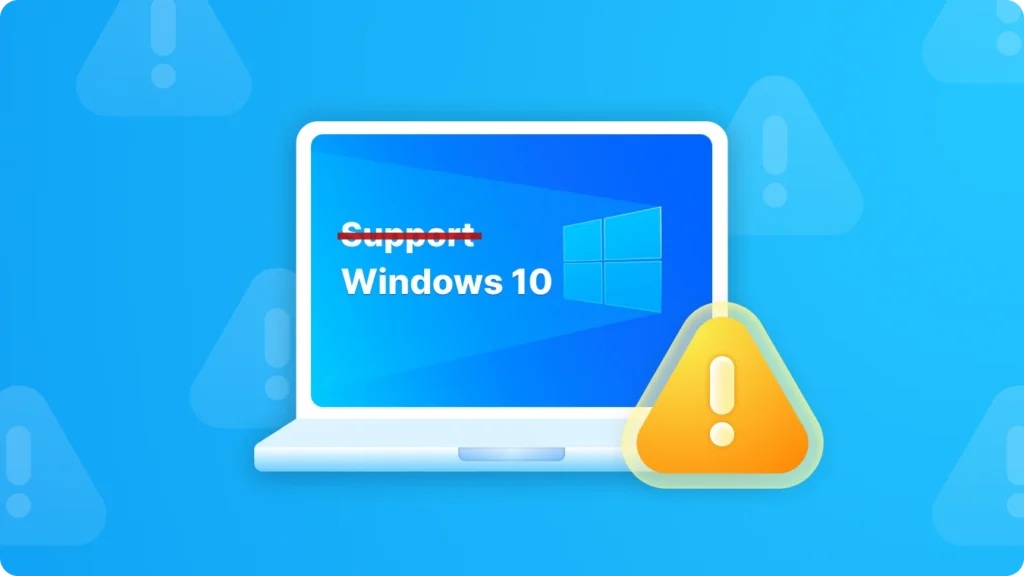
En La compatibilidad con Windows 10 llegará a su fin el 14 de octubre de 2025, muchos usuarios empiezan a preocuparse por el futuro de sus sistemas, software y datos. Sin actualizaciones ni parches de seguridad continuos, los dispositivos con Windows 10 serán gradualmente menos seguros y menos compatibles con las aplicaciones modernas. Para prepararse para esta transición, es importante no solo planificar la ruta de actualización, sino también haga una copia de seguridad de sus claves de licencia de software. Utilizando una herramienta específica como Magic Recovery Key puede ayudarle fácilmente recuperar y guardar todas sus claves de activación antes de cambiar a otro sistema o reinstalar Windows.
Compatible con Windows 7/8/10/11 y Windows Server
Índice
¿Cuándo finalizará el soporte de Windows 10?
Está previsto que el soporte para Windows 10 finalice el 14 de octubre de 2025. Después de esta fecha, Microsoft dejará de proporcionar actualizaciones de software gratuitas desde Windows Update, asistencia técnica o correcciones de seguridad para Windows 10. Tu Pc seguirá funcionando, pero te recomendamos pasarte a Windows 11. Windows 11 ofrece una experiencia moderna y eficaz diseñada para satisfacer las actuales demandas de mayor seguridad.

Impacto en los usuarios tras el fin del soporte de Windows 10
Una vez finalizado el soporte, los usuarios se enfrentarán a varios riesgos importantes. En primer lugar, sin actualizaciones de seguridad, el sistema será más vulnerable a ciberamenazas como virus, malware y hackers. Estas amenazas pueden robar información personal, dañar archivos o incluso hacerse con el control del ordenador. En segundo lugar, pueden surgir problemas de compatibilidad. A medida que avanzan los desarrolladores de software, es posible que las nuevas aplicaciones no sean totalmente compatibles con Windows 10, y el software existente puede dejar de recibir actualizaciones, lo que provoca que la experiencia del usuario no sea óptima.
Opciones para los usuarios tras el fin del soporte de Windows 10
1. Actualizar a Windows 11

- Pros: Windows 11 viene con nuevas funciones, mejor rendimiento y características de seguridad mejoradas. También garantiza la compatibilidad con el software y el hardware más recientes. Por ejemplo, tiene una interfaz de usuario rediseñada, capacidades multitarea mejoradas y compatibilidad con las últimas tecnologías, como DirectX 12 Ultimate.
- Contras: Es posible que algunos ordenadores antiguos no cumplan los requisitos del sistema para Windows 11. La actualización también puede requerir la compra de una nueva licencia si la licencia actual de Windows 10 no es elegible para una actualización gratuita. Además, puede haber una curva de aprendizaje para los usuarios acostumbrados a la interfaz de Windows 10.
2. Seguir con Windows 10
- Pros: Familiaridad. Los usuarios que se sienten cómodos con la interfaz de Windows 10 y tienen todo su software y hardware funcionando bien pueden no querer pasar por la molestia de actualizar. Además, si el ordenador no cumple los requisitos de Windows 11, esta puede ser la única opción práctica a corto plazo.
- Contras: Como ya se ha mencionado, los riesgos de seguridad aumentarán considerablemente. Ya no habrá correcciones oficiales de errores y vulnerabilidades de seguridad. La compatibilidad del software también puede convertirse en un problema importante con el tiempo.
3. Cambiar a un sistema operativo alternativo como macOS

- Pros: macOS tiene una interfaz más agradable estéticamente e interacciones más amigables, y la experiencia general es mejor en comparación con Windows.
- Contras: La curva de aprendizaje puede ser pronunciada para quienes estén acostumbrados al ecosistema Windows. Algunos programas que se utilizan habitualmente en Windows pueden no tener equivalentes directos o requerir más esfuerzo de configuración en macOS.
Tanto si decide cambiar a un Windows 11 PC o un Mac con macOS, te encontrarás con dificultades a la hora de migrar datos y software. En particular, el software adquirido representa un activo digital. Averiguar cómo salvaguardar este activo digital, obtener claves de activación de software de su PC con Windows 10 y volver a activar el software en un equipo nuevo puede ser bastante problemático. Afortunadamente, Magic Recovery Key puede ayudarle a extraer las claves de activación de todo su software.
Cómo extraer todas las claves de licencia de software una vez finalizado el soporte técnico
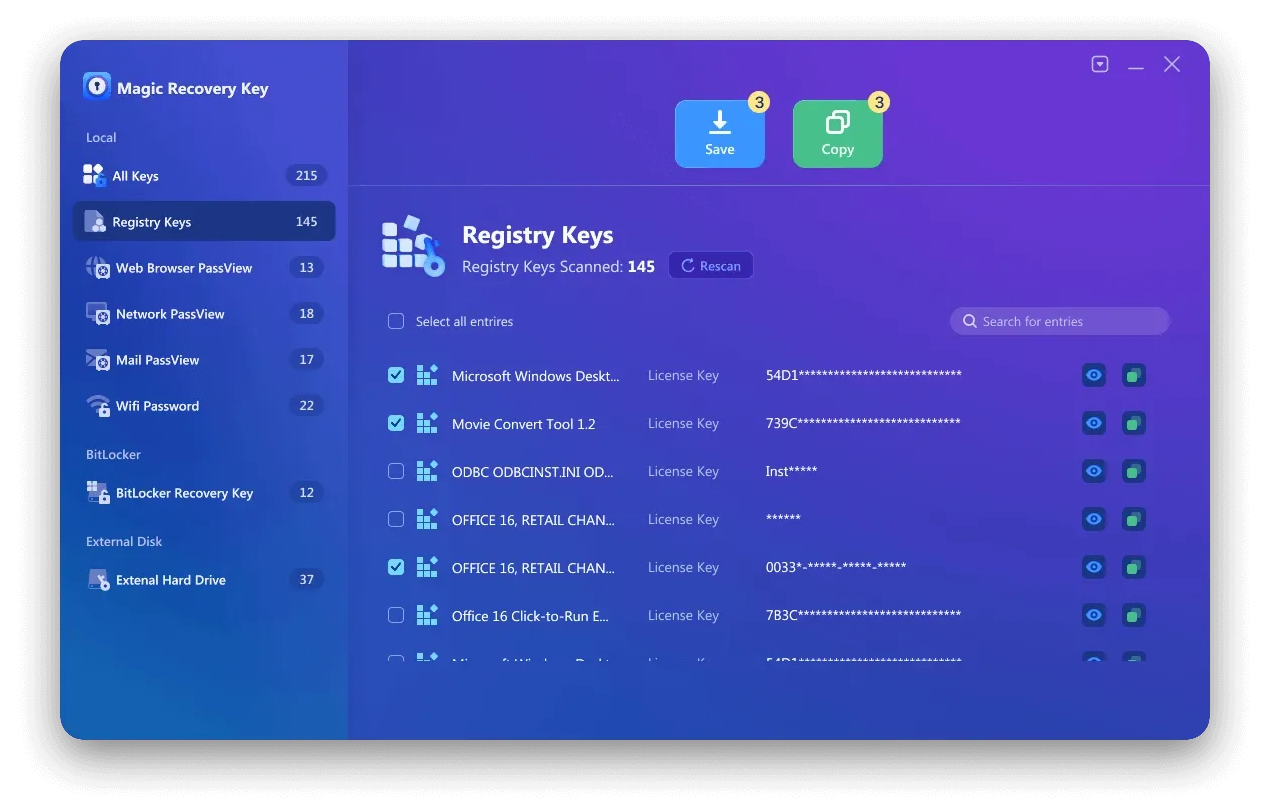
Cuando se decide actualizar o cambiar de sistema operativo, es importante conservar las claves de licencia del software. Una herramienta recomendada para este fin es Magic Recovery Key. Este software puede escanear rápidamente su ordenador y recuperar las claves de activación para diversas aplicaciones, como Microsoft Office, productos de Adobe y mucho más. Aquí tienes 3 pasos para obtener todas tus claves de licencia de software:
Descargar e instalar: Comience descargando e instalando Magic Recovery Key en su ordenador. Asegúrese de descargarlo desde el sitio web oficial para garantizar su autenticidad y seguridad.
Compatible con Windows 7/8/10/11 y Windows Server
Inicie el programa: Una vez instalado, inicie el programa. Se mostrará la clave de licencia de su software en este equipo.

Guarde o copie sus claves de licencia : Una vez instalado, inicie el programa. Se mostrará la clave de licencia de su software en este equipo.
Conclusión
El fin del soporte para Windows 10 marca un importante punto de inflexión para millones de usuarios en todo el mundo. Tanto si decide actualizar a Windows 11, seguir utilizando Windows 10 temporalmente o cambiar de sistema operativo, la preparación es esencial. Asegúrate de que tus archivos, configuraciones y, especialmente, tu claves de licencia de software se realicen copias de seguridad adecuadas para evitar pérdidas de datos innecesarias o problemas de activación. Una herramienta como Magic Recovery Key puede simplificar enormemente este proceso recuperar todas las llaves en una sola exploración. Tomar estas medidas ahora garantiza una transición más suave y segura cuando Finaliza oficialmente el soporte de Windows 10.
Compatible con Windows 7/8/10/11 y Windows Server
El soporte de Windows 10 llegará a su fin - Preguntas frecuentes
¿Cuándo finalizará oficialmente el soporte de Windows 10?
¿Dejará de funcionar mi ordenador cuando Windows 10 llegue al fin de soporte?
¿Es seguro seguir utilizando Windows 10 una vez finalizado el soporte?
¿Qué debo hacer cuando finalice el soporte de Windows 10?
¿Qué ocurre si mi PC no puede actualizarse a Windows 11?
¿Cómo conservo mis claves de activación de software cuando actualizo o cambio de sistema?
¿Cuáles son las ventajas de actualizar a Windows 11?

Erin Smith es reconocida como una de las redactoras más profesionales de Amagicsoft. Ha perfeccionado continuamente sus habilidades de escritura durante los últimos 10 años y ha ayudado a millones de lectores a resolver sus problemas tecnológicos.